
One More Day · Guide
Sleep
Set duration and selected mornings; supported health sources provide sleep evidence.
Open the complete visual walkthrough ↗
Getting started
- Choose target hours, objective, mornings and bedtime reminder.
- Optionally configure live tracking and wake alarm tools.
- Review Last Sleep and History; edit or delete from Setup.
Every feature, step by step
Create or edit Sleep
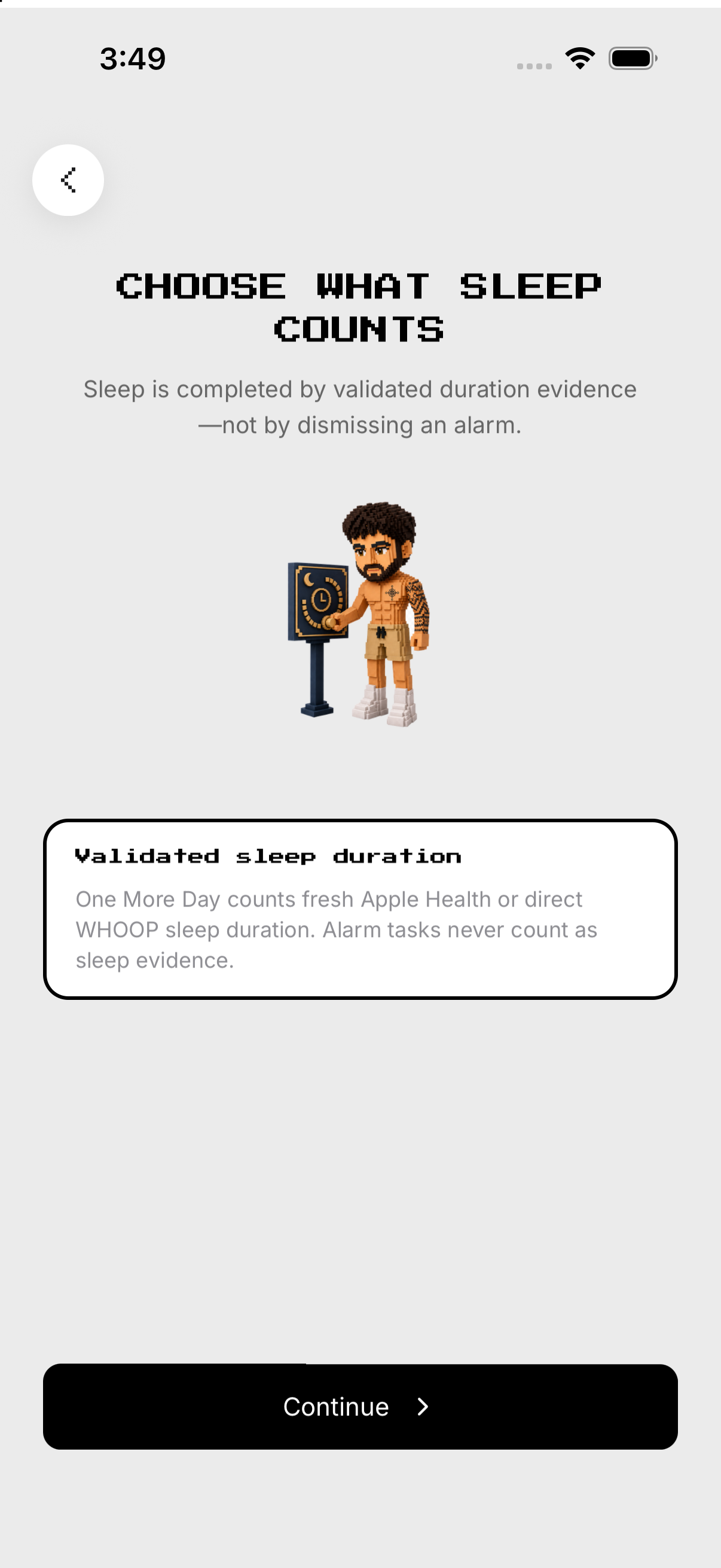
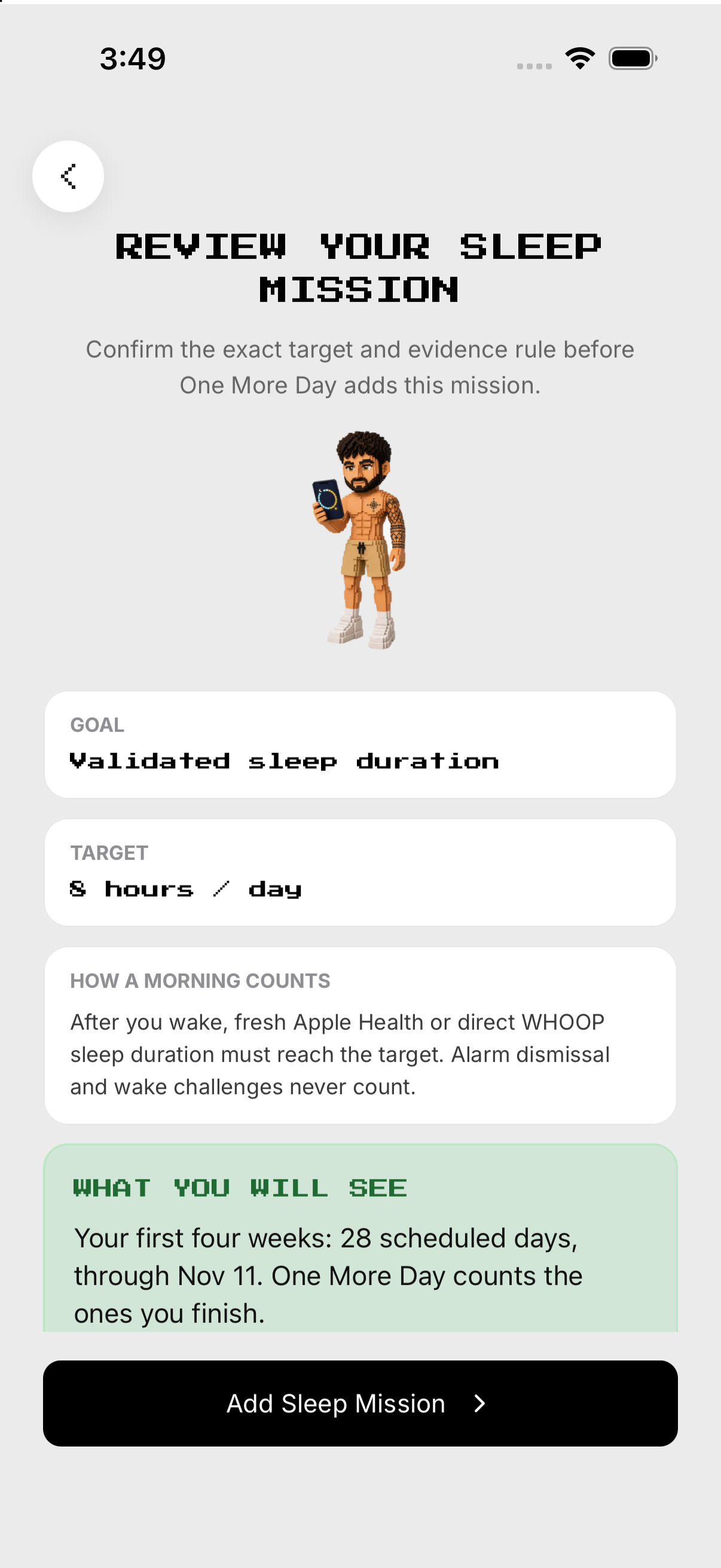
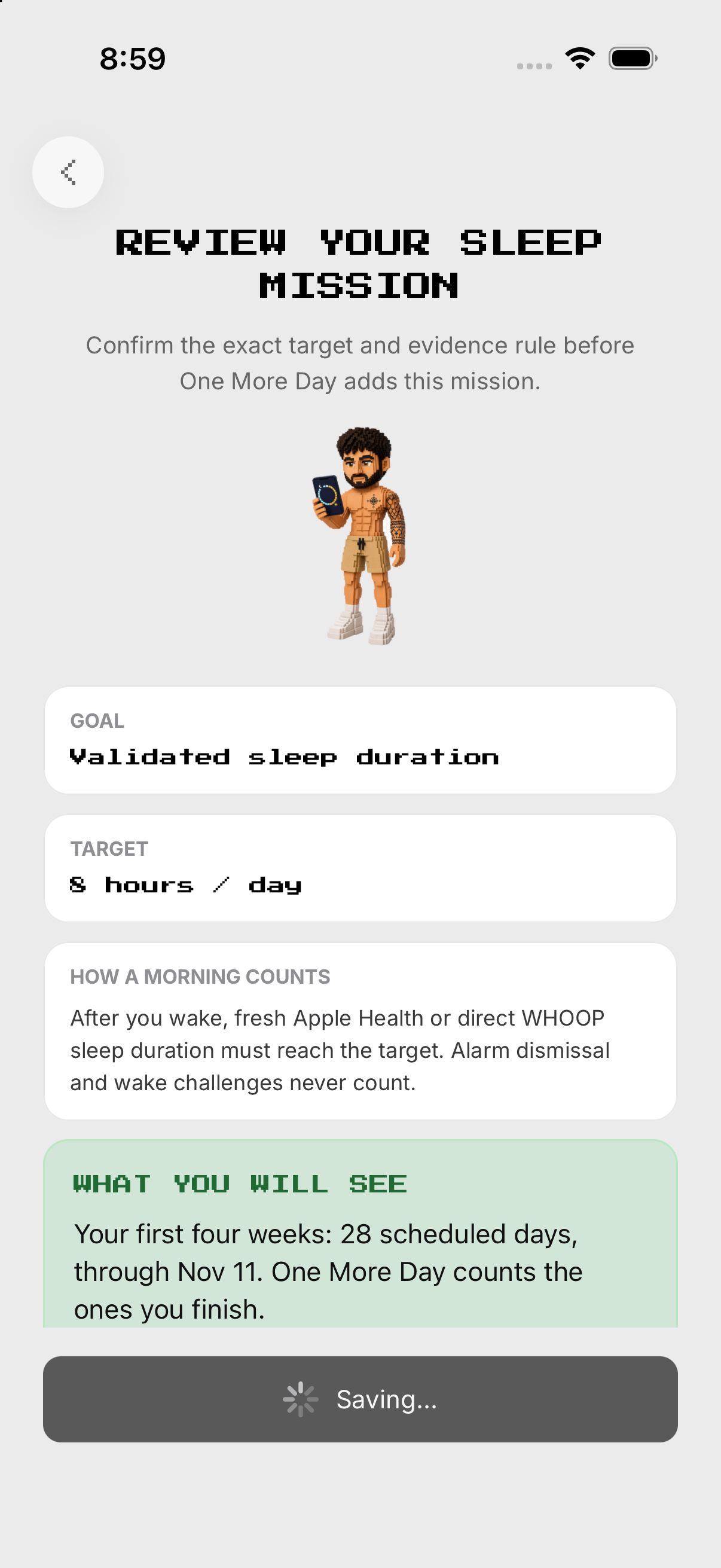
Set the duration target. Save at least one scheduled morning.
- Hours / objective. From Missions, open Sleep and tap the gear at the top right to open Setup. Set the duration target.
- Mornings. Selected mornings count the sleep ending that day; others rest.
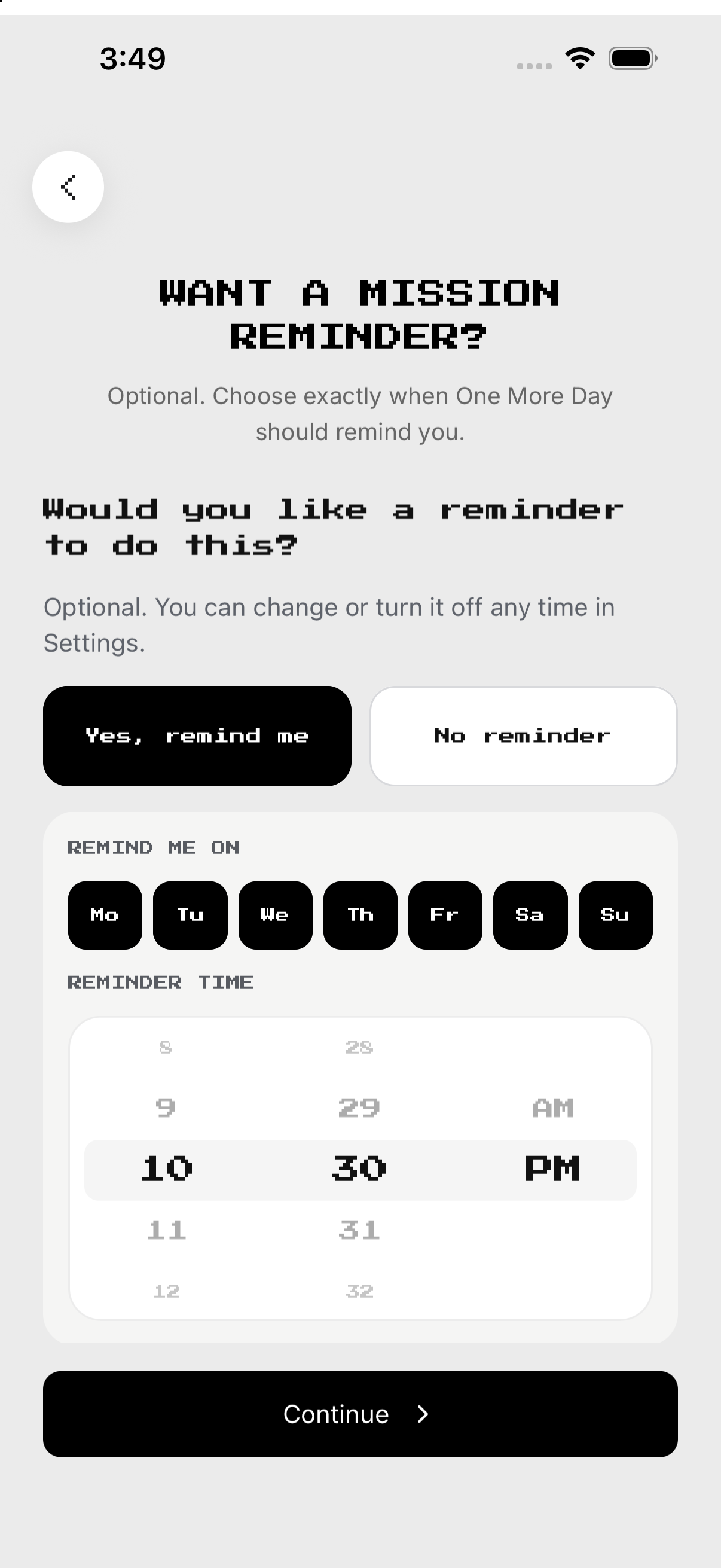
- Reminder. Choose bedtime reminder.
- Review. Save at least one scheduled morning.
Sleep and wake tools
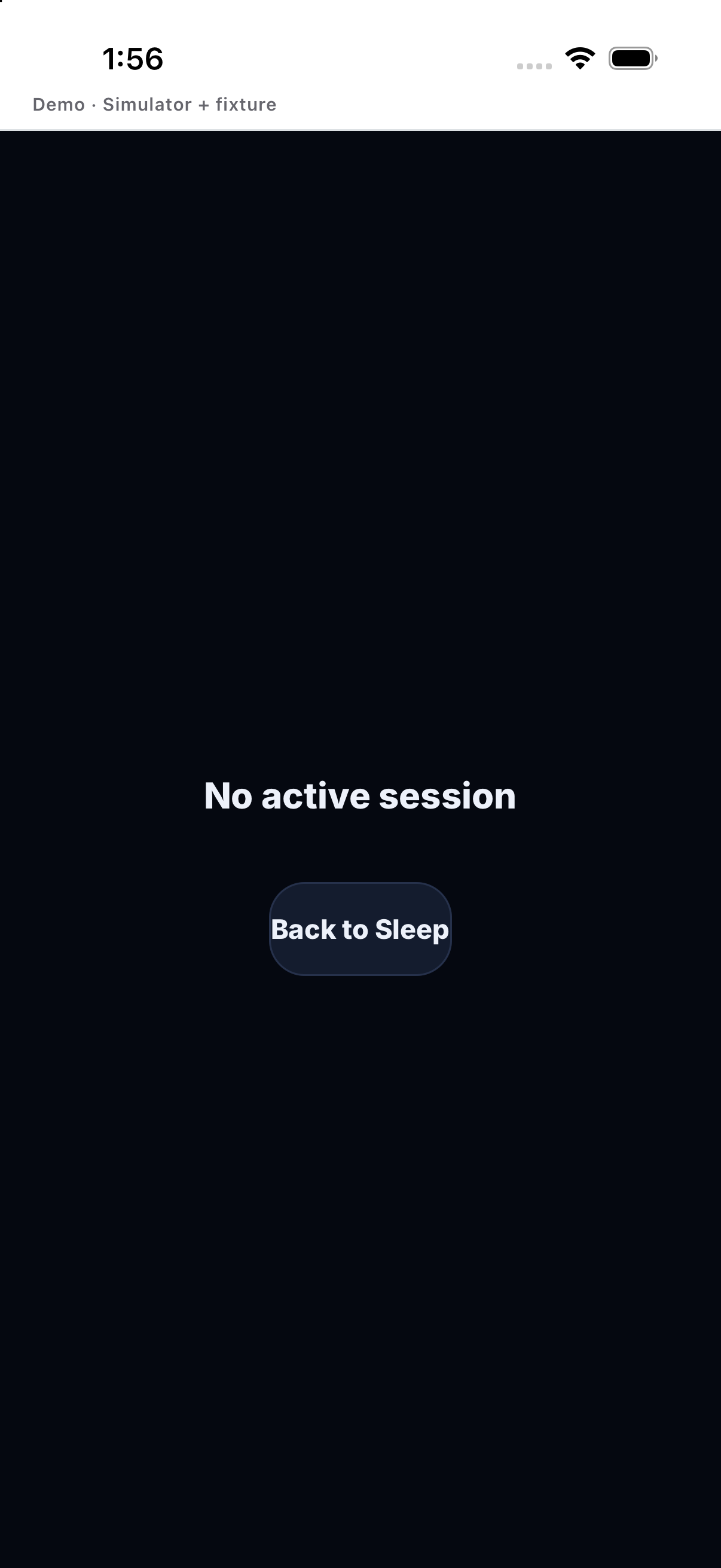
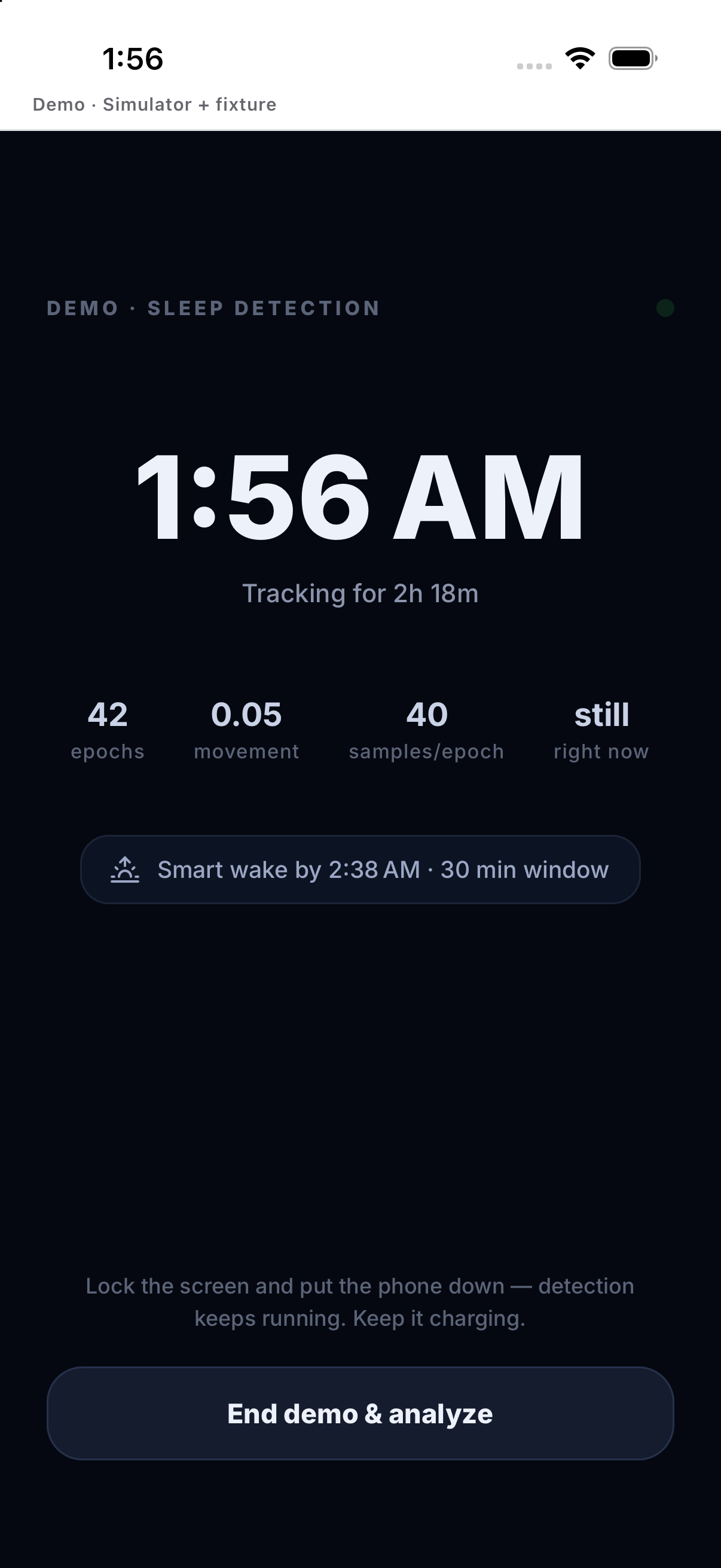
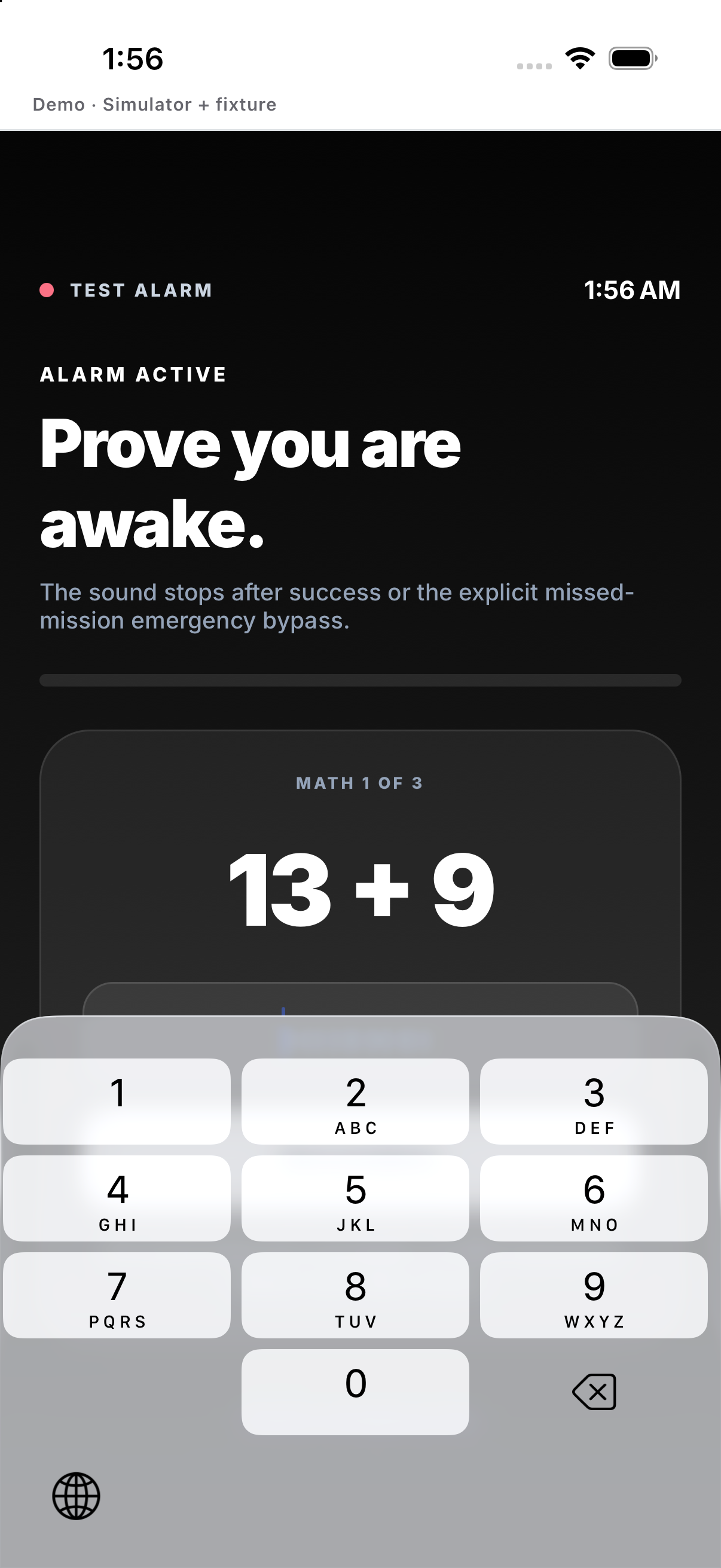
Use the live sleep tool when available. Complete the wake challenge; it does not create duration credit.
- Start tracking. Use the live sleep tool when available.
- Keep conditions. Follow the charging/screen guidance shown in the app.
- Stop. Finish on waking and inspect the summary.
- Alarm. Complete the wake challenge; it does not create duration credit.
Last Sleep and History
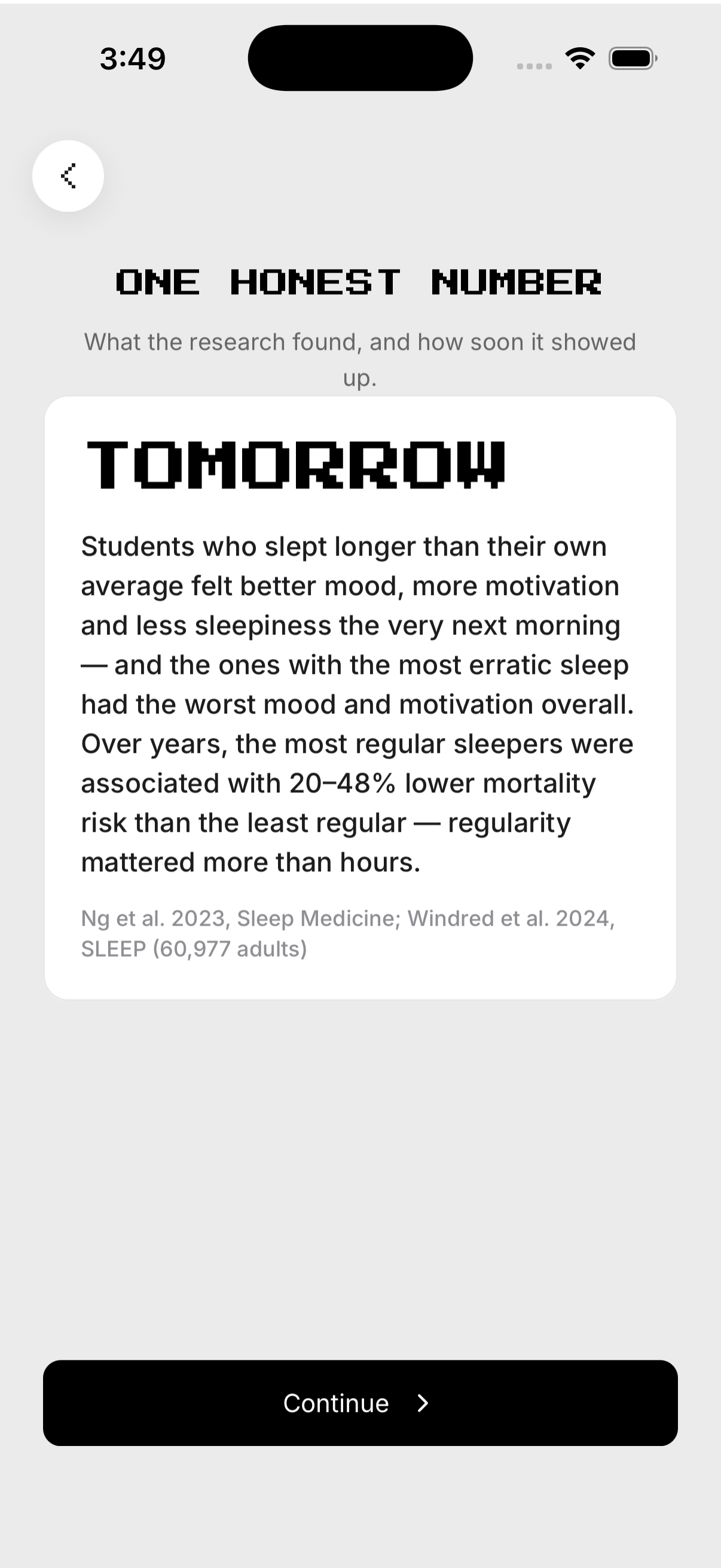
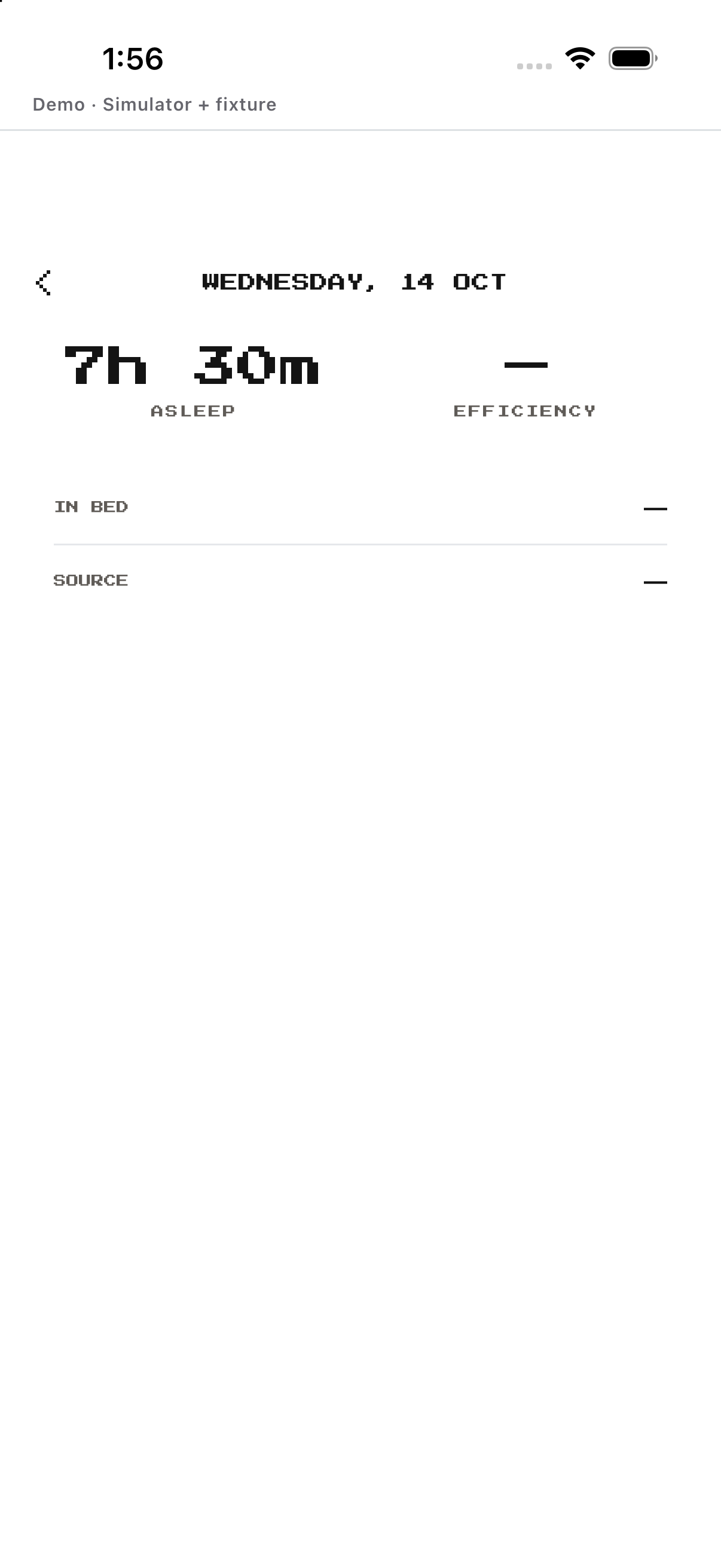
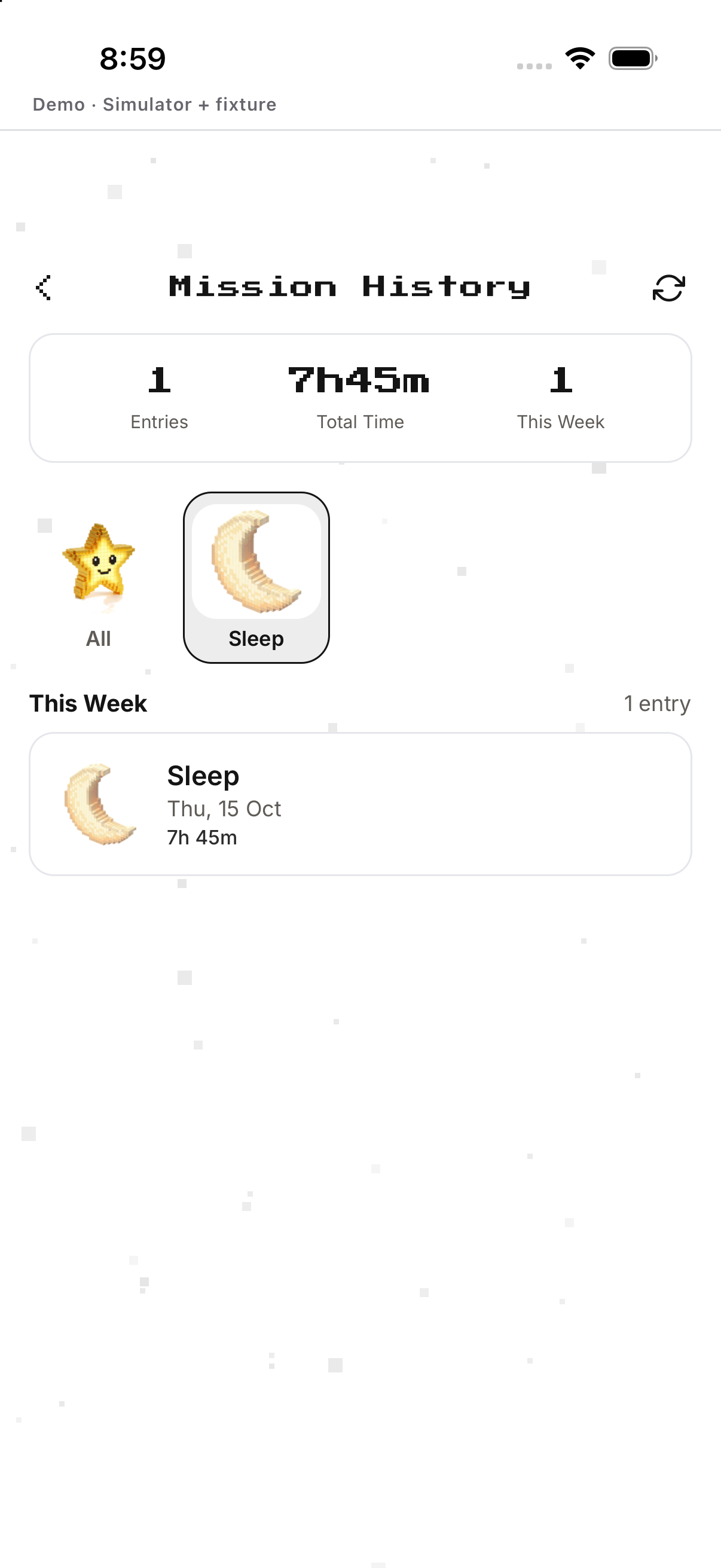
Review duration, source and stages when present. The screen does not invent or manually alter duration.
- Last Sleep. Review duration, source and stages when present.
- History. Inspect prior nights.
- Source. Confirm Apple Health or WHOOP evidence.
- No manual edit. The screen does not invent or manually alter duration.
Edit or delete
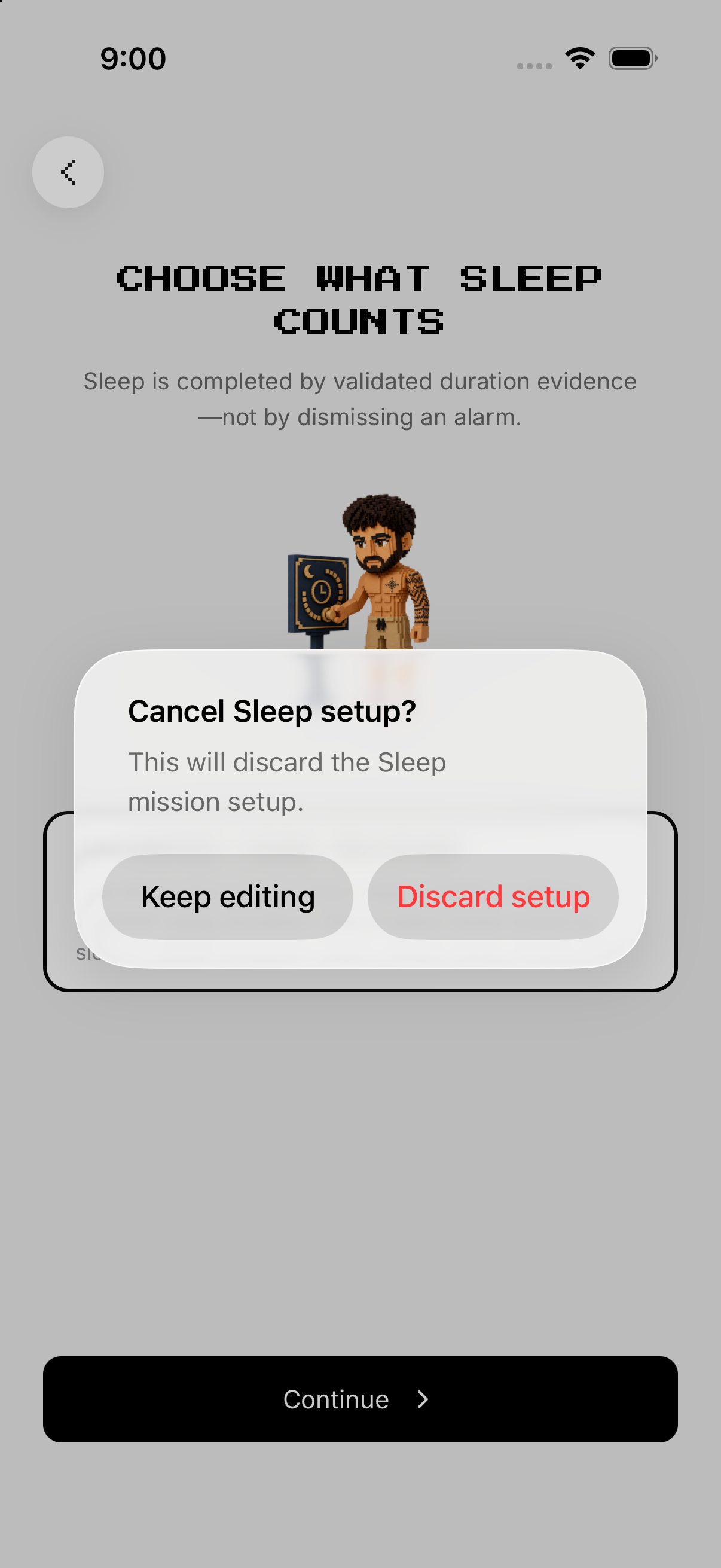
Change hours, mornings, reminder or alarm. Cancel if you meant only to edit.
- Open Setup. Change hours, mornings, reminder or alarm.
- Save. Resolve validation if no morning is selected.
- Delete mission. Tap Delete mission and confirm.
- Cancel. Cancel if you meant only to edit.
Example
Target eight hours on weekday mornings.
Keep in mind
Alarm success resolves the wake tool only; it never awards sleep-duration evidence.