
One More Day · Guide
Profile and social controls
Profile is the social home for identity, connections, messages, sharing and map presence.
Open the complete visual walkthrough ↗
Getting started
- Edit display name, username and bio.
- Manage followers and following.
- Open inbox and share actions.
- Set discoverability and map presence separately.
Every feature, step by step
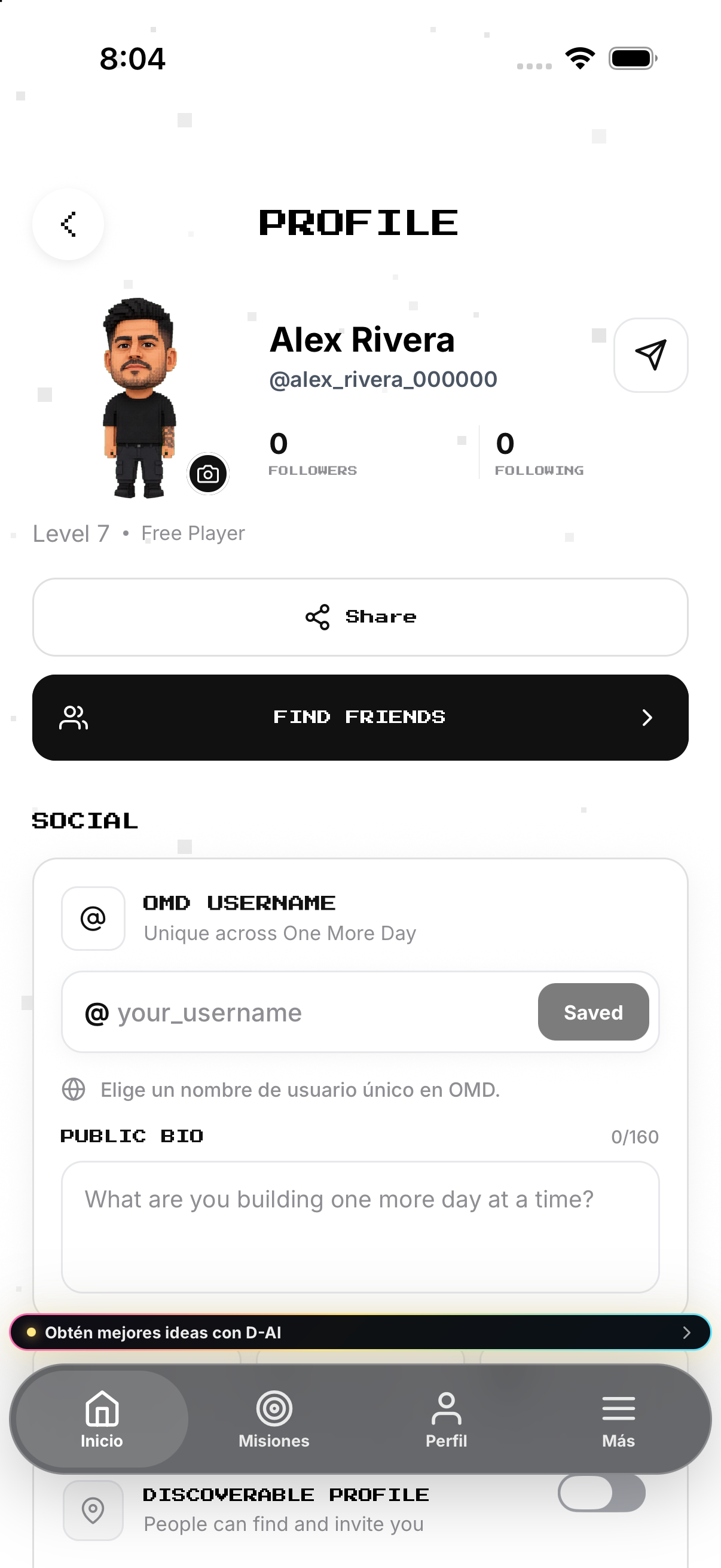
Edit identity
Edit each identity field from its own control on Profile.
- Tap your displayed name. Turns the name into an inline text field.
- Edit the name and tap the checkmark. Saves the display name; the X cancels that edit.
- Edit OMD Username. Enter an available lowercase username and tap Save.
- Edit Public Bio. Enter up to 160 characters; leaving the field saves the social details.
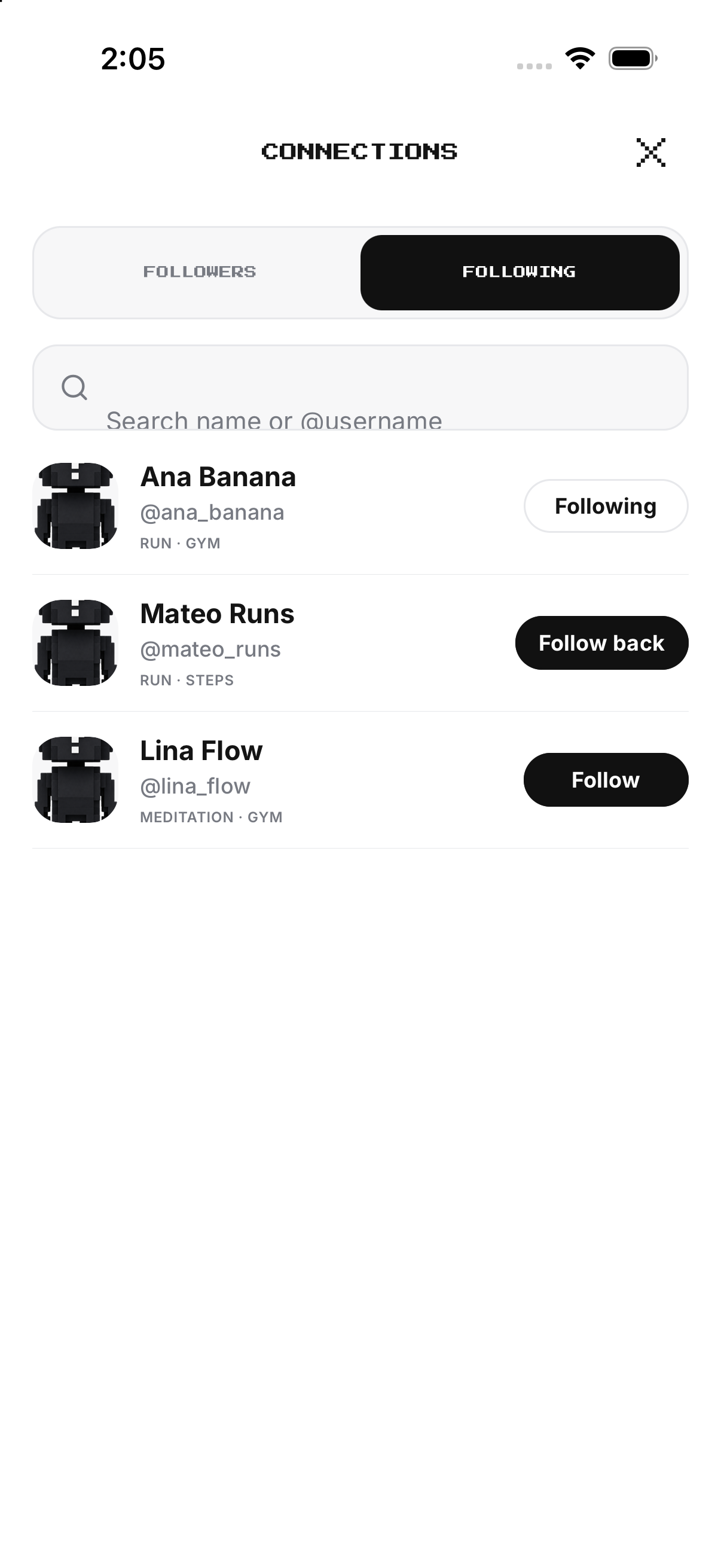
Connections
Open Followers or Following; follow, follow back or unfollow.
- Open Profile and tap Connections. Opens follower and following controls.
- Choose Followers or Following. Changes the list being viewed.
- Tap a person. Opens their permitted public profile.
- Tap Follow or Unfollow. Changes that connection after the control completes.
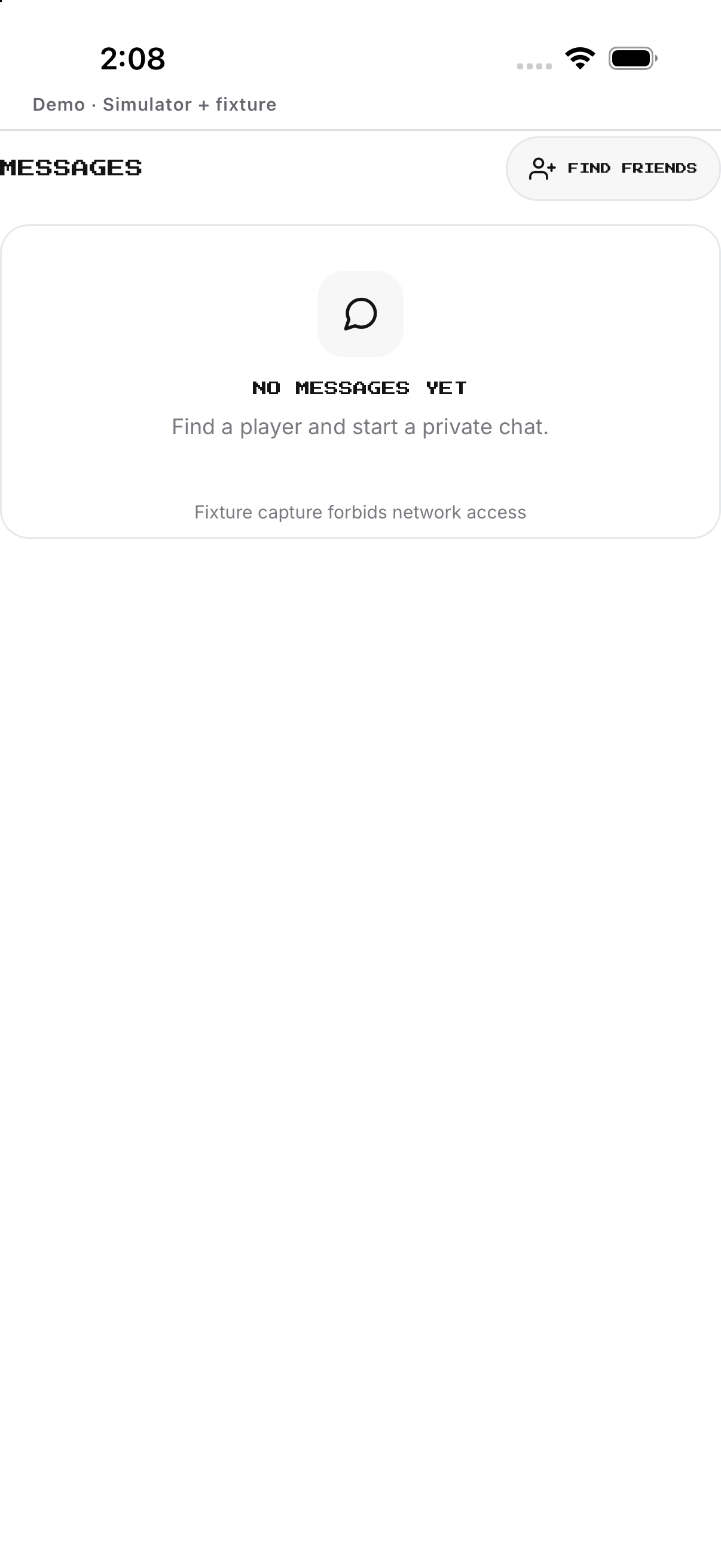
Messages and sharing
Open Inbox; use Share for Links or Media and review the system sheet.
- Open Profile or a permitted public profile. Shows available social actions.
- Tap Message. Opens the conversation when messaging is available.
- Write and send a message. Adds it to the conversation.
- Use Share profile. Opens the device share sheet for the profile link.
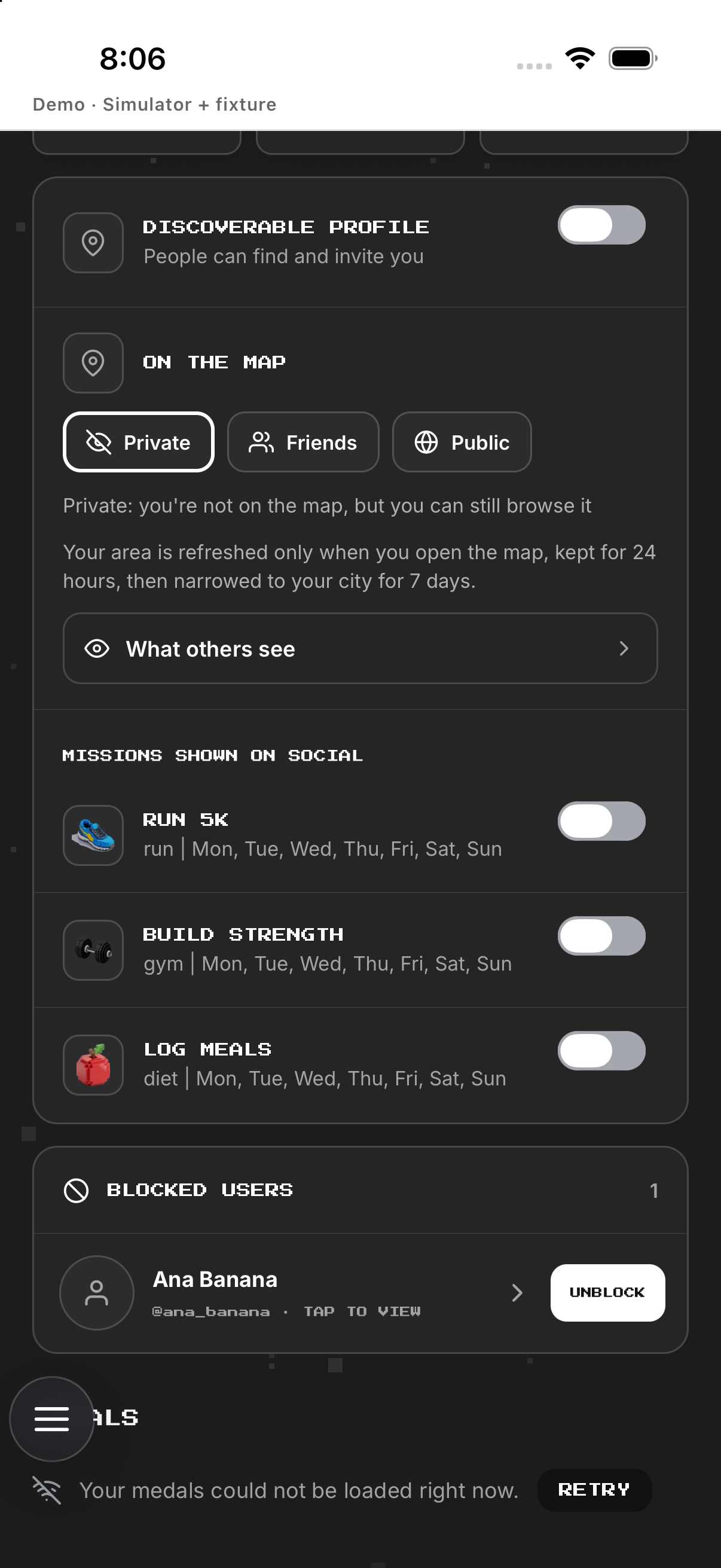
Map presence
Set findability, Ghost/Friends/Everyone audience and per-mission visibility.
- Open Profile social settings. Shows discoverability and map controls.
- Toggle profile discoverability. Changes whether permitted people can find the profile.
- Choose who can see map presence. Applies the selected map audience.
- Review each mission visibility toggle. Controls whether that mission can appear on the social map.
- Return to Map. Checks the resulting public presence from the available state.
Example
Example: choose a username, then share the public profile.
Keep in mind
Public profile and map presence are separate choices.