
One More Day · Guide
Free account navigation
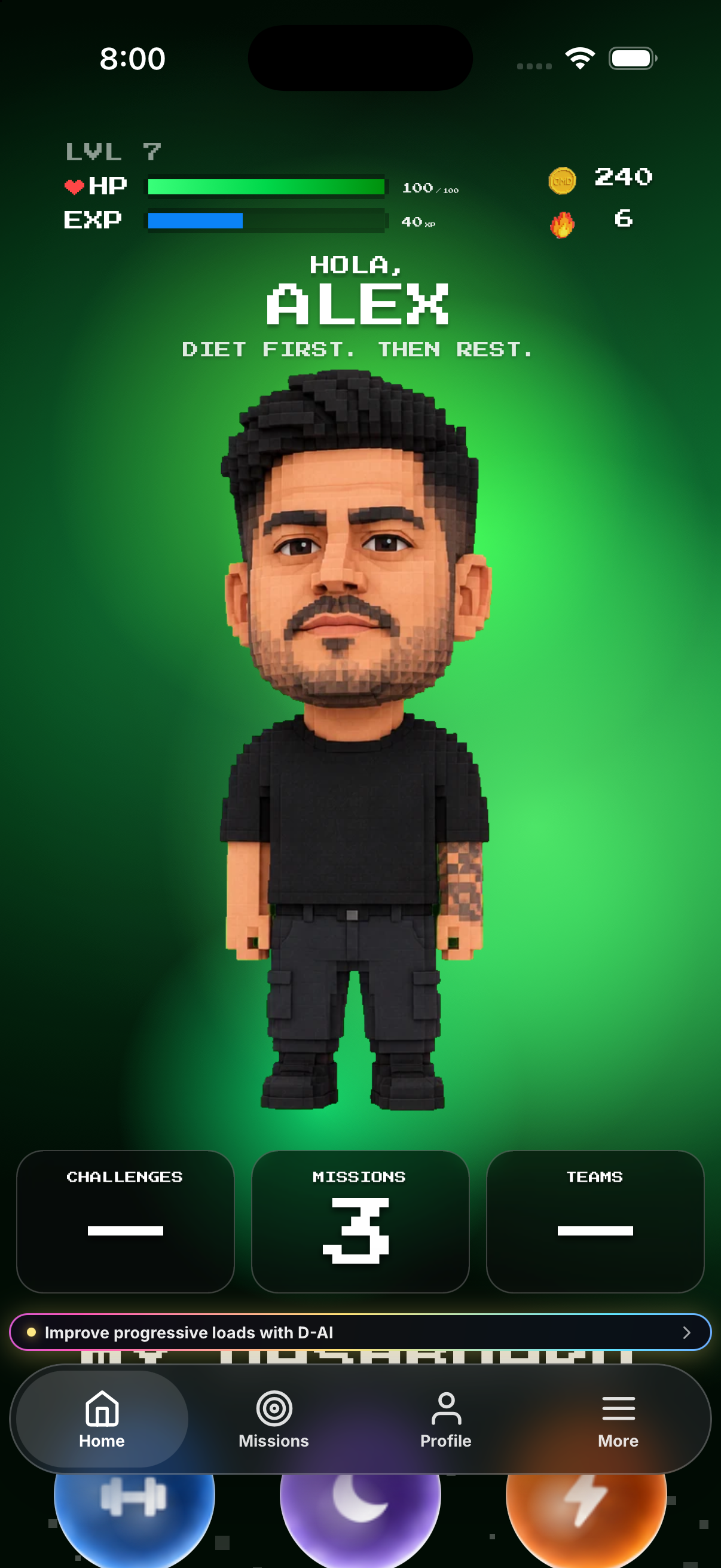
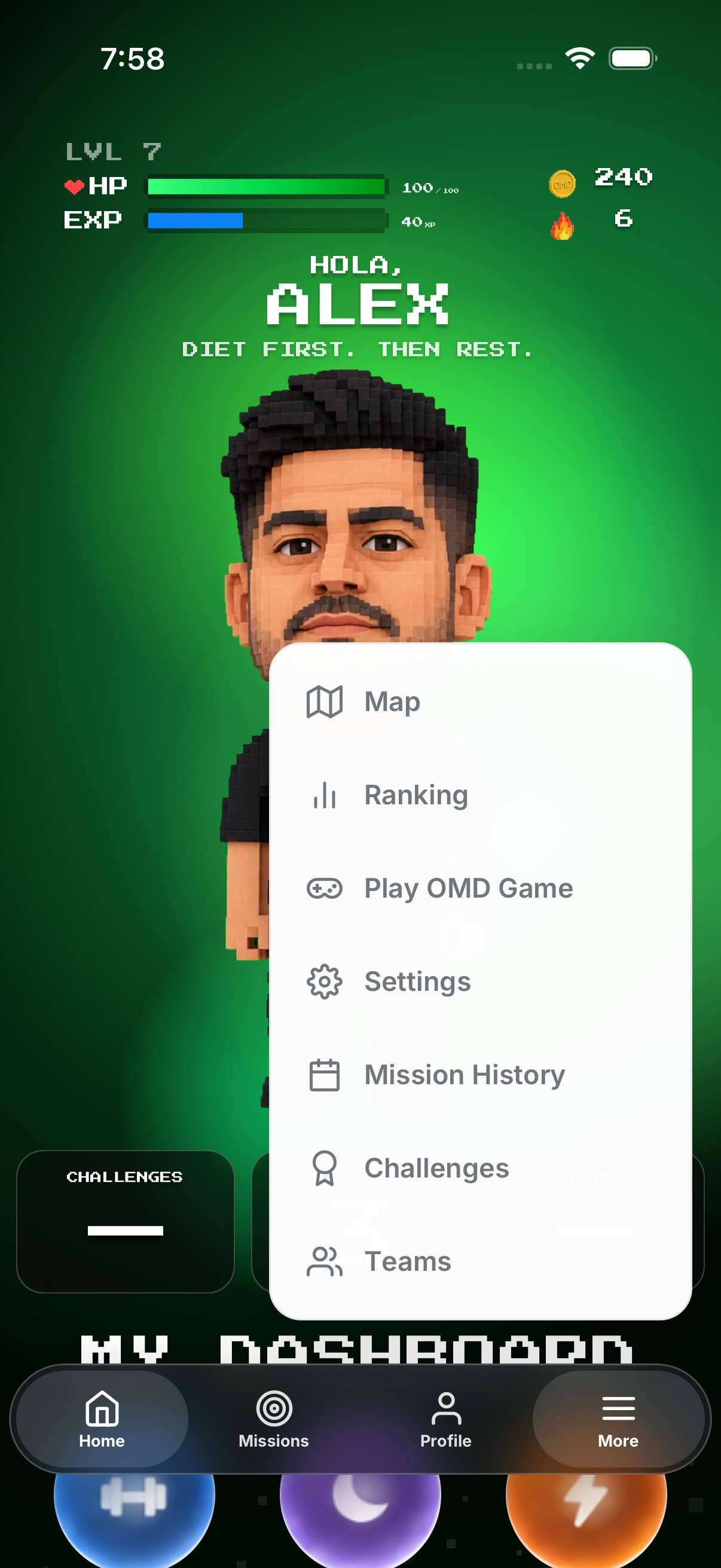
A free account uses Home, Missions, Profile and More in the dock. More opens Map, Ranking, Play OMD Game, Settings, Mission History, Challenges and Teams.
Open the complete visual walkthrough ↗
Getting started
- Use Home for the avatar, HP, coins and dashboard.
- Use Missions for commitments and logs.
- Use Profile for social identity.
- Use More for every secondary area.
Every feature, step by step
Main dock
Tap Home, Missions, Profile or More.
- Tap Home. Opens the avatar dashboard with HP, XP, streak and coins.
- Tap Missions. Opens mission cards and their current status.
- Tap Profile. Opens your social profile.
- Tap More. Opens Map, Ranking, Play OMD Game, Settings, Mission History, Challenges and Teams.
More menu
Tap More, then choose a destination.
- Tap More. Opens the secondary-destination menu.
- Tap Map, Ranking or Challenges. Opens that social or competition destination.
- Tap Play OMD Game, Mission History or Teams. Opens the game, completed-mission history or team area.
- Tap Settings. Opens account, language, integrations and membership controls.
World and competition
Choose Map, Ranking, Challenges or Teams.
- Open More. Shows the extended destinations.
- Tap Map. Opens permitted nearby-profile discovery.
- Tap Ranking. Opens Global, Nearby, category and challenge ranking controls.
- Tap Challenges. Opens invitations and your challenges.
- Tap Teams. Opens team membership and team challenges.
Settings and game
Choose Settings or Play OMD Game; use Close to return from the player.
- Open More. Shows account destinations.
- Tap Settings. Opens appearance, language, reminders, integrations, membership and account controls.
- Return to More and tap OMD Game. Opens the standalone game hub inside the app.
- Choose a game mode. Starts that game experience; its game state stays separate from the app wallet.

Example
Example: open More, choose Ranking, then return Home.
Keep in mind
Coach Pro can add a separate coach dock.