
One More Day · Guide
Integrations
Settings can connect Apple Health, Strava and WHOOP where supported. OMD Link/external AI uses separate consent.
Open the complete visual walkthrough ↗
Getting started
- Open Settings > Integrations.
- Complete the provider flow.
- Return and confirm status.
- Disconnect through its confirmation.
Every feature, step by step
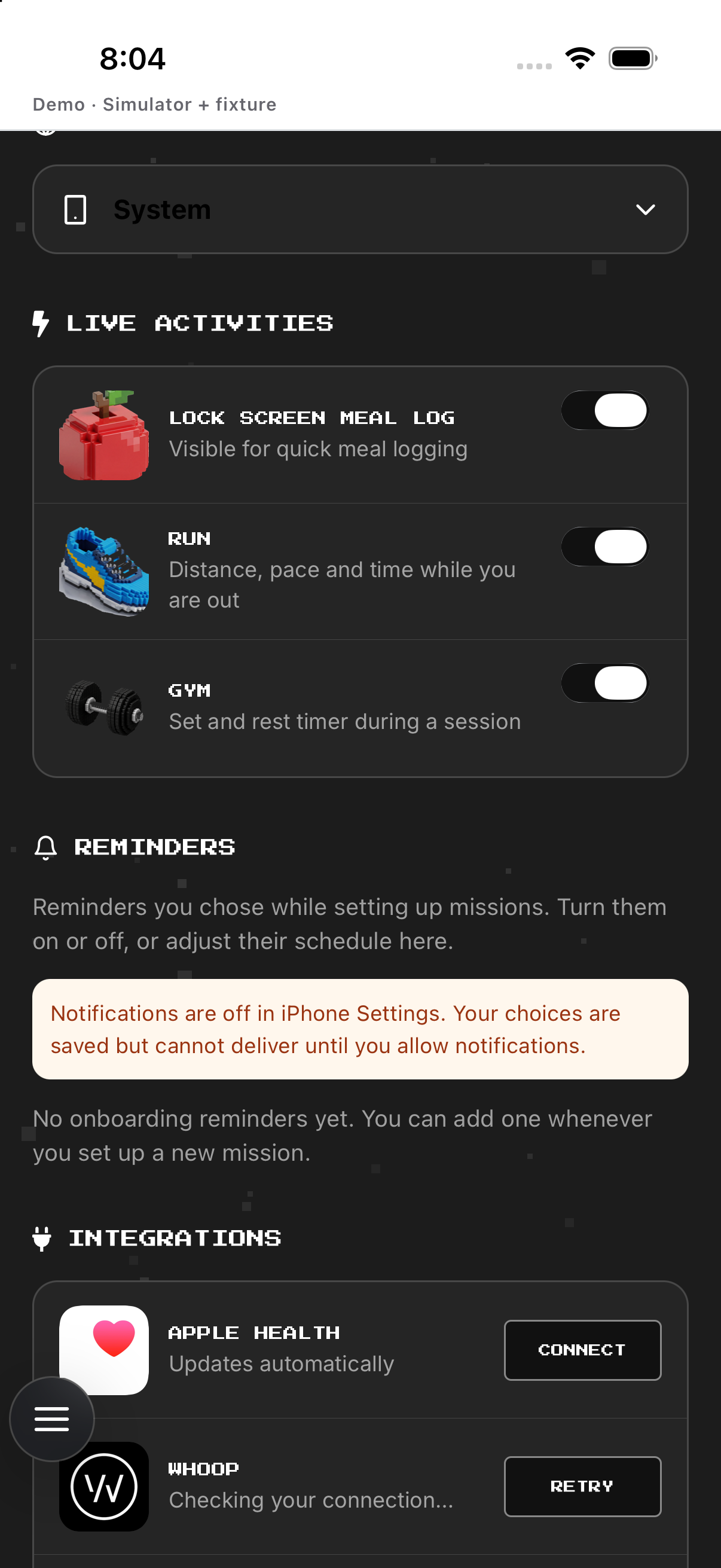
Apple Health
Enable access; change permissions in iPhone Settings or Health, then return.
- Open Settings and scroll to Integrations. Shows the Apple Health row and its current status.
- Tap Apple Health. Starts the device permission flow or opens its connection controls.
- Choose the requested health permissions in iOS. Controls which supported data the app may read or write.
- Return to OMD. Refreshes the row; the displayed status is the connection evidence.
Strava
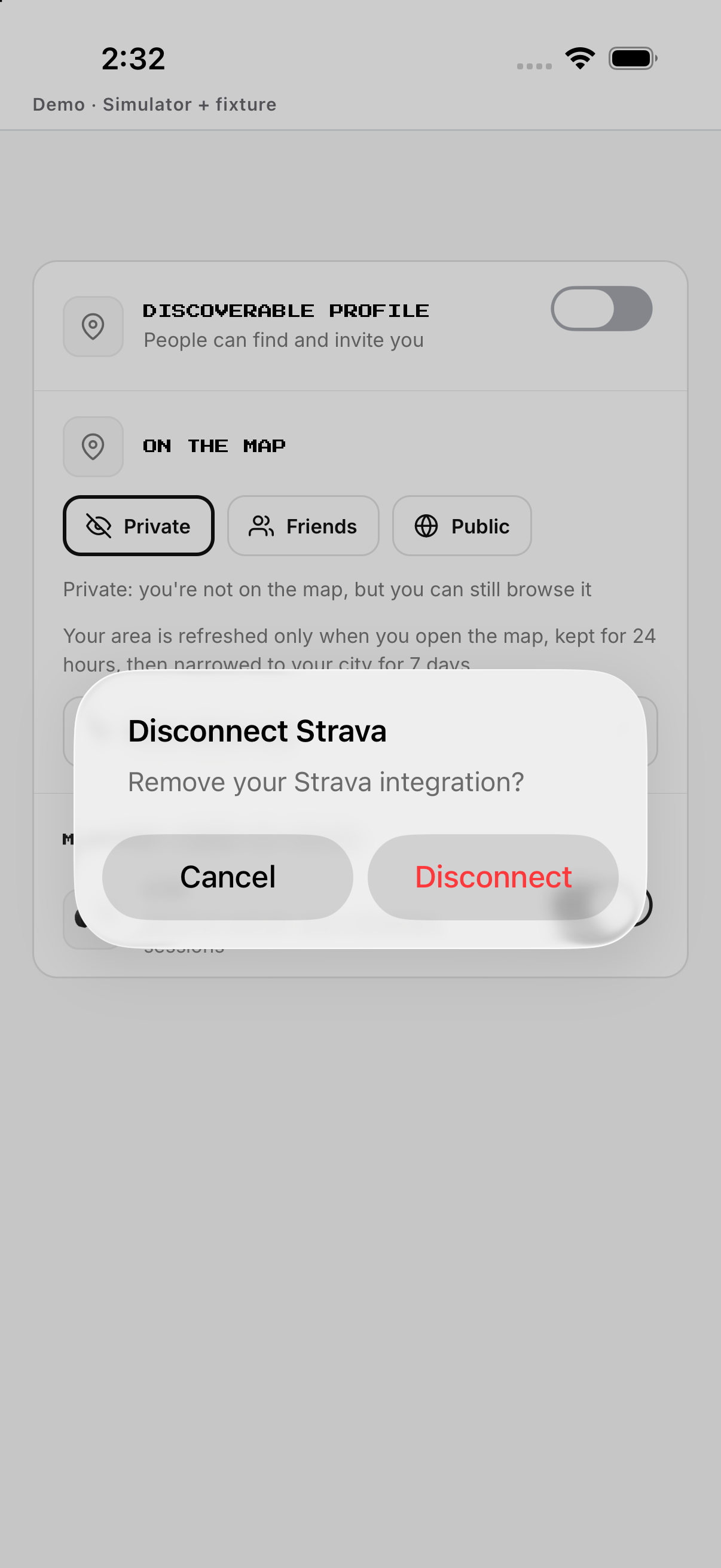
Connect through provider; disconnect only after confirmation.
- Open Settings and tap Strava. Starts Strava authorization when disconnected.
- Complete the provider authorization. Returns to OMD after the provider decision.
- Check the Strava status row. Confirms whether the connection is active.
- Tap a connected Strava row and confirm Disconnect. Removes that provider connection only.
WHOOP
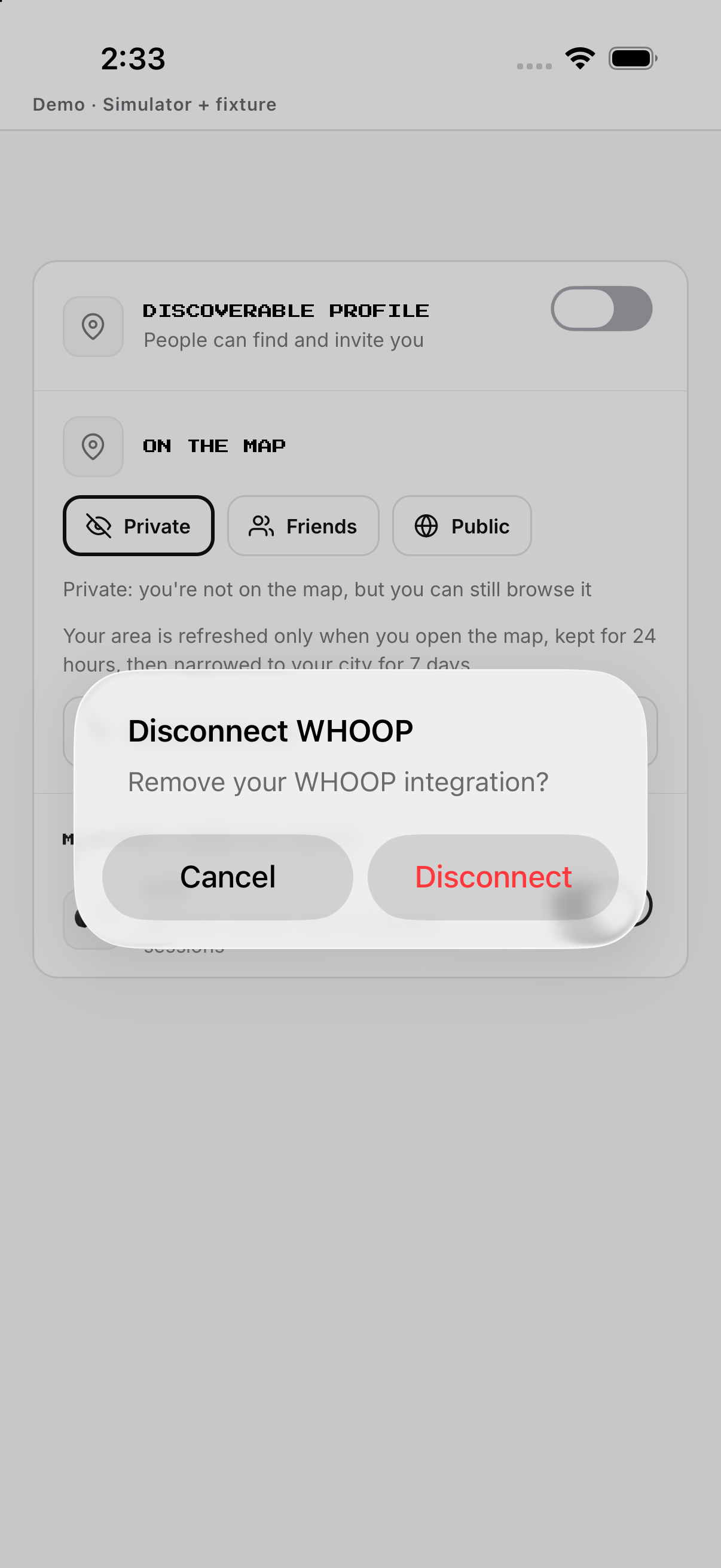
Authorize WHOOP, return, confirm status; removal has its own confirmation.
- Open Settings and tap WHOOP. Starts WHOOP authorization when disconnected.
- Complete the provider authorization. Returns to OMD after the provider decision.
- Check the WHOOP status row. Confirms whether the connection is active.
- Tap a connected WHOOP row and confirm Disconnect. Removes that provider connection only.
OMD Link
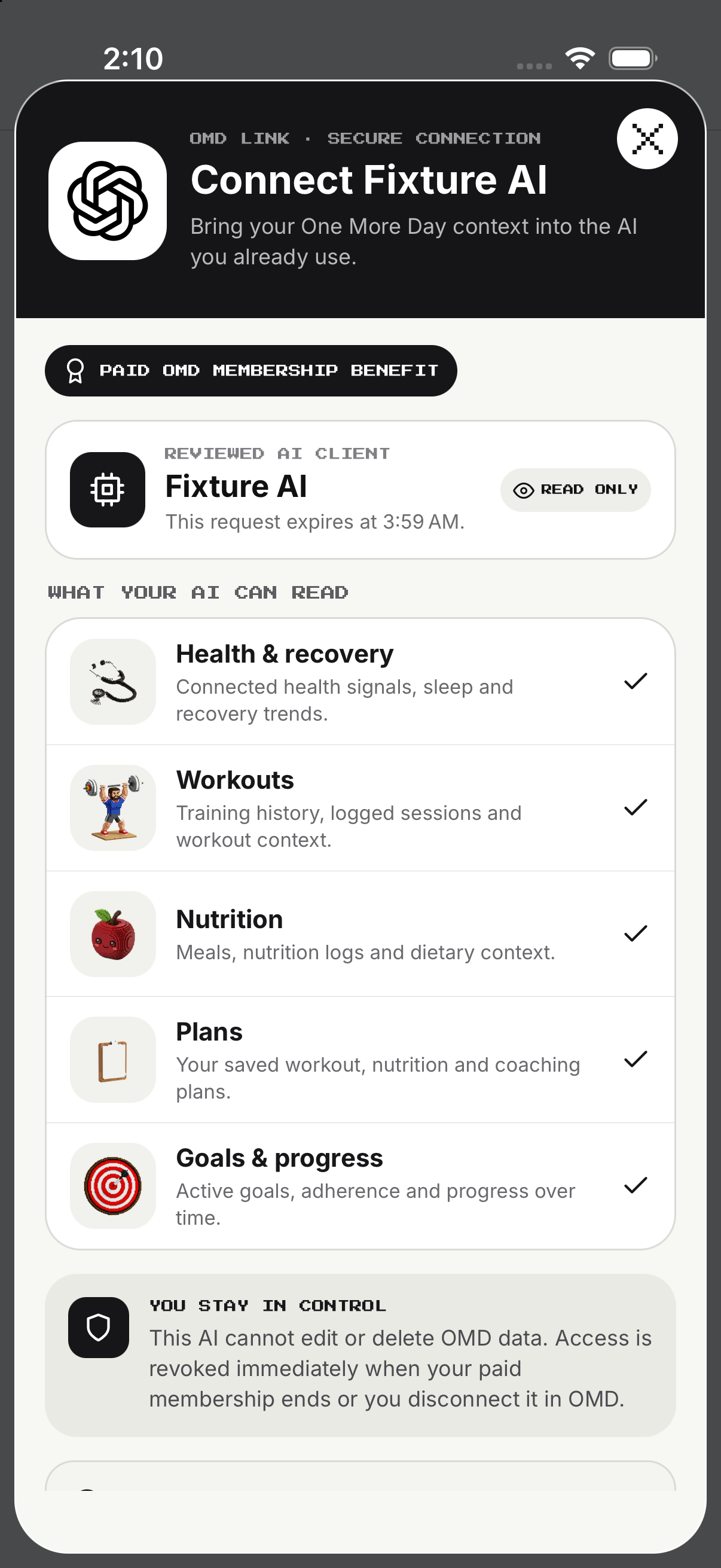
Review external AI links and requested access; approve, let expire or revoke explicitly.
- Open the OMD Link destination. Loads its current connection or availability state.
- Tap Connect when available. Starts the account-link flow.
- Complete the shown authorization. Returns with a connected, unavailable or error state.
- Use Retry after an error. Requests the state again without assuming a connection succeeded.
Example
Example: connect Strava, return and confirm its tile.
Keep in mind
Availability depends on device, provider and account.