
One More Day · Guide
Others / Create Your Own
Create a personal tracker when no official mission matches the commitment.
Open the complete visual walkthrough ↗
Getting started
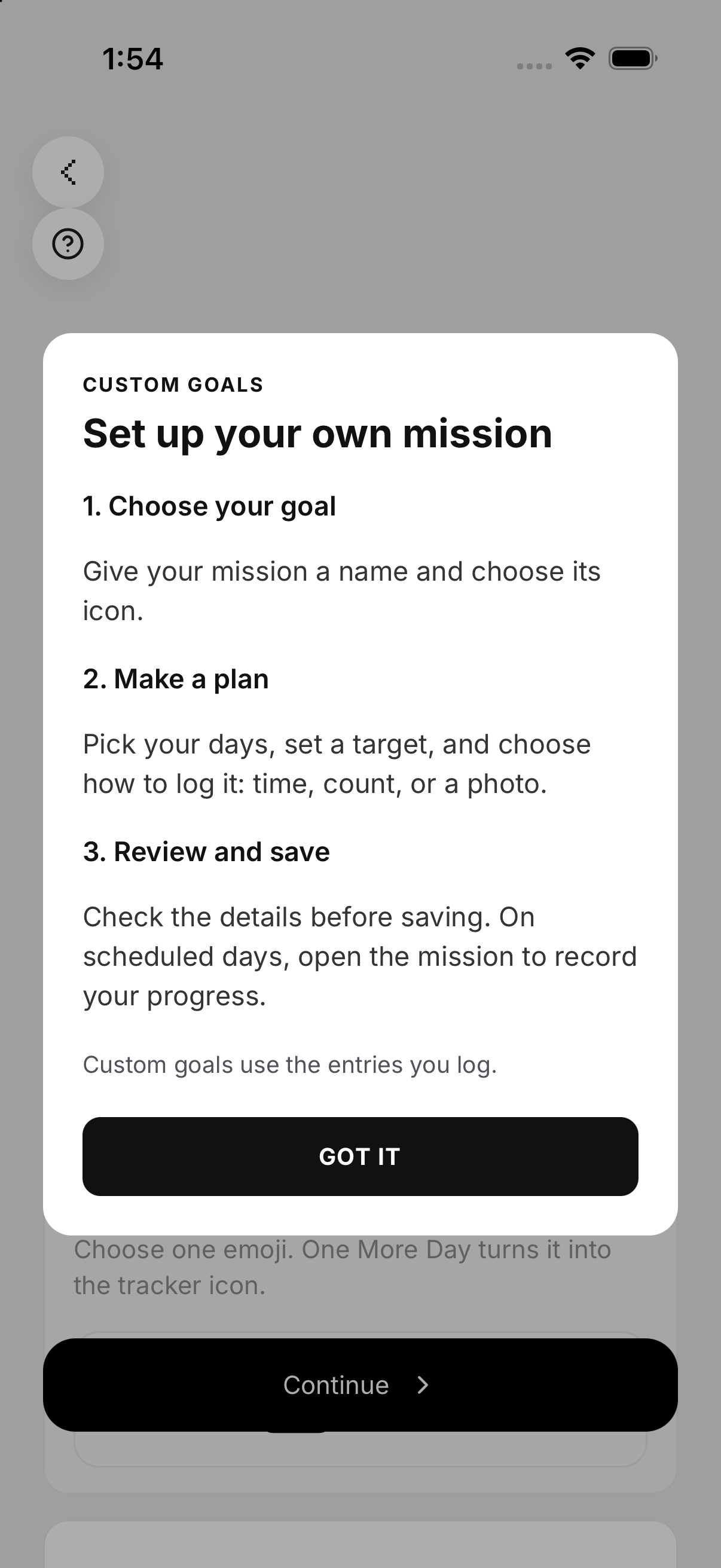
- Choose Create Your Own under Others.
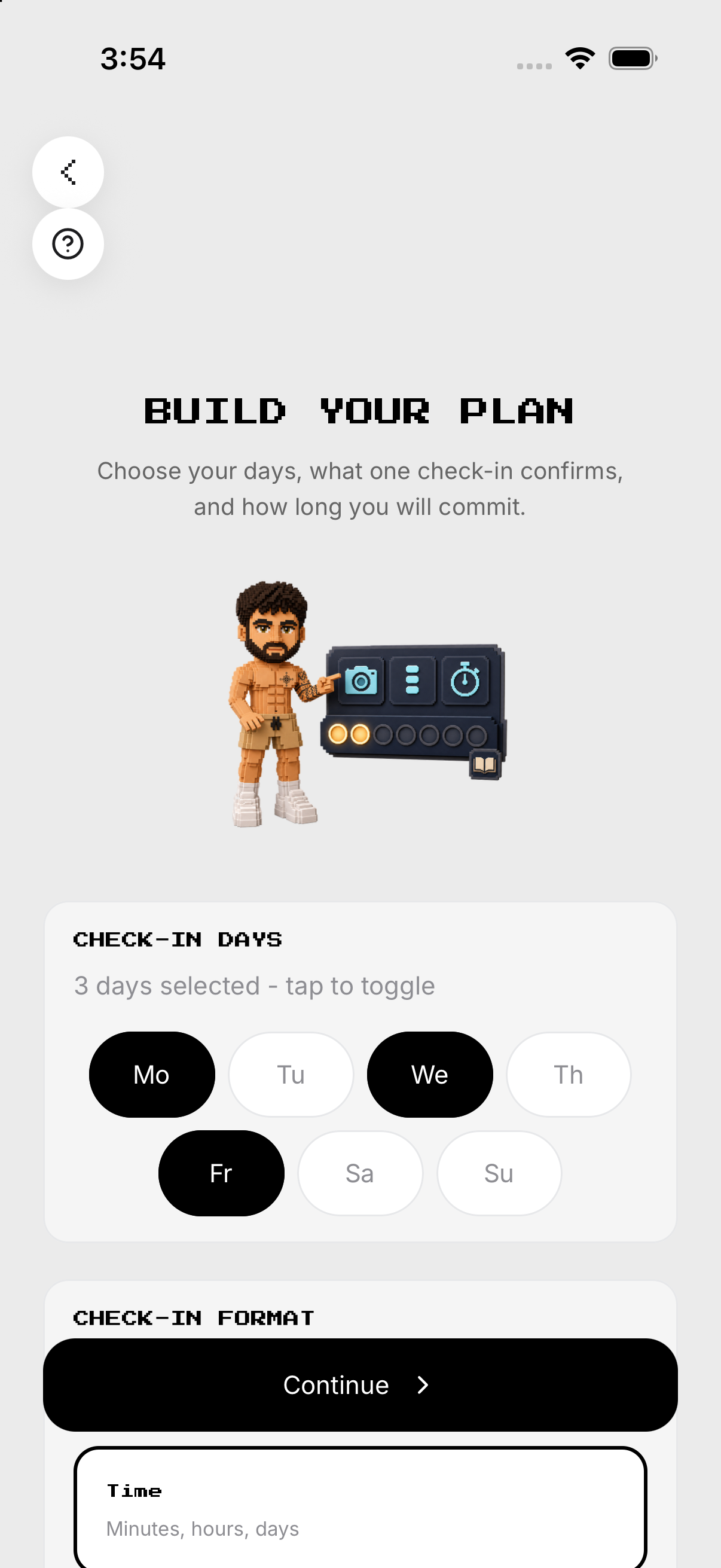
- Set name, appearance, metric/count, schedule and reminder.
- Review/save; use Log Goal; open History; edit or delete.
Every feature, step by step
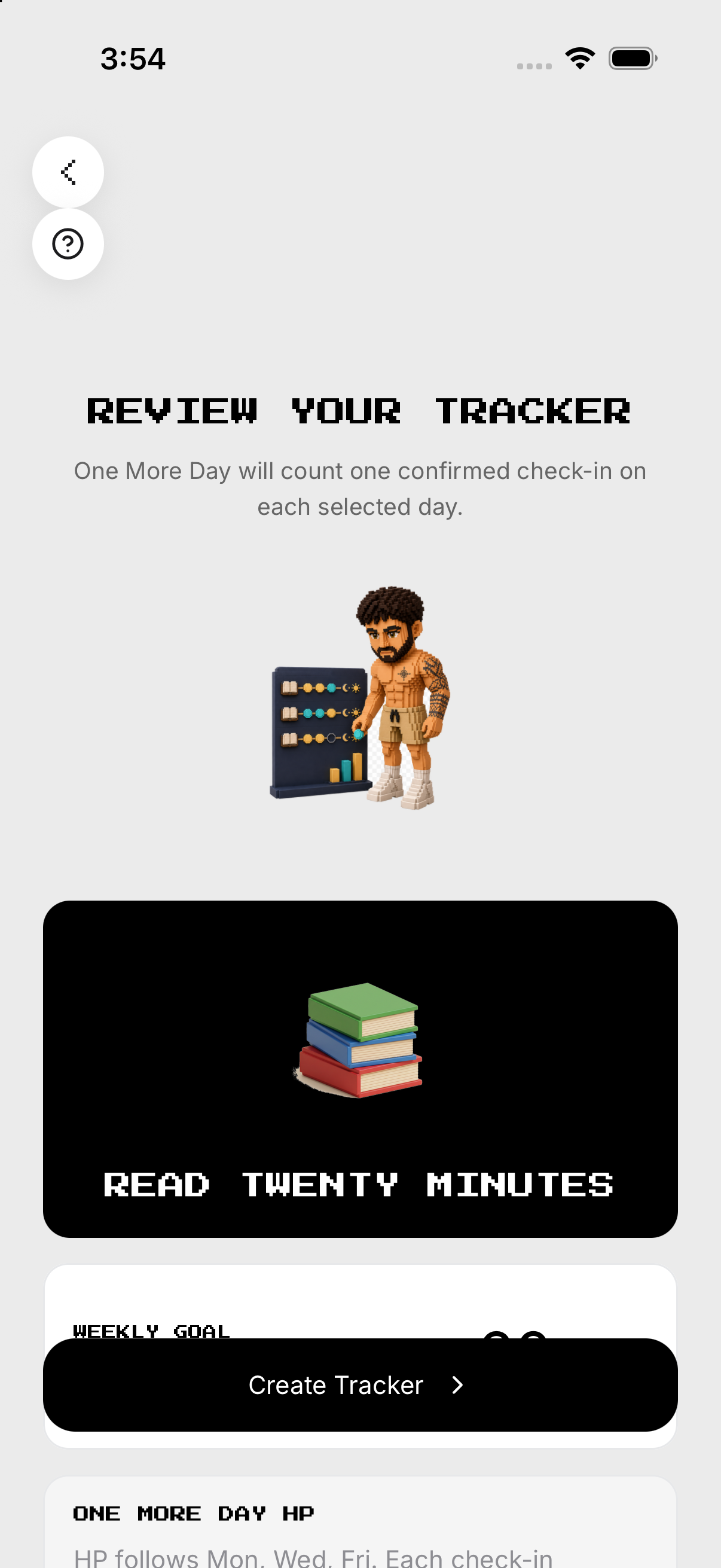
Create a tracker
Enter title and choose icon/color or photo when offered. Confirm the exact rule.
- Name / appearance. Enter title and choose icon/color or photo when offered.
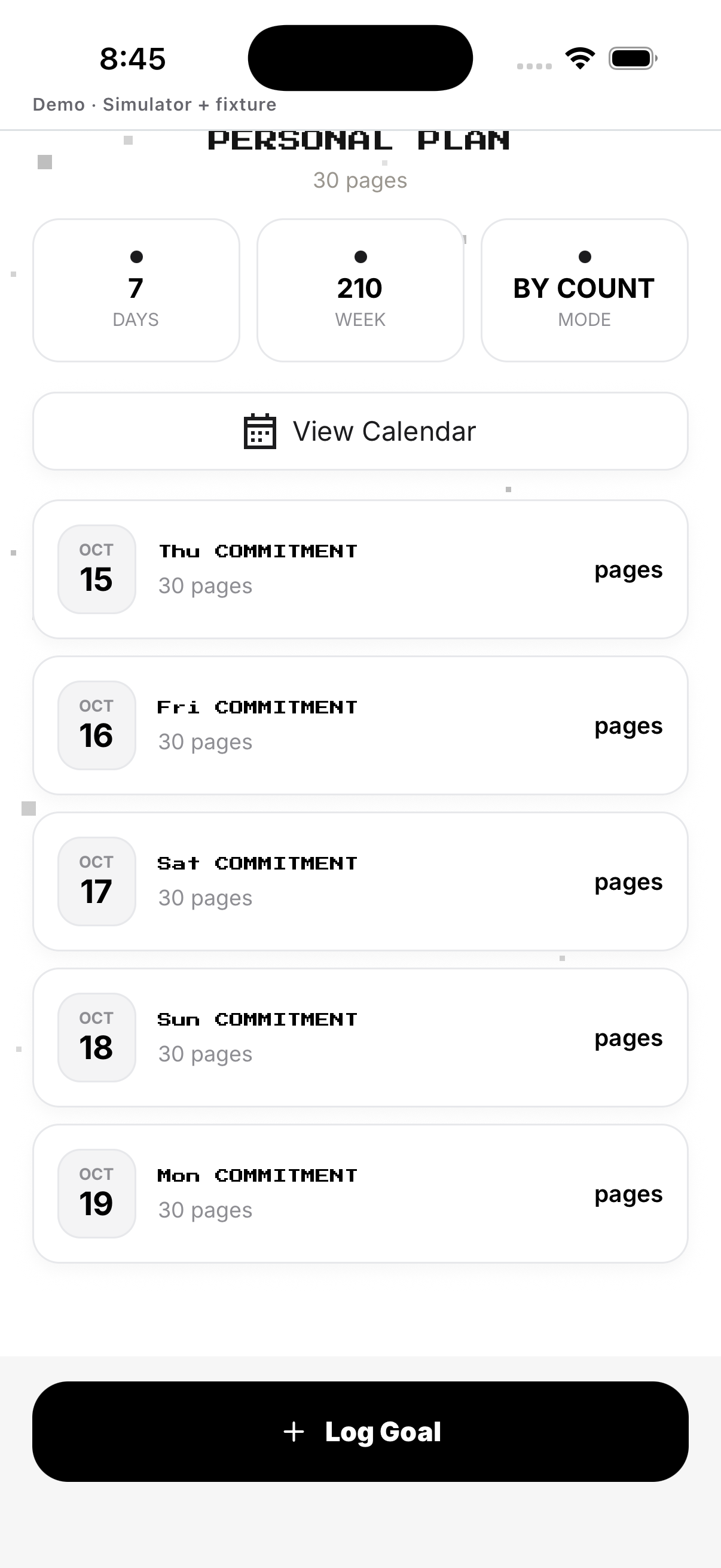
- Metric / count. Define what one completion means and target amount.
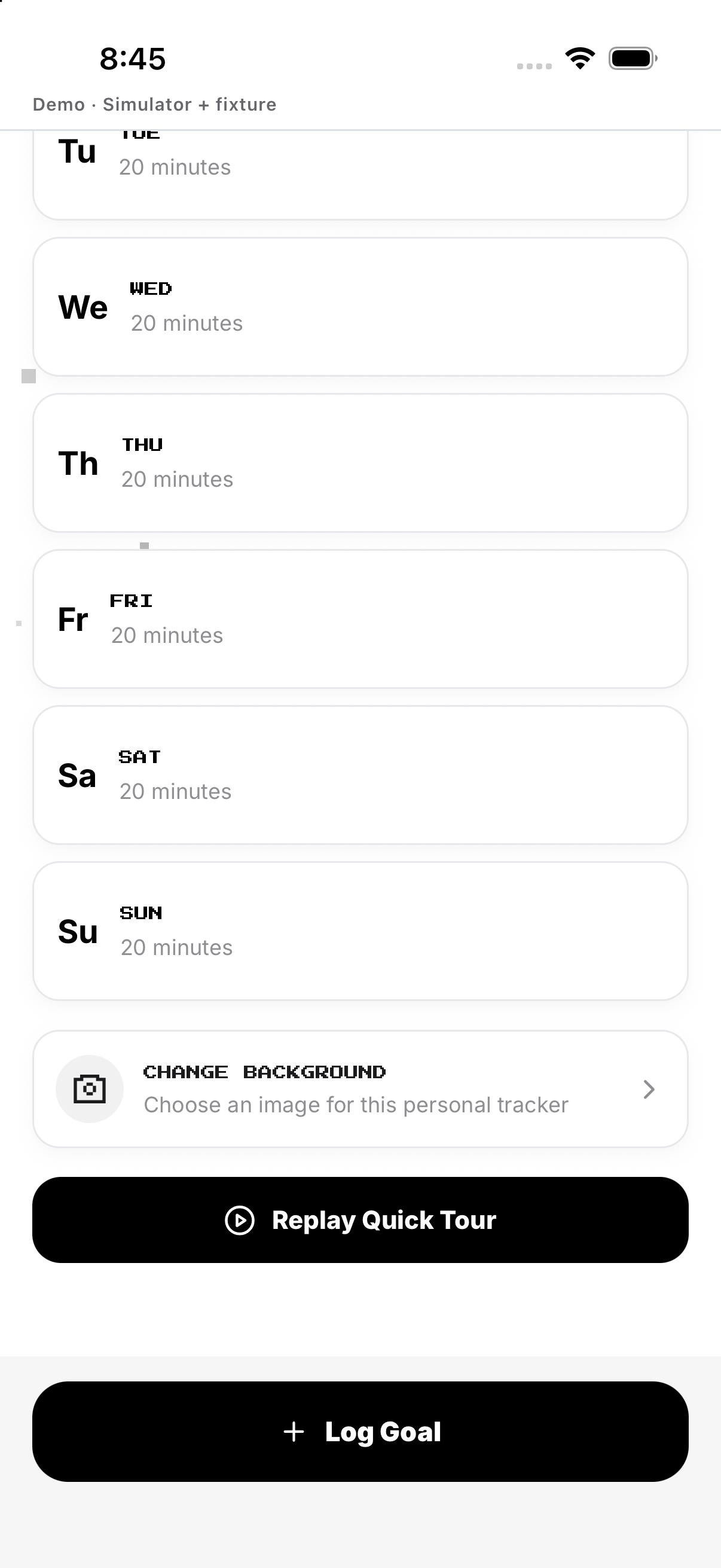
- Schedule / time. Choose target days and optional reminder.
- Review / save. Confirm the exact rule.
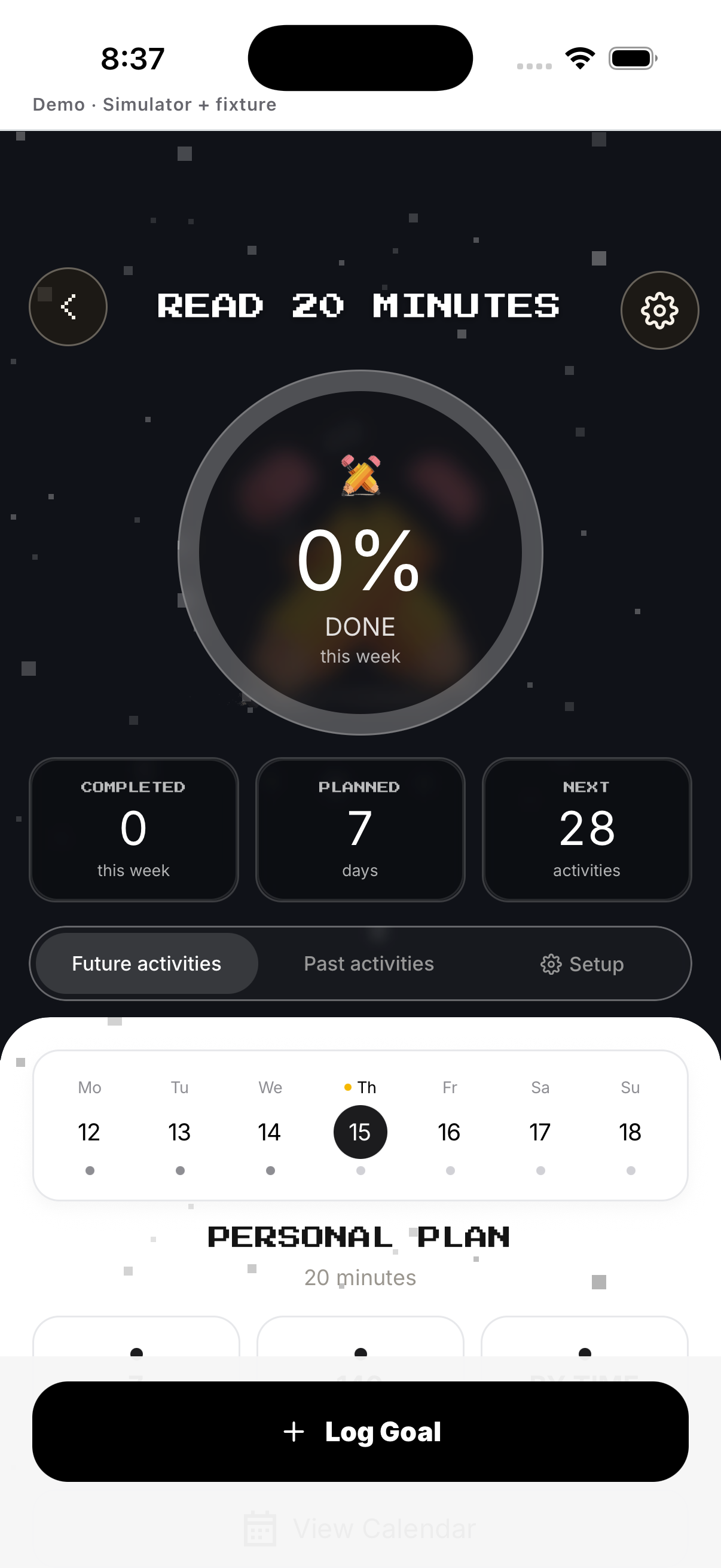
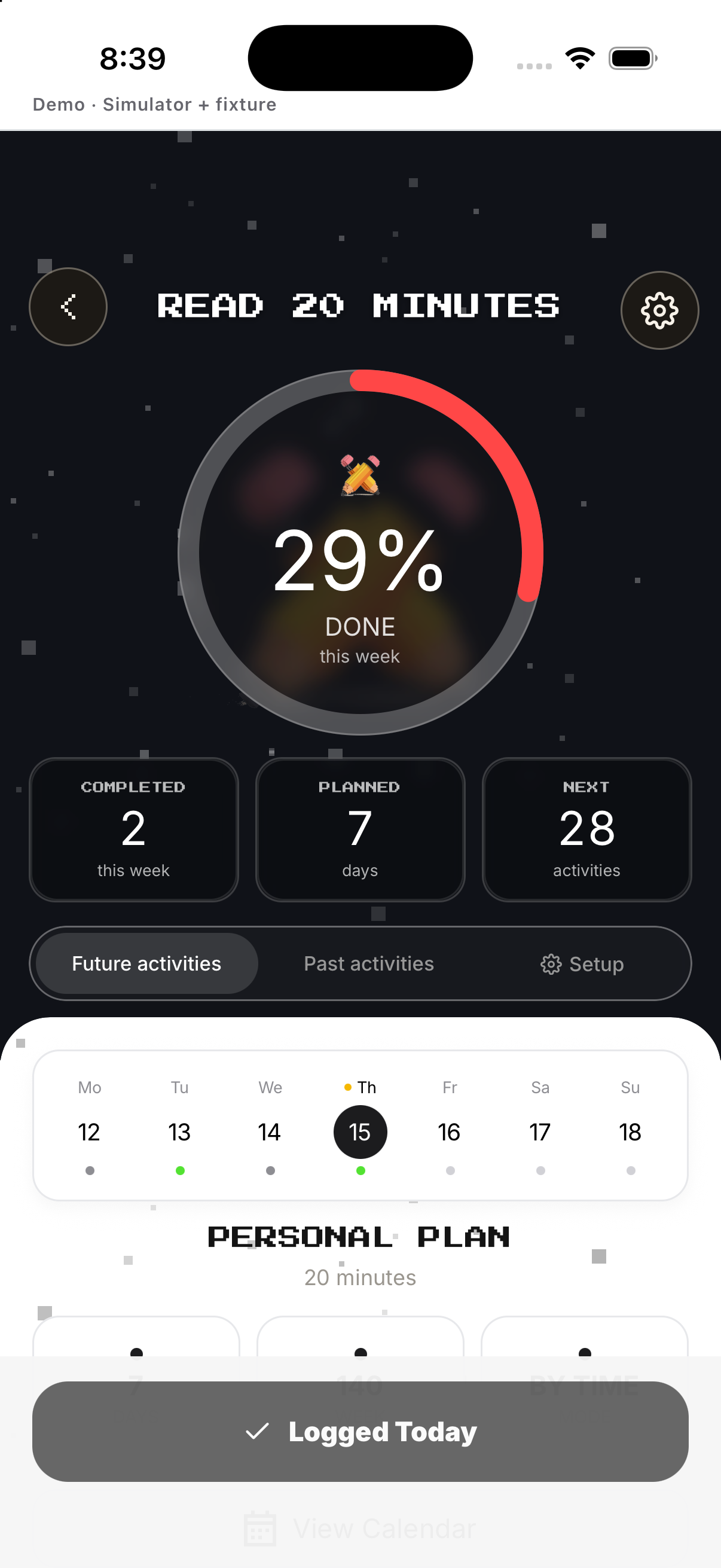
Log a check-in
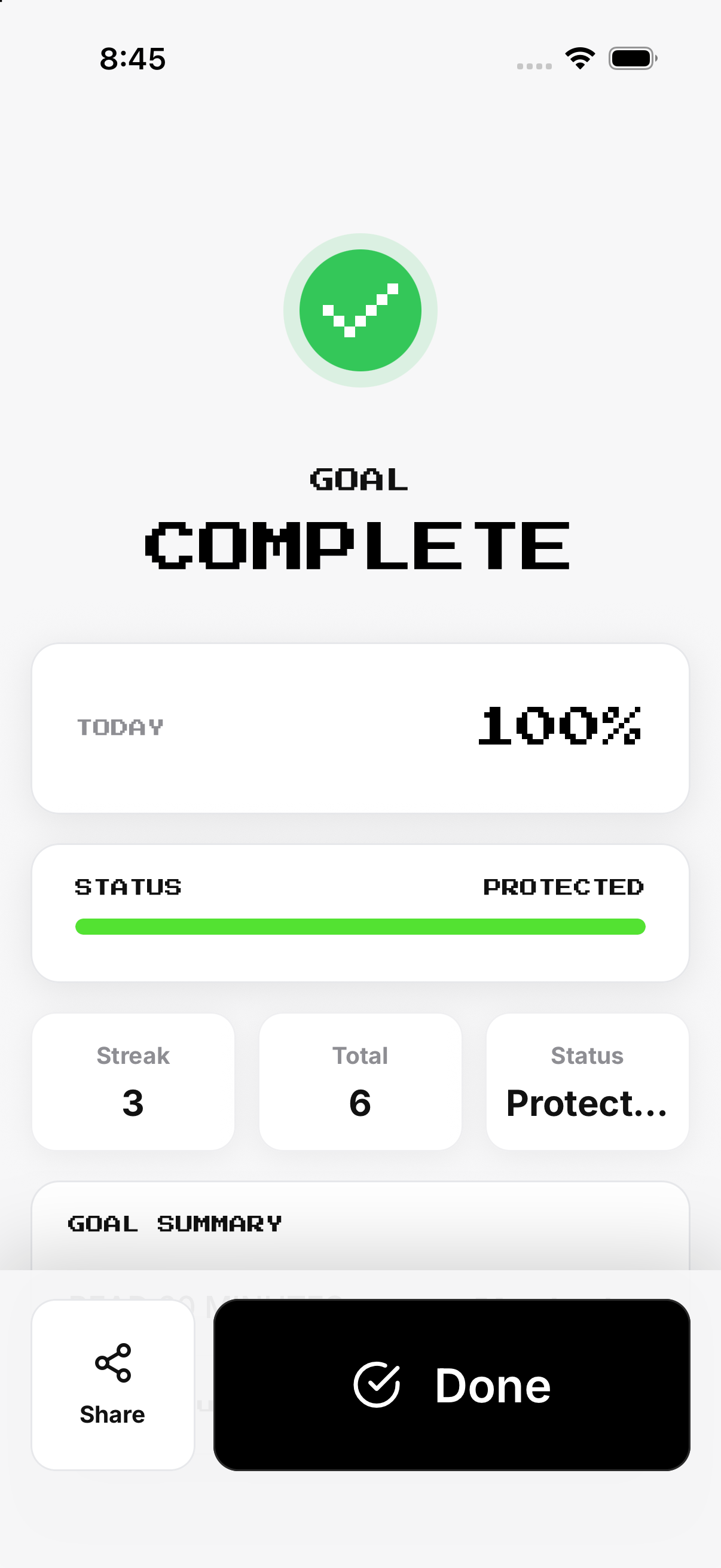
Confirm today's target. Review completion result.
- Open tracker. Confirm today's target.
- Log Goal. Enter or confirm the metric amount.
- Save. Store the check-in.
- Summary. Review completion result.
History and rest days
Review prior check-ins. Use Setup rather than rewriting history.
- History. Review prior check-ins.
- Future day. An unselected day has no required completion.
- Rest. Do not log a miss on a non-target day.
- Correct future rule. Use Setup rather than rewriting history.
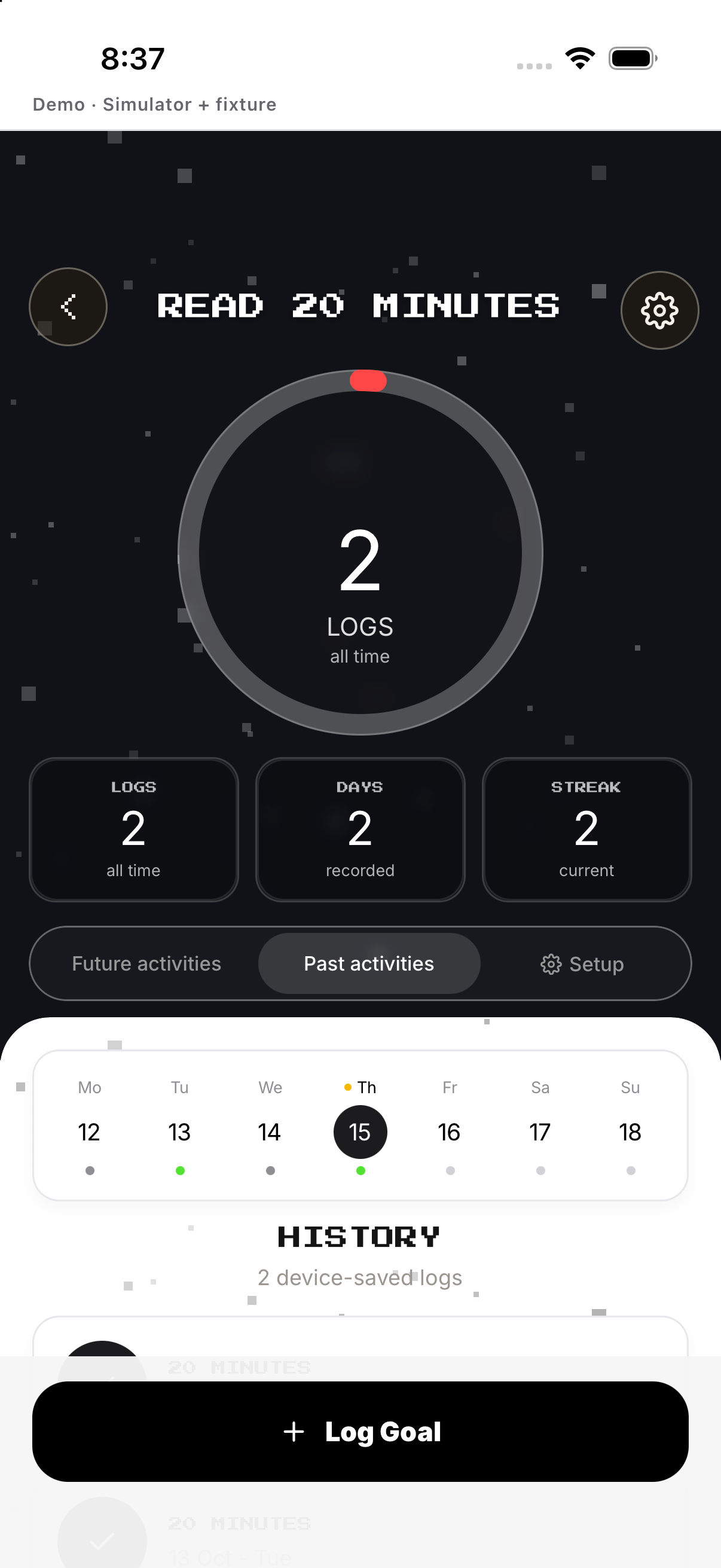
Edit or delete
Edit name, appearance, count, days or reminder. Tap Delete mission and confirm.
- Open Setup. Edit name, appearance, count, days or reminder.
- Review. Confirm the revised rule.
- Save. Applies to future unfinalized days.
- Delete mission. Tap Delete mission and confirm.
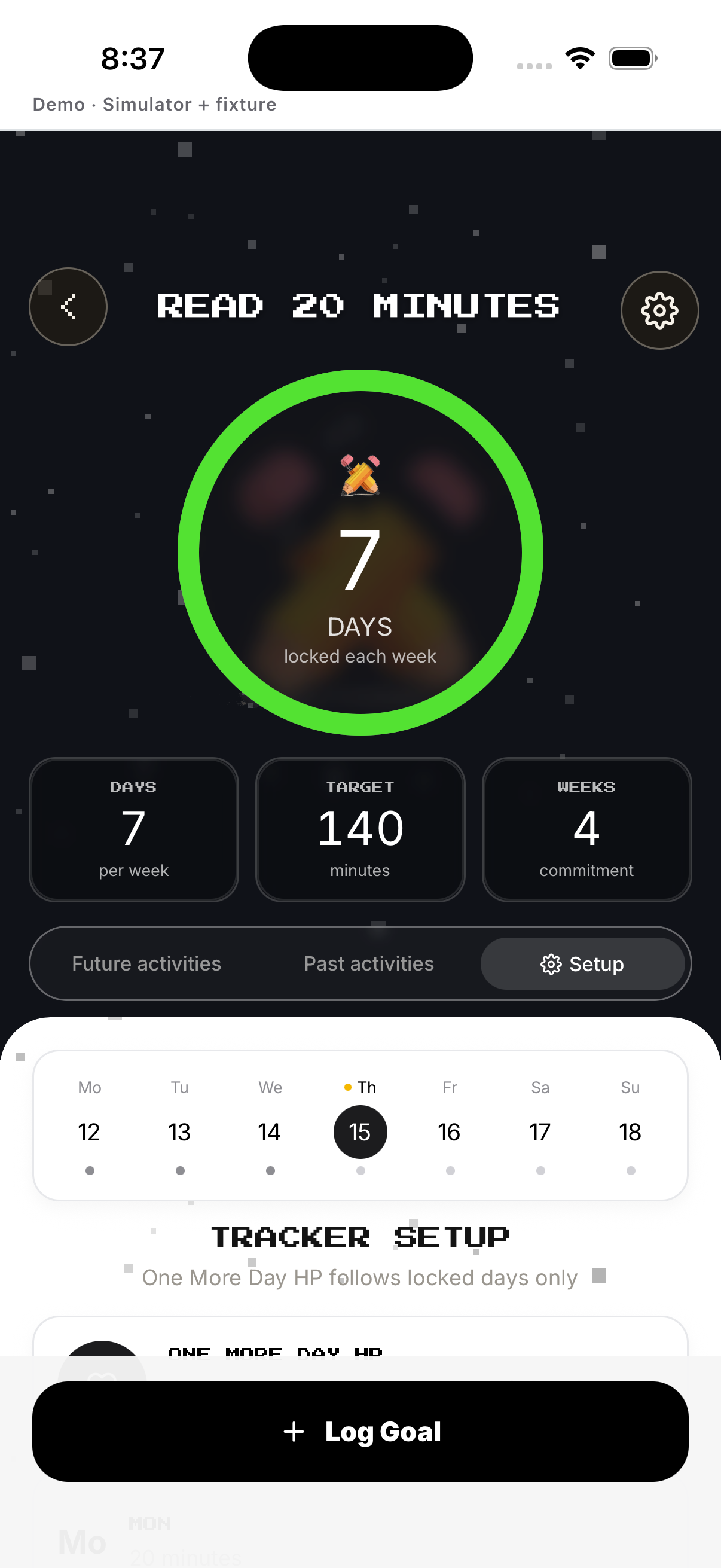
Example
Create Reading with 20 minutes on four target days.
Keep in mind
A custom tracker follows its configured rule; it does not gain specialized Run, Gym or Sleep tools.