
One More Day · Guide
Odysseys
Open Challenges, select the Odyssey tab, and use Start an Odyssey Journey to create a destination journey.
Open the complete visual walkthrough ↗
Getting started
- Search and select a destination.
- Review distance, privacy and movement rules.
- Start and sync movement.
- Collect stamps and choose the next route.
Every feature, step by step
Choose a destination
Open Odyssey, search and select a result.
- Open Challenges and select Odyssey. Shows Odyssey journeys and the start control.
- Tap Start an Odyssey Journey. Opens the journey setup.
- Search or move the destination map. Changes the proposed endpoint.
- Tap the intended destination. Selects that place for the journey.
- Continue. Carries the destination into route setup.

Review setup
Check distance, suggested pace, privacy and verified-movement rules.
- Review the selected destination. Confirms where the journey ends.
- Read distance and suggested pace. Shows the planned scale and pacing.
- Choose visibility. Sets who can see or join when that control is offered.
- Read the verified-movement rule. Explains what progress can count.
- Create the Odyssey. Saves the reviewed setup.

Track progress
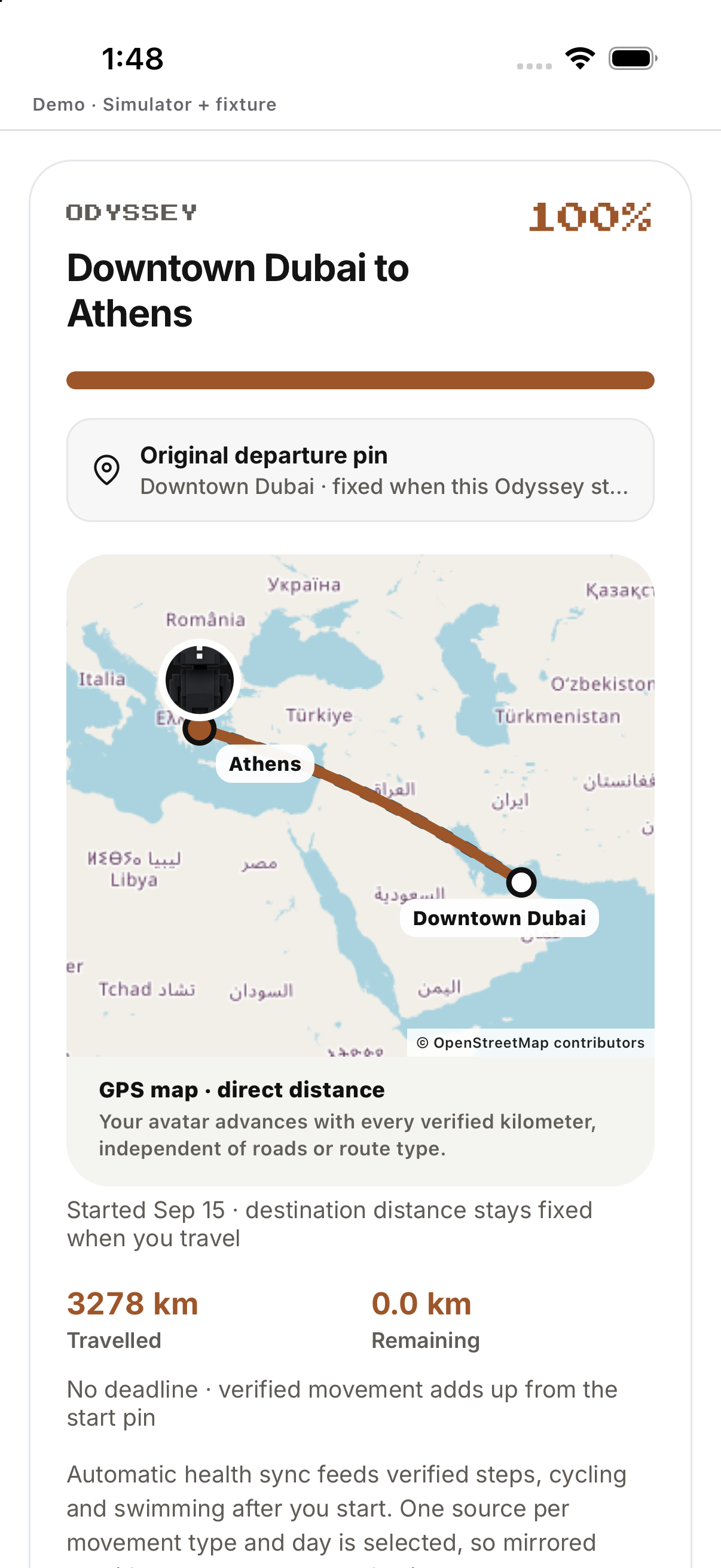
Open active route; steps, cycling and swimming can feed verified progress without mirrored duplicates.
- Open an active Odyssey. Shows route progress and travellers.
- Read your current distance. Compares verified progress with the route total.
- Open the traveller list. Shows who has joined and their status.
- Log eligible movement through the supported activity. Verified movement advances the journey.
- Return to the Odyssey. Refreshes route position and progress.

Stamps and completion
Open unlocked stamps; completion and ended routes retain recorded progress.
- Open the Odyssey detail. Shows route milestones and stamps.
- Tap a reached stamp. Opens the milestone detail.
- Read the remaining distance. Shows what is left before completion.
- Finish the verified route. Moves the Odyssey to its completion state.
- Open the completed journey. Reviews the final route and earned stamps.
Example
Example: choose Abu Dhabi and review the suggested pace.
Keep in mind
Change any unavailable or out-of-limit destination.