
One More Day · Guide
Meditation
Choose a practice and duration, then use the player to complete it.
Open the complete visual walkthrough ↗
Getting started
- Set level/goal, schedule and reminder.
- Choose meditation or breathing practice.
- Play, pause/resume and finish; review completed minutes in History.
Every feature, step by step
Create or edit Meditation
Choose experience and intended minutes. Save the mission.
- Level / goal. From Missions, open Meditation and tap the gear at the top right to open Setup. Choose experience and intended minutes.
- Schedule. Choose target days.
- Reminder. Set or skip.
- Review. Save the mission.
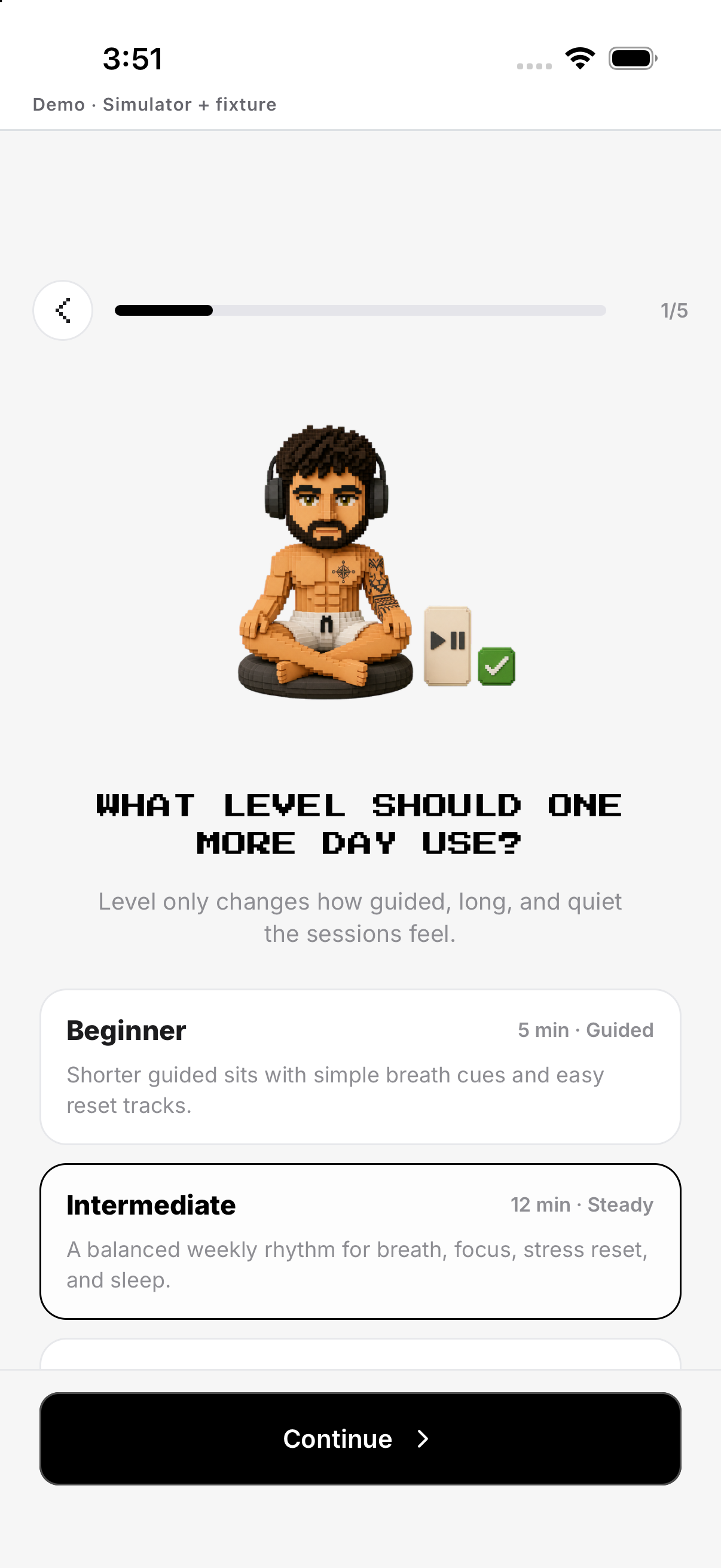
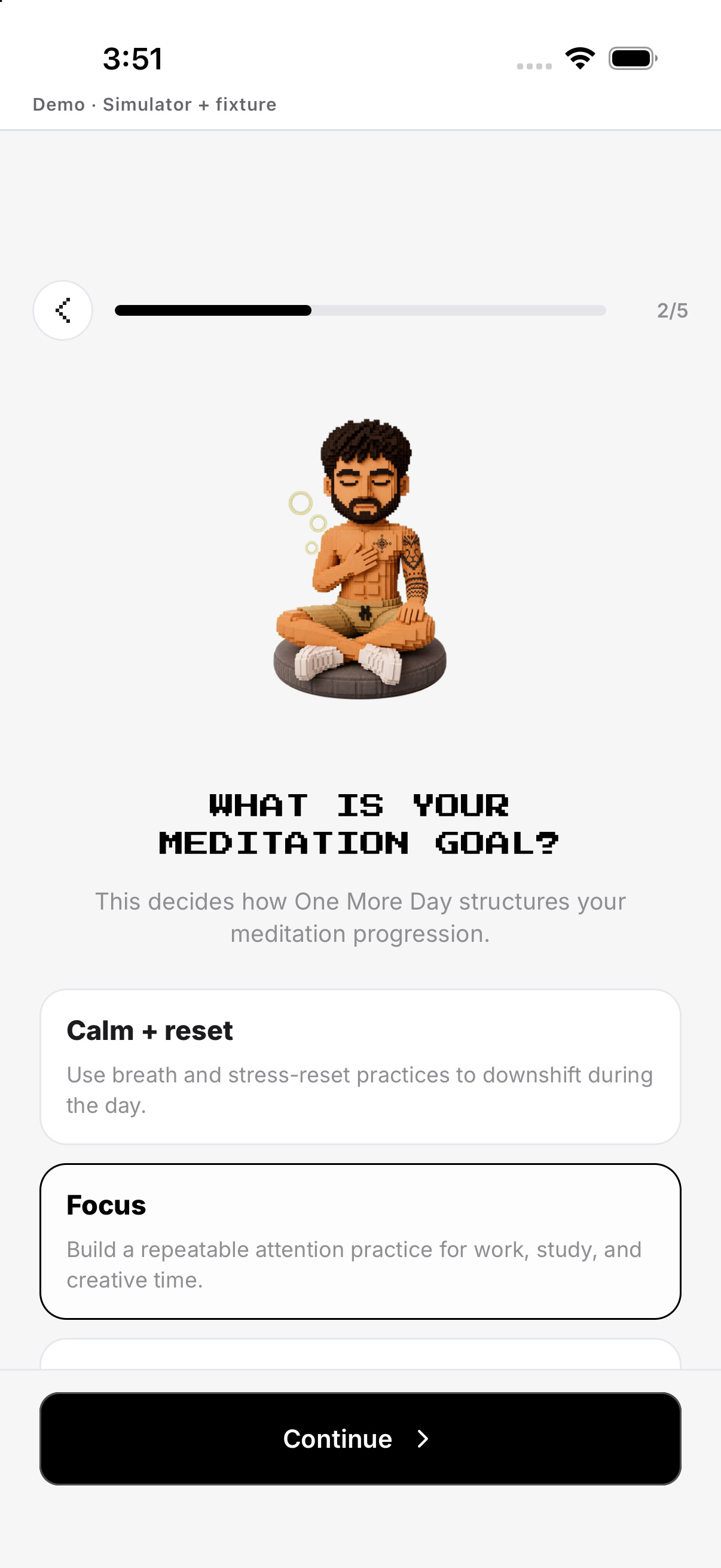
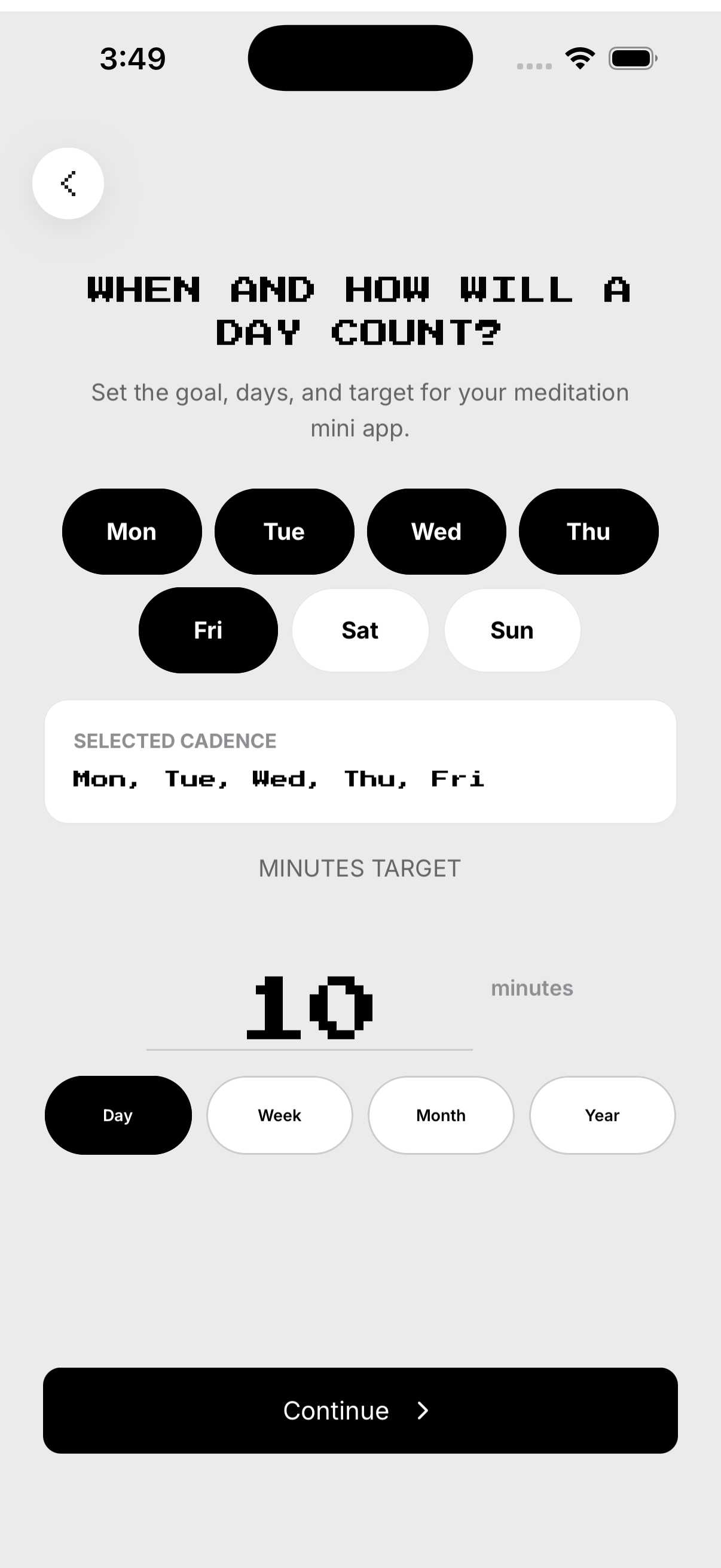
Choose a practice
Choose meditation or breathing technique. Use the central playback button.
- Browse. Choose meditation or breathing technique.
- Open. Tap the session.
- Review. Check title and duration.
- Play. Use the central playback button.
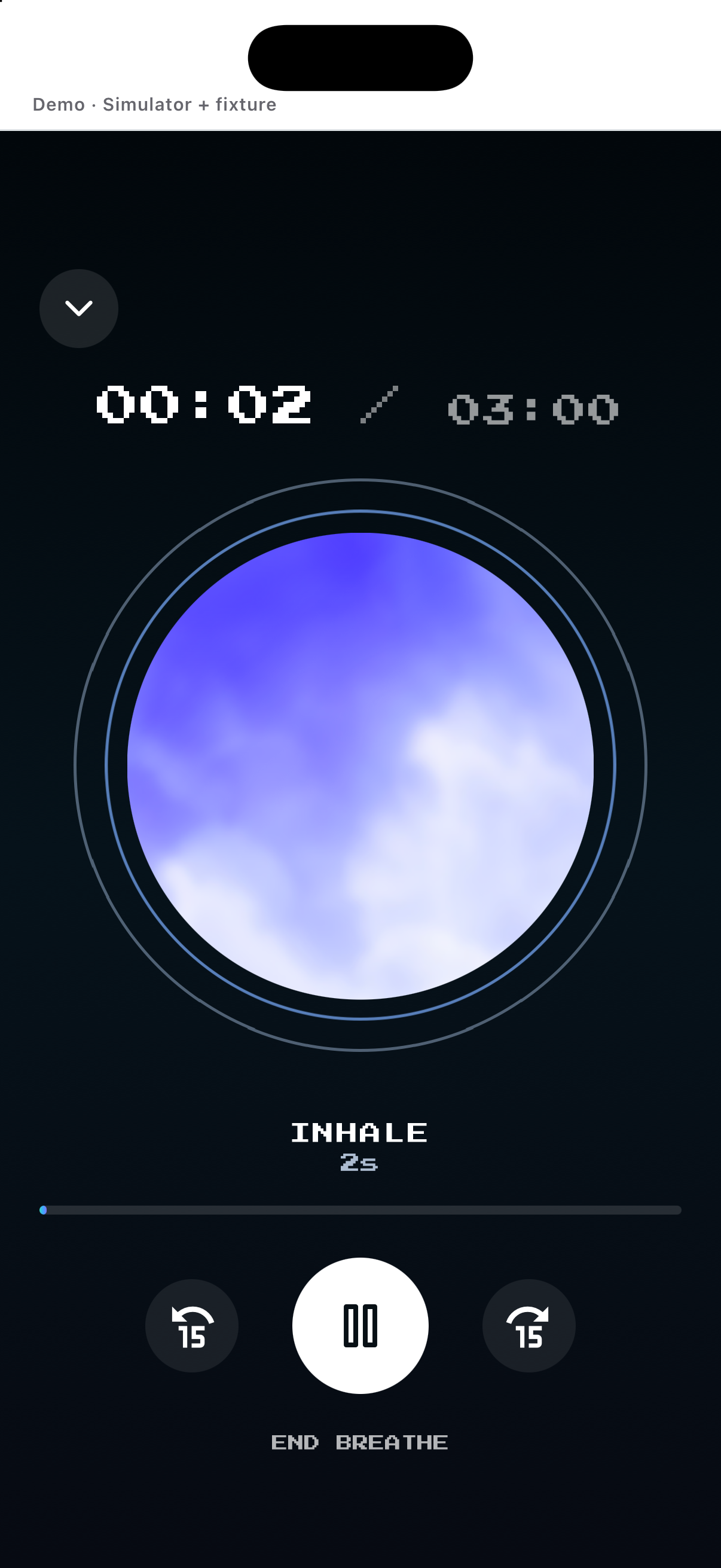
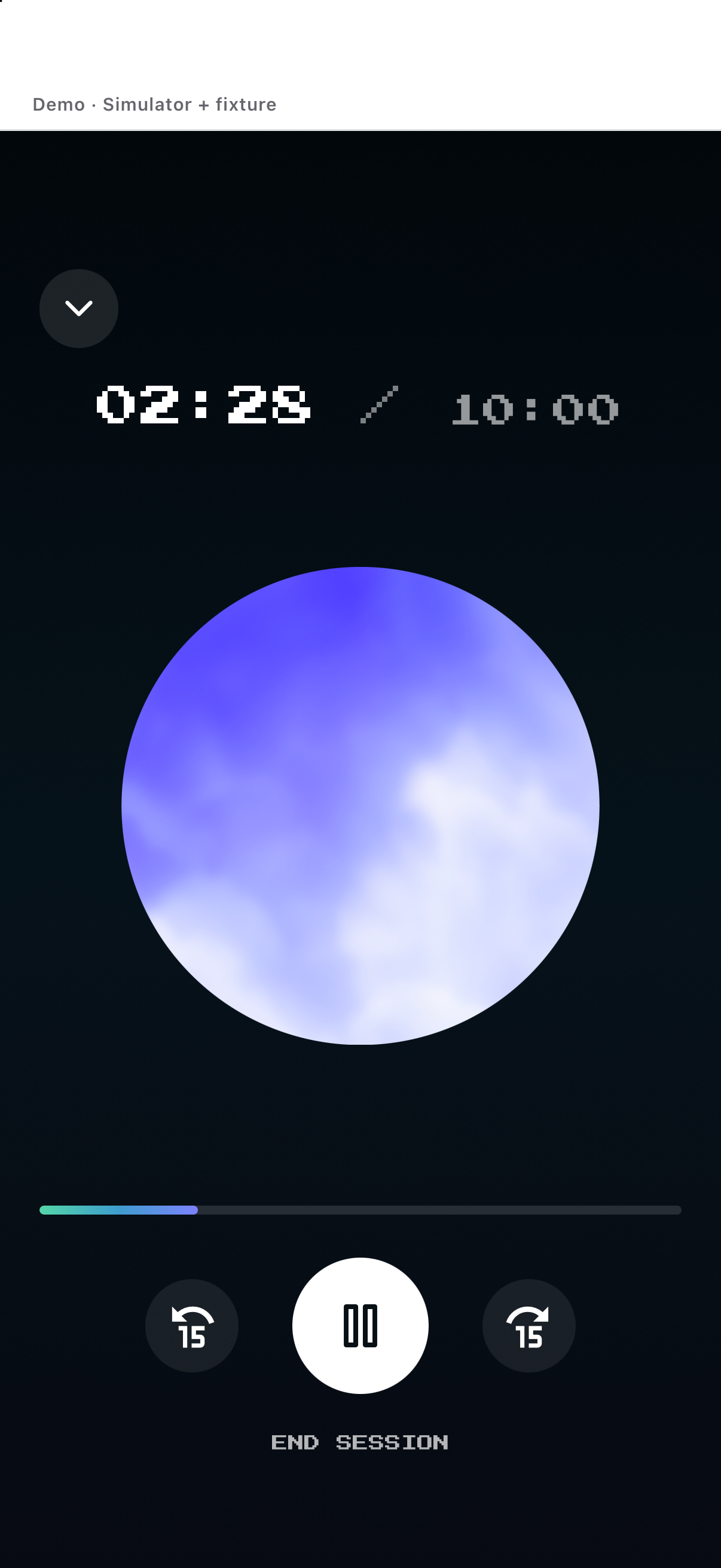
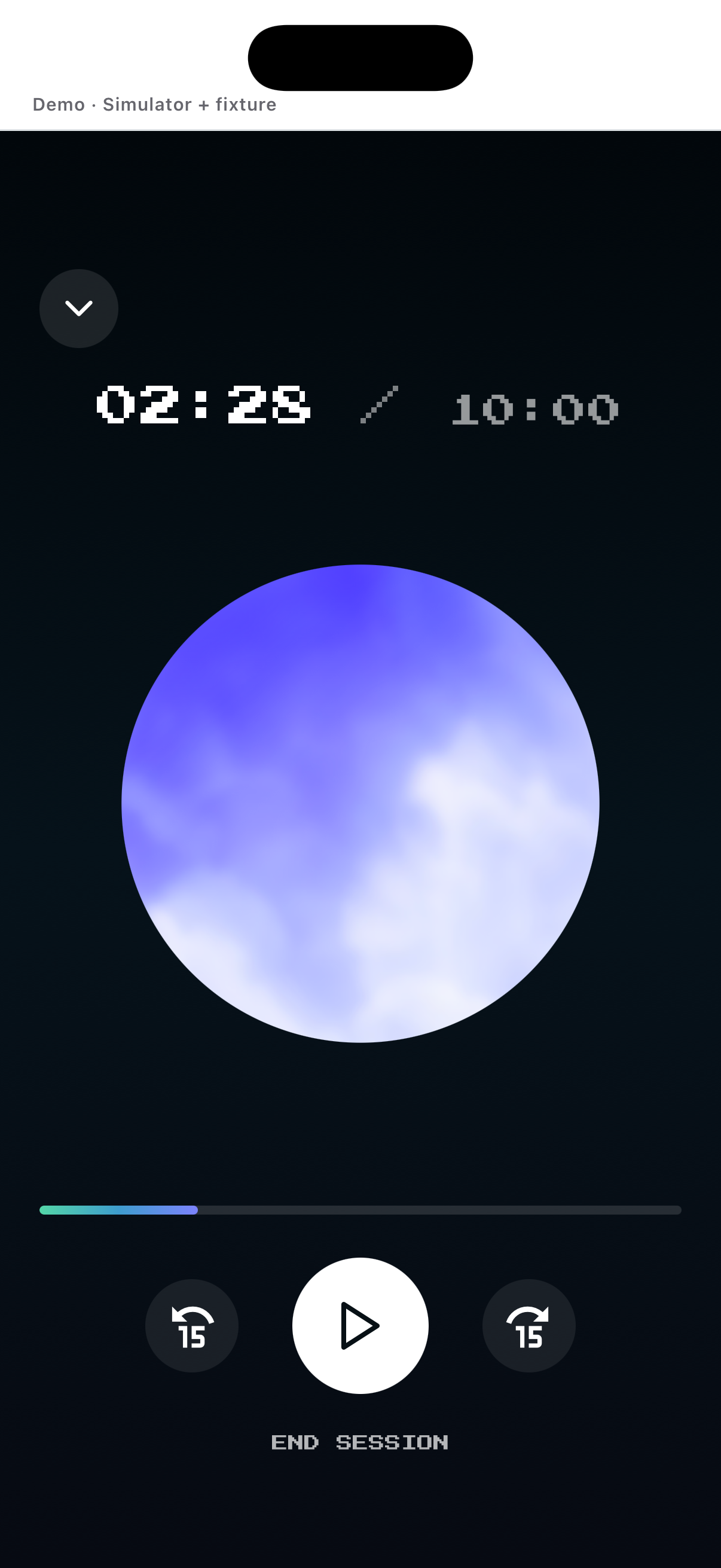
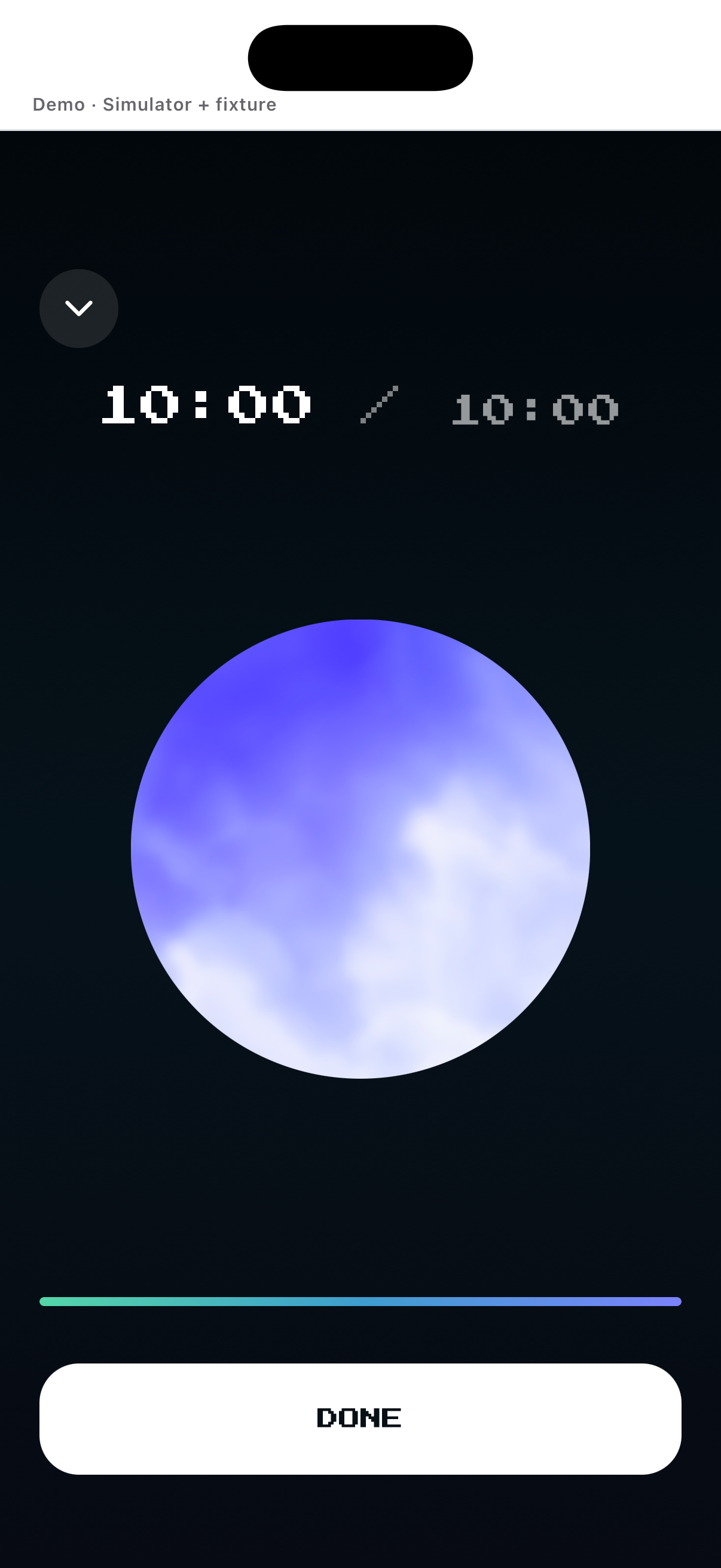
Play, pause and finish
Starts audio and elapsed time. Normal end saves the qualifying session.
- Play. Starts audio and elapsed time.
- Pause / Resume. Use the central playback button.
- Finish. Tap Done/Finish and confirm minutes.
- Automatic completion. Normal end saves the qualifying session.
History, edit and delete
Review completed session rows and totals. Cancel if you meant only to edit.
- History. Review completed session rows and totals.
- Edit. Use Setup for future goal, days or reminder.
- Delete mission. Tap Delete mission and confirm.
- Cancel. Cancel if you meant only to edit.
Example
Choose a 10-minute Body Scan and let it finish normally.
Keep in mind
The Finish confirmation tells you the minutes to add; a very short manual finish may not qualify.