
One More Day · Guide
Steps / Walking
Set a daily step target or record a mapped walk.
Open the complete visual walkthrough ↗
Getting started
- Choose target and target days.
- Allow read-only Health access for automatic step evidence.
- Use an outdoor mode for a mapped walk; finish and review History.
Every feature, step by step
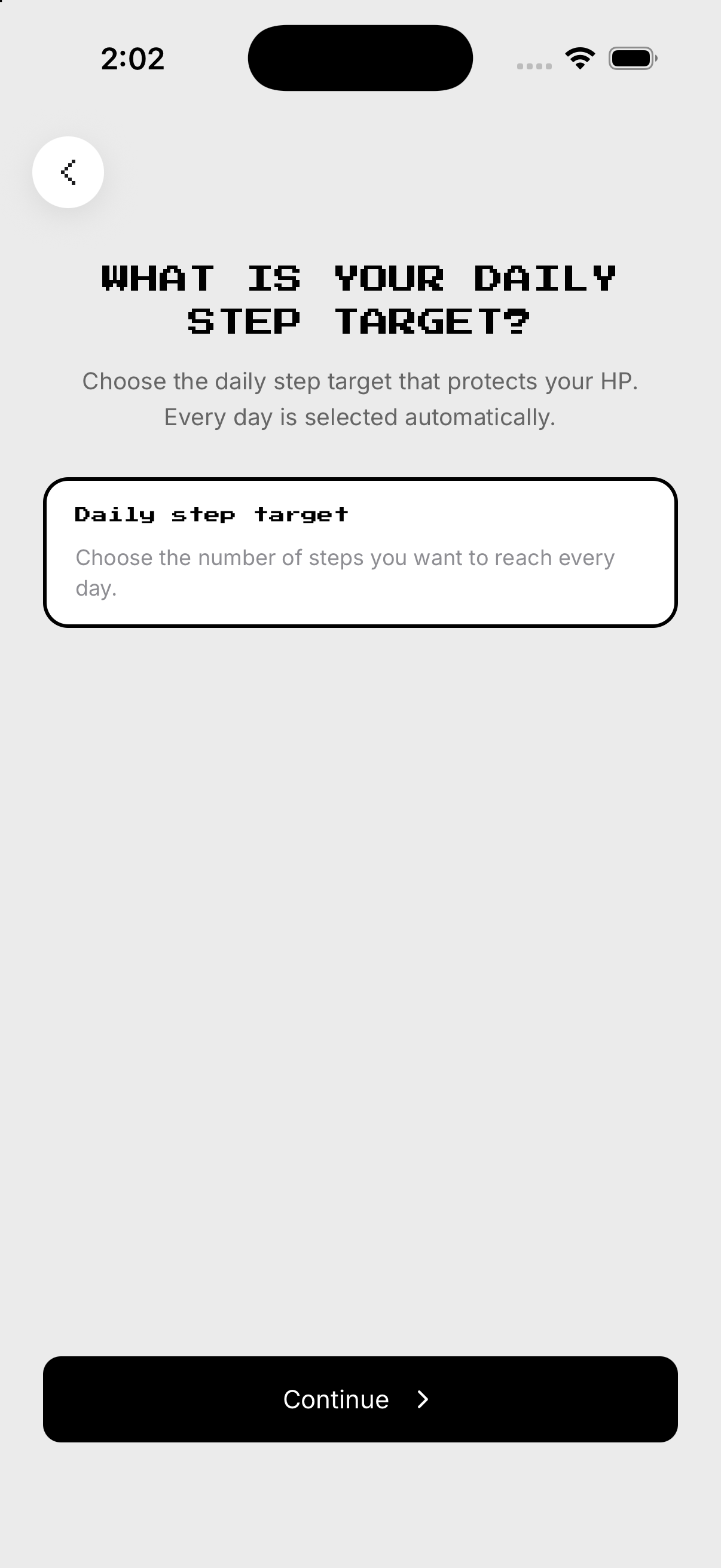
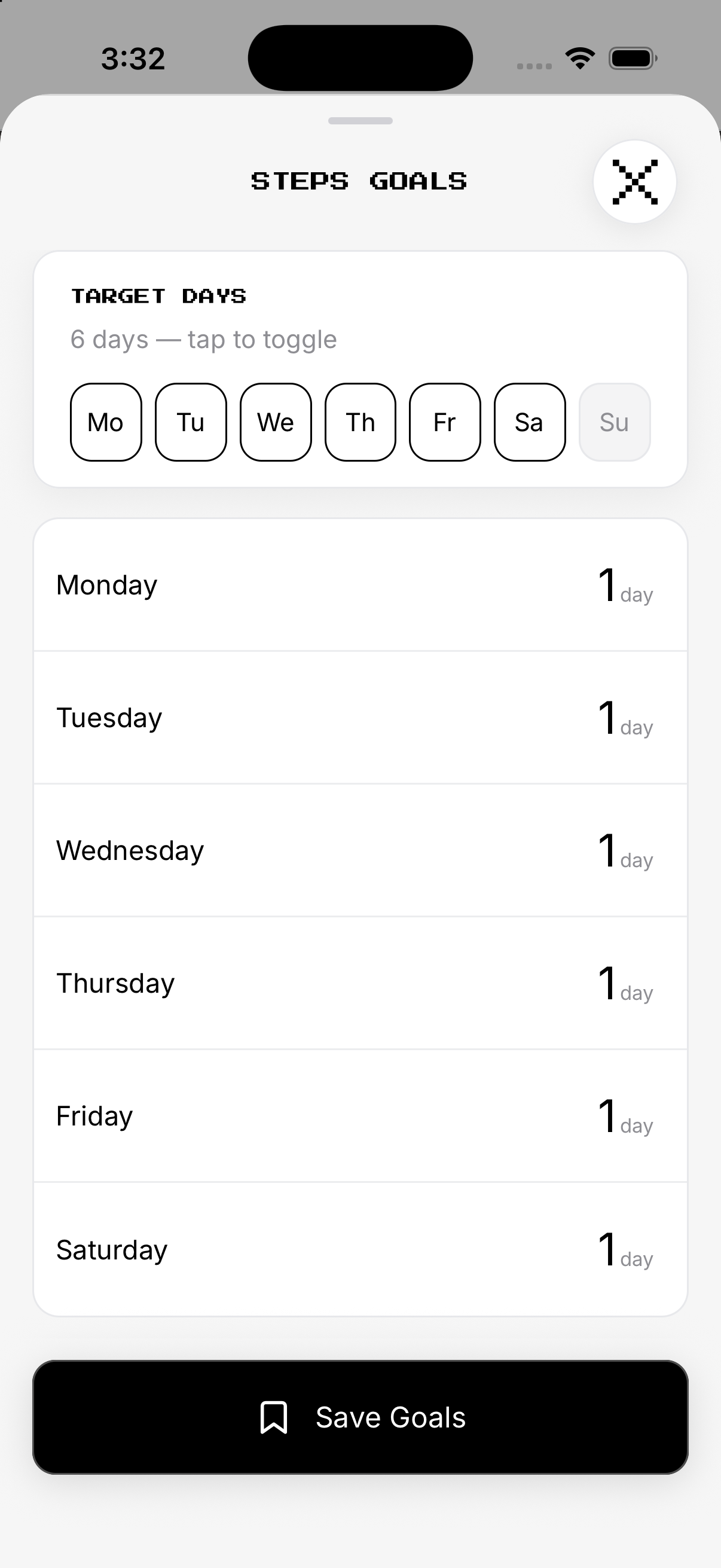
Set the Steps goal
Set the daily step count. Review future target days.
- Target. From Missions, open Steps and tap the gear at the top right to open Setup. Set the daily step count.
- Days. Selected days count; unselected days are rest.
- Health evidence. Grant read-only Health access when prompted.
- Save. Review future target days.
Record a mapped walk
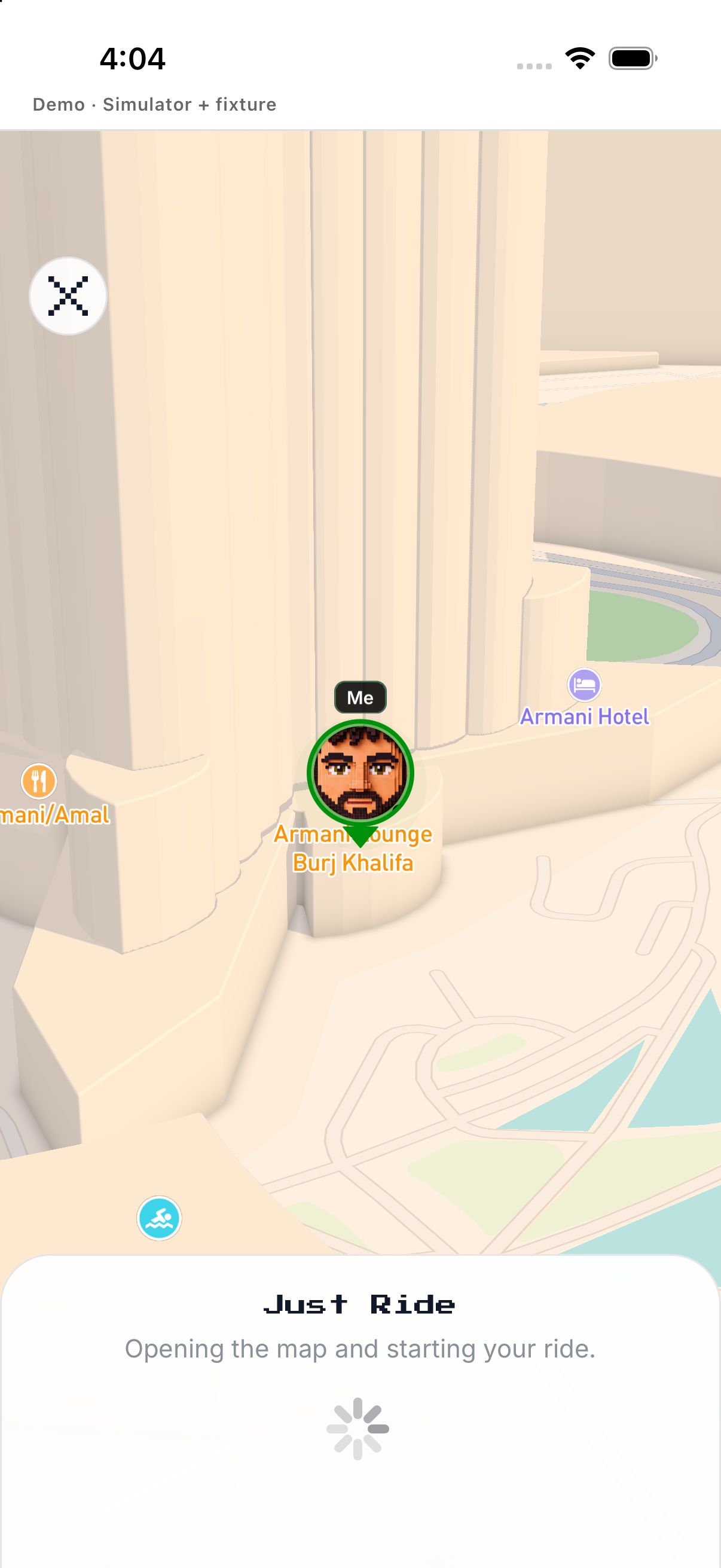
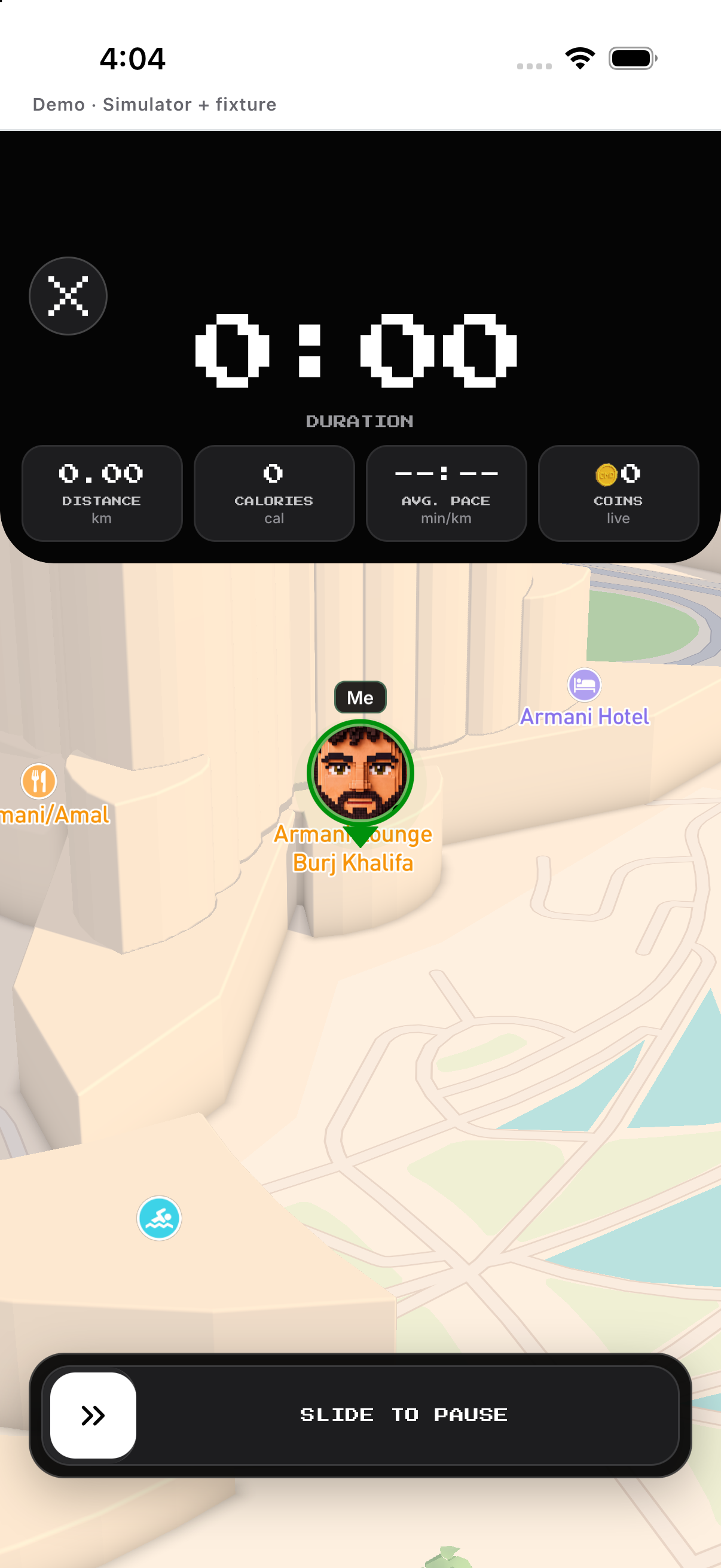
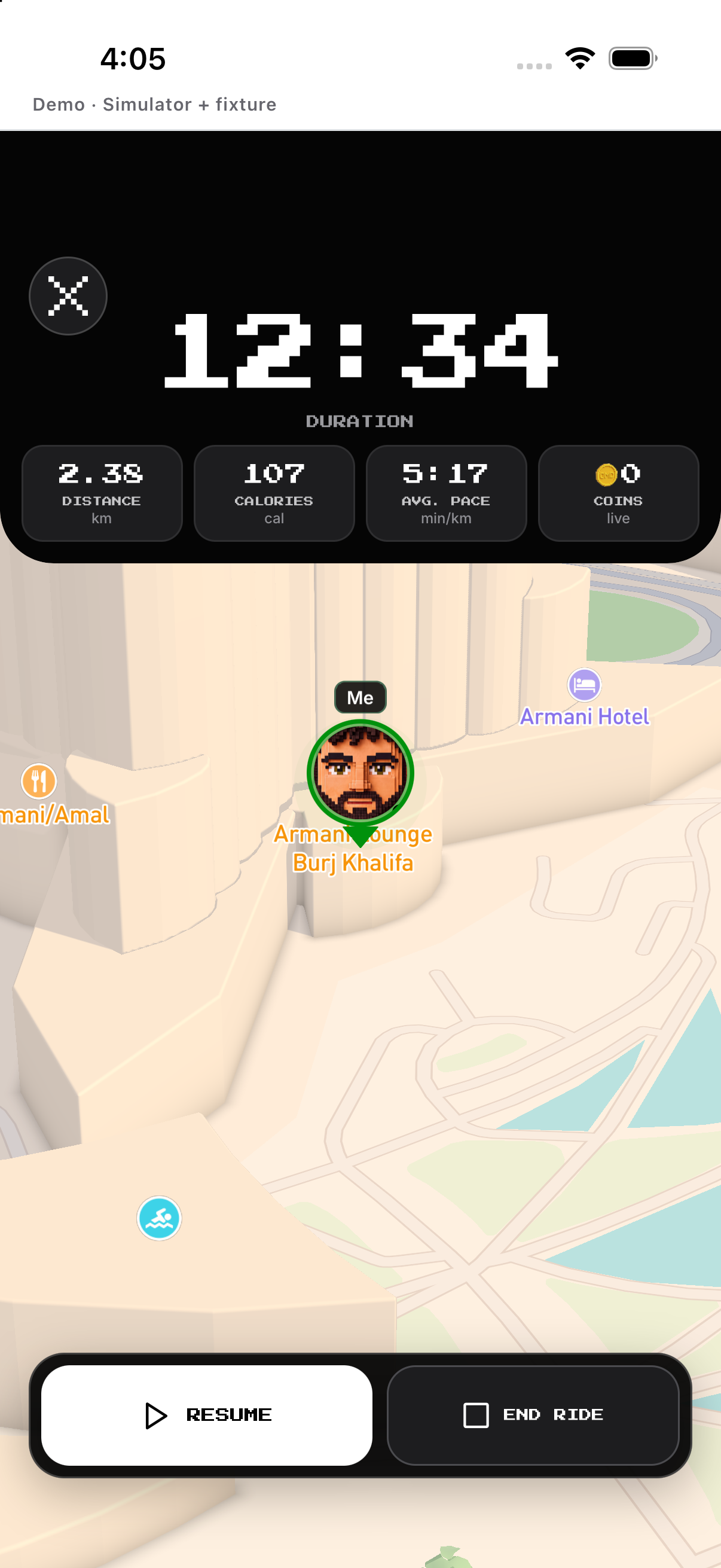
Choose Free, Conquer, Doodle or Discover. Save or discard the walk.
- Mode. Choose Free, Conquer, Doodle or Discover.
- Start. Begin location tracking.
- Pause / Resume. Use the live session controls.
- Hold Finish. Save or discard the walk.
History and evidence source
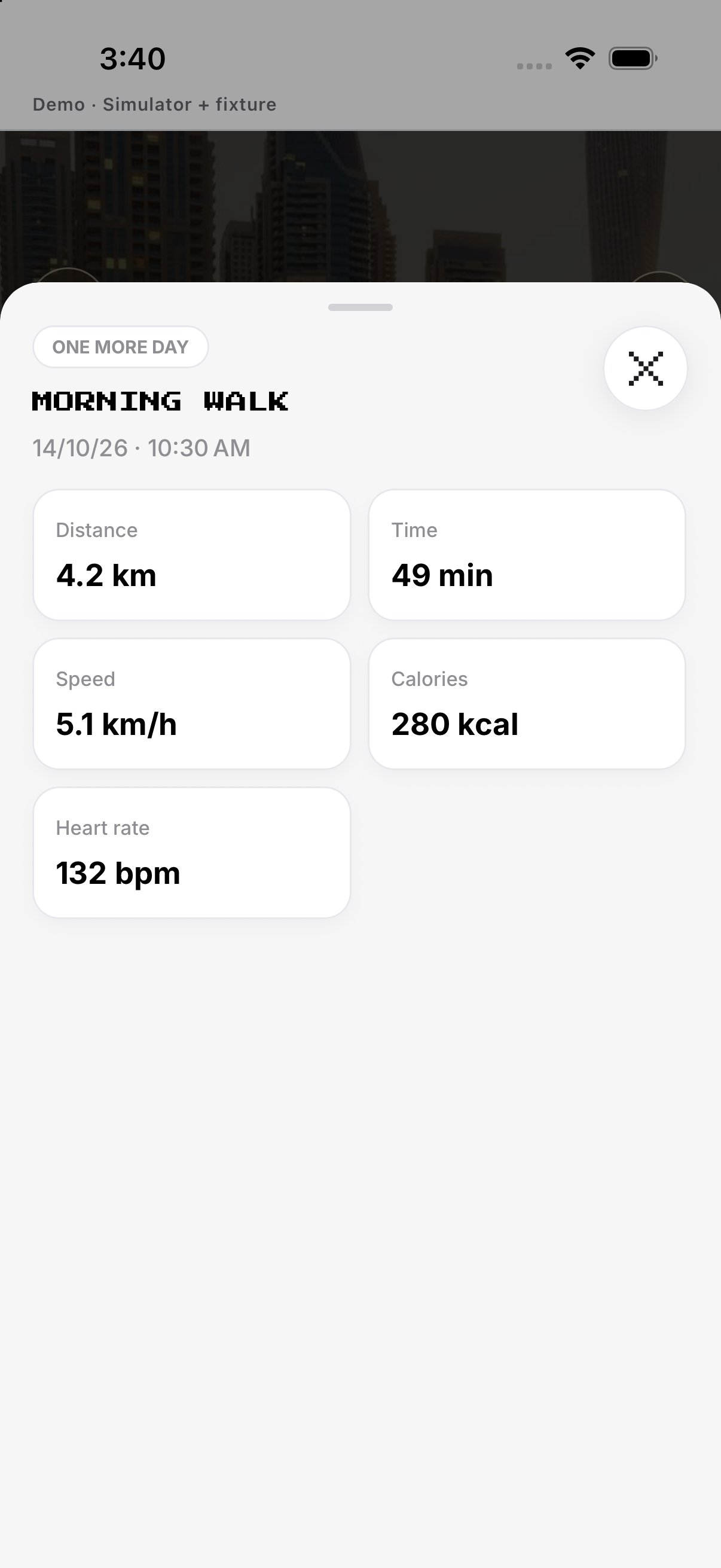
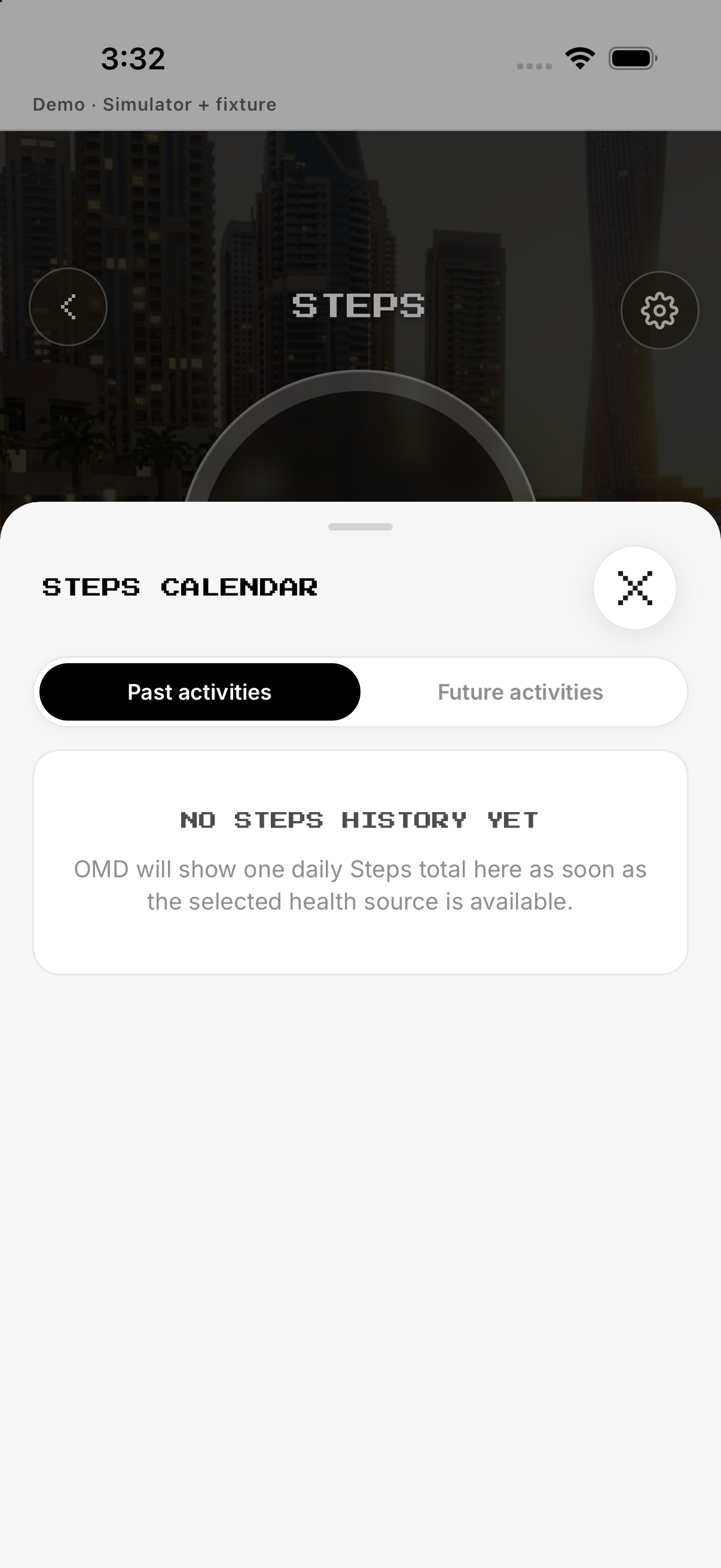
Review daily totals or a mapped activity. No row means no recorded activity for that view.
- Open History. Review daily totals or a mapped activity.
- Open detail. Inspect route or daily evidence.
- Check source. Confirm whether evidence came from Health or OMD.
- Empty state. No row means no recorded activity for that view.
Rest days, edit and delete
Unselect a future day to make it rest. Cancel the alert if you intended only to edit.
- Edit days. Unselect a future day to make it rest.
- Save. Review the revised schedule.
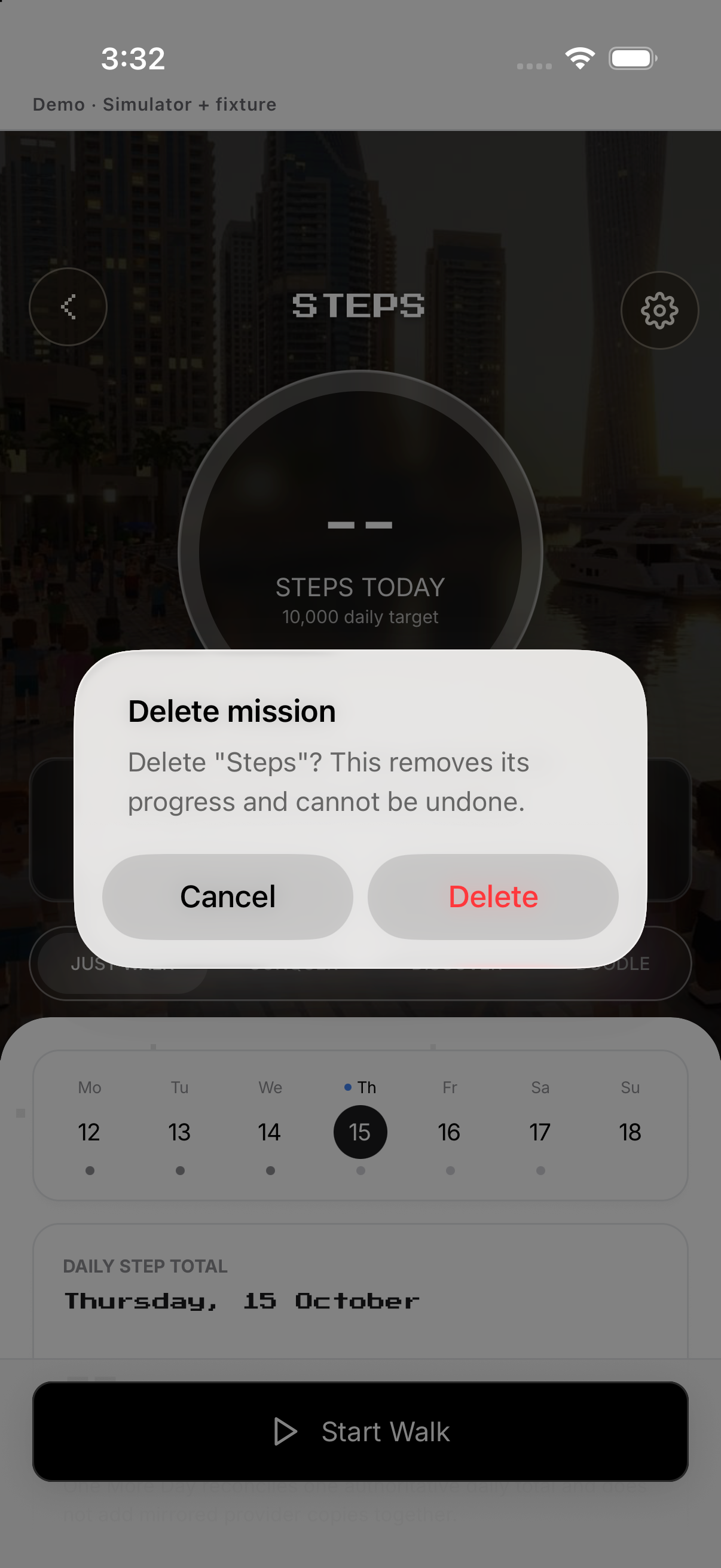
- Delete mission. Tap Delete mission and confirm.
- Cancel. Cancel the alert if you intended only to edit.
Example
Set 8,000 steps Monday to Friday.
Keep in mind
Unselected days are rest days and do not create a miss.