
One More Day · Guide
Settings
Settings is the non-social half of Profile: avatar, theme, language, Live Activities, reminders, integrations, membership and account.
Open the complete visual walkthrough ↗
Getting started
- Open More > Settings.
- Manage avatar and appearance.
- Set language and Live Activities.
- Open membership or account controls.
Every feature, step by step
Open Settings categories
Settings is Profile section=settings.
- Tap More. Opens secondary menu.
- Tap Settings. Opens the non-social Profile branch.
- Scroll. Review Avatar, Theme, Language, Live Activities, reminders, integrations, membership, Sign out and Manage account.
- Tap Profile to leave. Returns to Socials.
Avatar and Theme
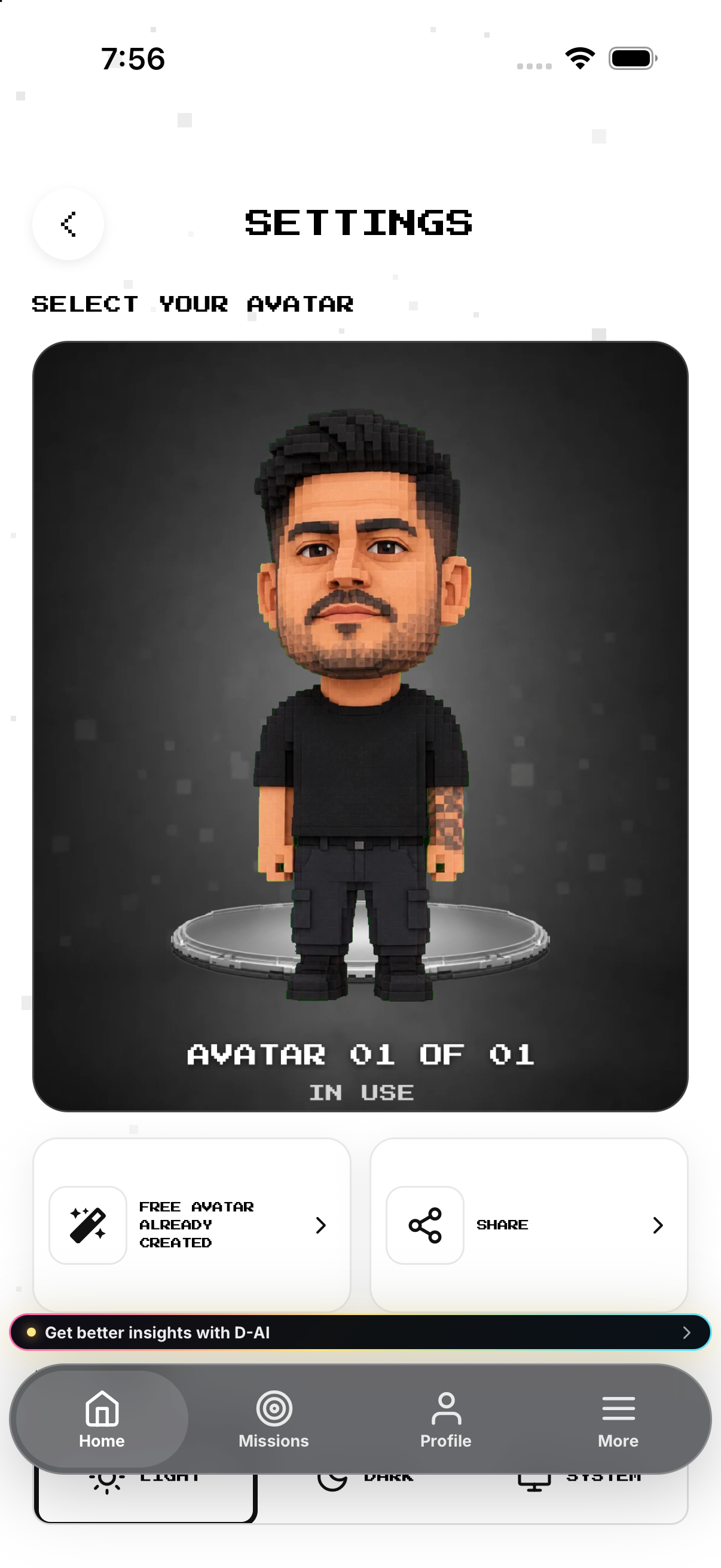
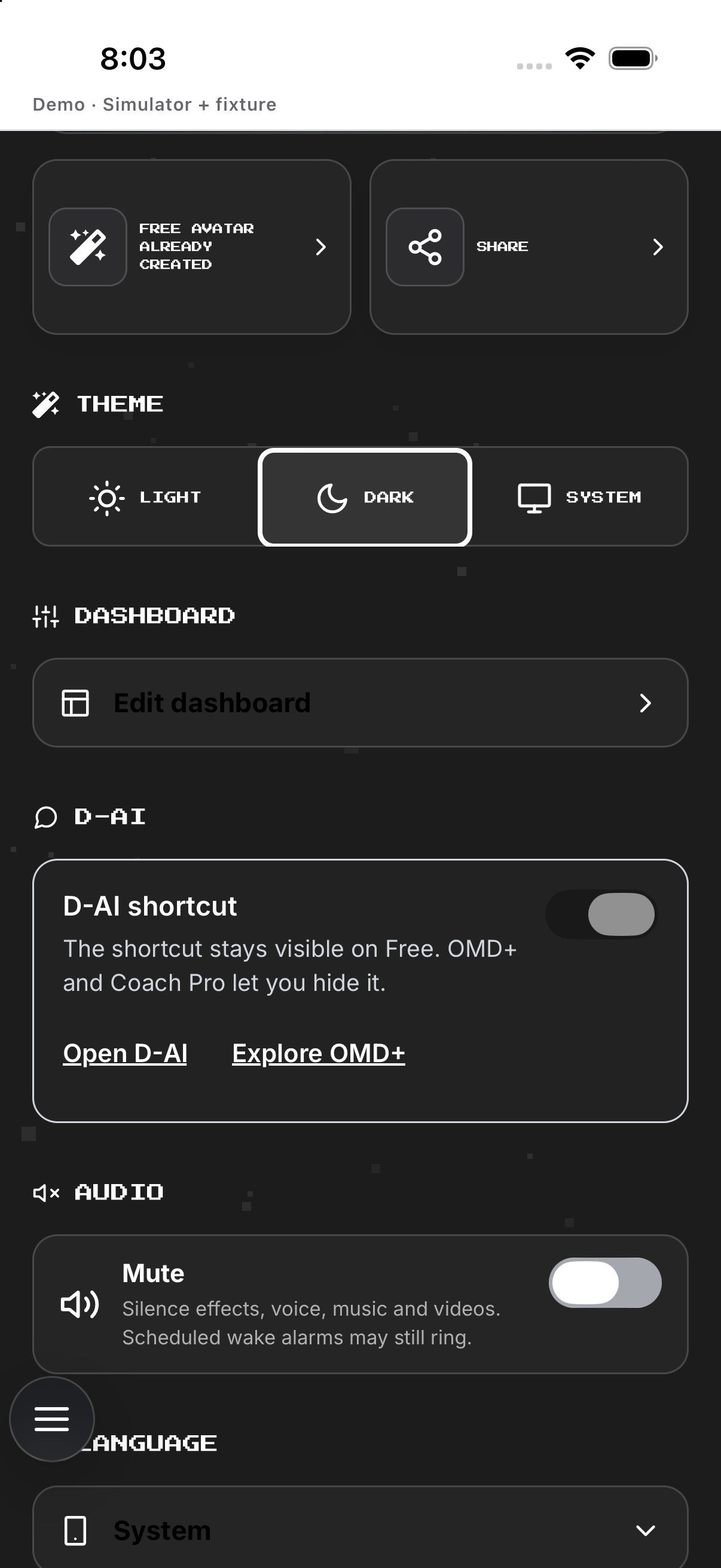
Avatar controls and System/Light/Dark theme live at the top.
- Open Avatar. Review current, history and generation state.
- Create or select. Starts photo guidance or selects existing avatar.
- Wait for generation. Do not select unfinished output.
- Choose System, Light or Dark. Changes appearance.
- Return Home for HP. Profile art does not prove HP.
Language
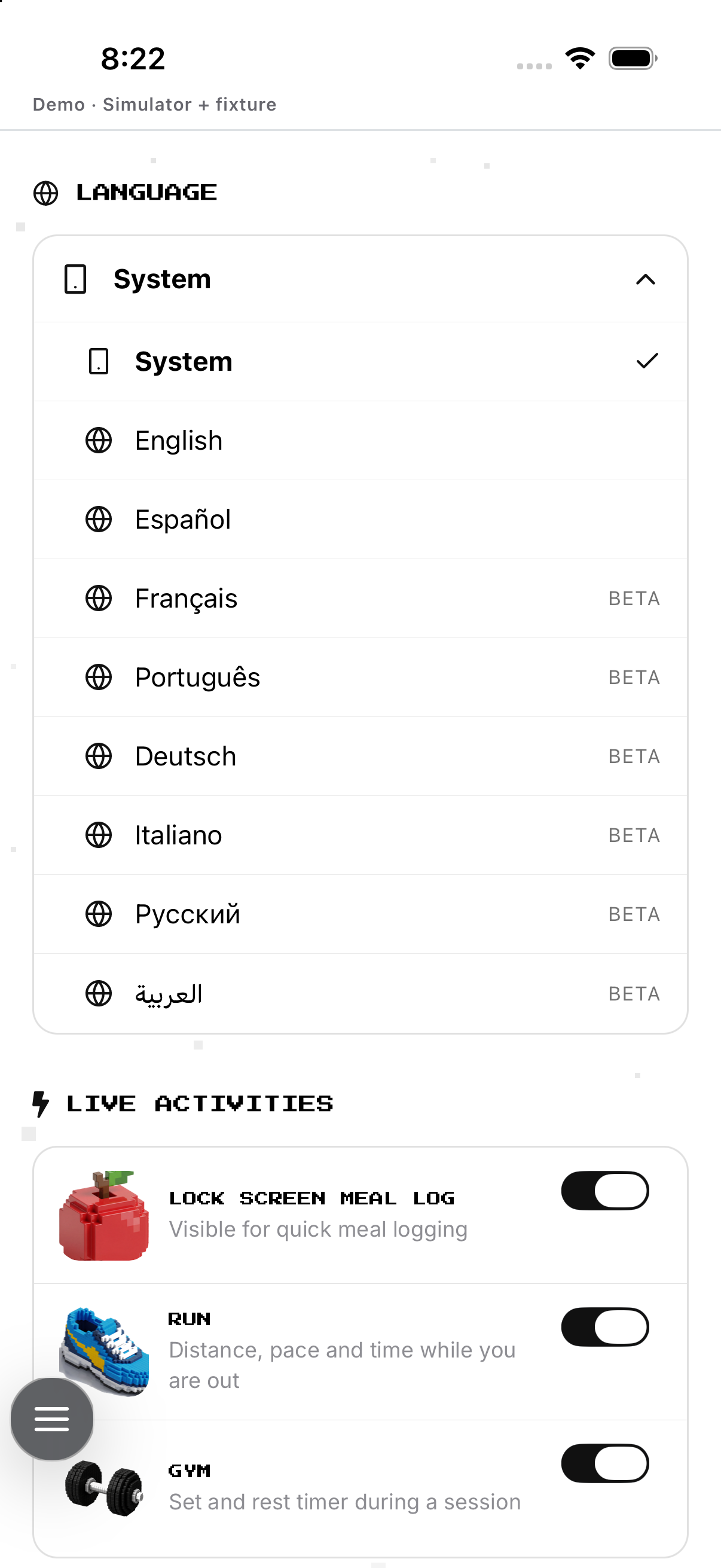
Follow Device or choose a listed override; Beta marks incomplete coverage.
- Tap Language. Expands choices.
- Choose Device. Removes override.
- Or choose a language. Applies override.
- Read Beta badge. Sets translation expectation.
- Close and verify. Checks visible labels.
Live Activities
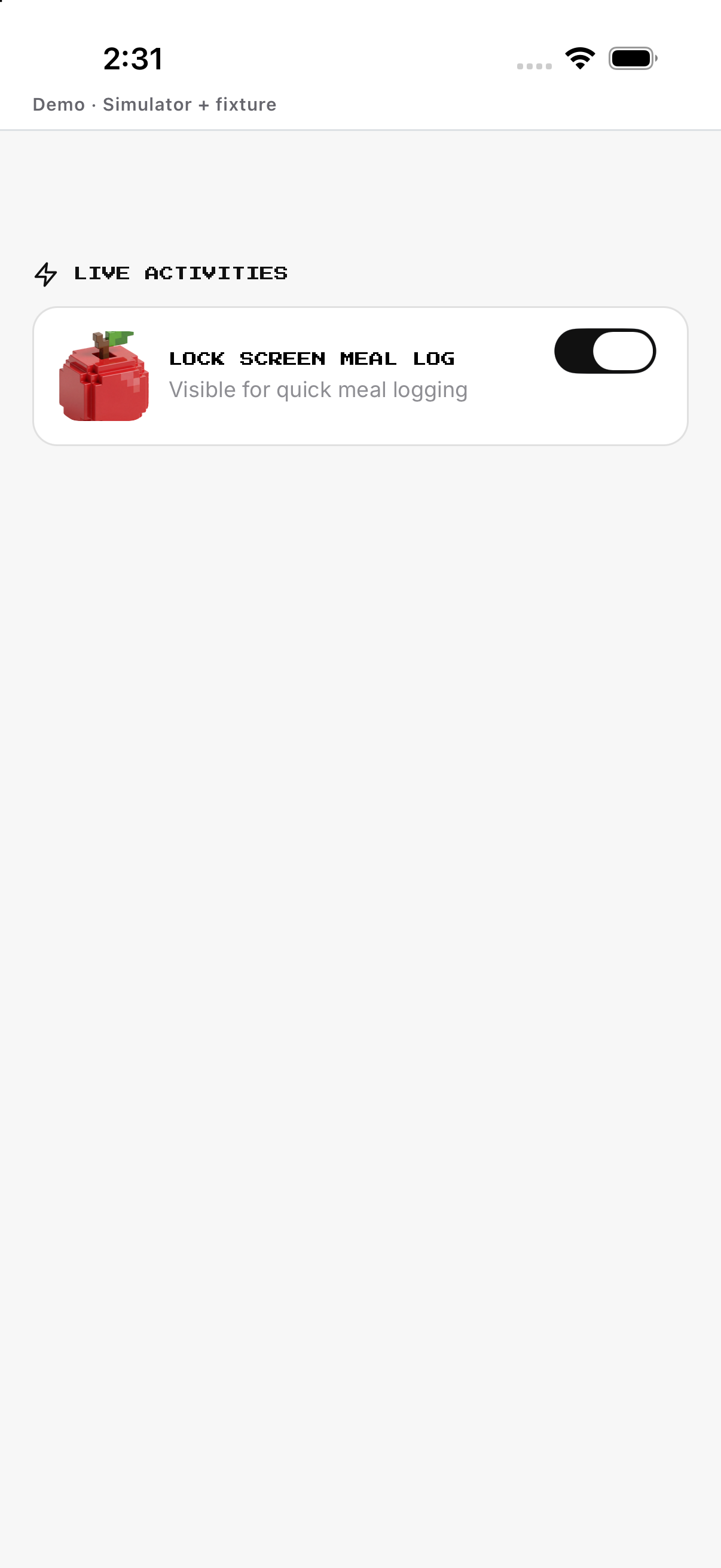
Meal Log is device-global; eligible missions have separate toggles.
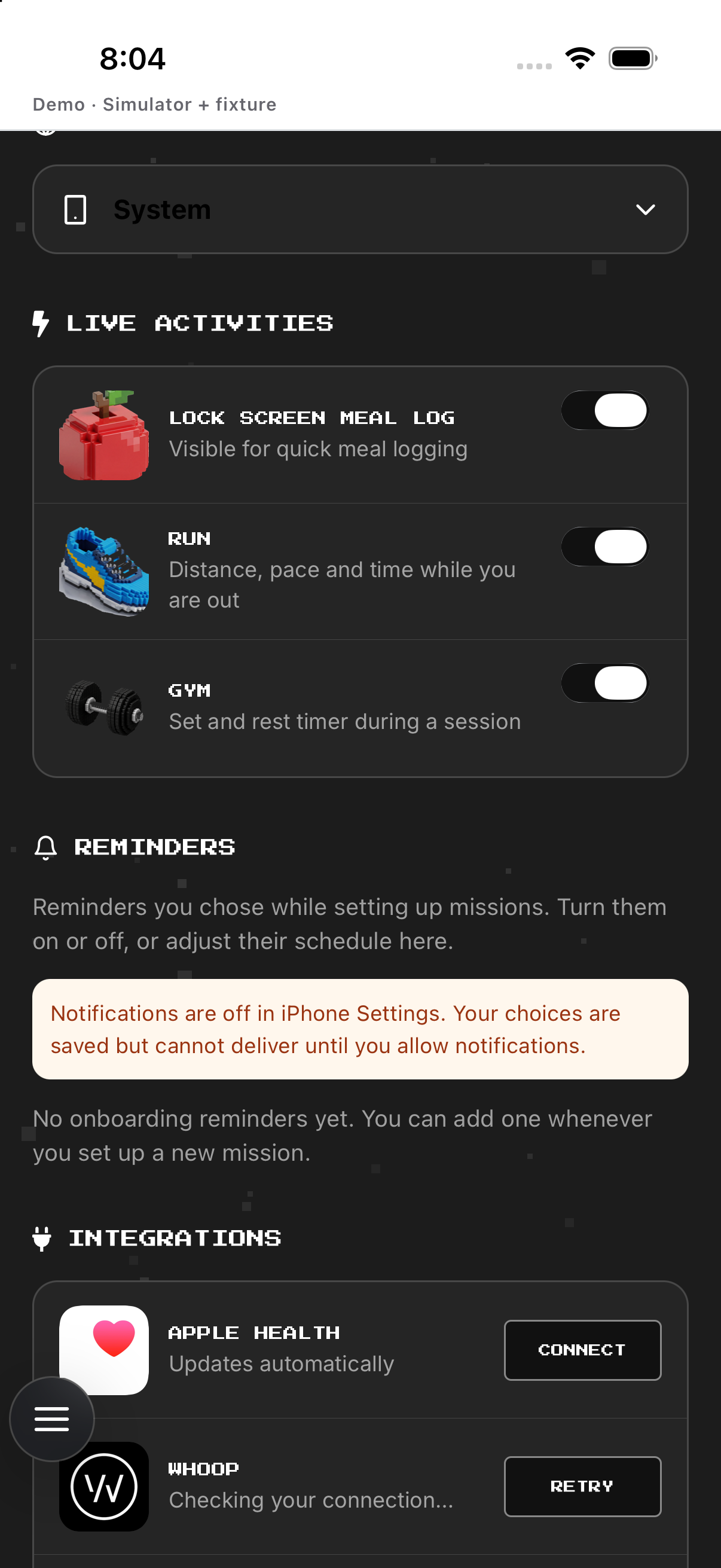
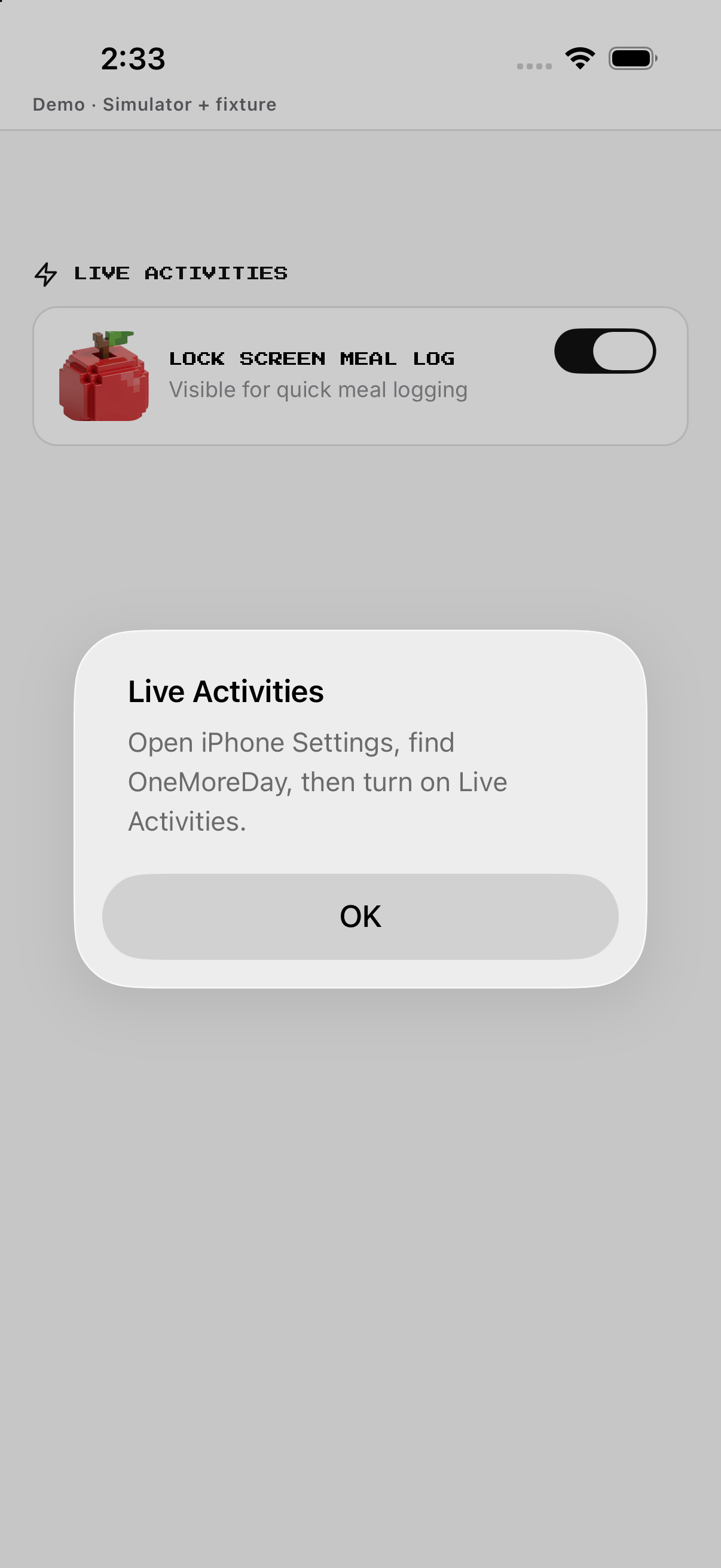
- Open Live Activities. Checks iPhone support.
- Open iPhone Settings if requested. Enables system permission.
- Toggle Meal Log. Changes global meal card.
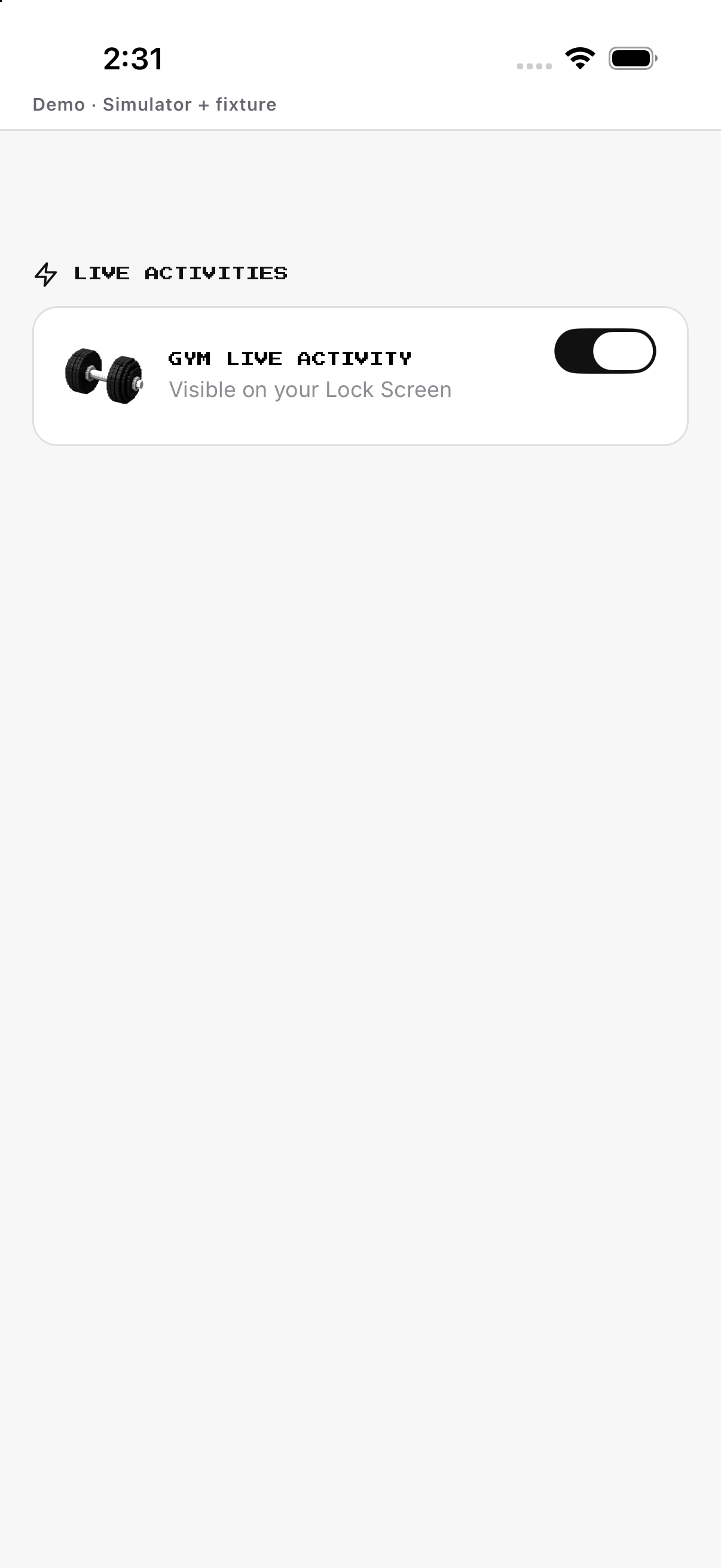
- Toggle a mission. Changes its Lock Screen card.
- Reopen to verify. Confirms saved state.
Mission reminders
Reminder rows belong to the current member's missions.
- Scroll to Reminders. Loads mission rows.
- Tap a mission. Opens editor.
- Set time and enabled state. Changes schedule.
- Save. Persists for current member.
- Reopen. Verifies stored state.
Integration rows
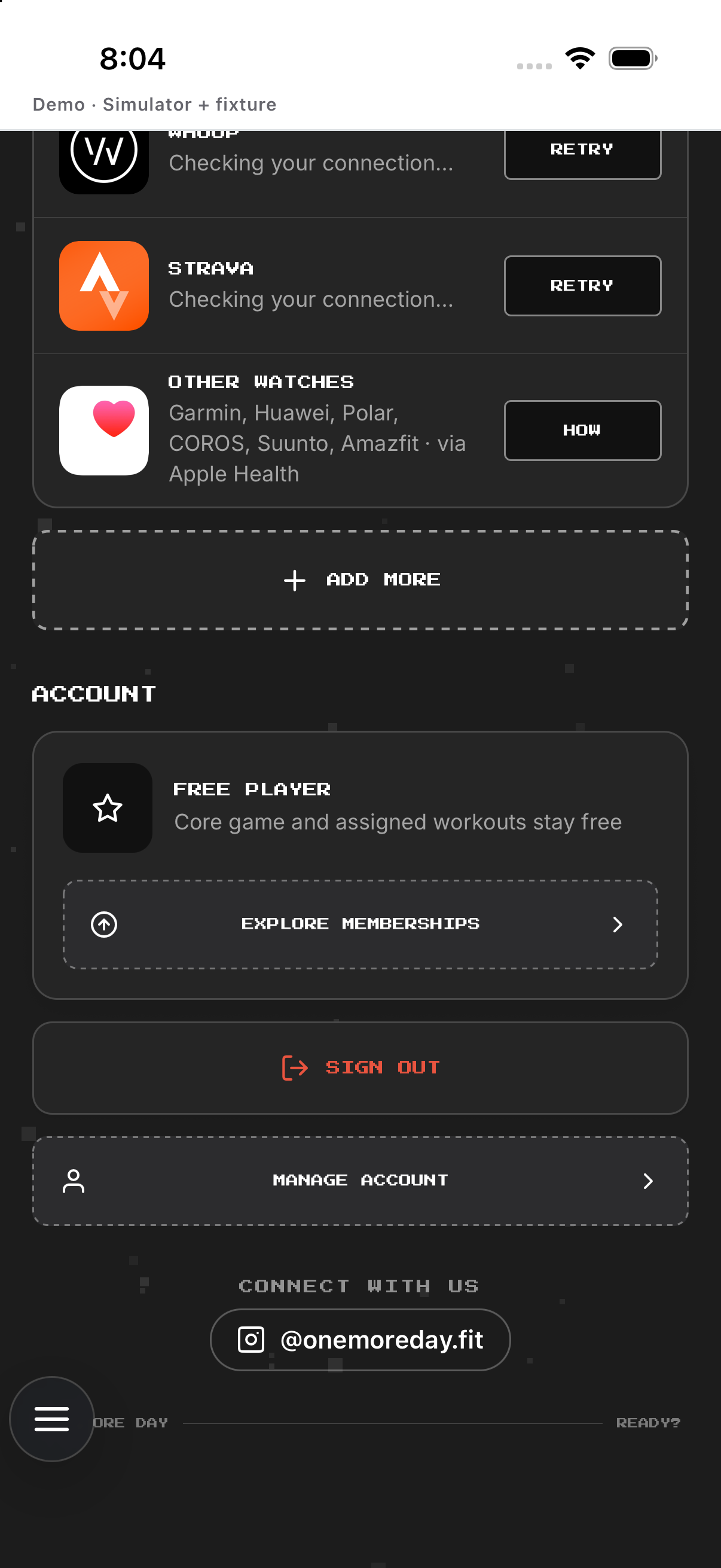
Apple Health, Strava and WHOOP have separate status and actions.
- Scroll to Integrations. Loads provider tiles.
- Tap disconnected provider. Starts permission/authorization.
- Return. Refreshes status.
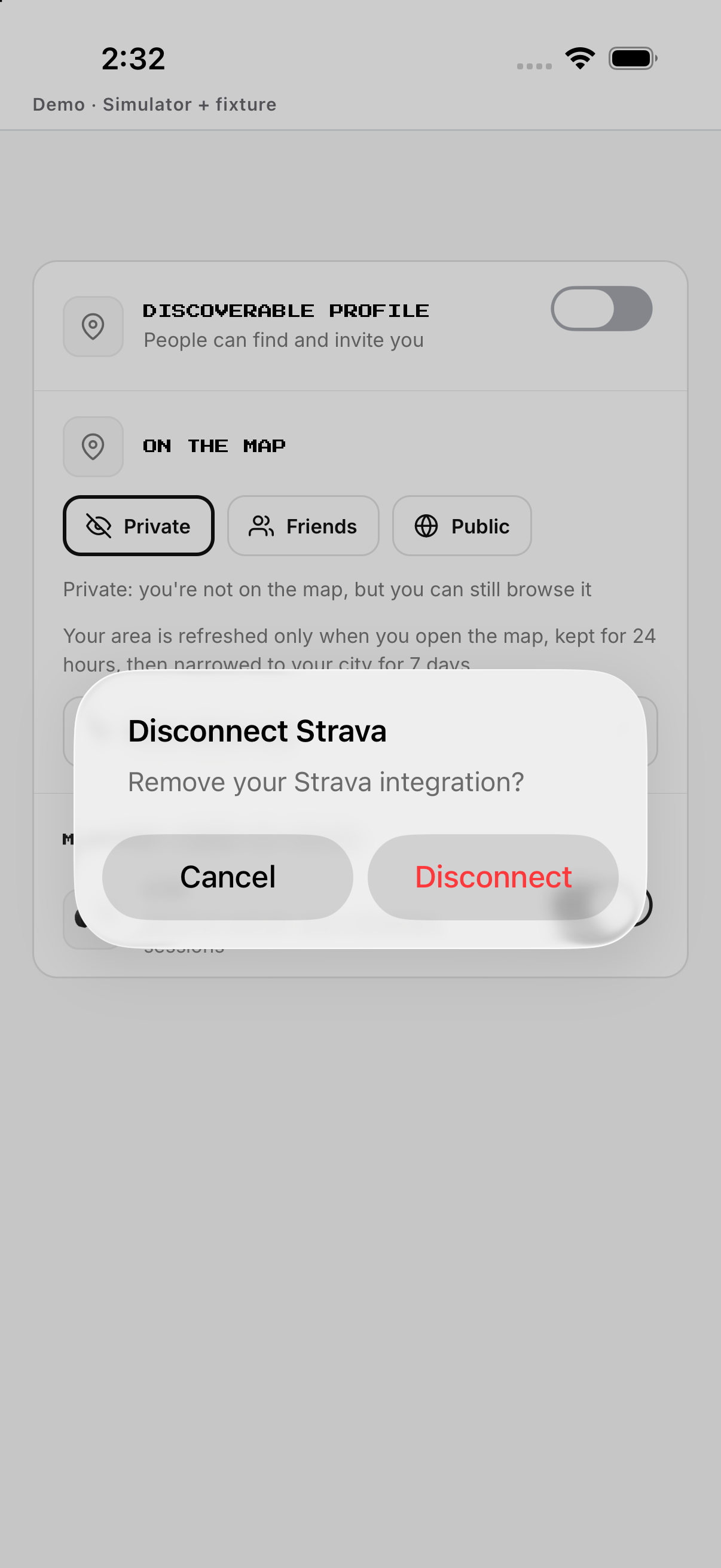
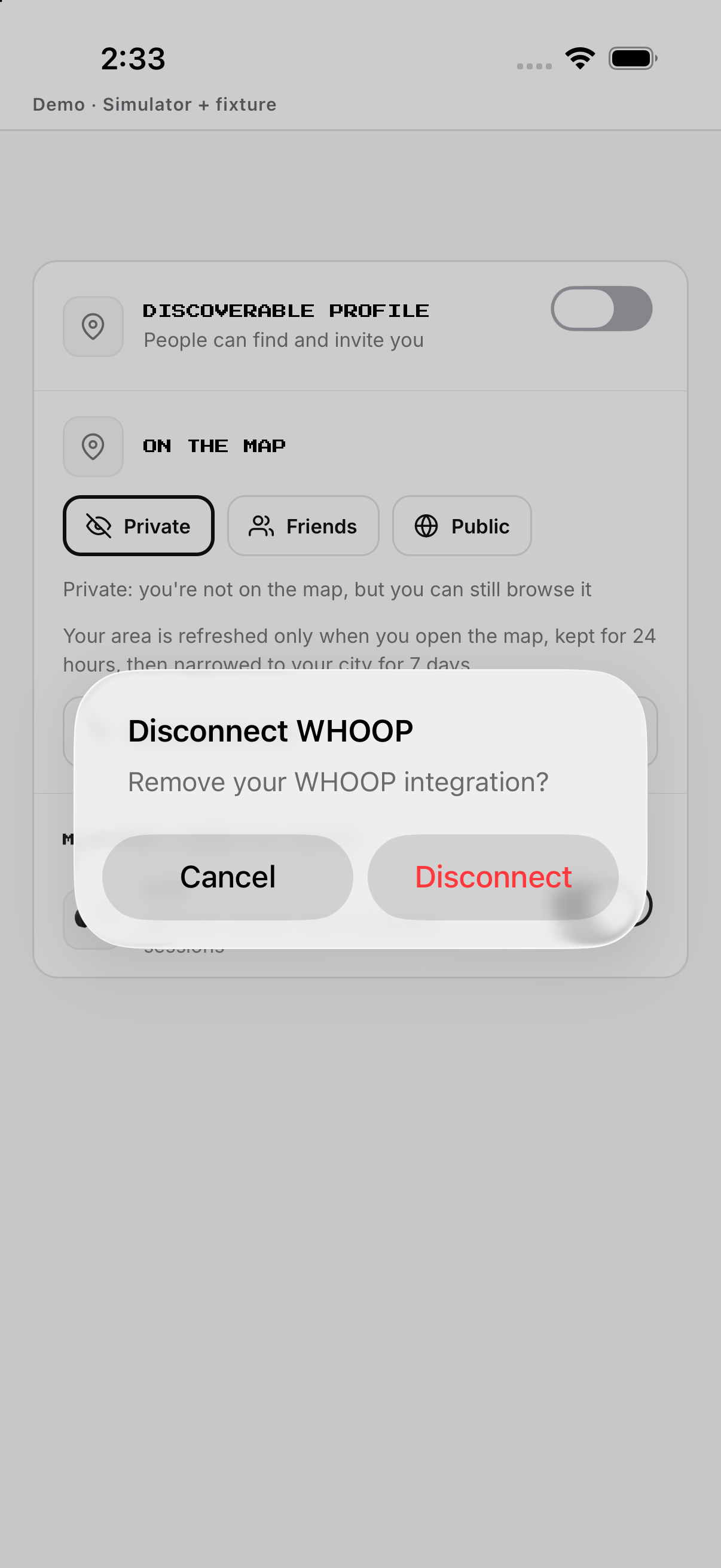
- Tap connected provider. Opens disconnect.
- Confirm. Removes only that provider.
Membership
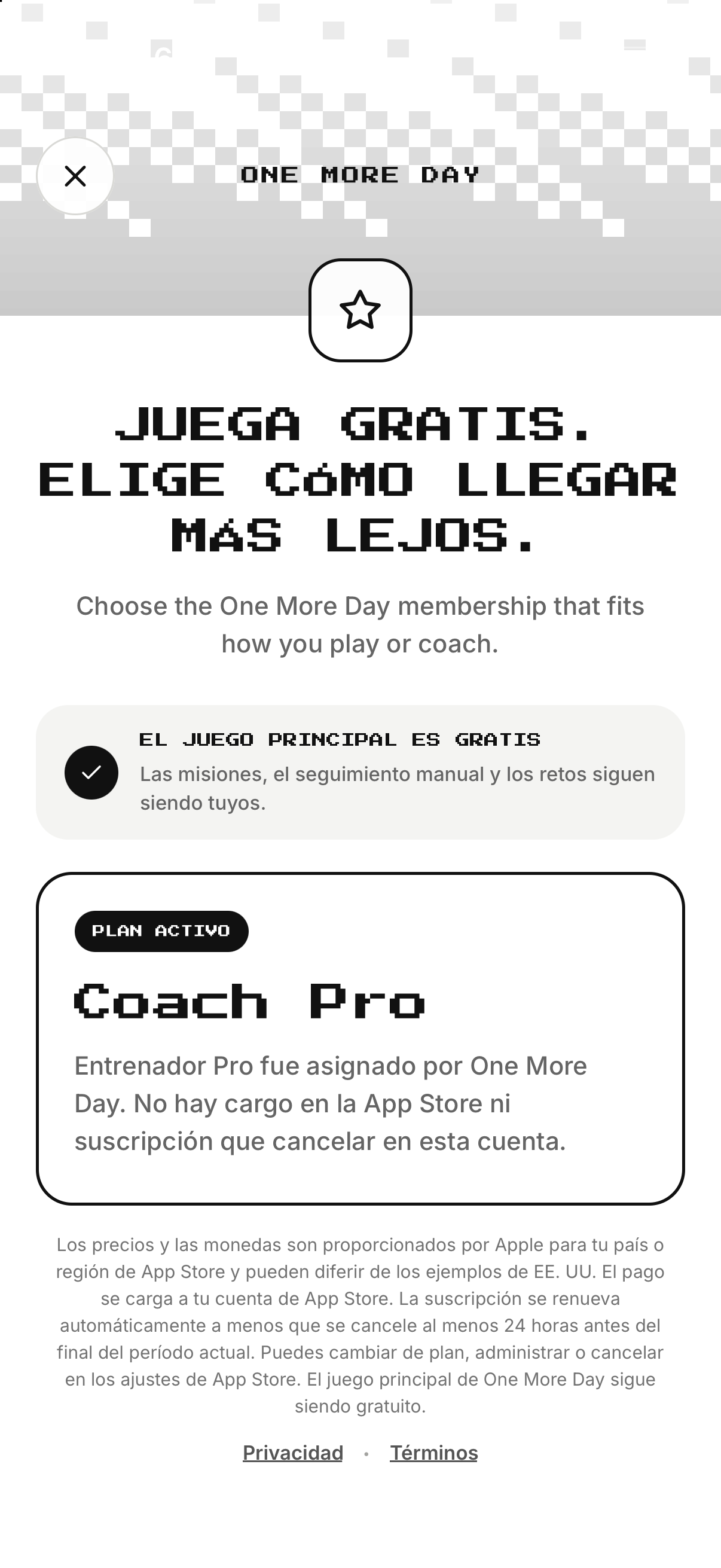
Opens OMD+/Coach Pro, billing, restore and management.
- Tap Membership. Opens plans.
- Choose OMD+ or Coach Pro. Changes product family.
- Choose monthly or annual. Changes Apple product.
- Read localized price. Confirms currency/period.
- Continue, Restore or Manage. Runs only selected Apple action.
Sign out and Manage account
Sign out ends local session; Manage account contains permanent deletion.
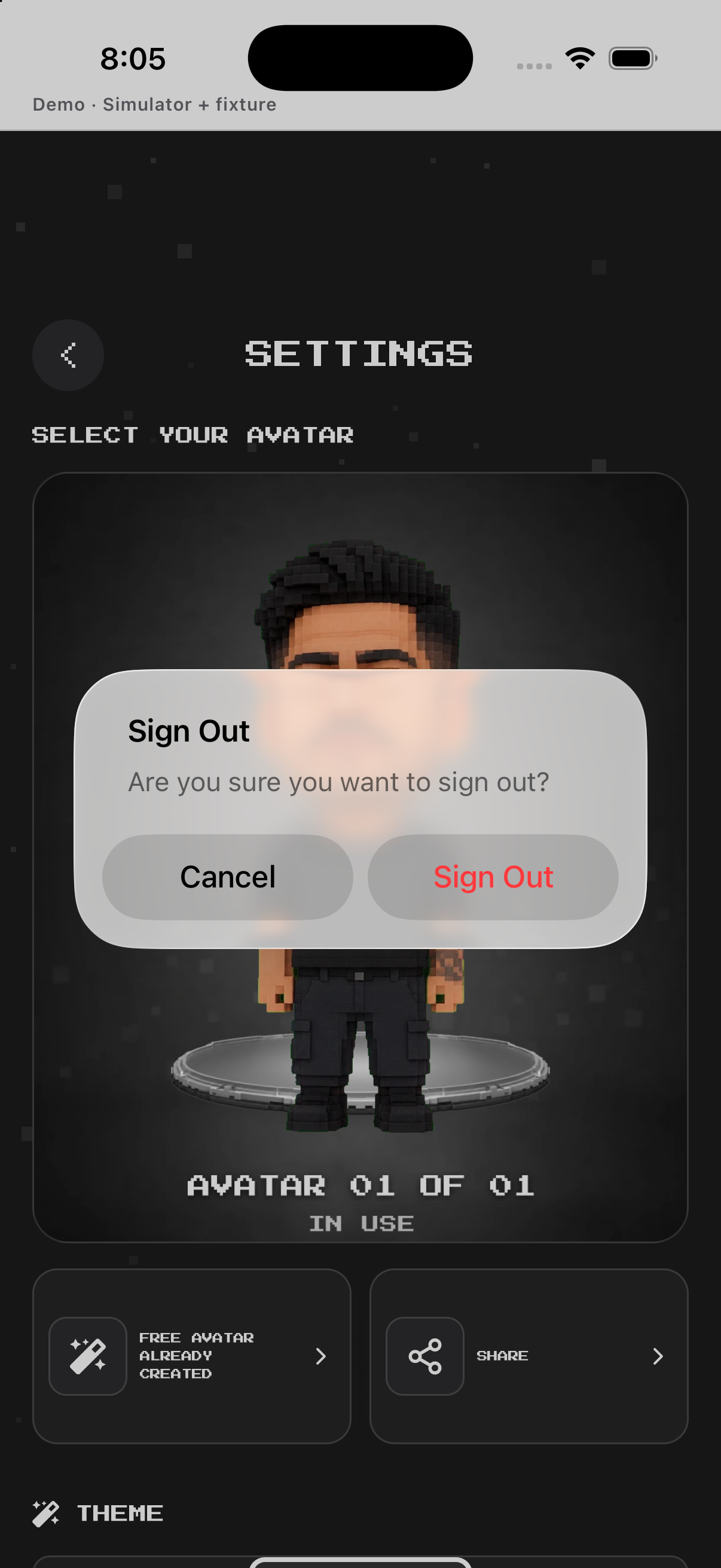
- Tap Sign out. Opens session confirmation.
- Cancel or confirm. Cancel stays; confirm returns to auth.
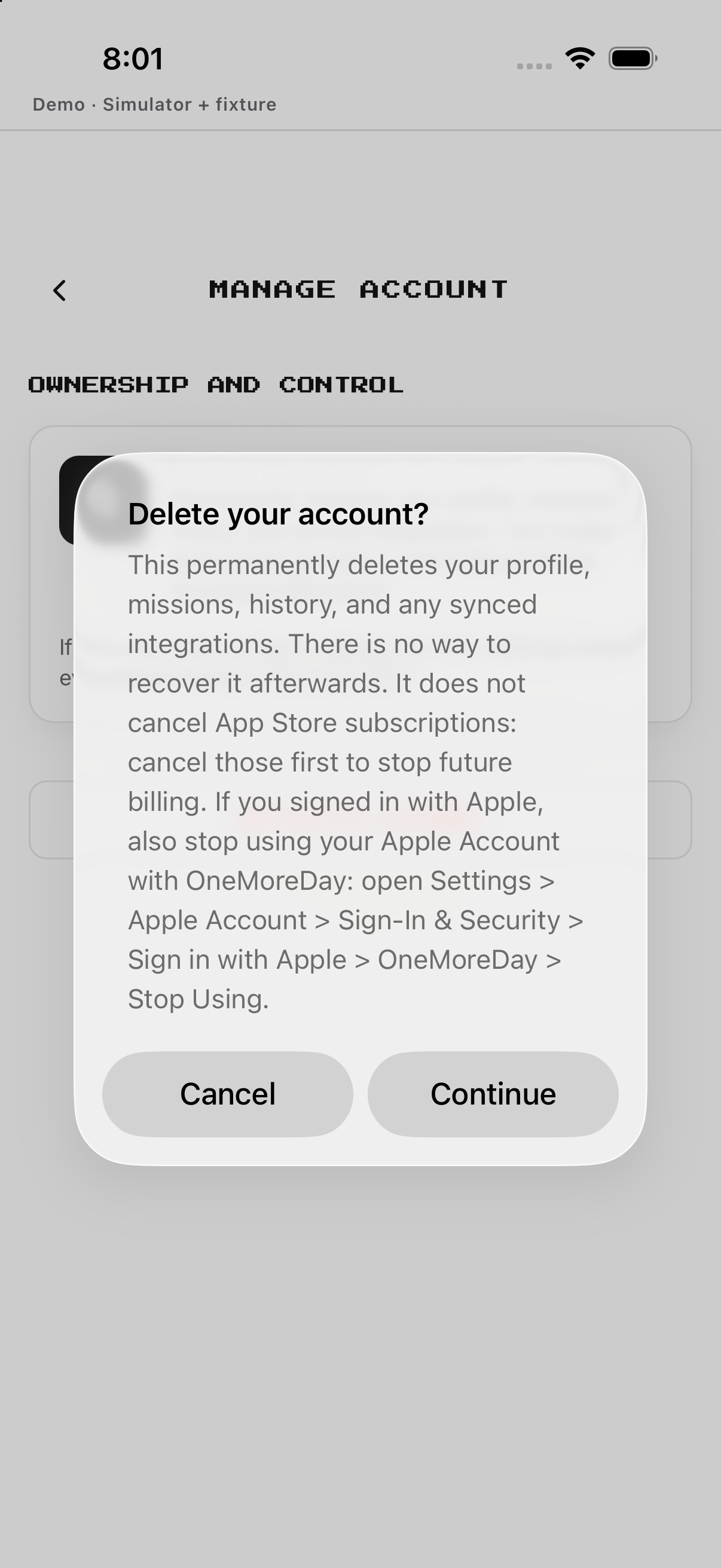
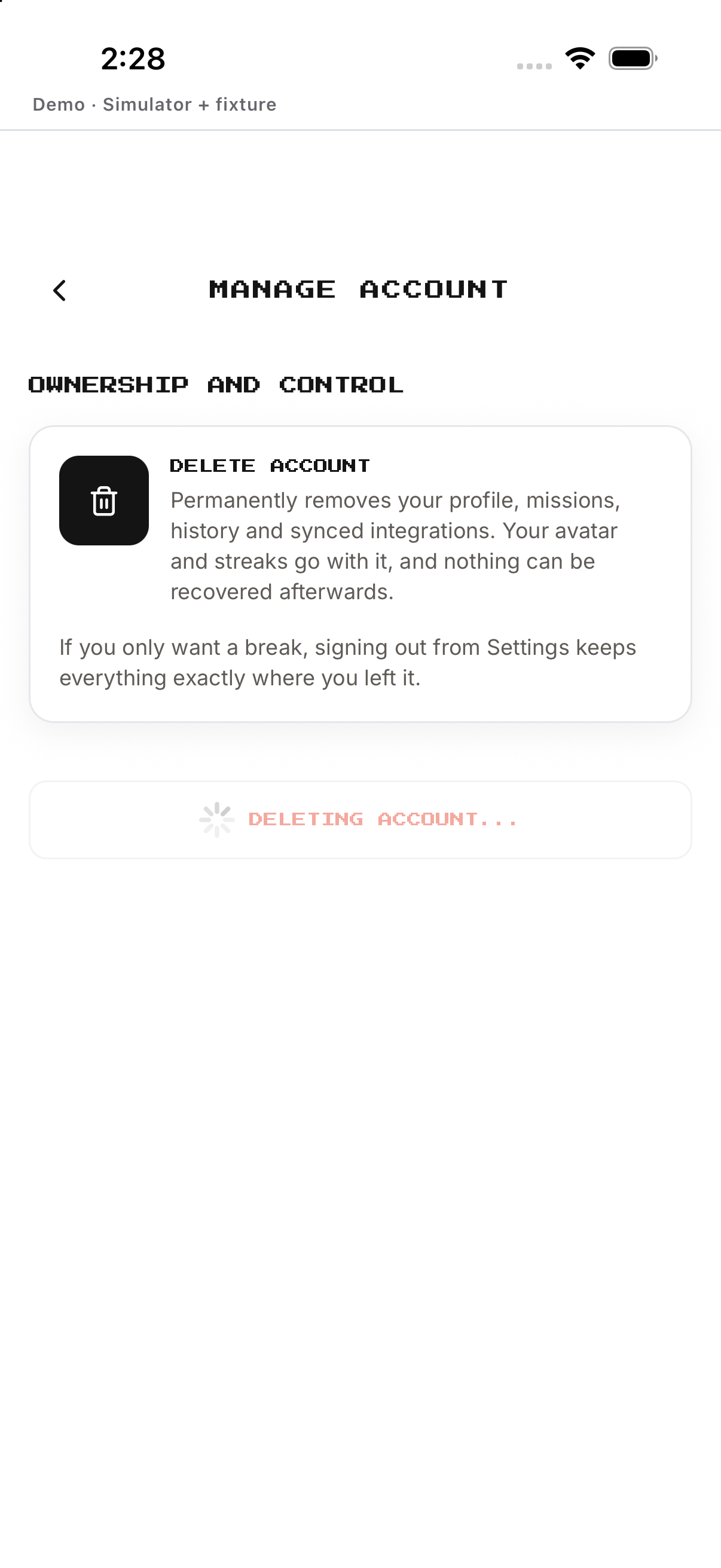
- Tap Manage account. Opens deletion guidance.
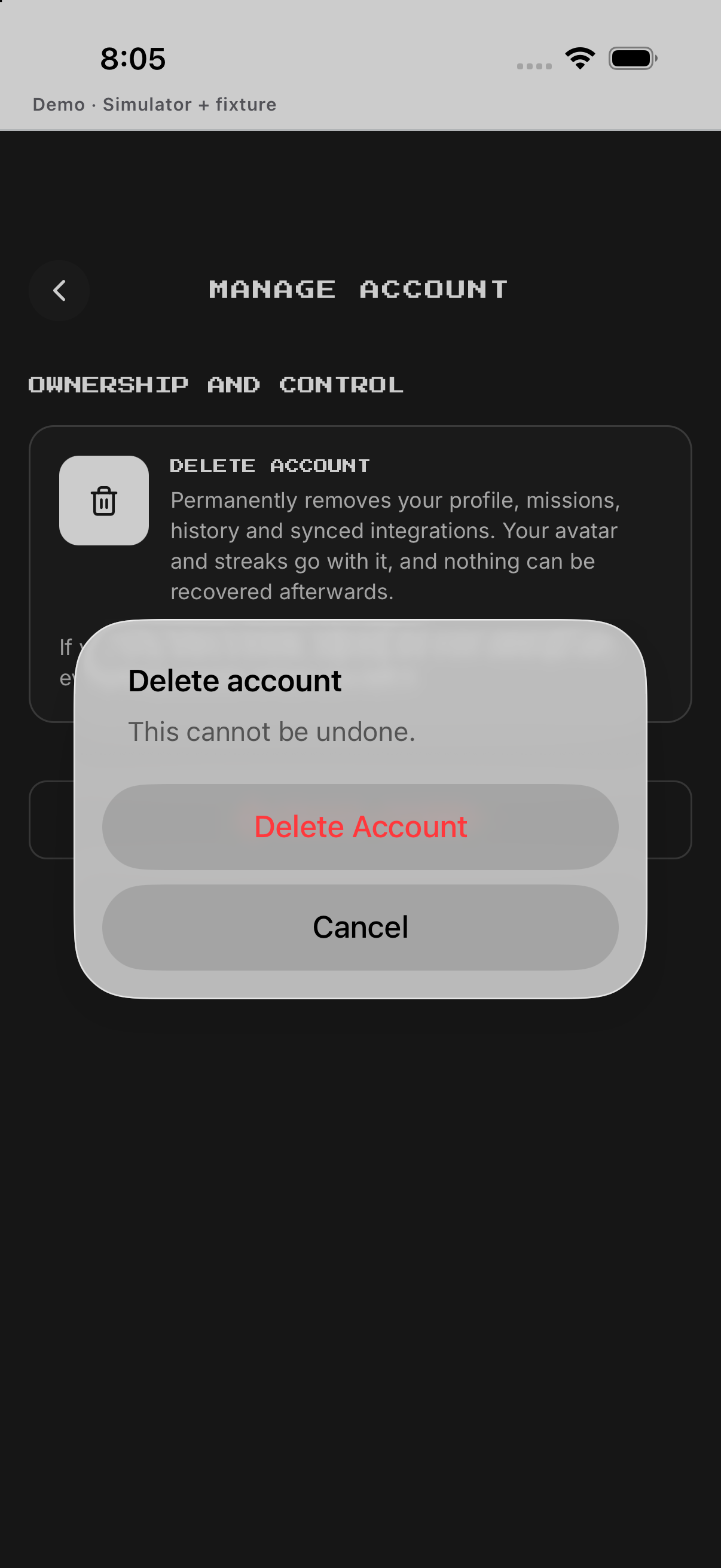
- Start Delete account. Opens first confirmation.
- Pass final confirmation. Starts permanent deletion; wait for completion.

Example
Example: choose System theme and Español.
Keep in mind
Some languages are marked beta.