
One More Day · Guide
Gym
Build or choose a plan, then log every working set inside the live session.
Open the complete visual walkthrough ↗
Getting started
- Configure goal, level, equipment, split and days.
- Select, replace, edit or remove exercises.
- Start; enter sets, reps and weight; use Rest and Pause; Finish and review History.
Every feature, step by step
Create or edit the plan
Choose training outcome and experience. Review before generating or updating.
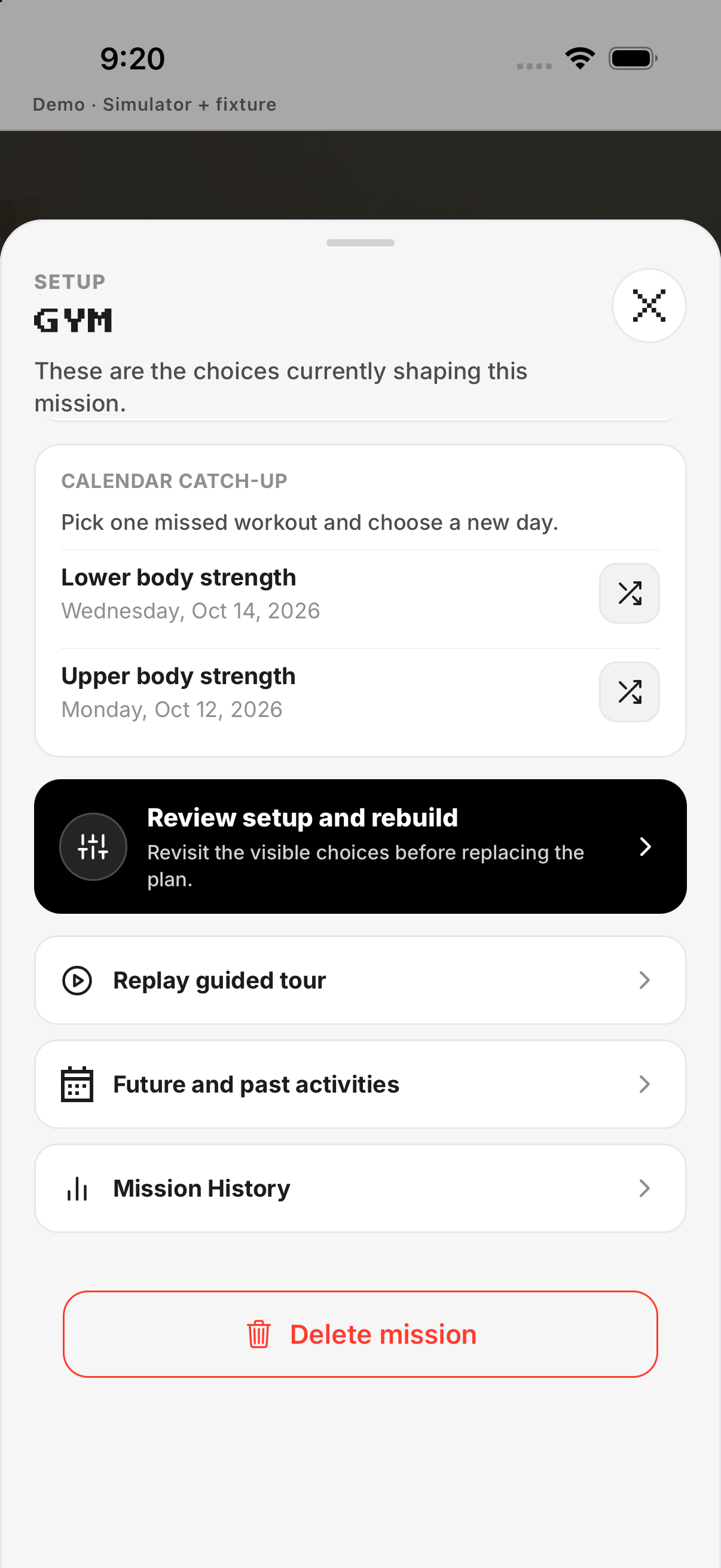
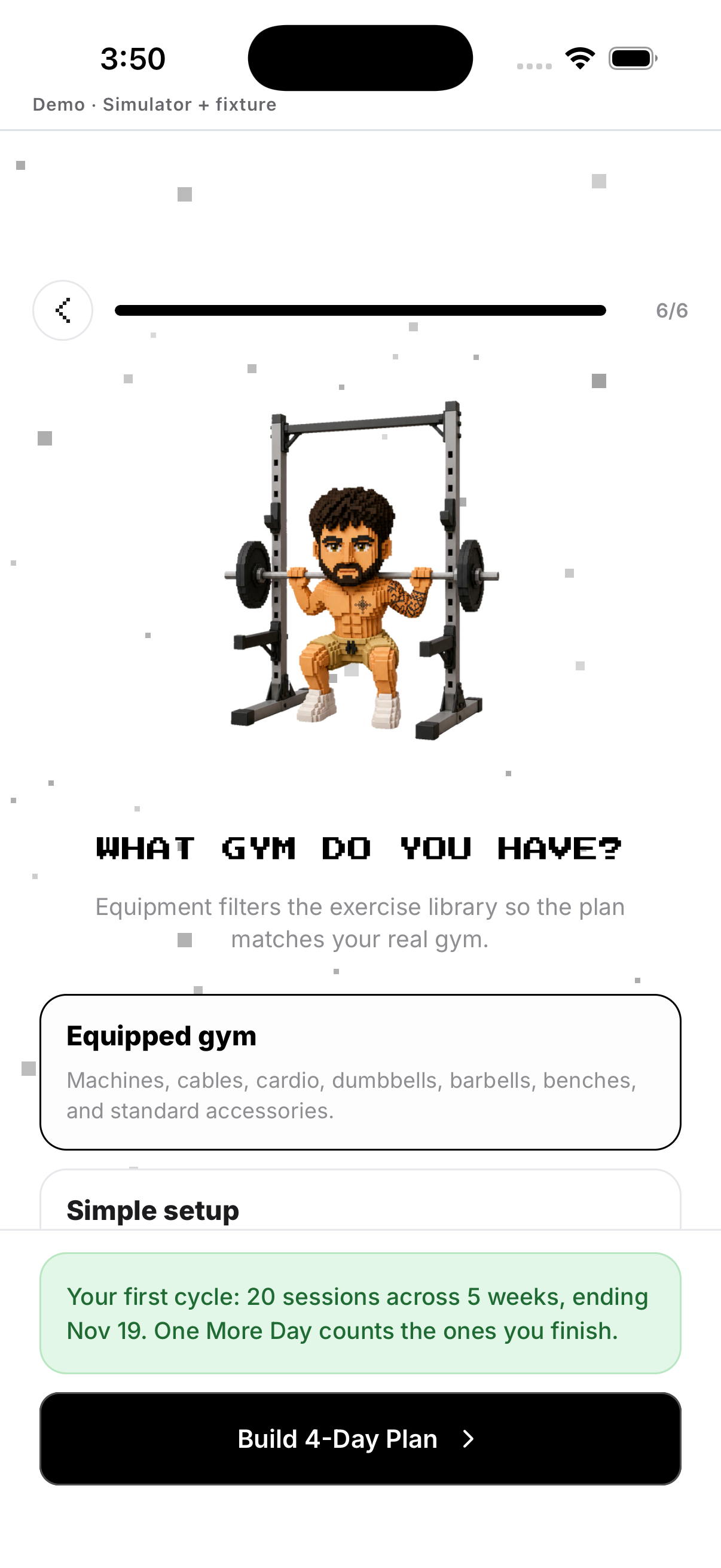
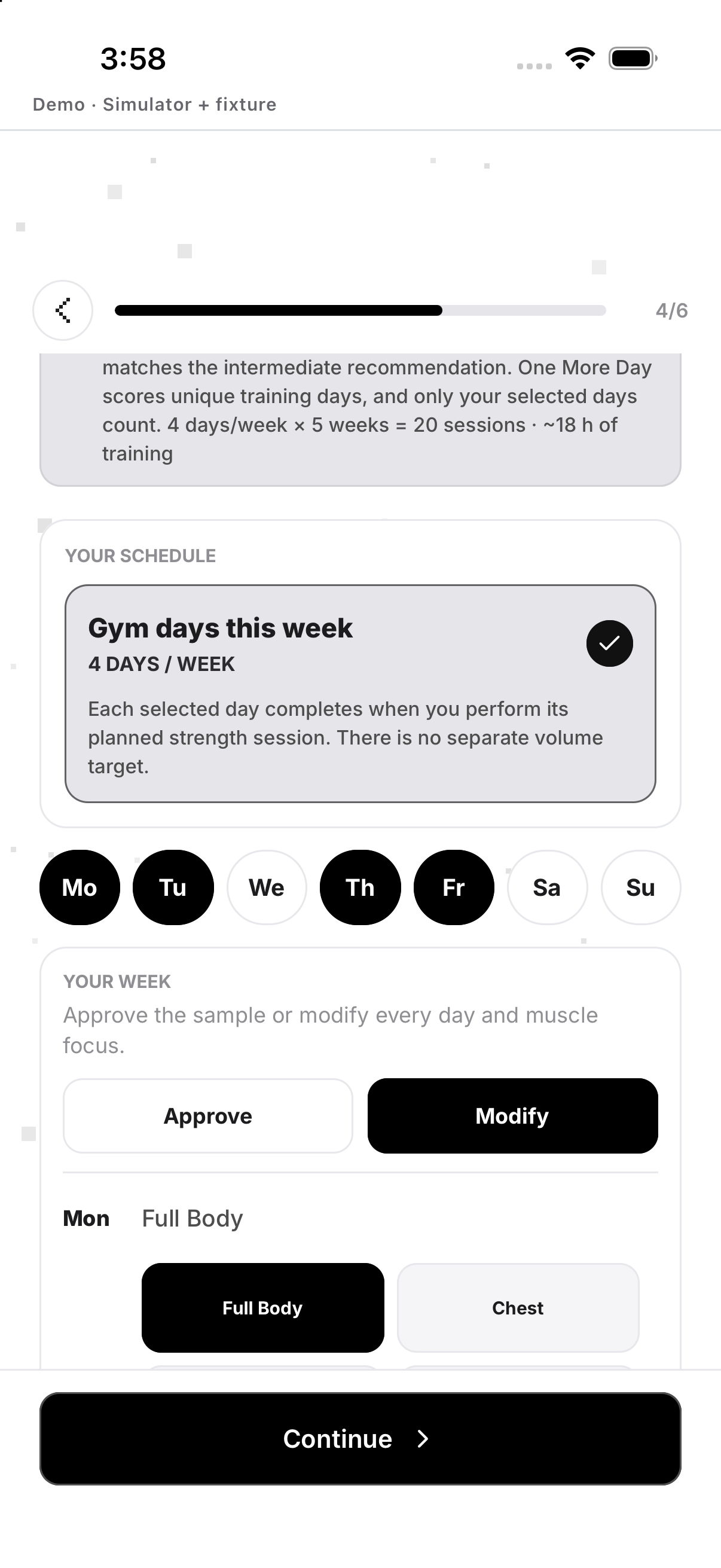
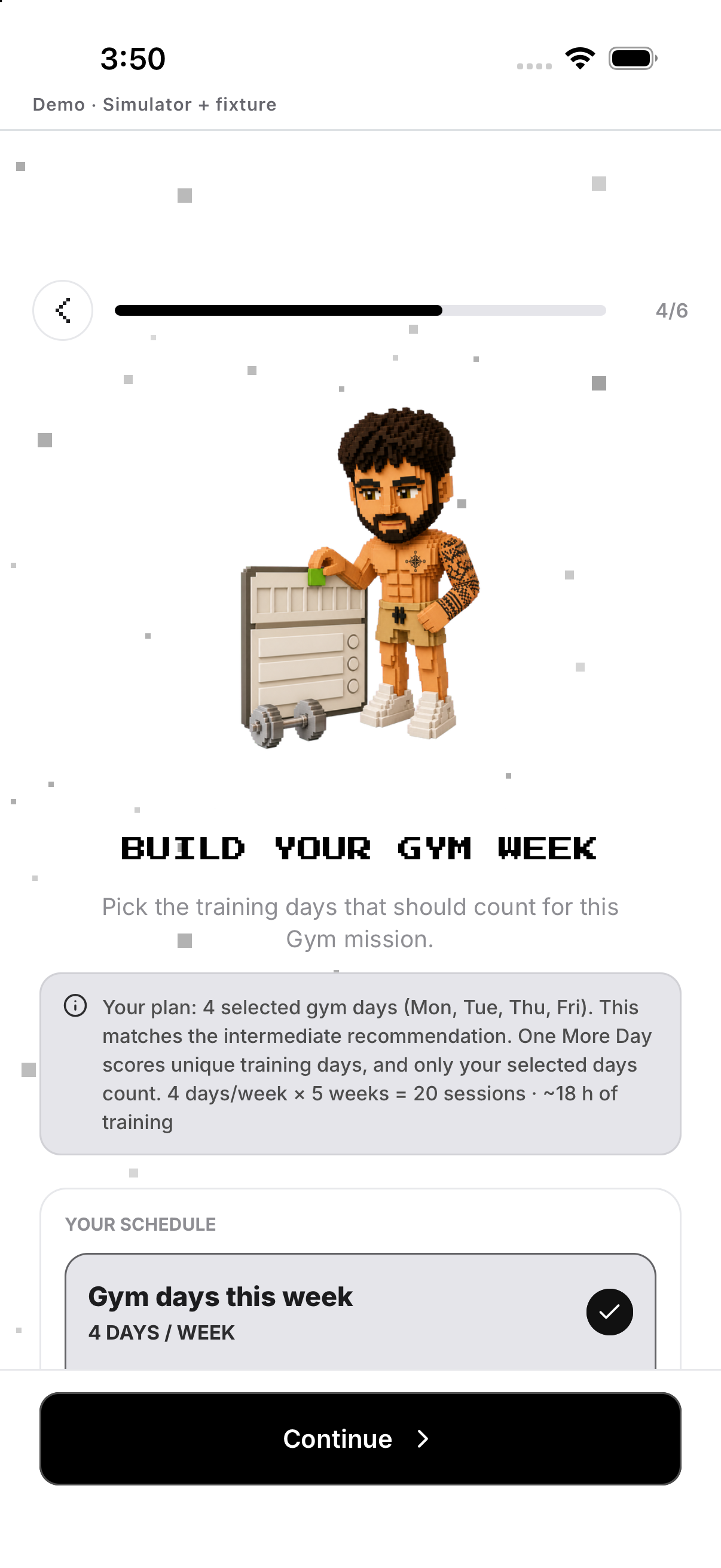
- Goal and level. From Missions, open Gym and tap the gear at the top right to open Setup. Choose training outcome and experience.
- Equipment. Limit the plan to equipment you can use.
- Split and days. Choose structure and target days.
- Save. Review before generating or updating.
Select, replace, edit or remove
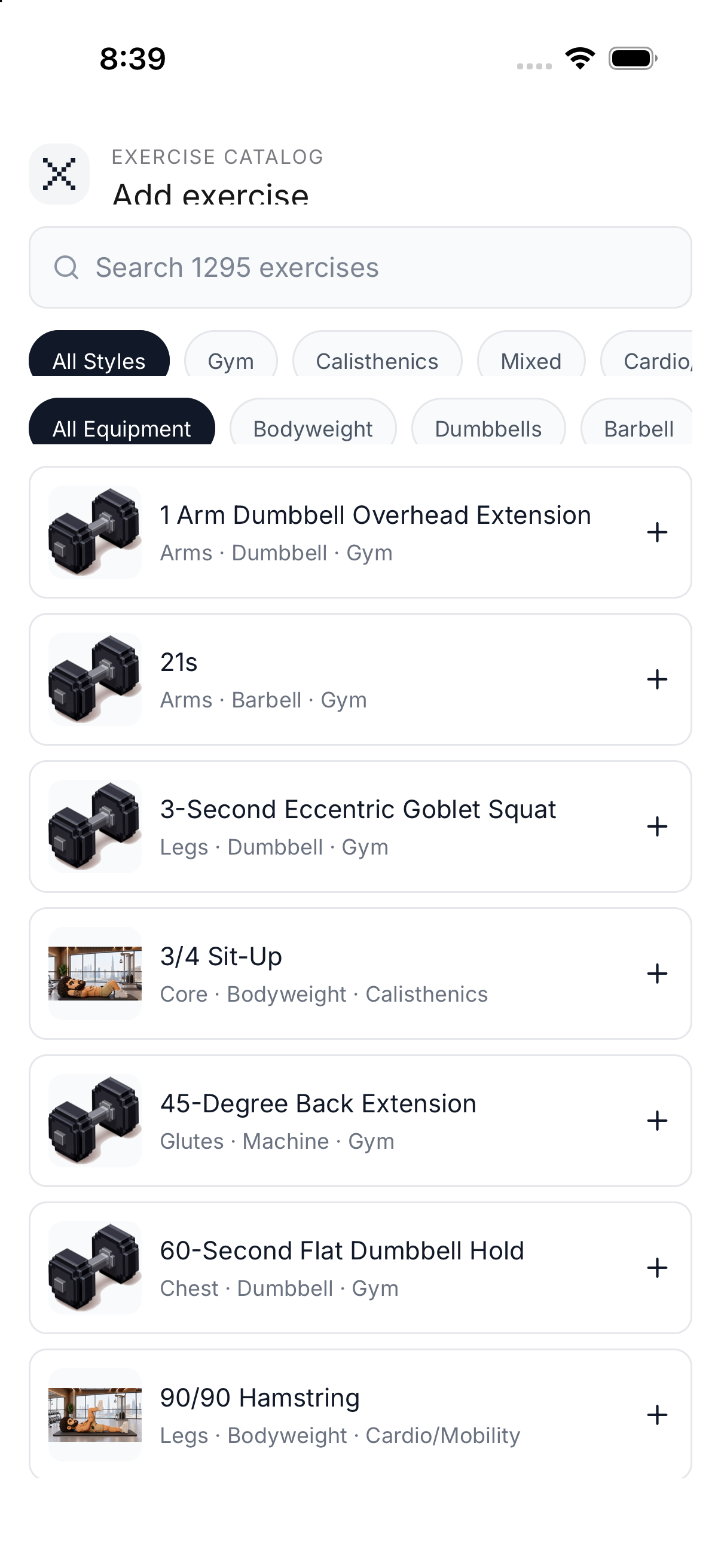
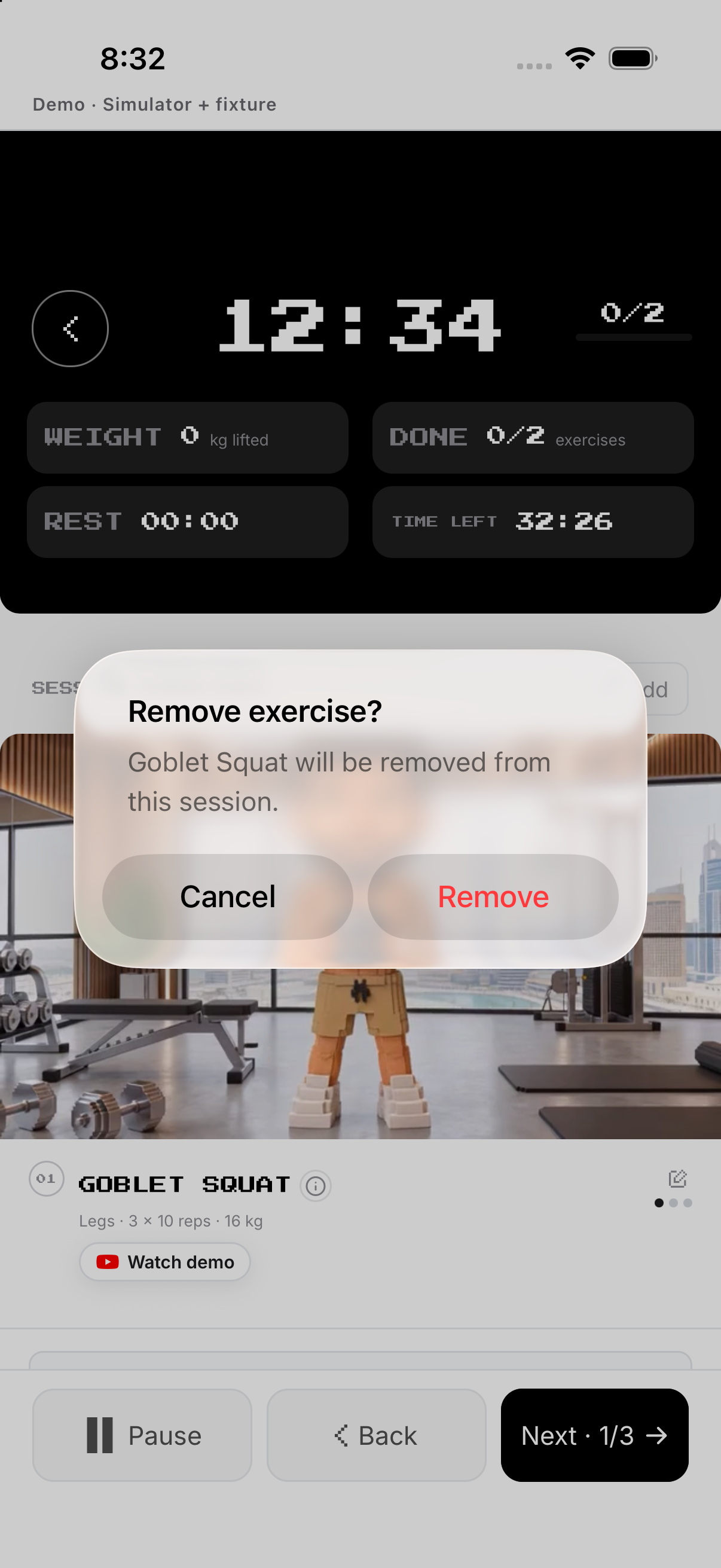
Tap Add exercise to open the catalog. Search or filter, then tap an exercise; Add closes the catalog and reloads the session. Tap the trash/Remove control, then Remove in the alert. It deletes that exercise from this session; Cancel makes no change.
- Add. Tap Add exercise to open the catalog. Search or filter, then tap an exercise; Add closes the catalog and reloads the session.
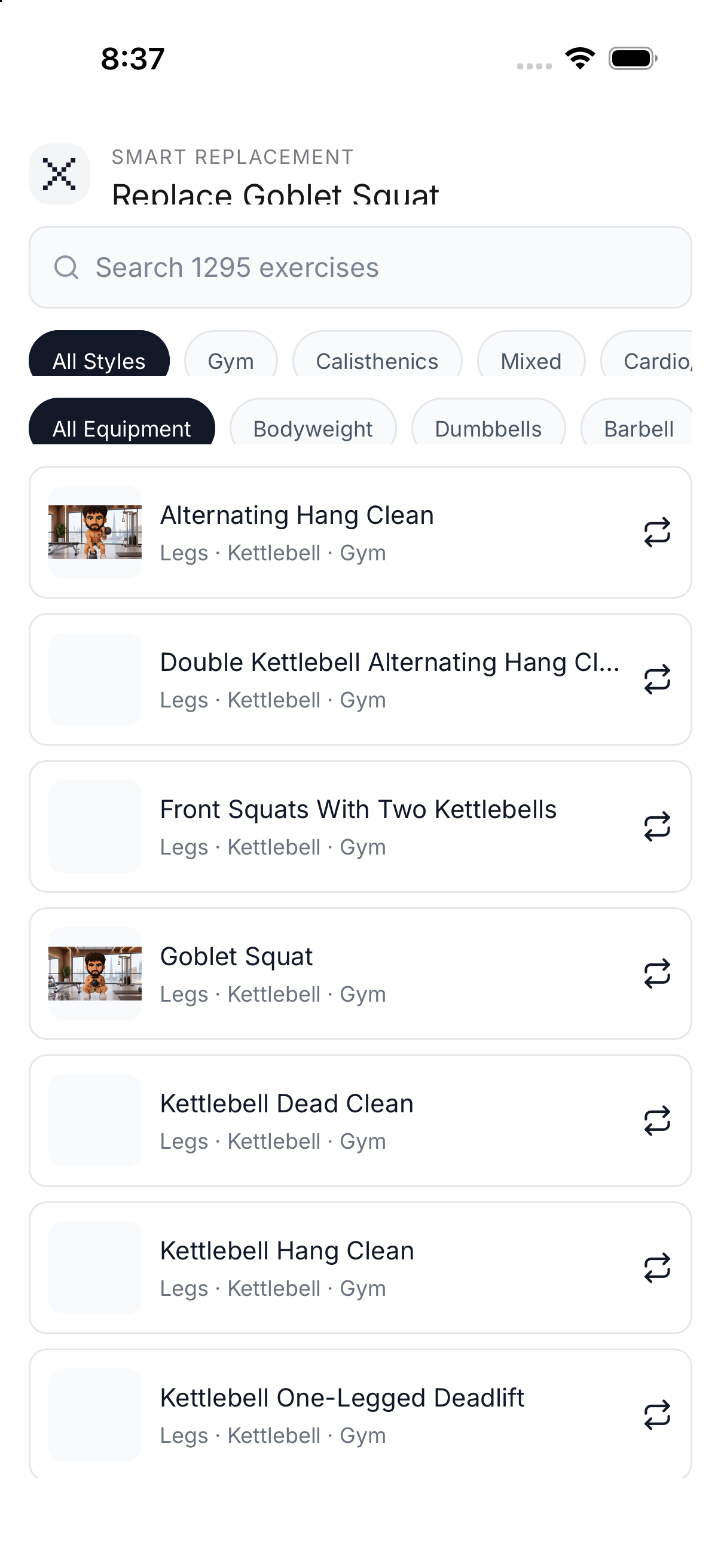
- Replace. Tap the pencil to expose exercise controls, tap Replace, then choose a catalog item; the existing exercise is replaced and the session reloads.
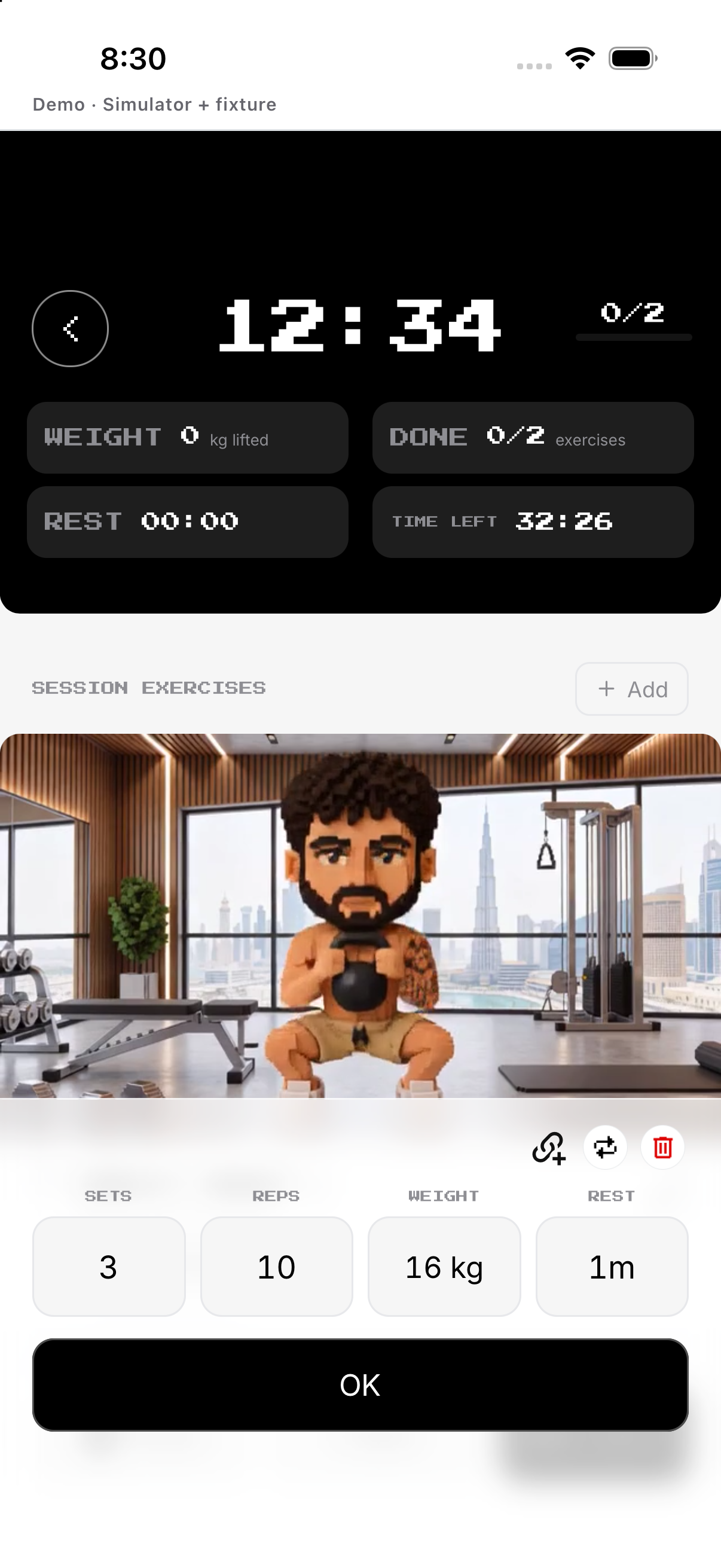
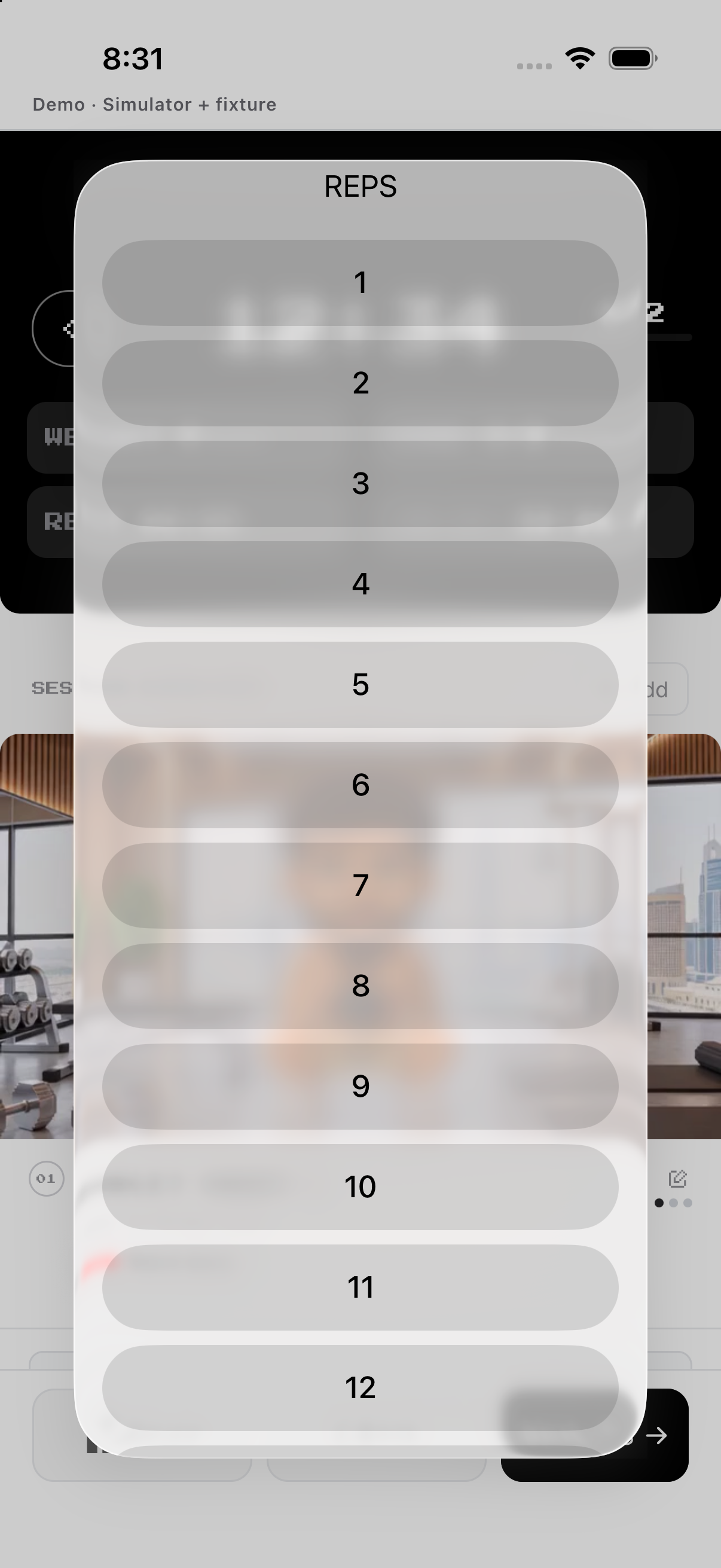
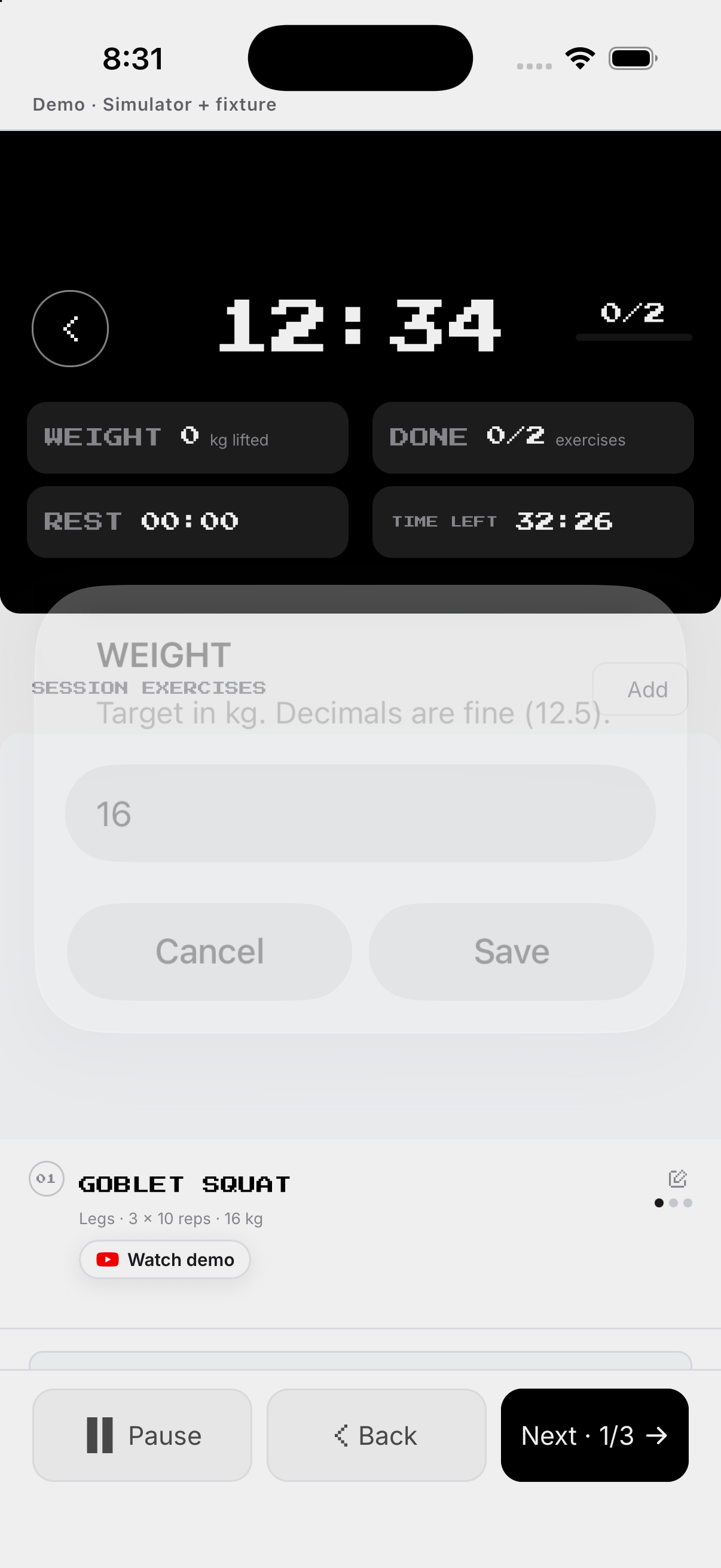
- Edit. In the pencil controls, Sets and Reps open pickers; Weight opens a unit-aware input/picker; Rest can be No rest or timed. Each choice patches the current exercise target.
- Remove. Tap the trash/Remove control, then Remove in the alert. It deletes that exercise from this session; Cancel makes no change.
Sets, reps and weight
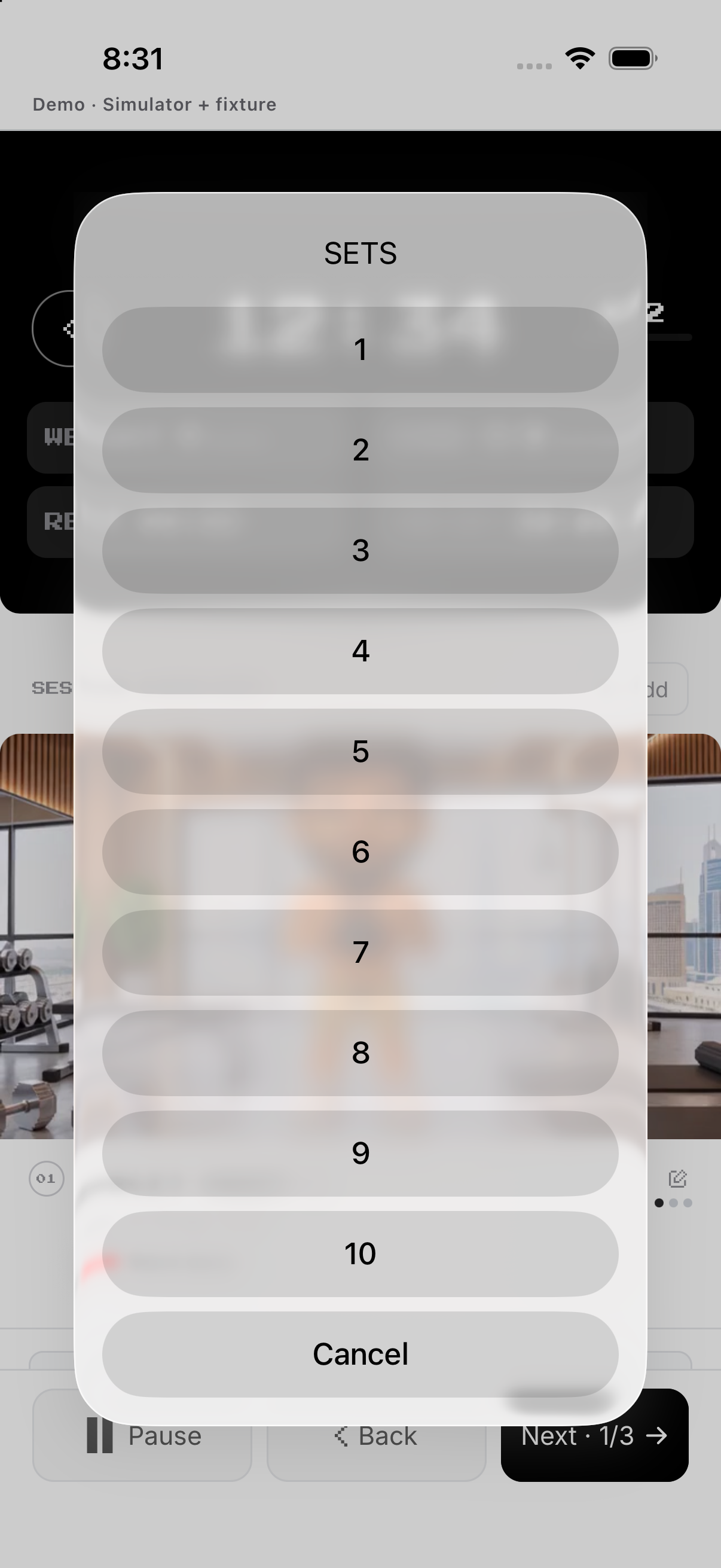
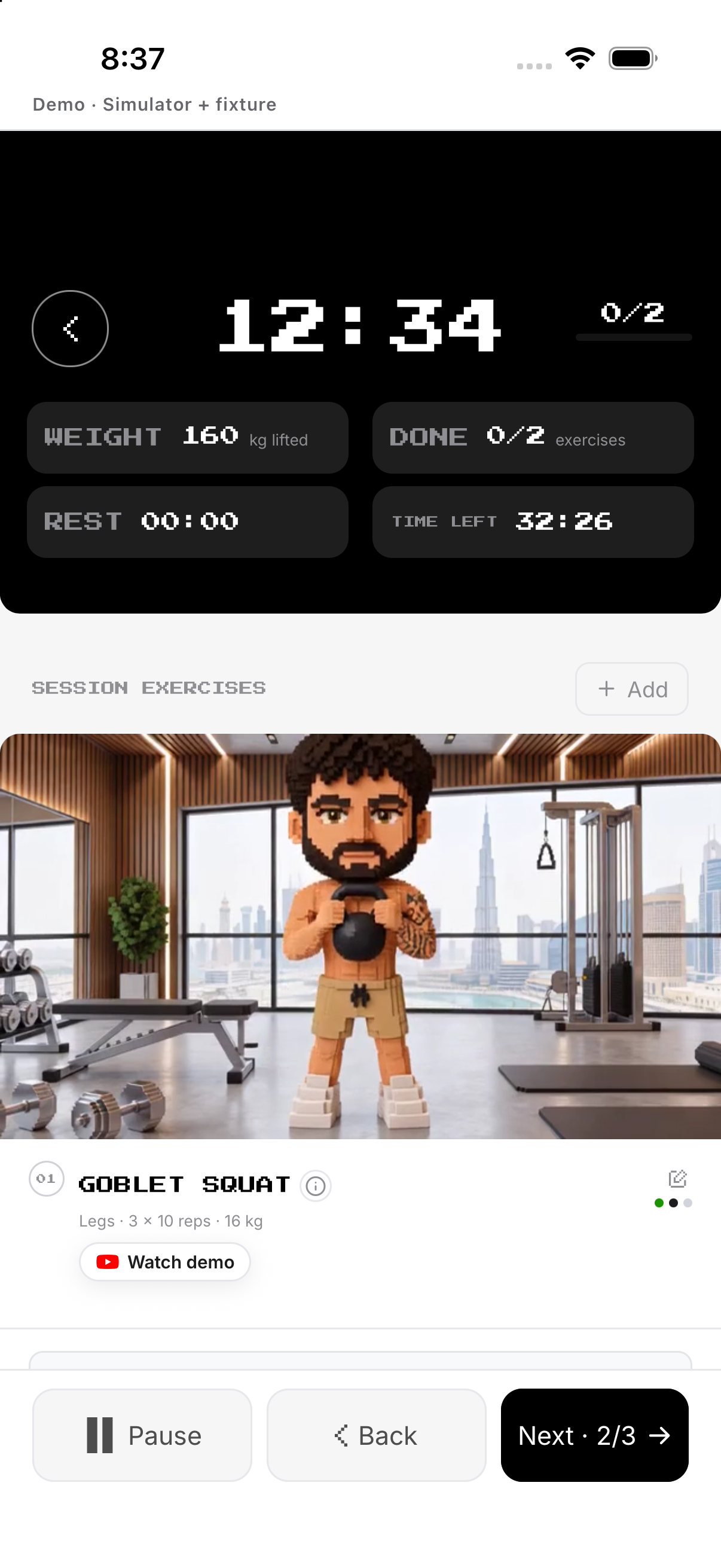
Tap the pencil, then Sets, and choose a value. It cannot go below sets already completed. A normal tap on an open set logs it immediately with displayed target values and advances. Tapping a completed set undoes it; long-press opens the editable log sheet.
- Sets. Tap the pencil, then Sets, and choose a value. It cannot go below sets already completed.
- Reps. Tap the pencil, then Reps, and choose the target for future unlogged sets.
- Weight. For the target, tap pencil → Weight and Save. For the actual set, long-press its row, edit Reps and Weight in the displayed unit, then tap Log Set.
- Complete set. A normal tap on an open set logs it immediately with displayed target values and advances. Tapping a completed set undoes it; long-press opens the editable log sheet.
Start, rest, pause, finish or discard
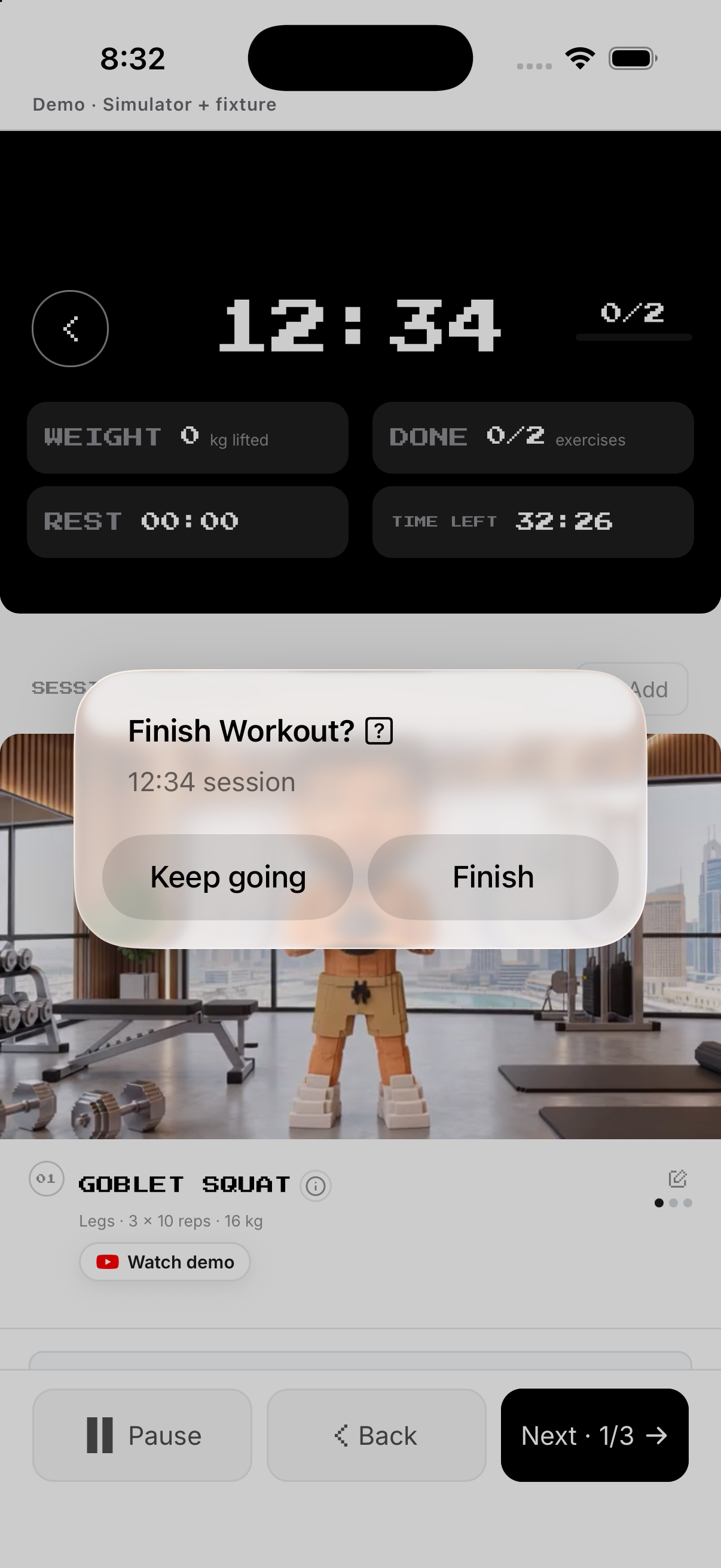
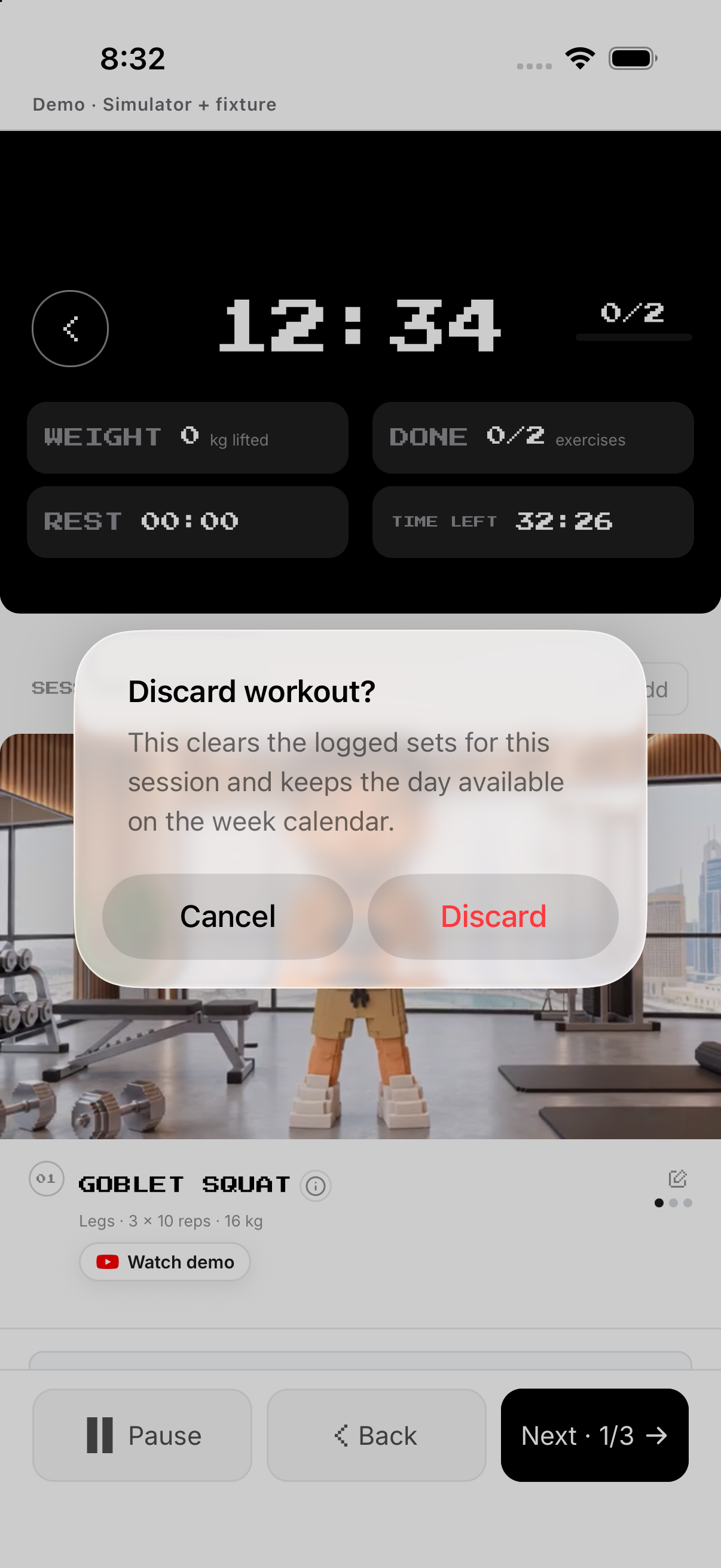
Tap Start Workout. It starts the session timer and first set timer, then exposes the live controls. Finish Workout confirms and finalizes. Exit offers Pause Workout, Finish Workout or Discard Workout; Discard deletes the unfinished session after confirmation.
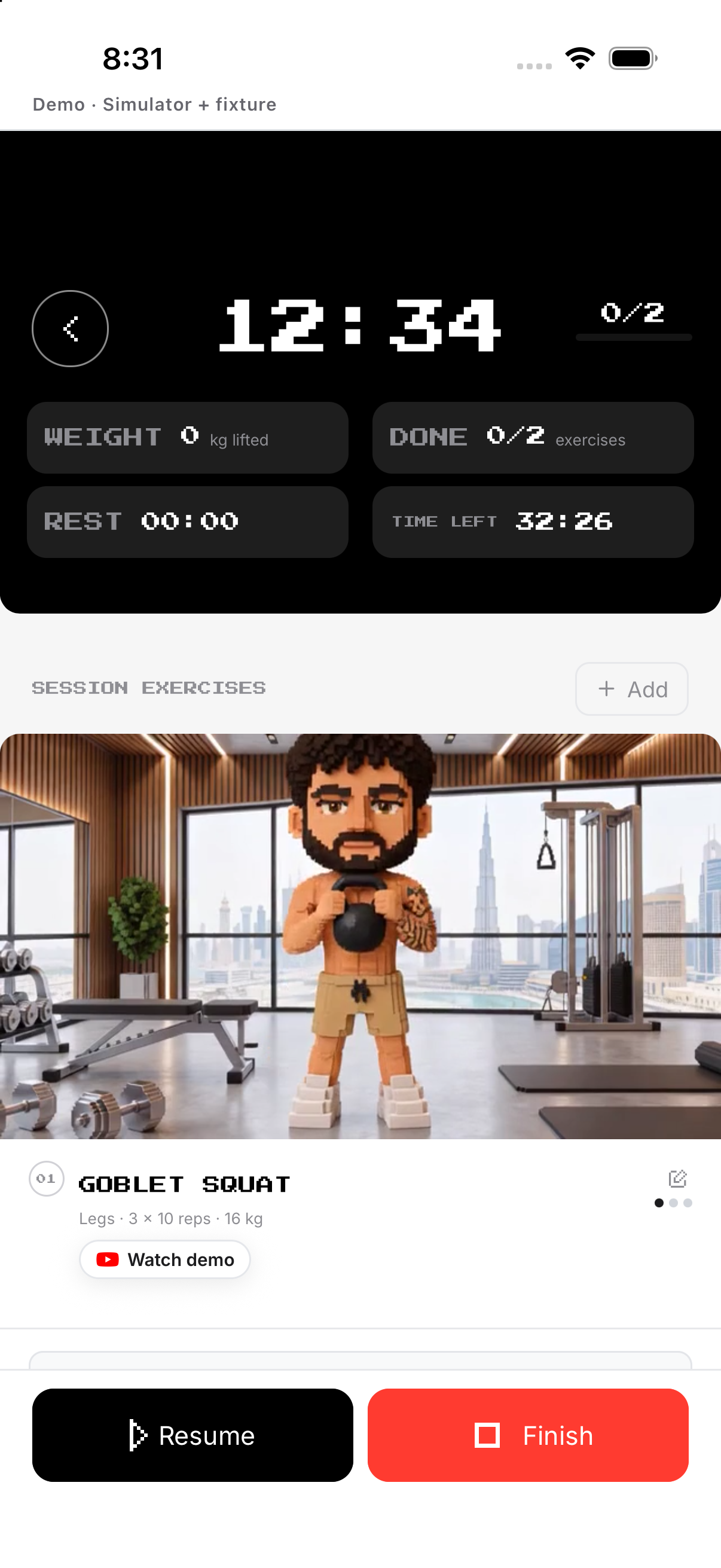
- Start workout. Tap Start Workout. It starts the session timer and first set timer, then exposes the live controls.
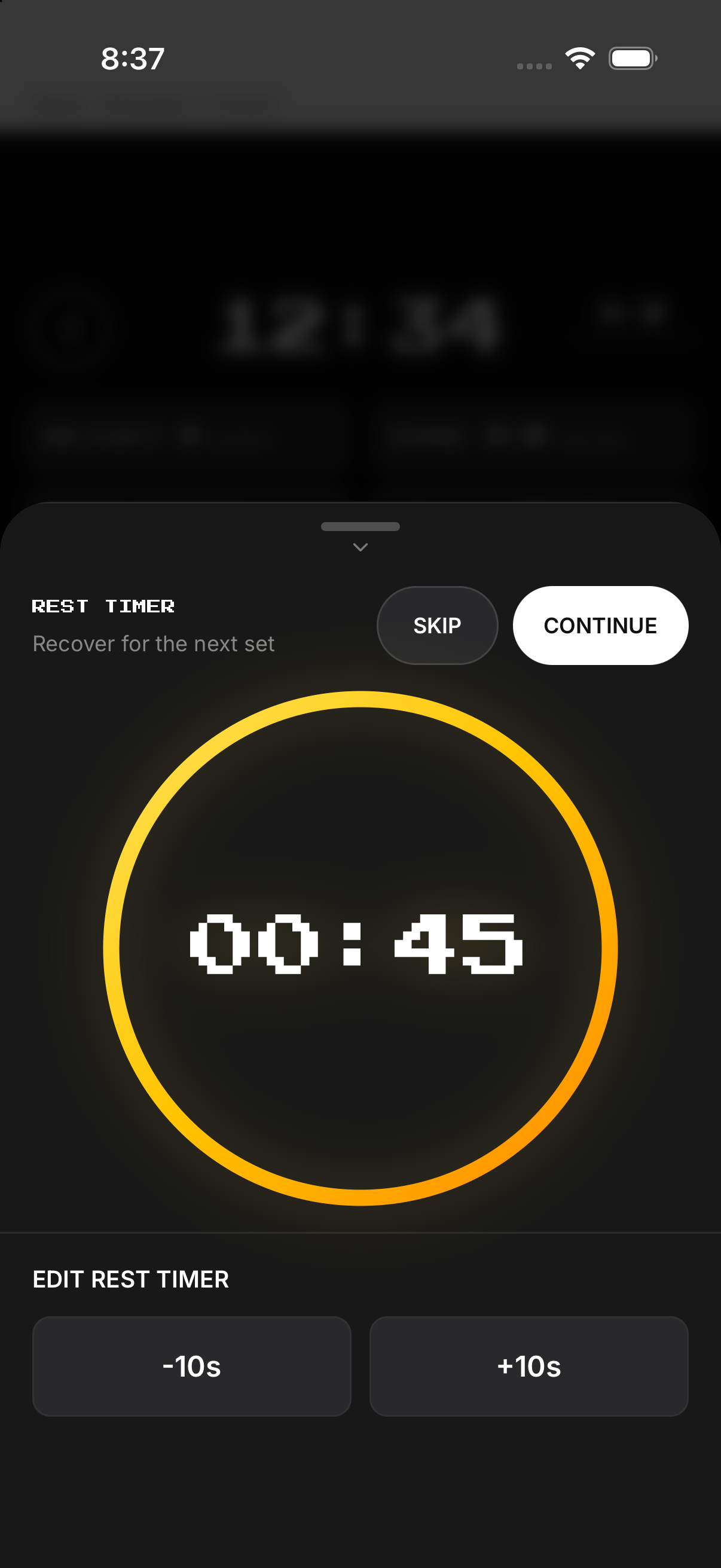
- Rest. After a logged set, planned rest can start automatically. The rest sheet offers Continue/adjust and Skip; No rest is a per-exercise target, not a rest-day switch.
- Pause / Resume. Pause persists the paused session and reminder state. Resume starts the same session again; it does not create a new workout.
- Finish / Discard. Finish Workout confirms and finalizes. Exit offers Pause Workout, Finish Workout or Discard Workout; Discard deletes the unfinished session after confirmation.
Rest day and History
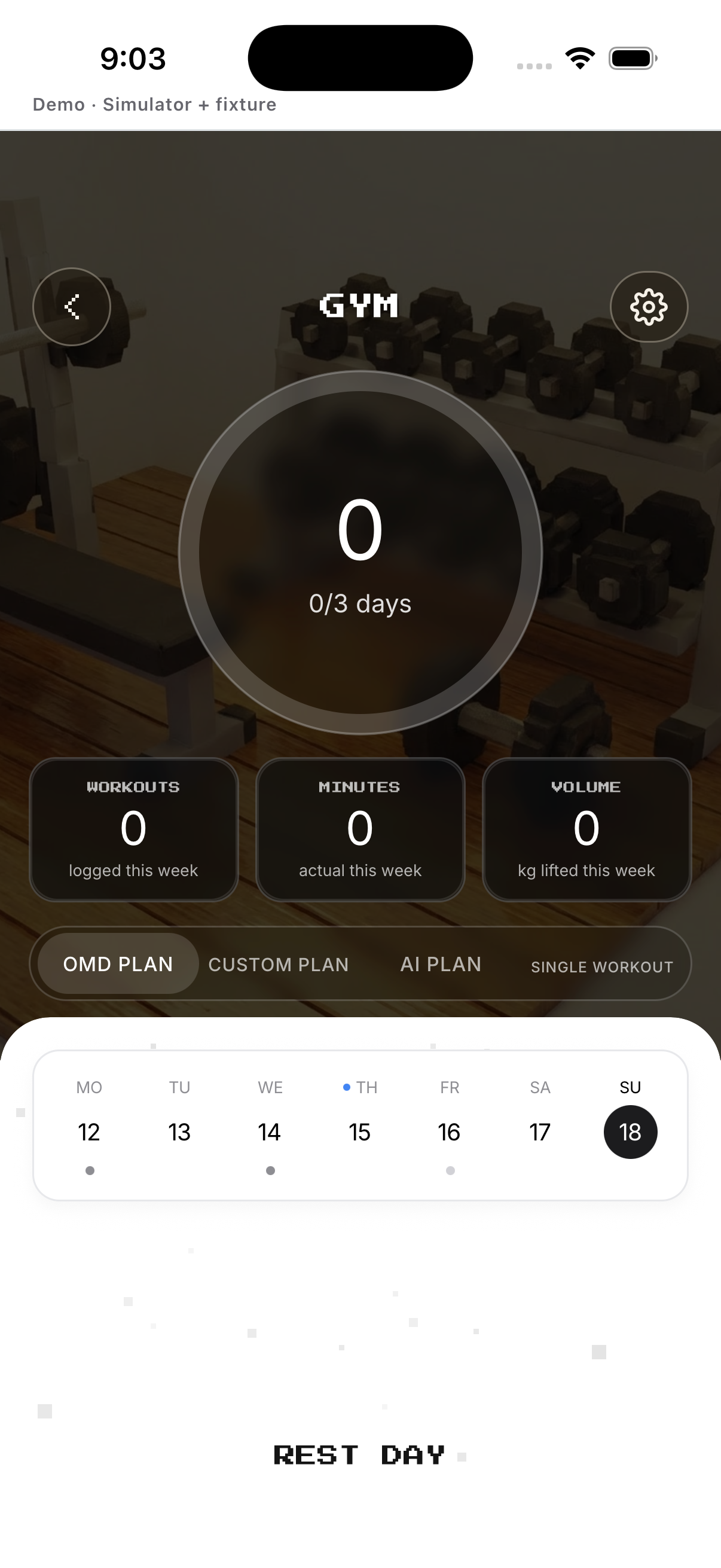
Select a day without a scheduled session to see REST DAY, then open History for completed set detail. Build 200 does not provide a separate Mark Off action.
- Select a rest day. Tap a calendar day with no scheduled workout. The plan labels the day REST DAY; this is a schedule state, not a logged action.
- Keep or reschedule it. No workout is required on REST DAY. Edit or reschedule a future workout only if you want to train that day.
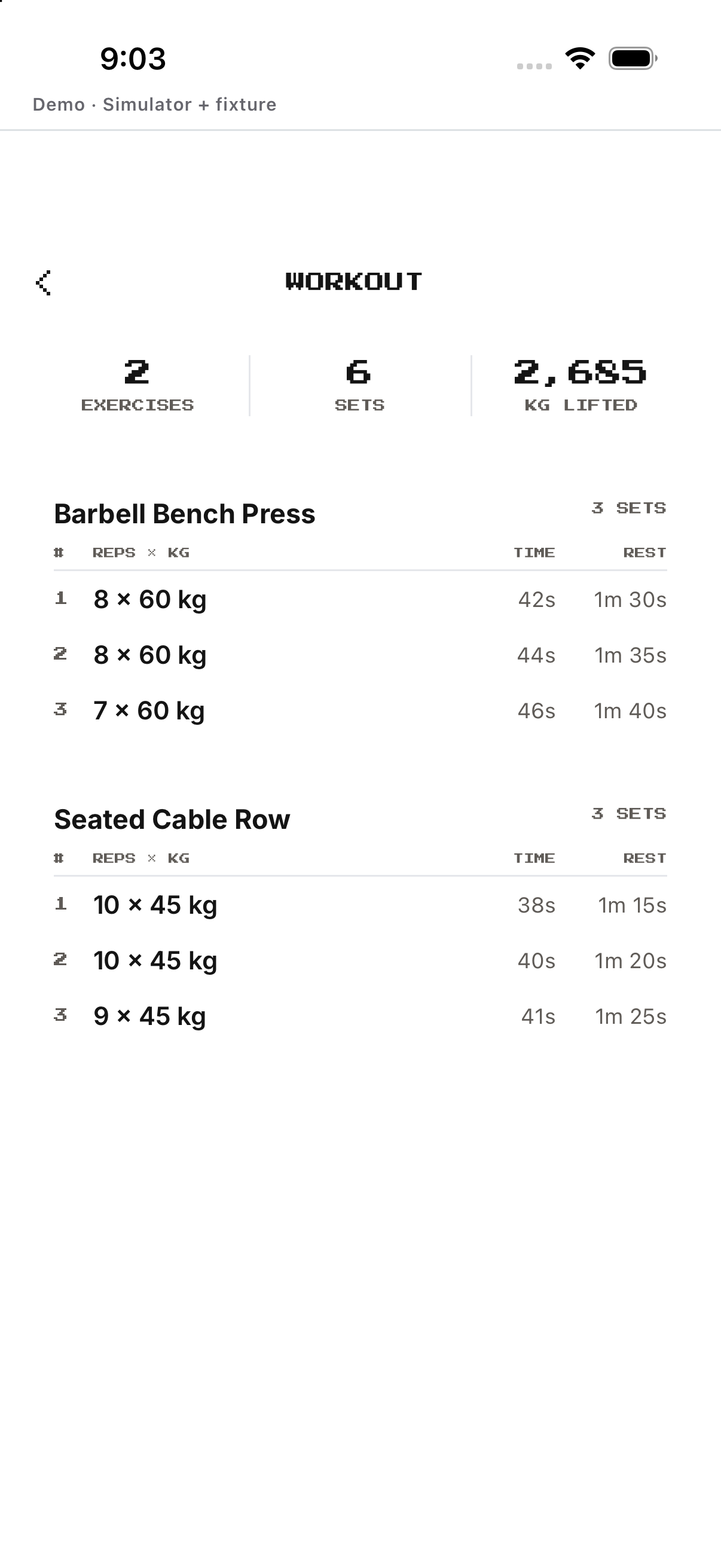
- Open History. Use Mission History or the History area to open a completed workout.
- Review the summary. The workout summary shows each exercise, completed sets, reps, weight, active time and rest time.
- Understand Off. Build 200 has no separate Mark Off button for Gym. Do not create a workout record when the plan already shows REST DAY.
Create, edit or remove a custom workout routine
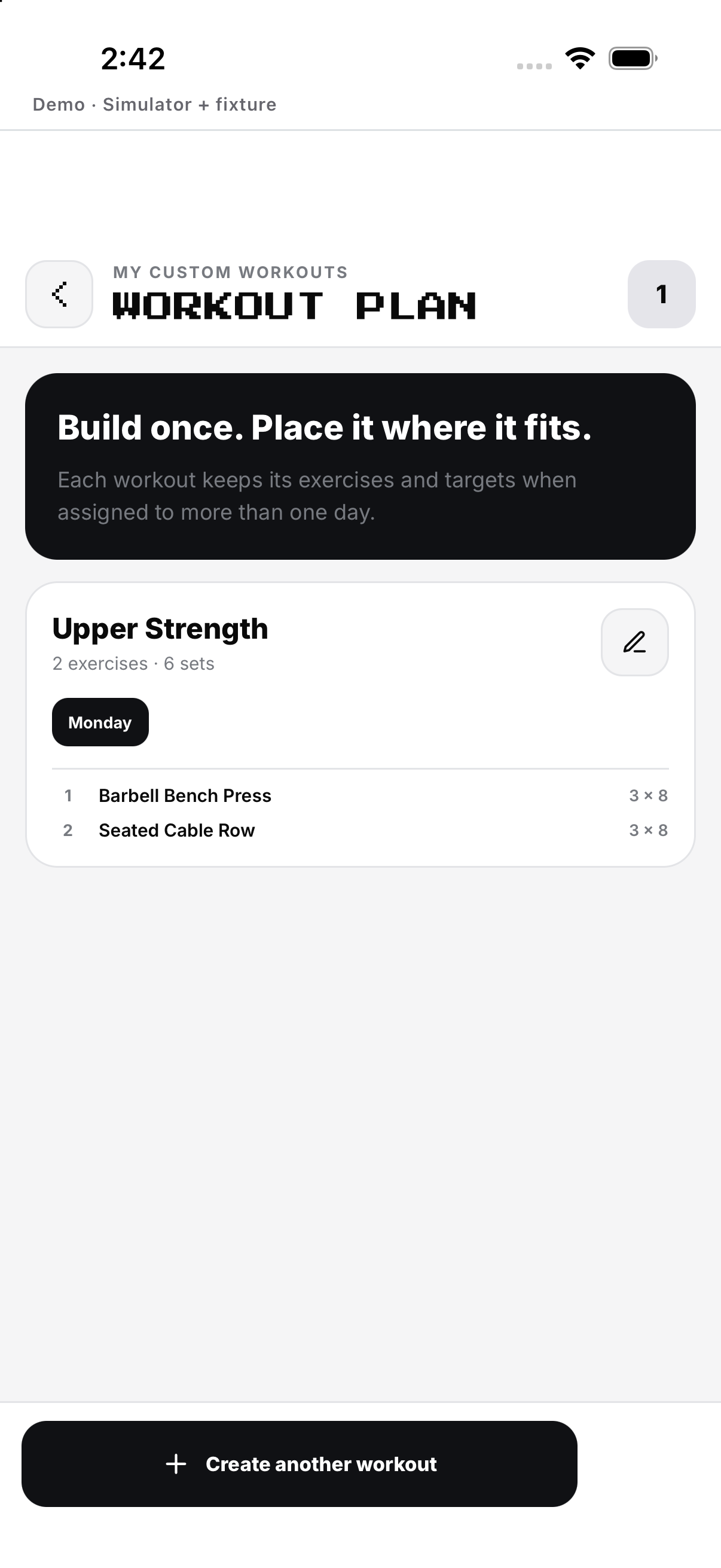
Custom routines are saved workouts assigned to one or more days.
- New workout. In Gym, choose CUSTOM PLAN and tap New workout. Open the custom workout builder, name the workout, then select exercises from the library.
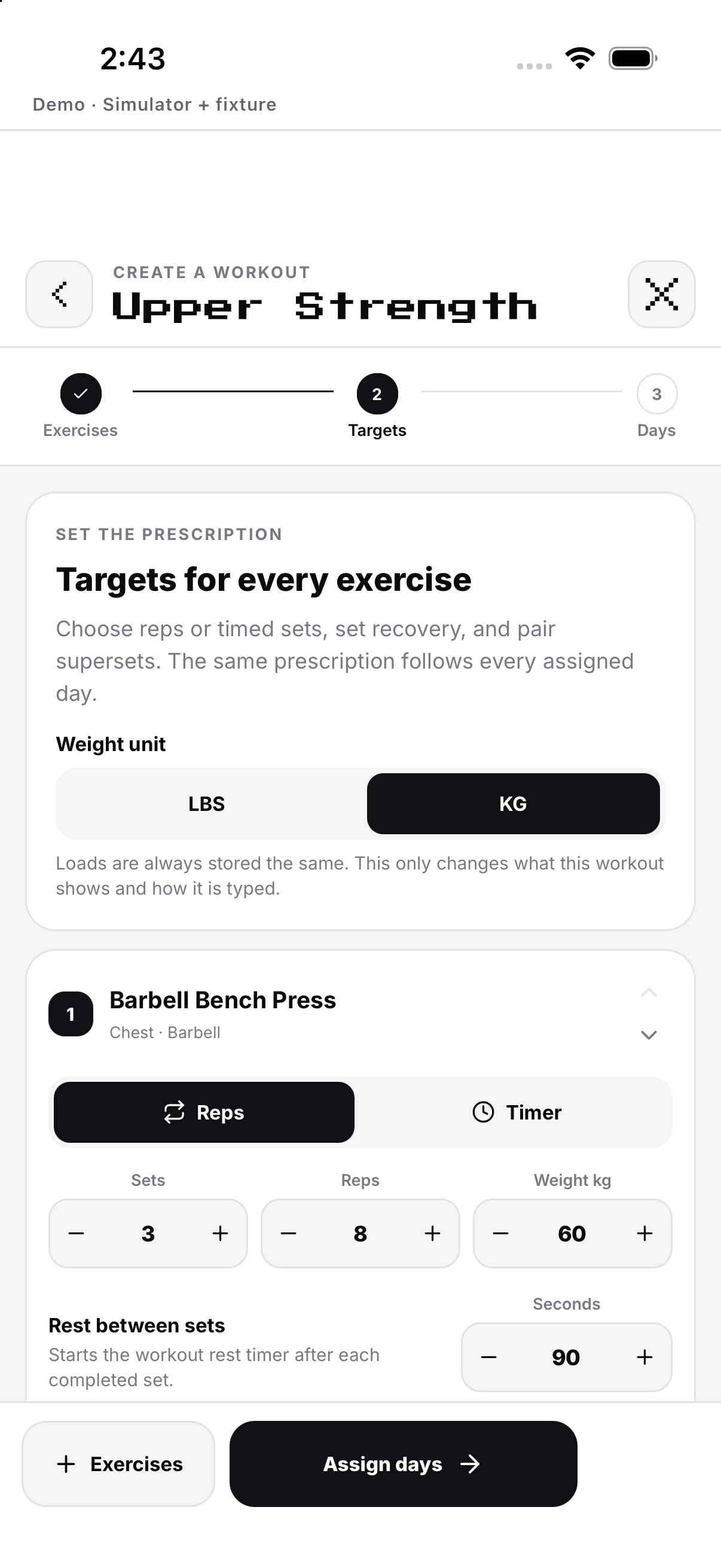
- Set targets. Tap Selected to review choices; tap Set targets to set sets, reps, weight/duration, rest and optional supersets. Remove exercise deletes it from the draft.
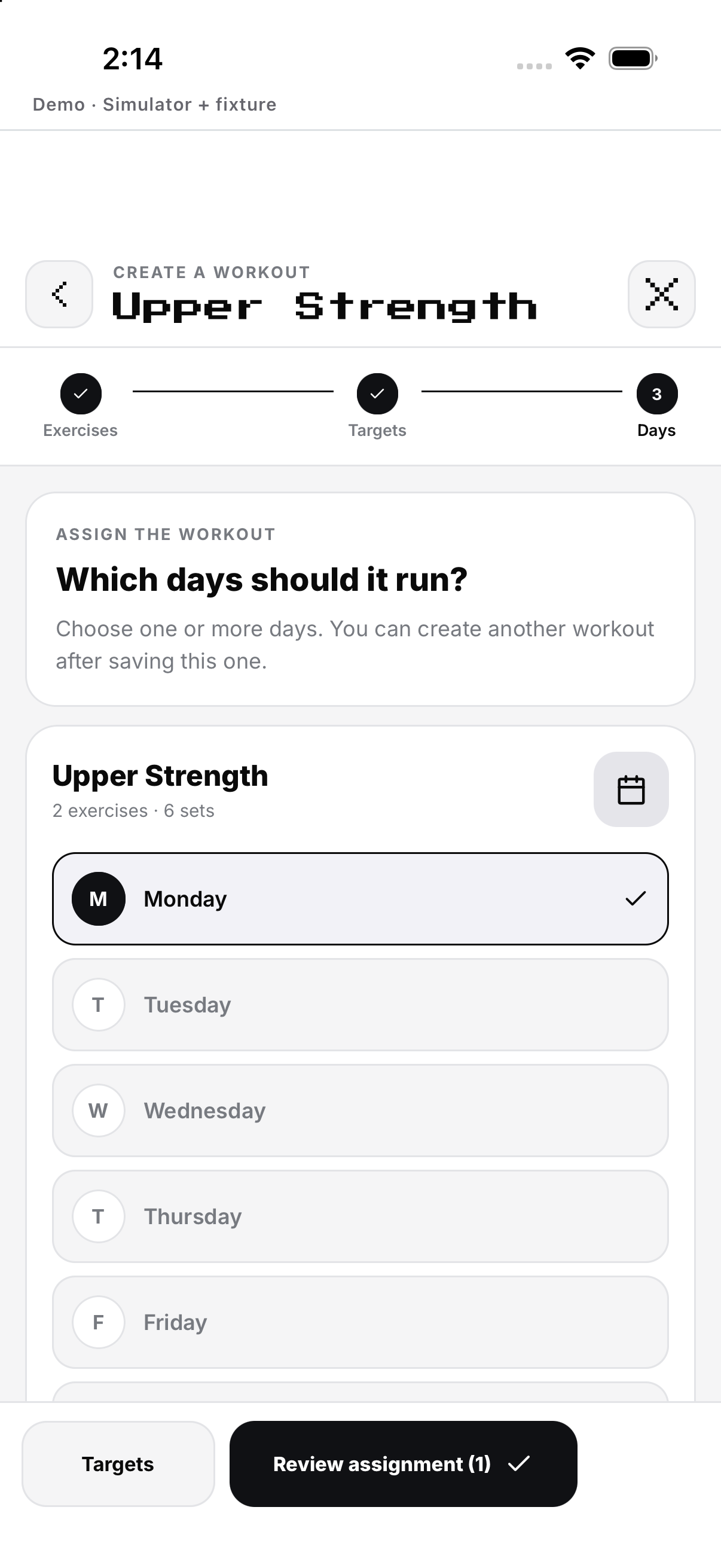
- Assign days and save. Tap Assign days, select one or more days, Review assignment, then the final save action. Saving materializes the planned workout sessions.
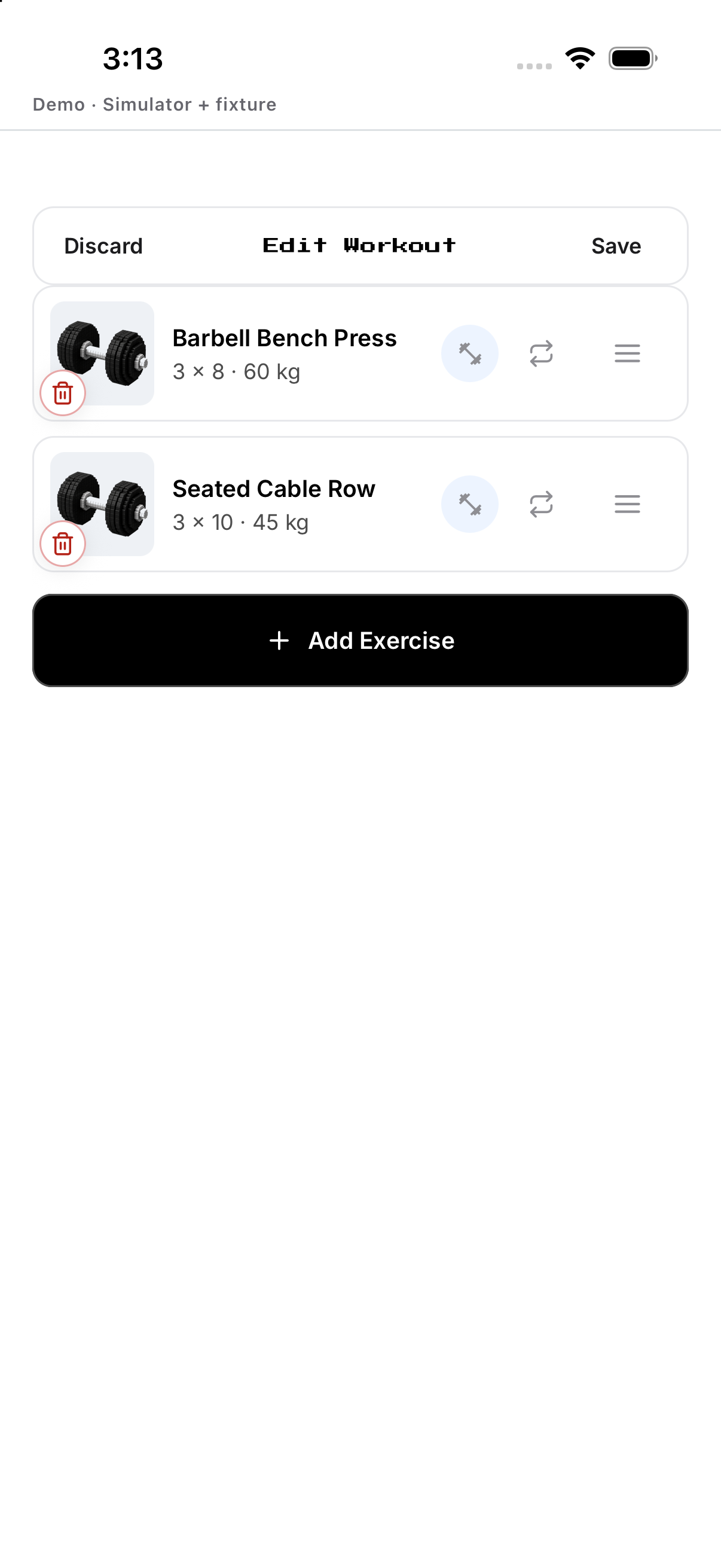
- Edit workout. On an existing planned workout, tap Edit workout. Replace, reorder, add or remove exercises; Save applies the draft, while Discard edits restores the saved workout.
- Remove a routine. In the custom builder, removing a saved custom workout from the edited set and saving deletes its planned session. The UI has no separate one-tap Delete routine button; do not confuse Remove exercise, Discard edits, Discard workout or Delete mission.
Delete Gym mission
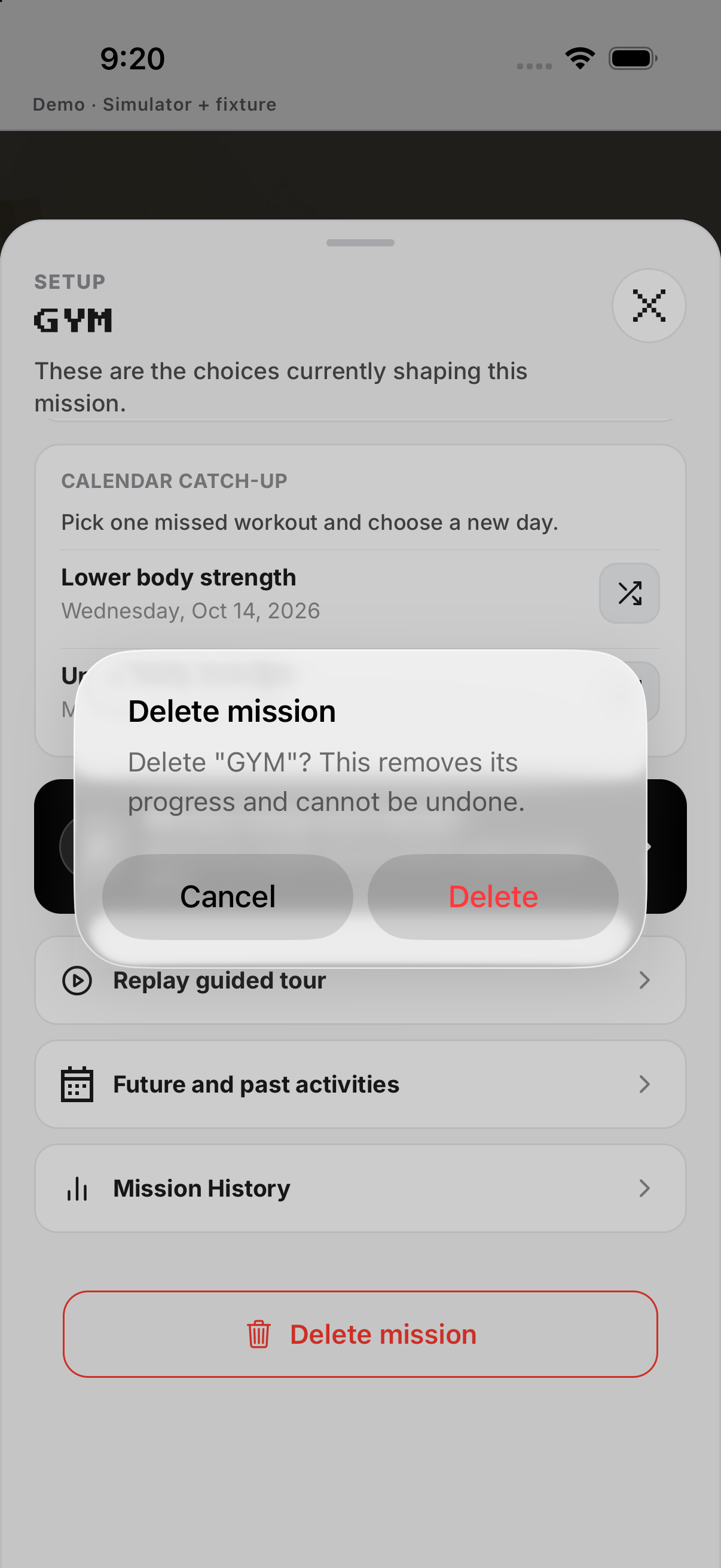
Go to the mission-level destructive action. Removes the mission; session history is handled separately.
- Open Setup. Go to the mission-level destructive action.
- Delete mission. Read the confirmation.
- Cancel. Cancel if you meant to edit or discard one session.
- Confirm. Removes this mission and its progress. The confirmation says this cannot be undone.
Example
Replace barbell press with dumbbells, set 3 × 10 and log each load.
Keep in mind
Completing a set logs that row; plan edits do not rewrite completed history.