
One More Day · Guide
Coins and the in-app economy
Coins are OMD reward currency. The wallet separates balance, available and committed coins. Challenge entry can commit coins until the challenge ends; no source describes cash withdrawal or real-money wagering.
Open the complete visual walkthrough ↗
Getting started
- Open the wallet from Home.
- Separate available and committed.
- Review mission and challenge movements.
- Read challenge terms before accepting.
Every feature, step by step
Open the wallet
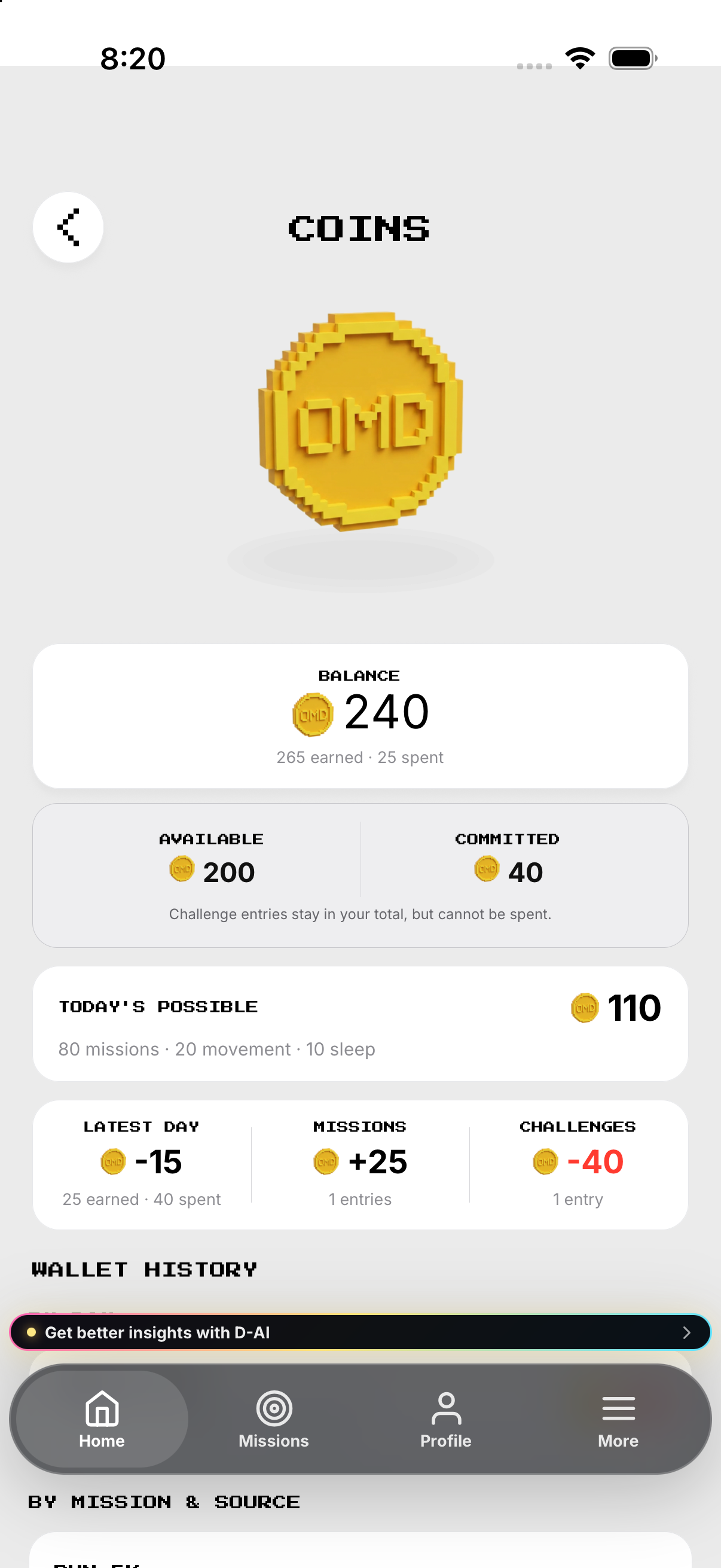
Tap coins; read balance, available, committed and history.
- Tap the coin count on Home. Opens the COINS wallet.
- Read Balance. Shows the current total and earned and spent totals.
- Compare Available and Committed. Committed challenge entries remain in the total but cannot be spent.
- Read Today's Possible. Shows the possible total from missions, movement and sleep; it is a statistic, not a button.
- Scroll to Wallet History. Shows grouped summaries and individual movements.
Review movements
Use By Day, Missions, Challenges and All Movements.
- Scroll to By Day. Read each date’s earned, spent, movement count and net change.
- Scroll to By Mission & Source. Read the contribution from each mission or source.
- Tap Challenges when it has entries. Opens Challenge History; the row is disabled when its count is zero.
- Scroll to All Movements. Read each movement, source, date and resulting balance.
Commit coins
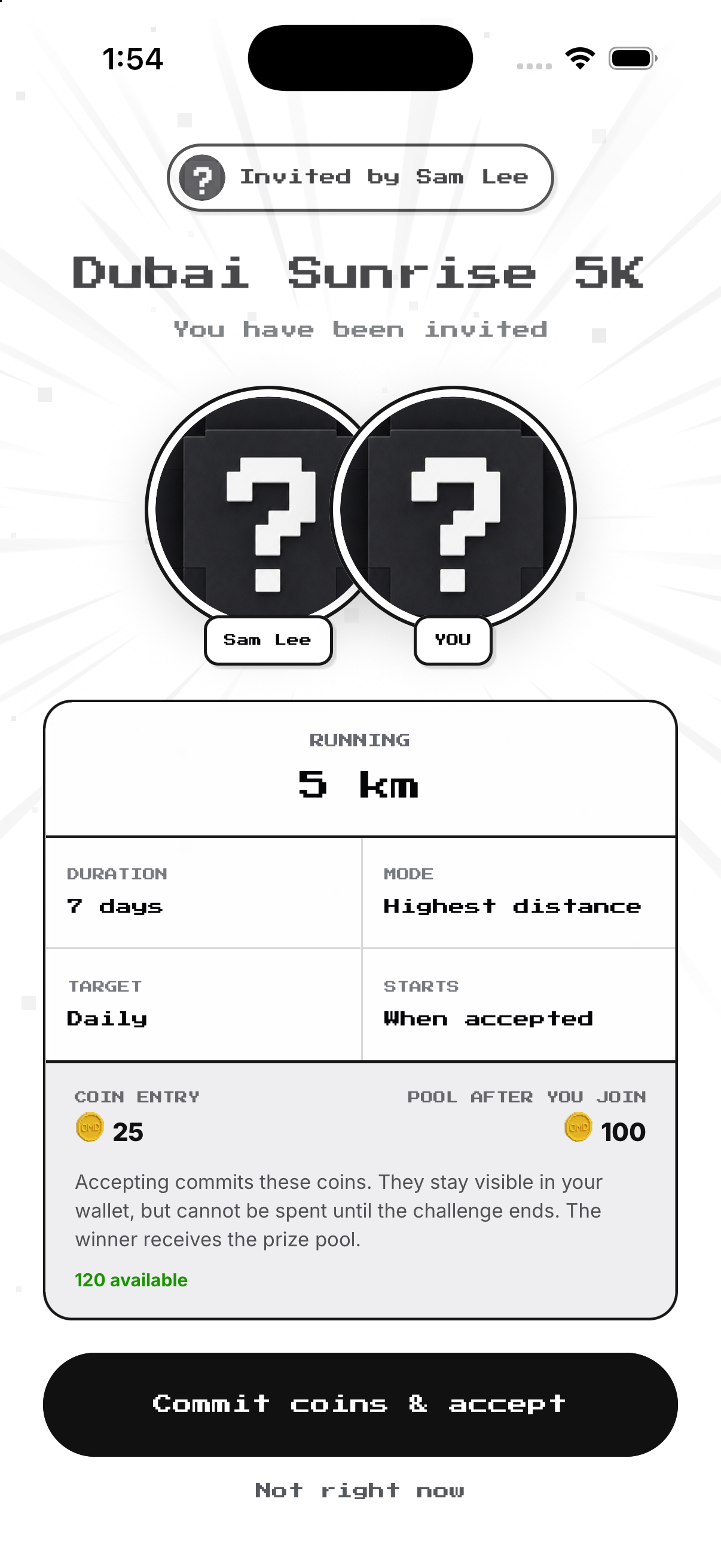
Read Coin Entry, future pool and available balance; acceptance is blocked if coins are insufficient.
- Open an incoming invitation. Shows target, duration, cadence and start.
- Read Coin Entry. Shows the amount acceptance commits.
- Read Pool After You Join. Shows the pool including your entry.
- Check Available. Acceptance disables if the entry is unaffordable.
- Tap Commit coins & accept. Locks the entry until the challenge ends.
Result or release
Winner receives the pool; creator deletion can make listed committed coins available again.
- Finish the challenge. The competition metric determines the result.
- Read the result. The winner receives the in-app pool.
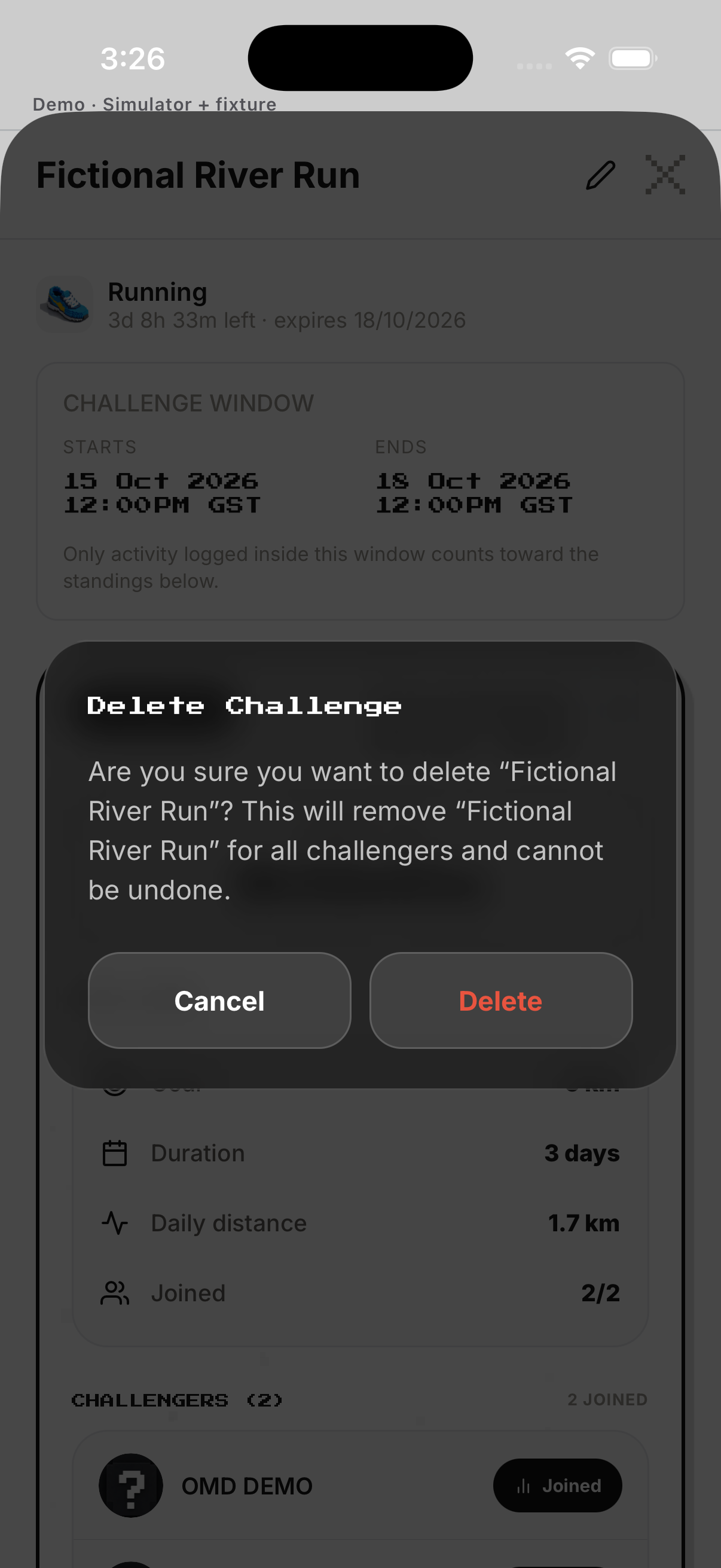
- As creator, open Delete. The confirmation lists affected committed coins.
- Cancel or confirm. Cancel keeps the challenge; confirmation releases listed commitments.
Example
Example: 100 committed coins stay visible but cannot be spent until the challenge ends.
Keep in mind
Never call OMD coins withdrawable money.