
One More Day · Guide
FAQ: language and support
Change the app language from your Profile settings and contact support when an account or data issue remains.
Open the complete visual walkthrough ↗
Getting started
- Open Profile.
- Scroll to Language.
- Tap the current language and choose Español or another listed option.
- For account help, email support@theaignc.com.
Every feature, step by step
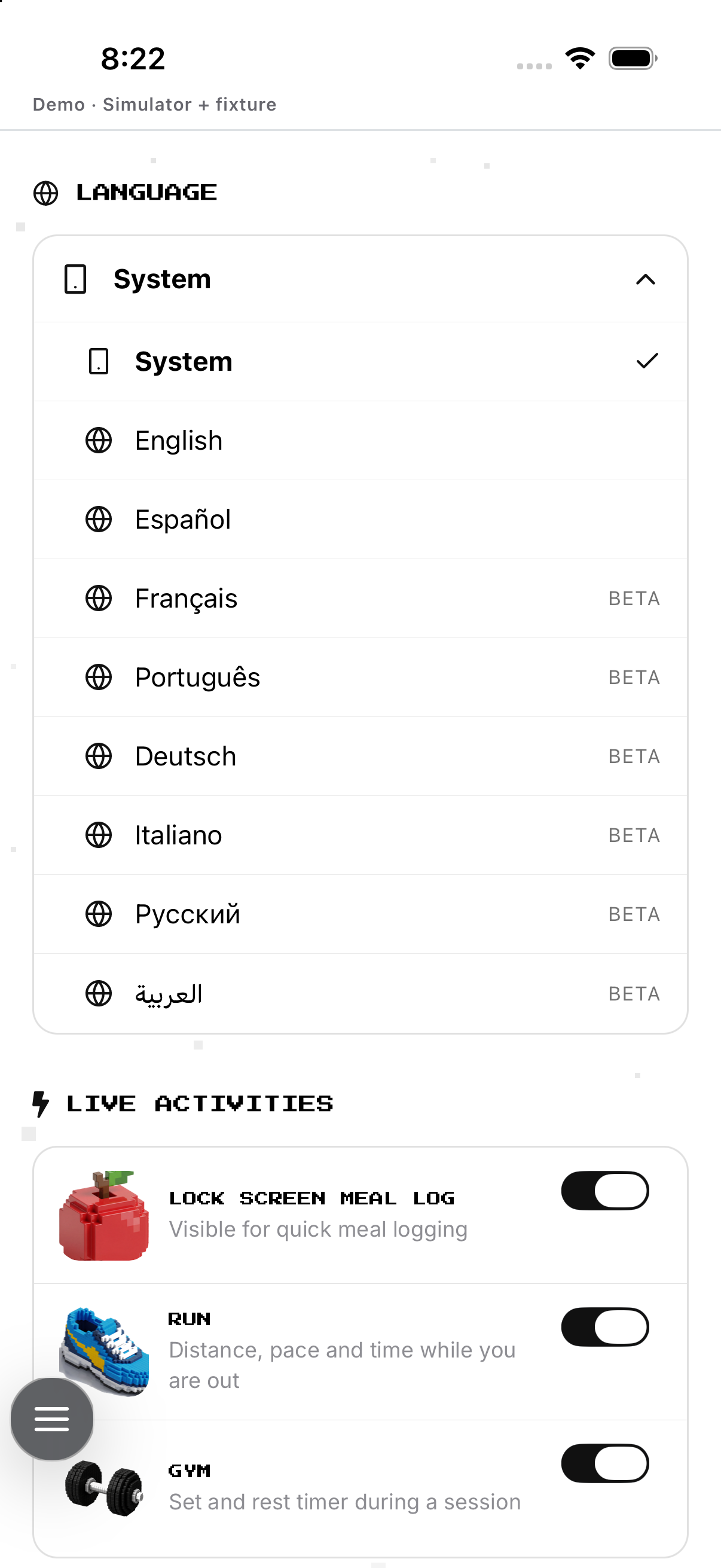
Change the app language
Use the Language row in Settings and choose a listed preference.
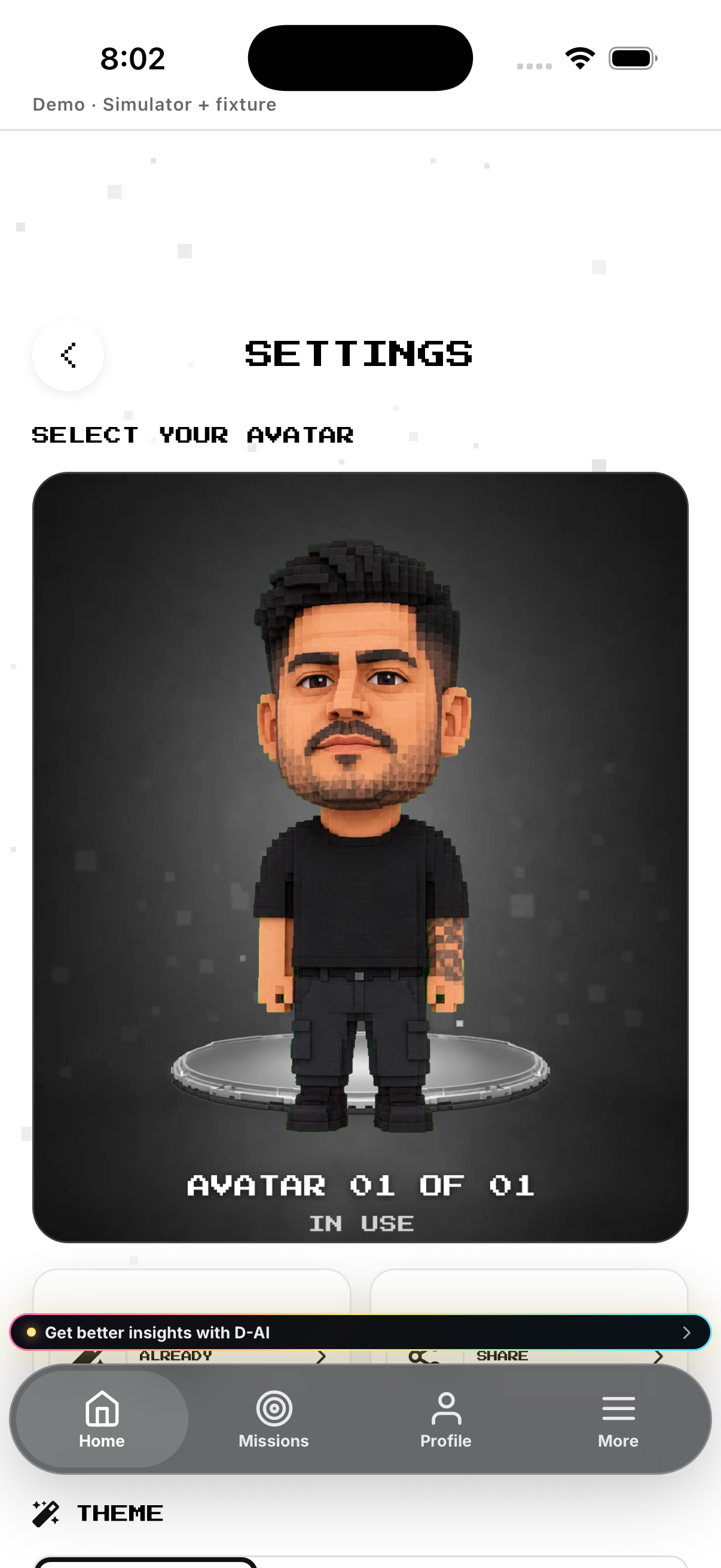
- Open More, then Settings. Opens profile settings.
- Tap Language. Expands the available choices.
- Choose a listed language. Saves that app override and closes the menu.
- Choose Device or System. Removes the override and follows the handset language.
- Check the visible labels. Confirms the applied preference.
Understand language coverage
A Beta badge marks a language whose coverage may be incomplete.
- Open the Language menu. Shows every listed option.
- Look for the Beta badge. Identifies languages with incomplete coverage.
- Select the language if you still want it. Applies the available translated labels.
- Expect some device or system surfaces to keep their own language. Those surfaces are controlled outside the app preference.
Prepare a useful support report
Collect the visible state and exact route before contacting support@theaignc.com.
- Write down the affected mission or feature. Identifies the correct product area.
- Record the exact visible error and when it occurred. Preserves the useful failure detail.
- Check permissions, connection status and refresh once. Rules out common local causes.
- Email support@theaignc.com with those details. Creates a support request without including passwords or payment credentials.
Example
Fictional: Marta opens Profile, expands Language and selects Español.
Keep in mind
The selected language is saved as your app preference; some device or system surfaces may still use their own language.