
One More Day · Guide
Create, edit and remove a mission
A mission combines a goal, rule, target days and evidence. Build 200 exposes creation, future-setting edits and removal.
Open the complete visual walkthrough ↗
Getting started
- Choose an available mission.
- Set its rule and target days.
- Review and save.
- Use the mission setup to edit or remove it.
Every feature, step by step
Create a mission
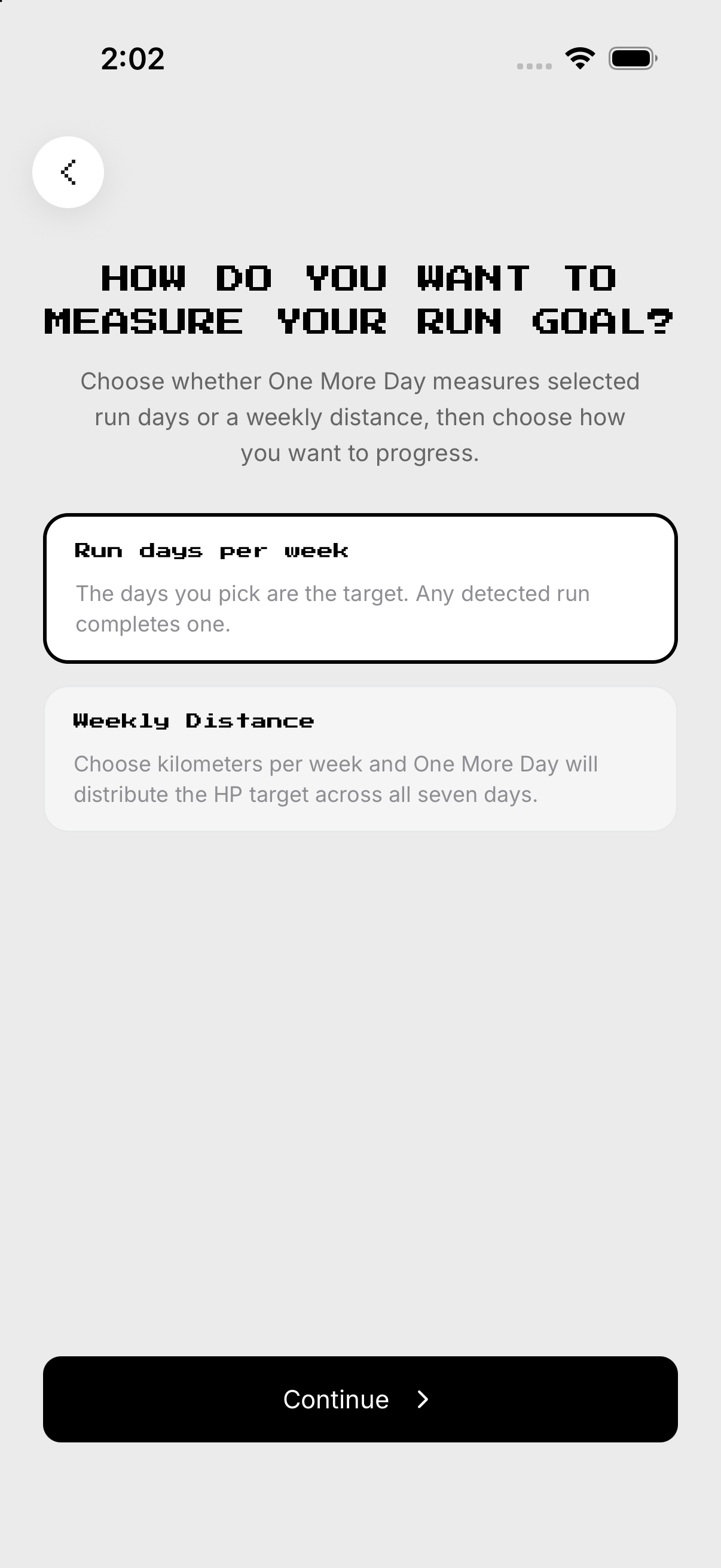
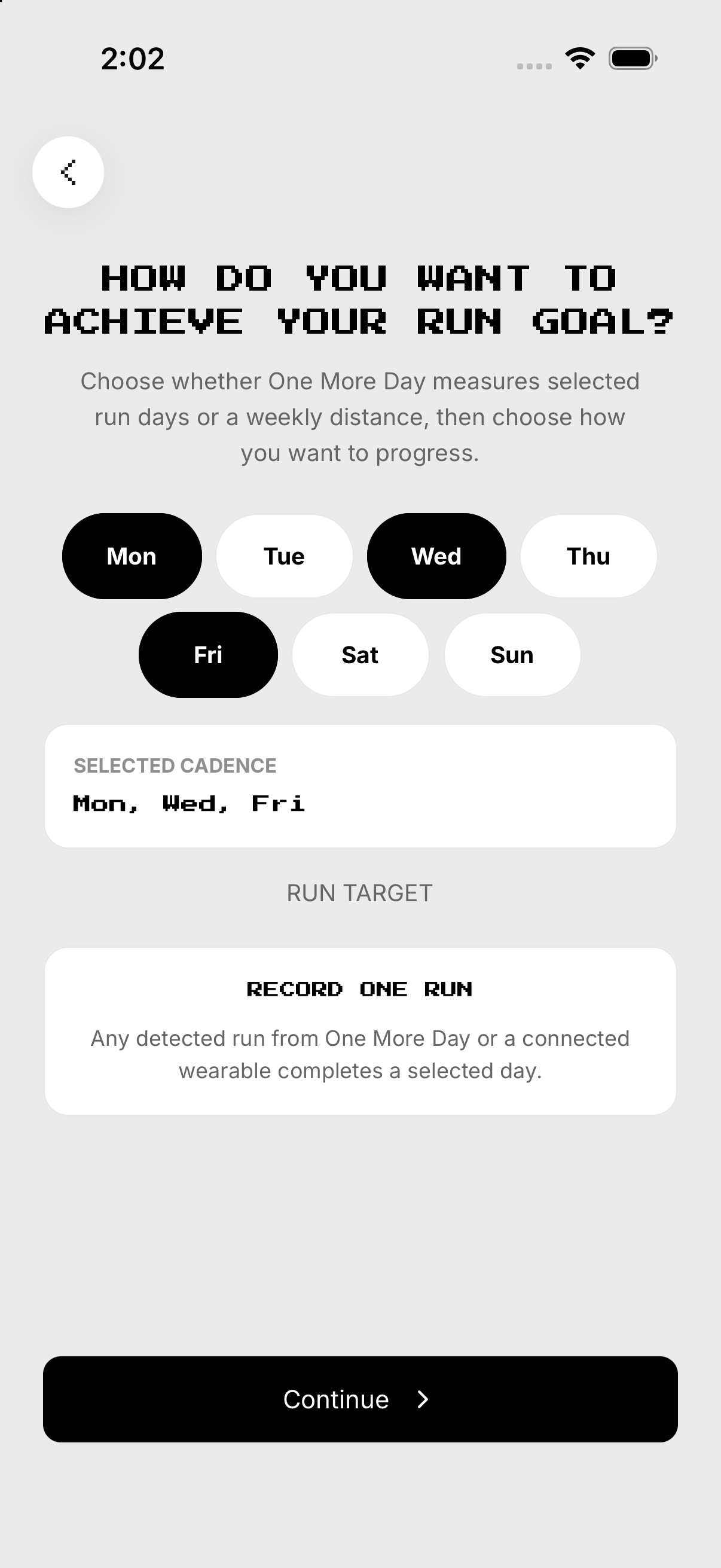
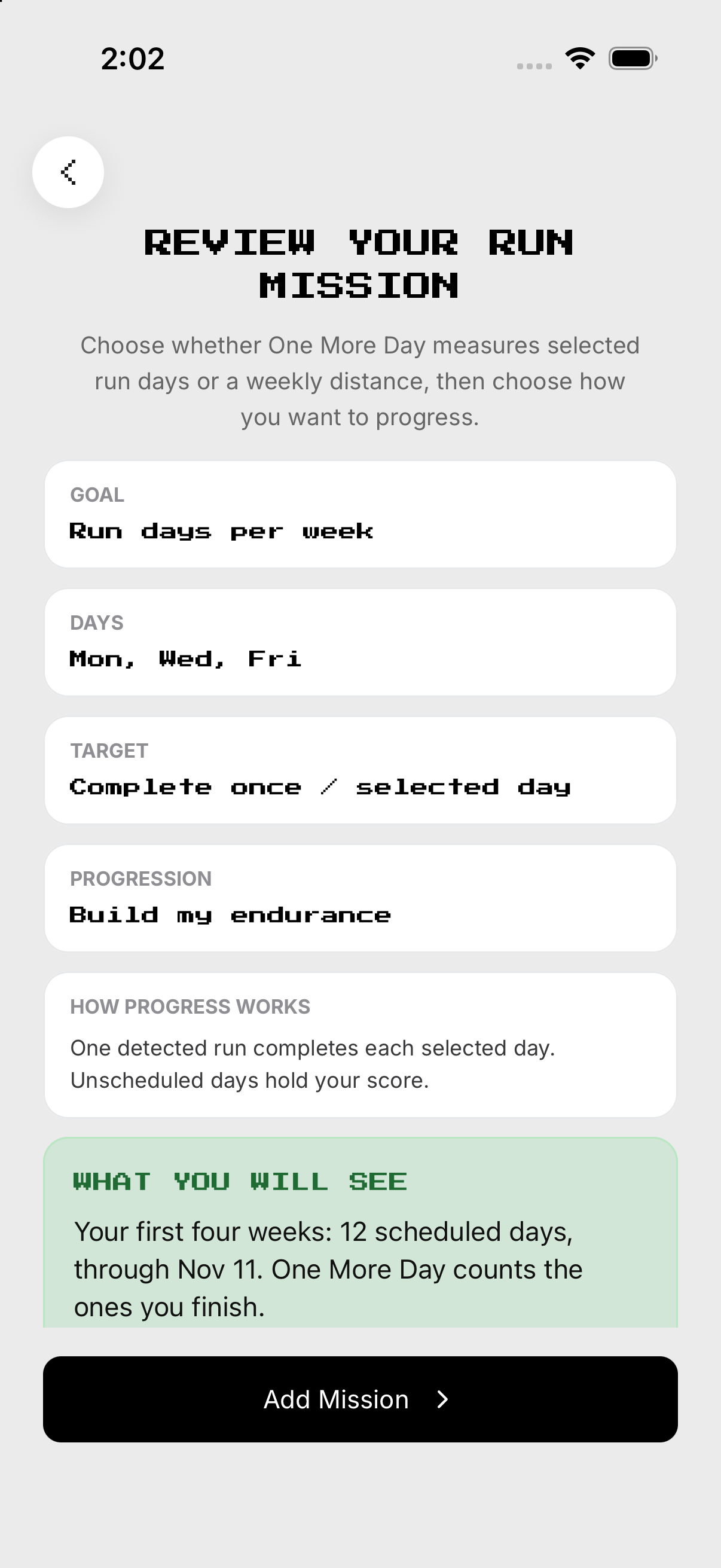
Choose the goal, schedule and rule, then review before saving.
- Open Missions and tap an available mission. Starts its setup.
- Choose the goal or intent shown. Defines what the mission tracks.
- Select committed days and any target shown. Defines future obligations.
- Review the rule and reminder. Shows what will count before saving.
- Tap Save or Create. Creates the mission after validation succeeds.
Edit future mission settings
Open the mission setup and save the new supported target, days or reminder.
- Open Missions and choose the active mission. Opens that mission experience.
- Open its setup or edit control. Loads the currently saved settings.
- Change only the intended target, days or reminder. Updates the draft for future unfinalized days.
- Review the changed rule. Confirms what future checkpoints will use.
- Save. Applies the supported change without rewriting finalized history.
Remove a mission
Deletion is a separate destructive action; Build 200 does not show a global Pause or Archive button.
- Open the mission setup. Shows its available settings.
- Scroll to Delete mission. Finds the destructive footer.
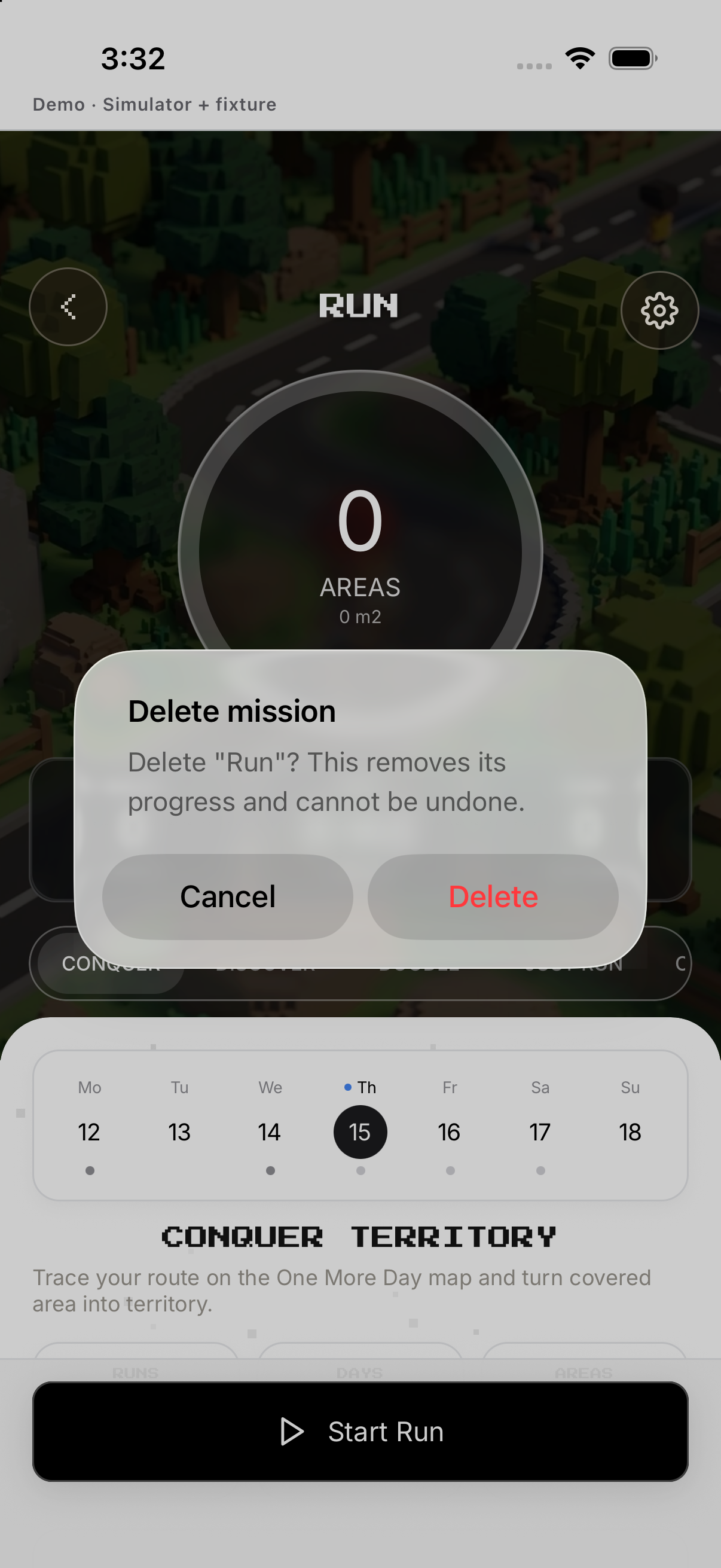
- Tap Delete mission. Opens a confirmation naming the mission.
- Tap Cancel to keep it. Closes without changing the mission.
- Or confirm Delete. Removes the mission and its progress; this cannot be undone.
Example
Fictional: Sam changes Wednesday and Friday to Tuesday and Thursday for future checkpoints.
Keep in mind
Removal is irreversible and removes mission progress; review the confirmation.