
One More Day · Guide
Teams
Teams are shared groups. A lead can create a team, invite members, assign workouts and propose team challenges; members accept or decline invitations and assignments.
Open the complete visual walkthrough ↗
Getting started
- Create or join a team.
- Use Team, Assignments and Badges.
- Leads manage members and shared work.
- Members approve invitations and assignments.
Every feature, step by step
Create or join
Create a team and invite people, or accept/decline a pending invitation.
- Tap Create Team. Opens name, description and invitees.
- Enter team details. Defines the group.
- Search and select people. Adds pending invitees.
- Tap Create. Creates Team and invitations.
- Invitee taps Accept or Decline. Acceptance creates membership.
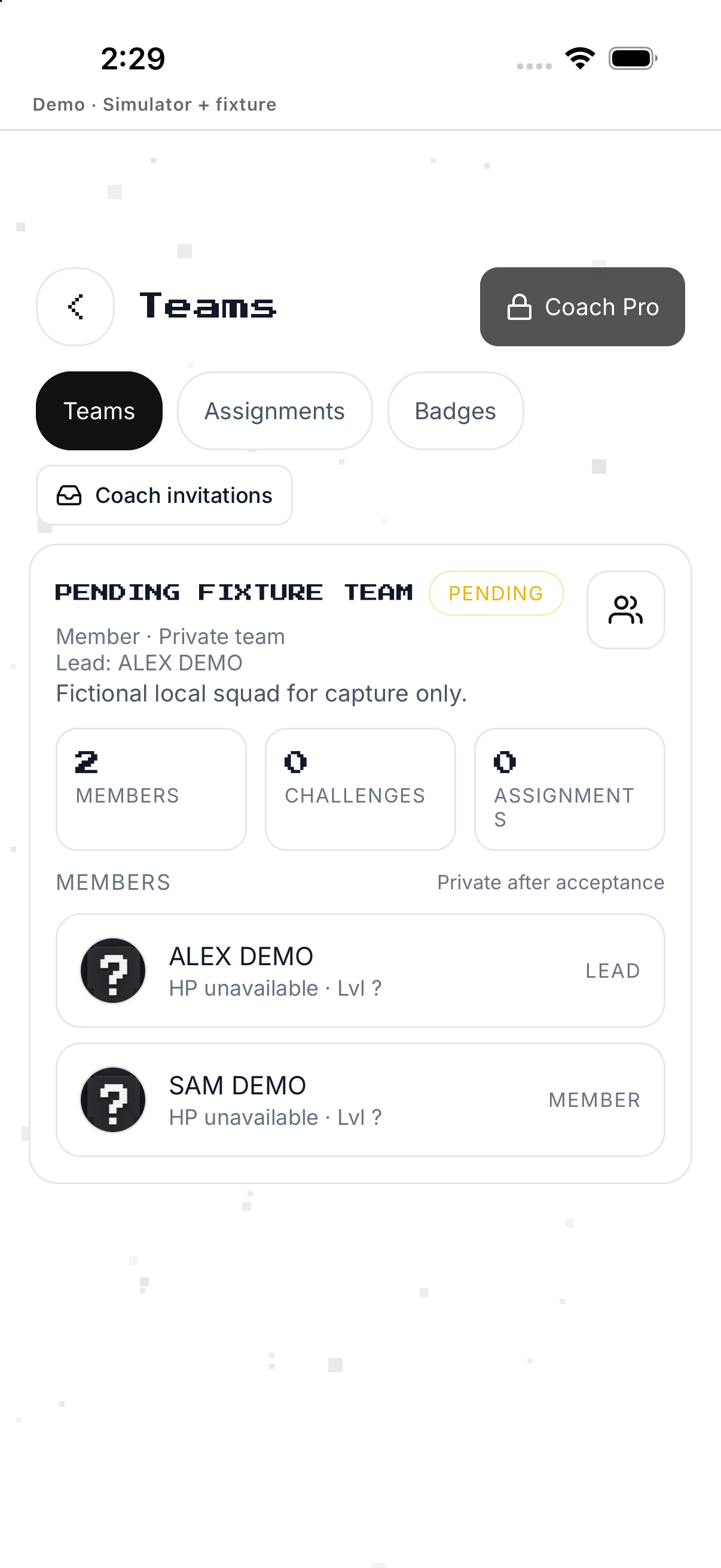
Lead: add members
Search by name or username and send private invitations.
- Open a Team where you are Lead. Only leads see Add members.
- Tap Add members. Opens user search.
- Search by name or @username. Filters and excludes current members.
- Select people. Adds selection chips.
- Tap Invite. Each person remains pending until acceptance.
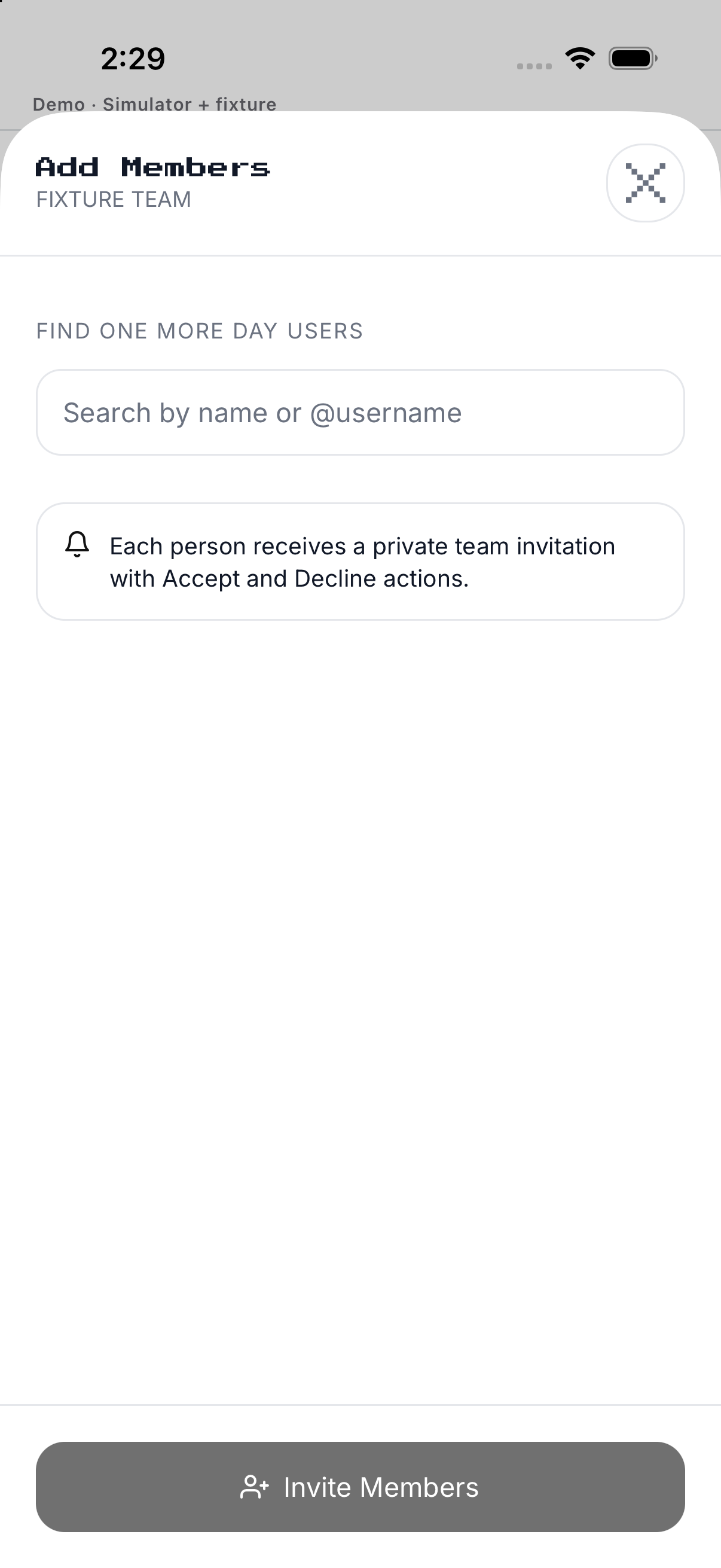
Assign workouts
Lead chooses recipients and sends; member accepts or declines before it reaches the Gym plan.
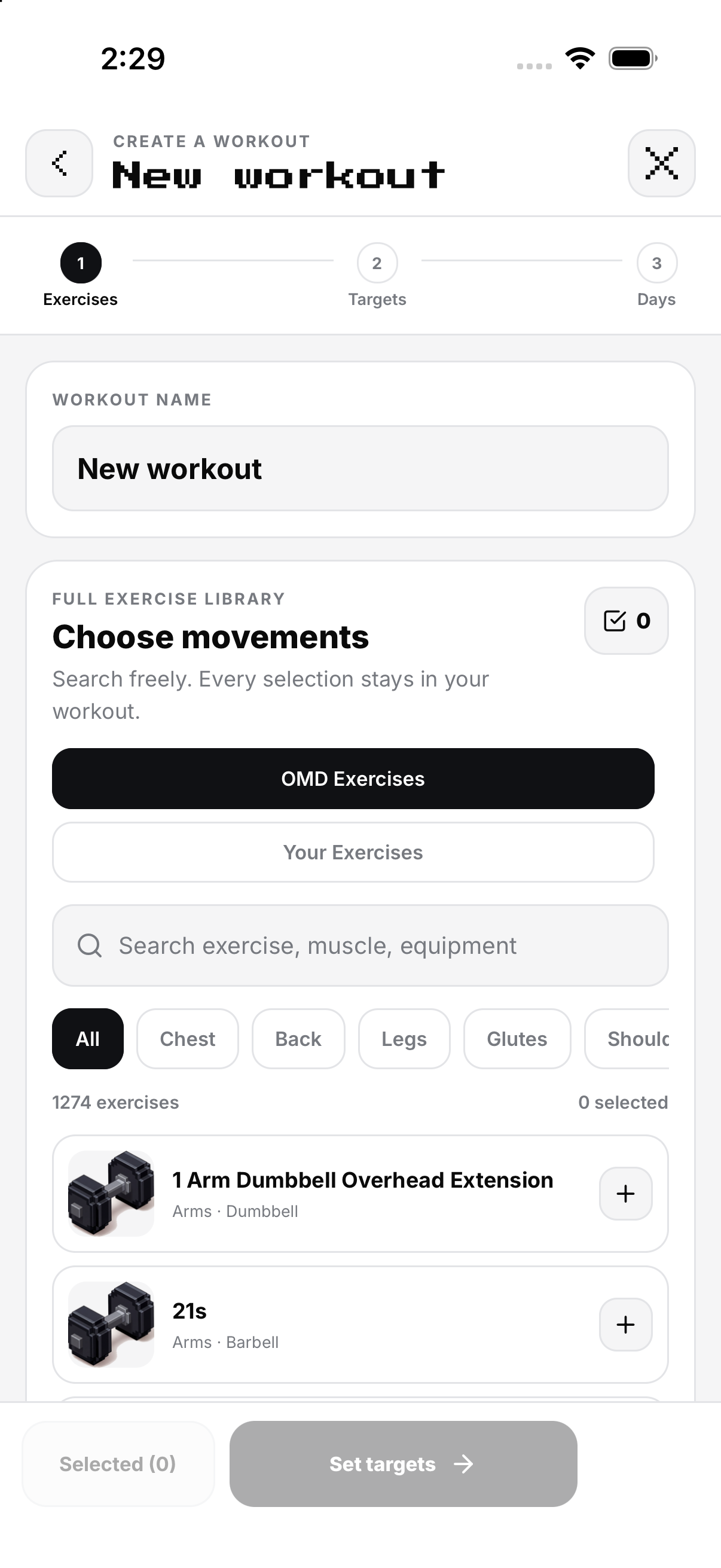
- Open a managed Team. Tap Assign Workout or a member plan action.
- Select recipients. Chooses eligible members.
- Build sessions, due date and note. Defines assigned work.
- Review and Send. Creates pending assignments.
- Member accepts or declines. Only accepted work enters Gym.
- Open or Mark Complete. Updates accepted status.
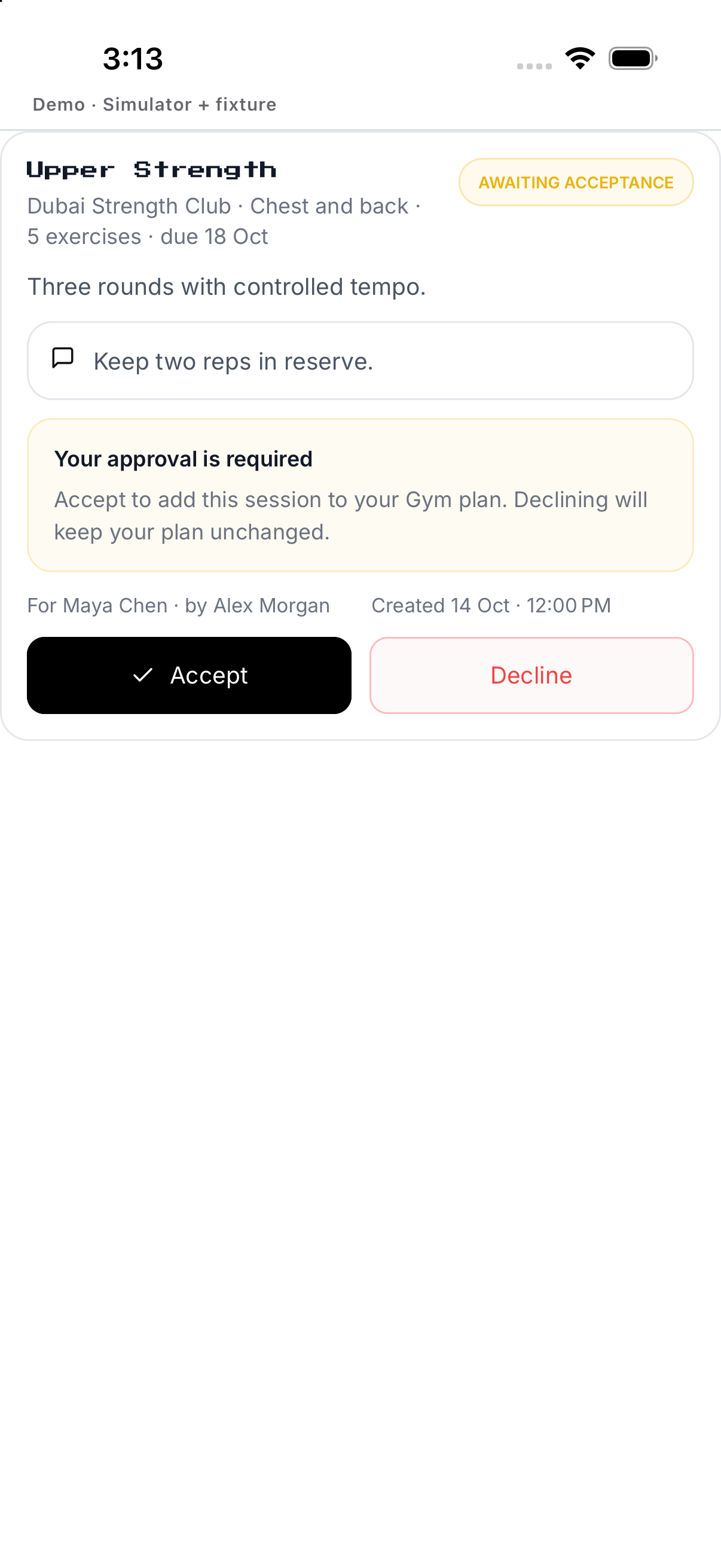
Team challenge
Choose opponent and rules; opposing owner accepts, then active rosters lock.
- Open a Team you lead. Tap Create Challenge.
- Select opponent Team. Shows owner and active roster.
- Set metric, unit, target and dates. Defines contest.
- Review badge reward. Confirms collectible.
- Send to opposing owner. Stays pending.
- Opponent accepts. Locks both active rosters and starts.
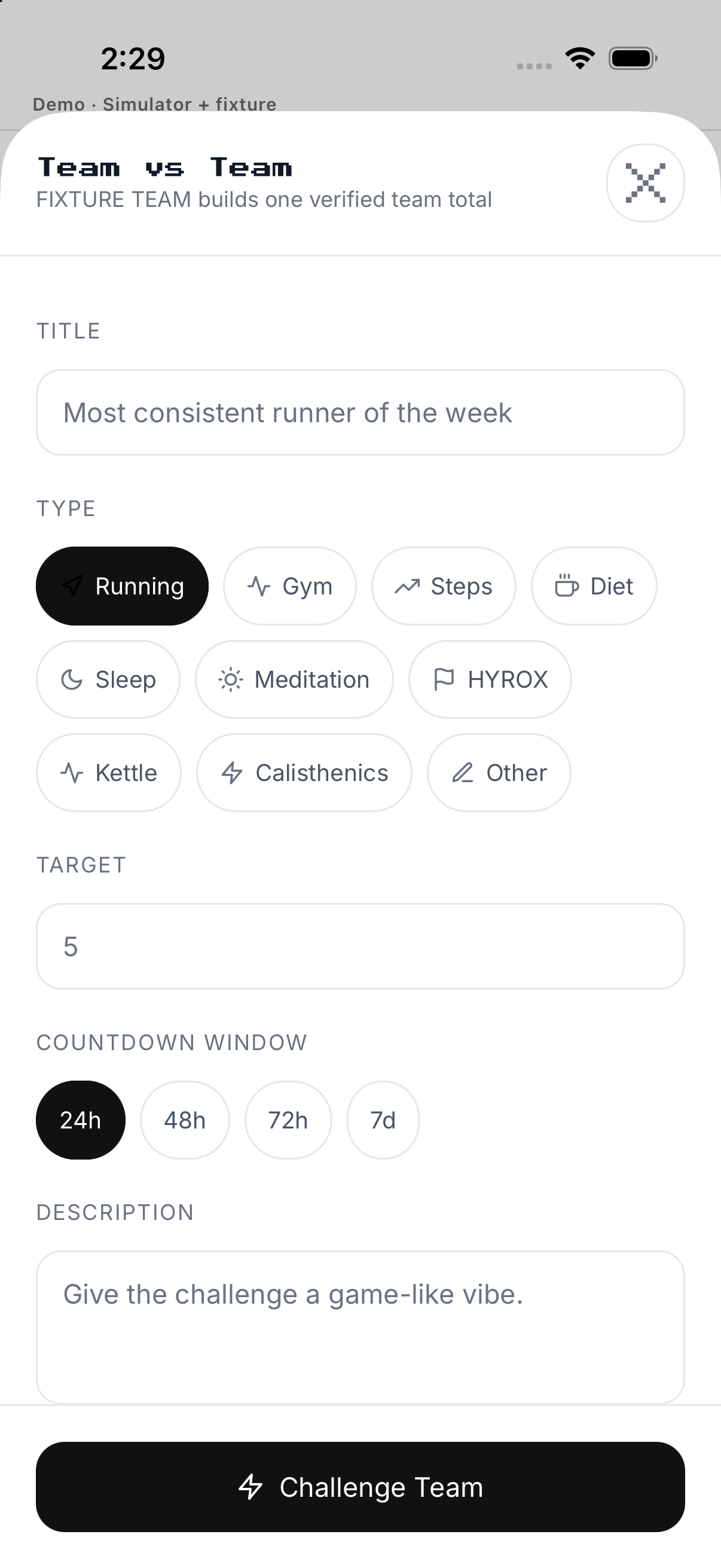
Lead and member permissions
Roles expose different controls.
- Open Team card. Read Lead or Member.
- As Lead, tap Add members. Sends invitations.
- As Lead, tap an active member. Opens profile or plan action.
- As Member, review invitations and assignments. Can accept or decline only.
- Check Pending. Pending invitees are not active members.
Assignments and Badges
Work and challenge rewards live on separate tabs.
- Tap Assignments. Lists assignment states.
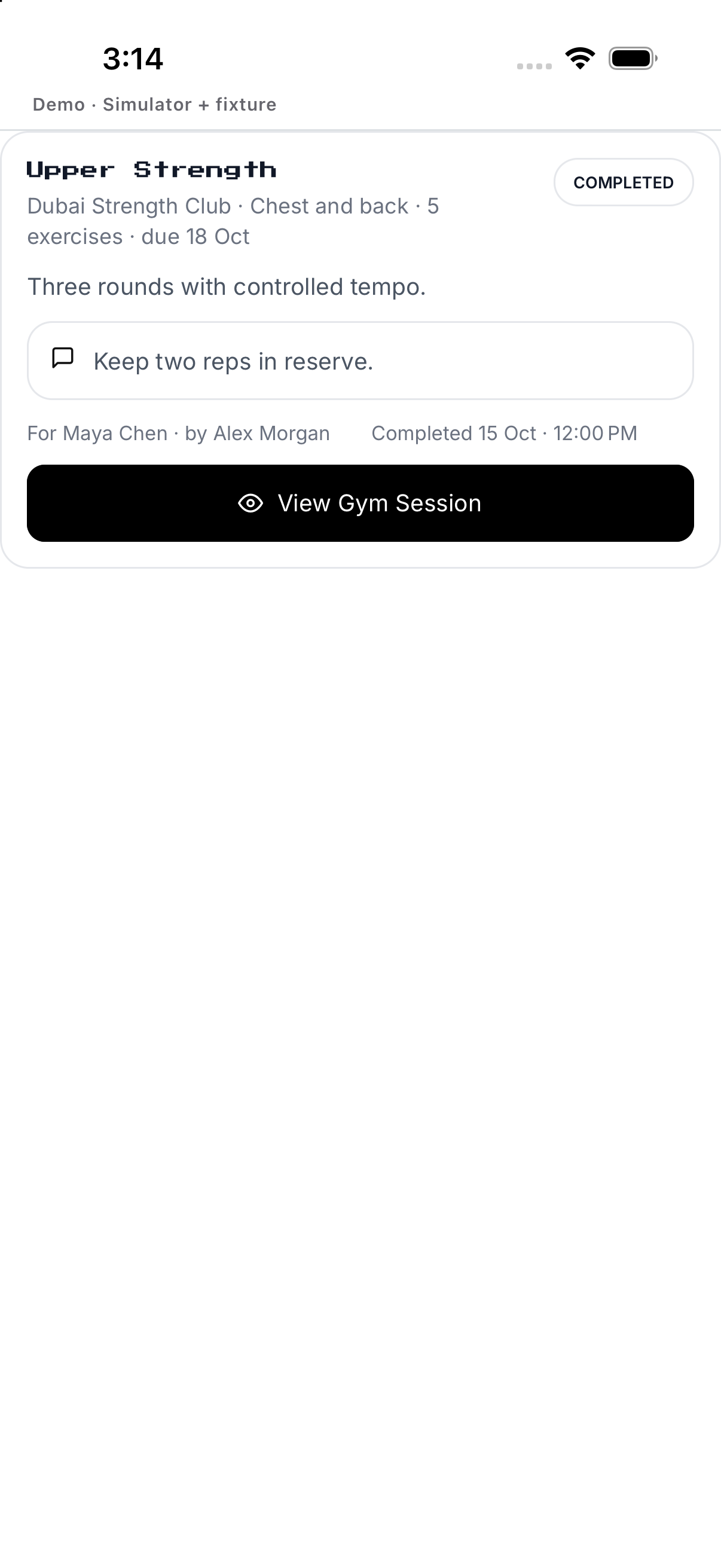
- Open pending. Assignee sees Accept and Decline.
- Open accepted work. Launches session when available.
- Tap Badges. Lists team challenge rewards.
- Open a badge. Reviews its reward details.
Example
Example: send a workout that each member must accept.
Keep in mind
Lead-only controls appear only on managed teams.