
One More Day · Guide
Help and troubleshooting
Most issues are resolved by checking the selected mission, permissions, connection and saved target days.
Open the complete visual walkthrough ↗
Getting started
- Confirm you are signed in.
- Check that the mission was saved successfully.
- Review health permissions or complete the OMD log.
- Refresh after the target day closes.
- Contact support if the issue remains.
Every feature, step by step
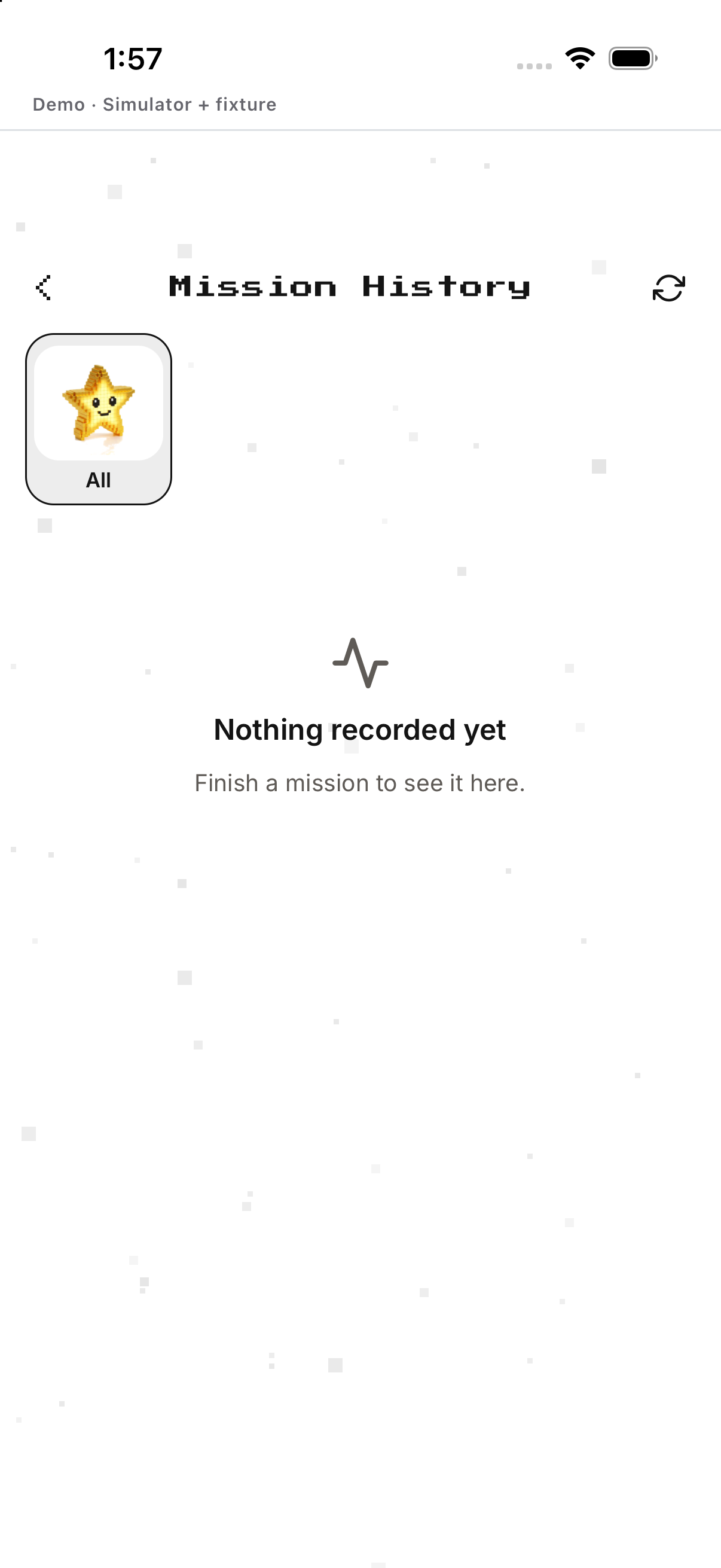
Mission data is missing
Check the mission and its evidence source before assuming the activity was saved.
- Open the affected mission. Confirms its rule and target day.
- Open Mission History and select that mission. Checks whether a record exists.
- Pull to refresh. Requests the latest history.
- Check the mission’s required permission or manual log. Restores the evidence path when available.
- Retry after the source is ready. Lets the next supported sync or log update the record.
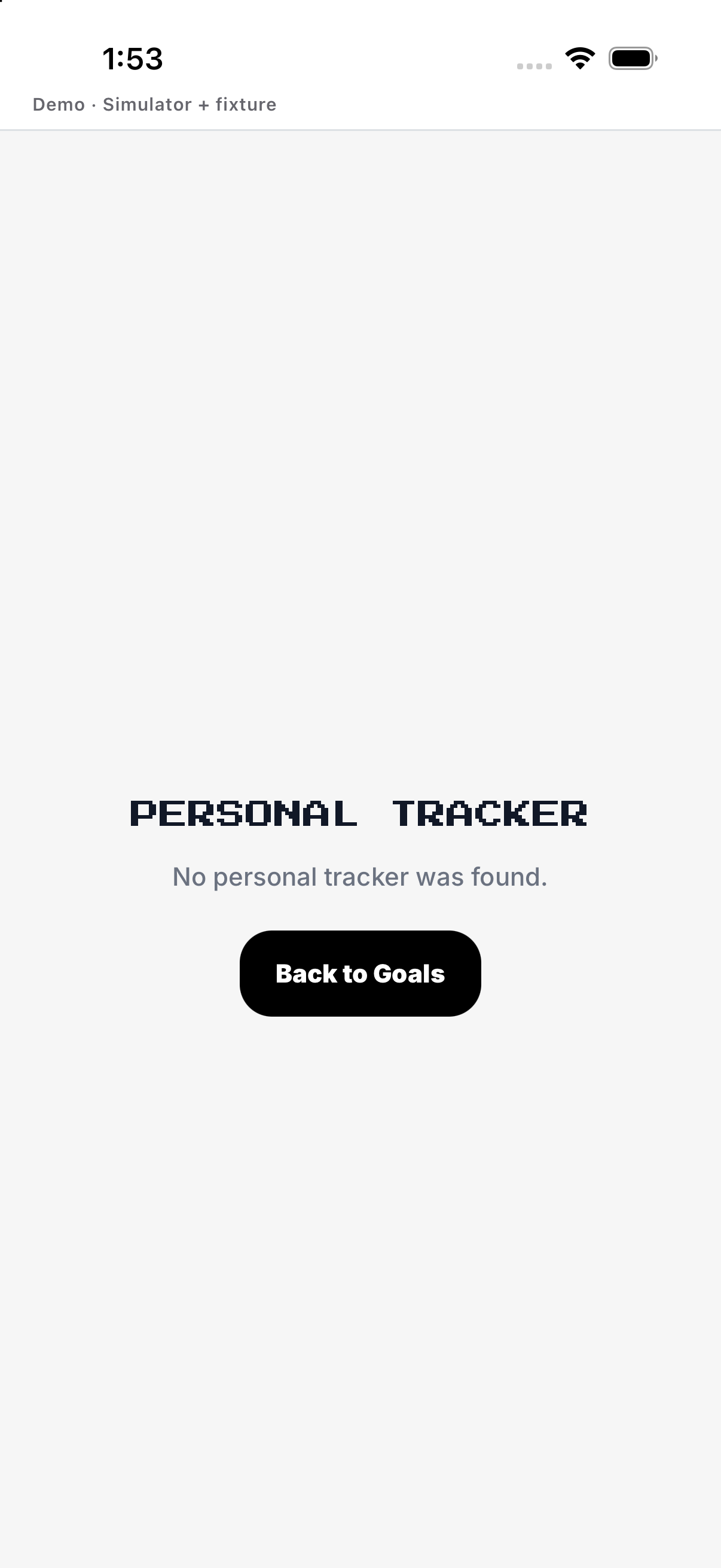
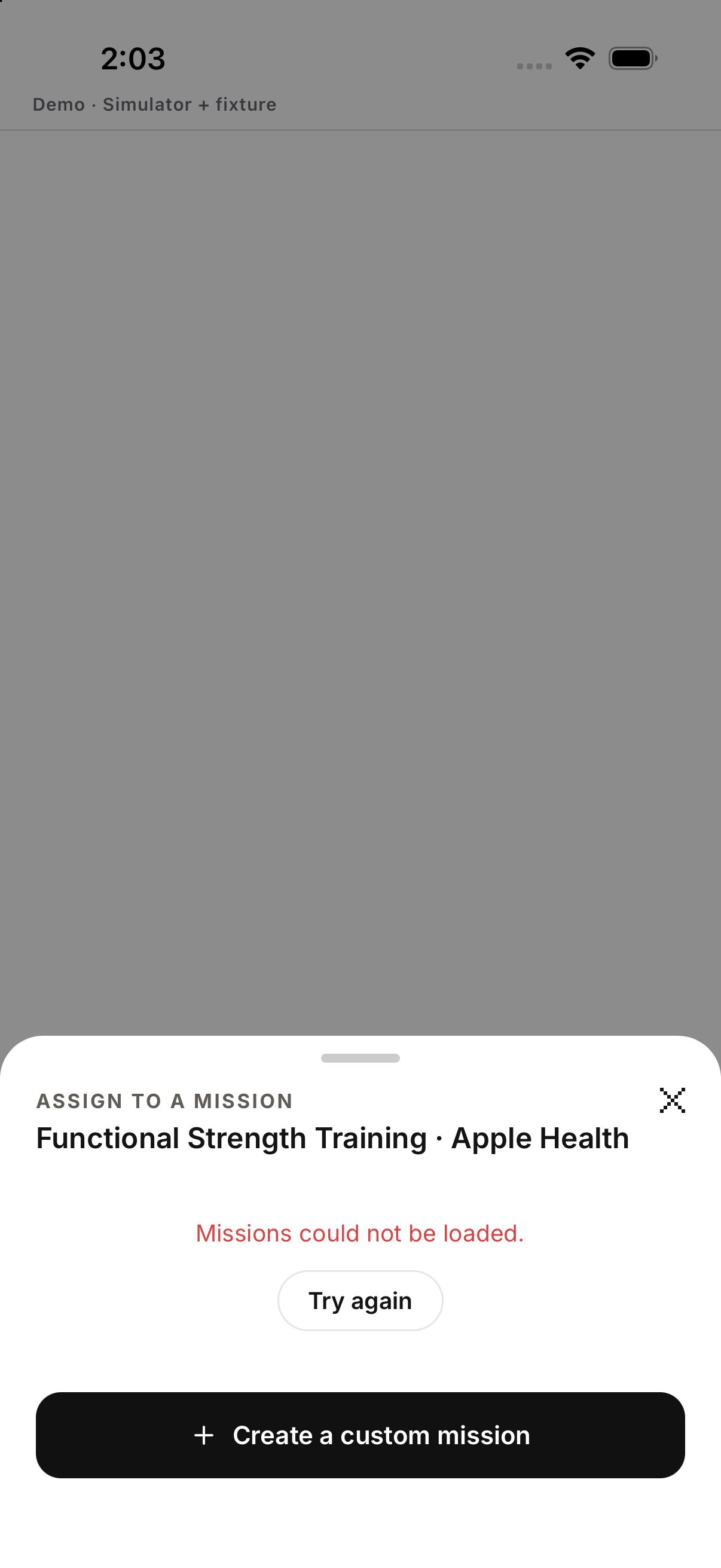
A mission is unavailable
Use the message and return to the current mission catalog.
- Read the unavailable message. Confirms that this mission cannot be opened in the current state.
- Tap Back or close. Returns to Missions.
- Choose a currently available mission card. Starts a supported setup.
- If creation fails, read the error and try again once. Avoids assuming an unsaved mission exists.
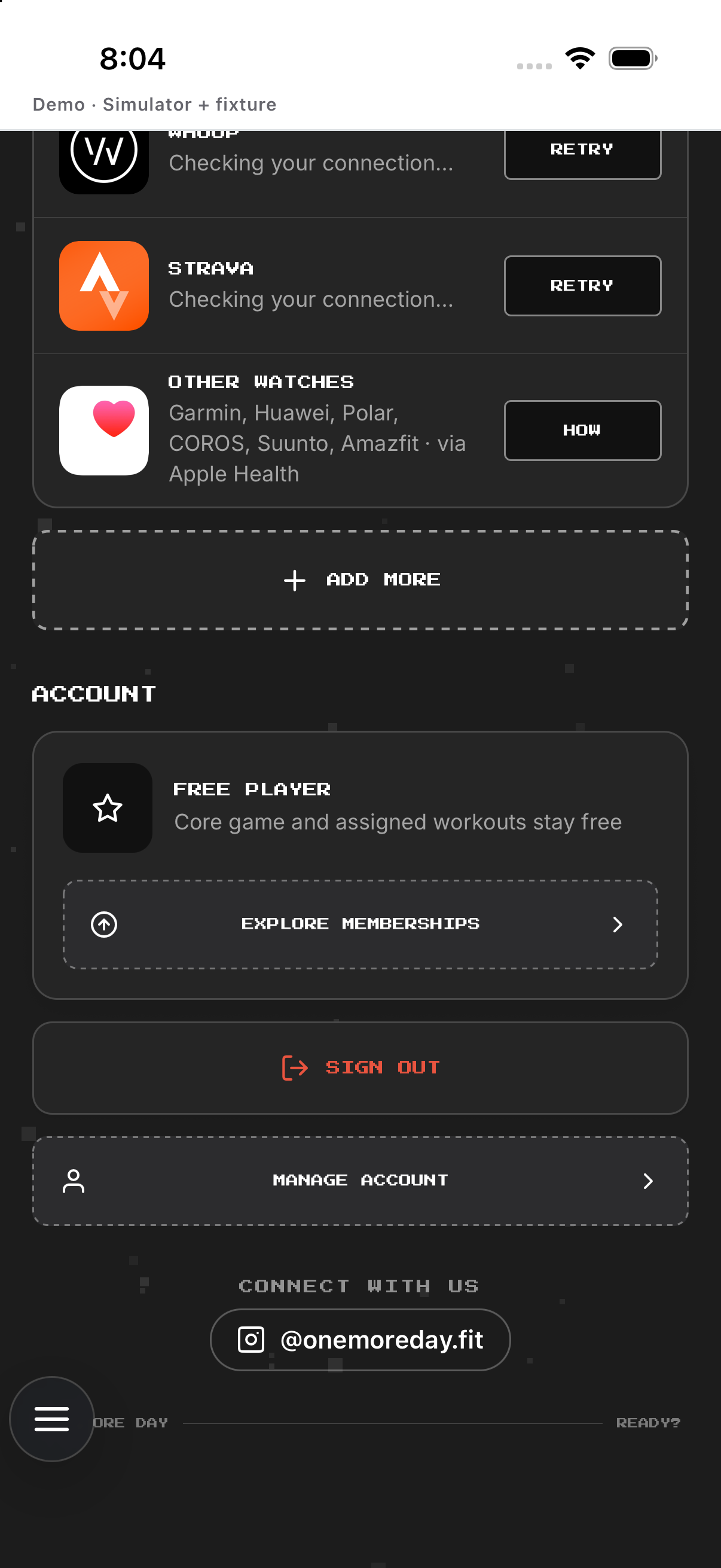
A connected source does not load
Treat connection and data availability as separate checks.
- Open Settings and scroll to Integrations. Shows each provider status.
- Open the affected provider. Shows connect, disconnect or authorization controls.
- Complete any device or provider permission. Returns to OMD after the decision.
- Return to the mission and refresh its data. Requests the source again.
- Read the remaining error state. A connected label alone does not prove that data arrived.
Example
Fictional: Leo sees no steps, checks permission, then uses the next sync.
Keep in mind
If a value is missing, check its source and permissions before assuming that your activity was recorded. Contact support@theaignc.com if it persists.