
One More Day · Guide
HYROX
Track a HYROX training session or race simulation.
Open the complete visual walkthrough ↗
Getting started
- Set goal and schedule.
- Choose Start Training or Start Race.
- Follow intervals/stations; pause/resume, finish and review History.
Every feature, step by step
Create or edit HYROX
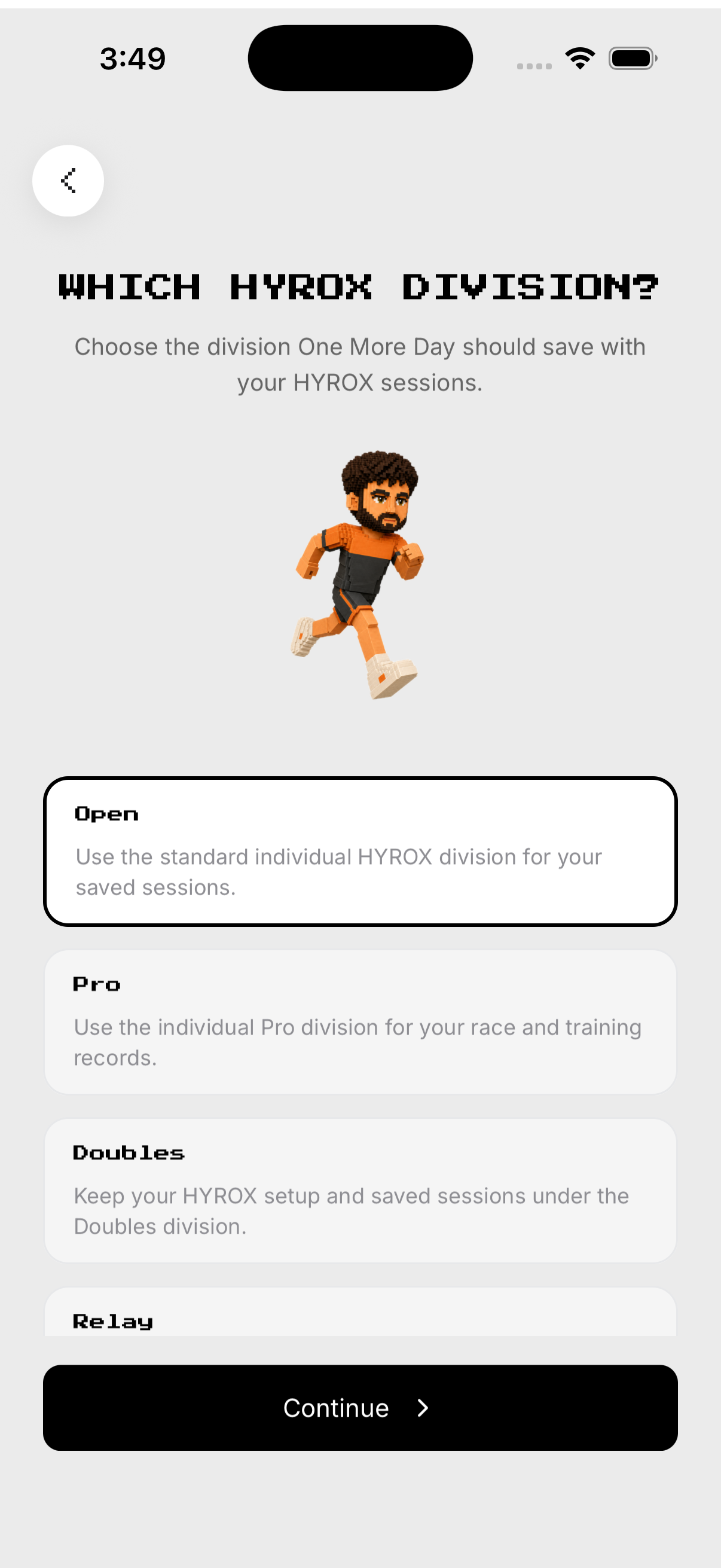
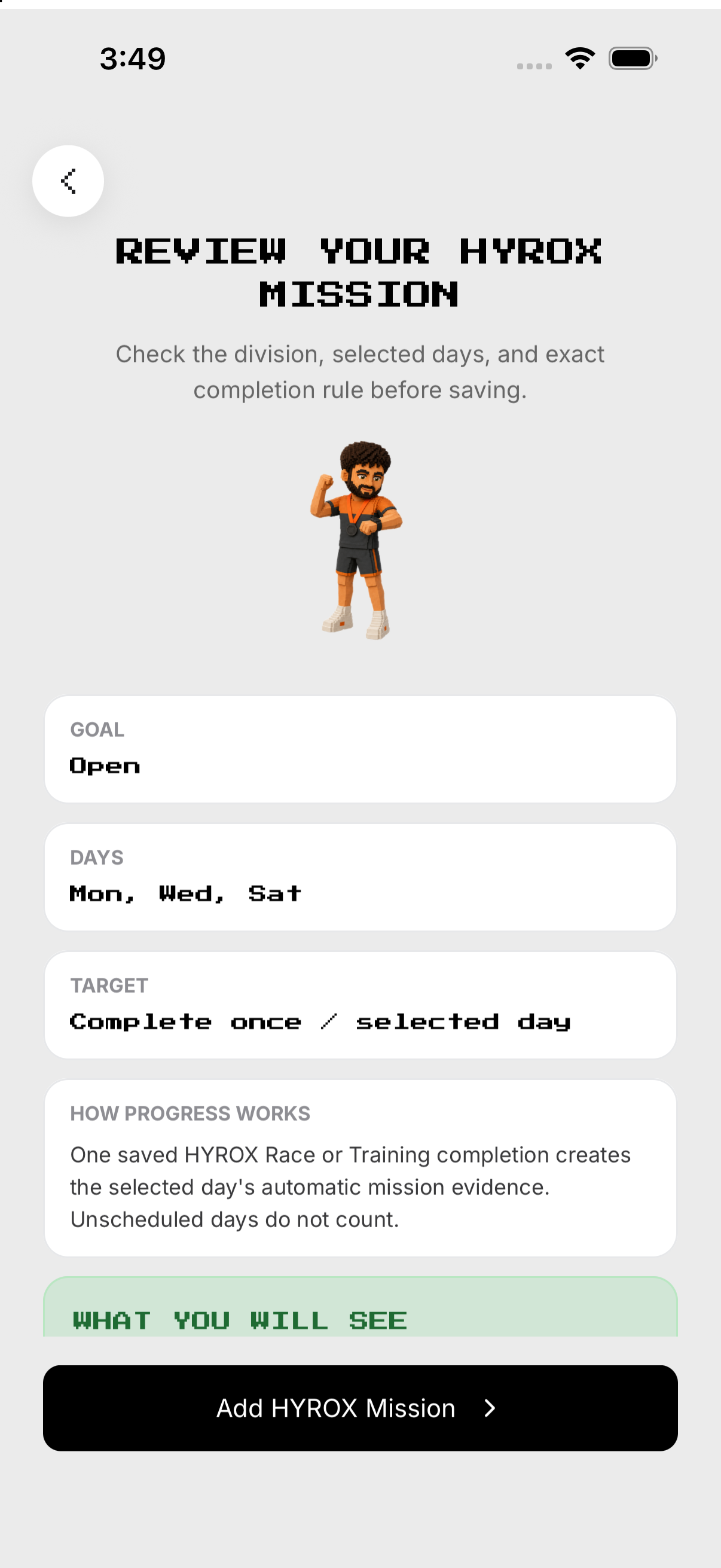
Select the HYROX target. Save or update the mission.
- Goal. From Missions, open HYROX and tap the gear at the top right to open Setup. Select the HYROX target.
- Schedule. Choose training days.
- Reminder. Set or skip an alert.
- Review. Save or update the mission.
Start Training or Race
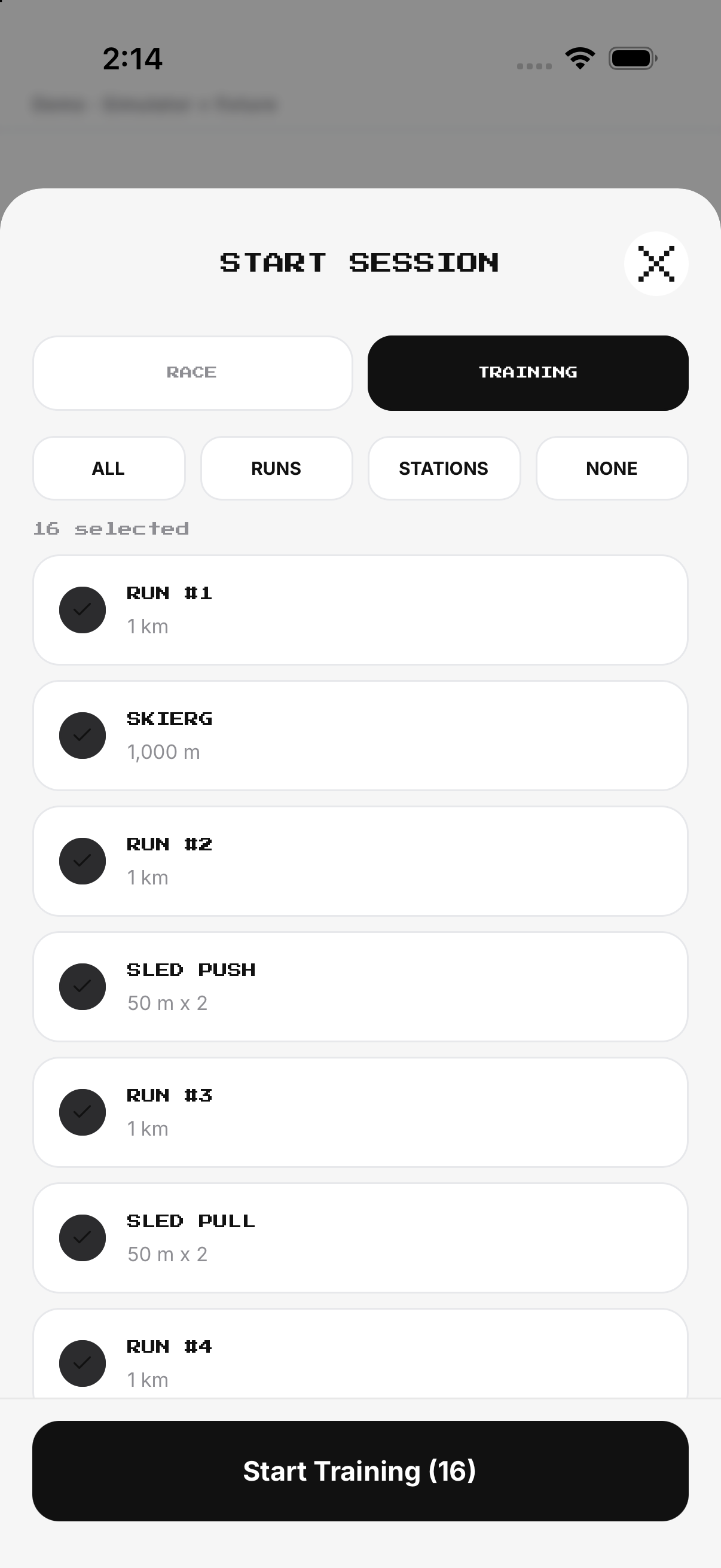
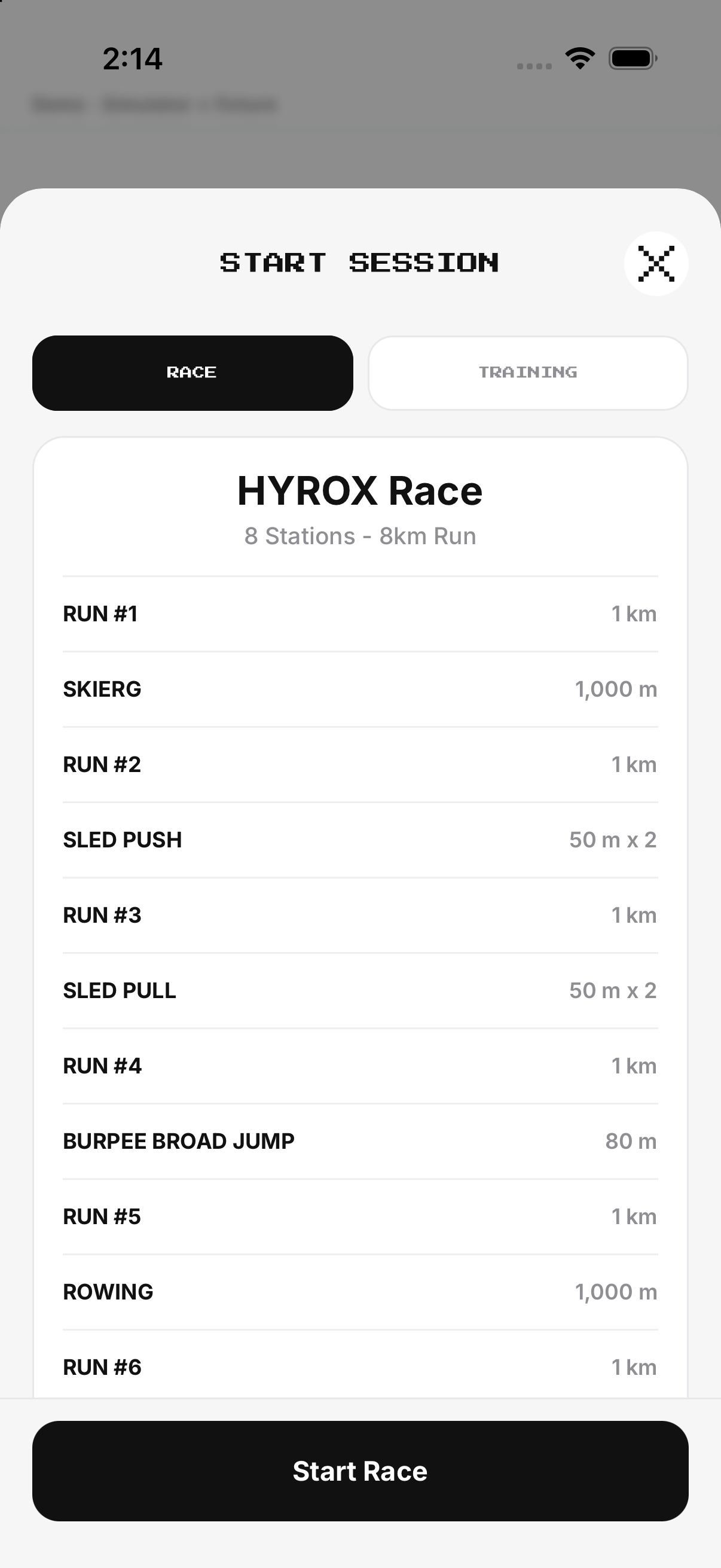
Choose the offered workout and begin. Use session controls; do not leave by navigation alone.
- Training. Choose the offered workout and begin.
- Race. Begin the race sequence and station tracking.
- Intervals. Advance through work and recovery.
- Exit. Use session controls; do not leave by navigation alone.
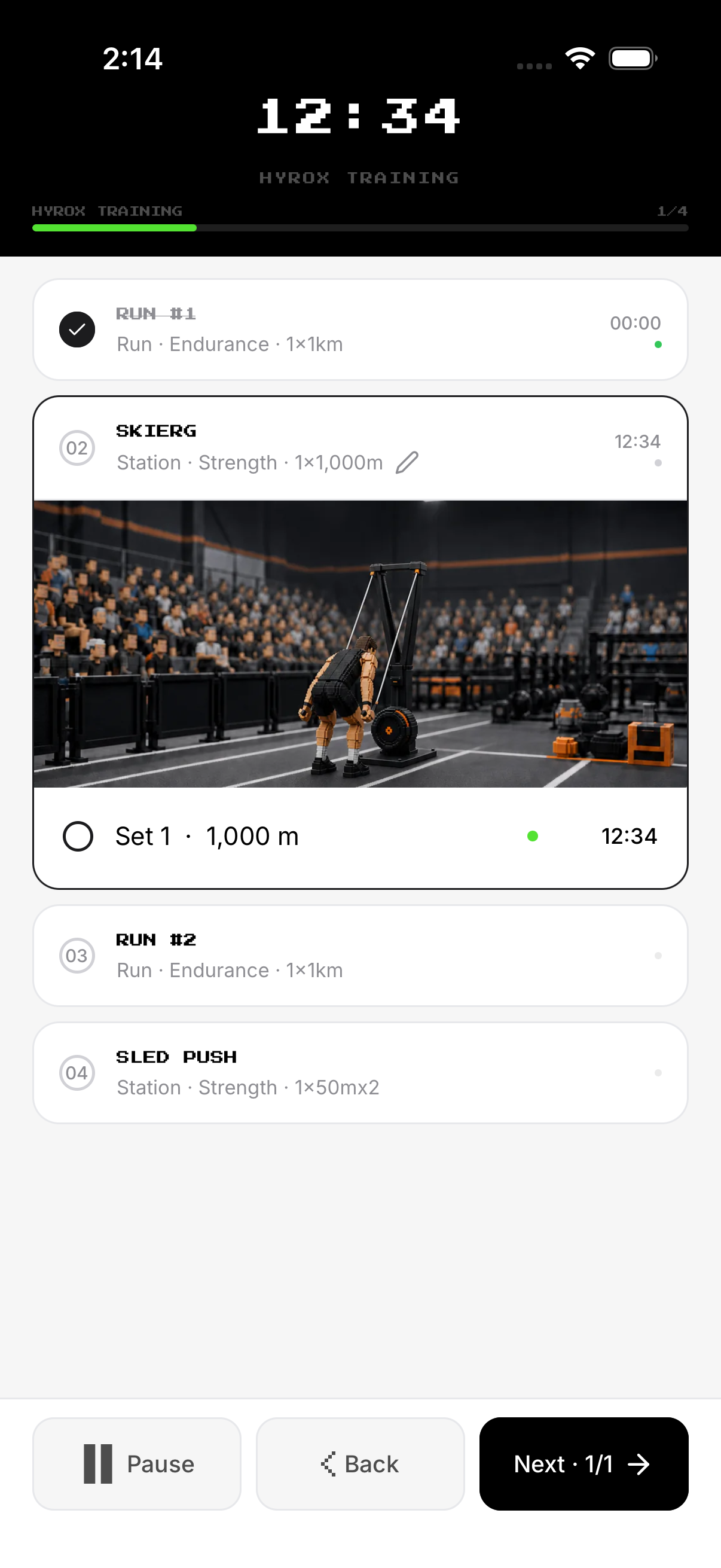
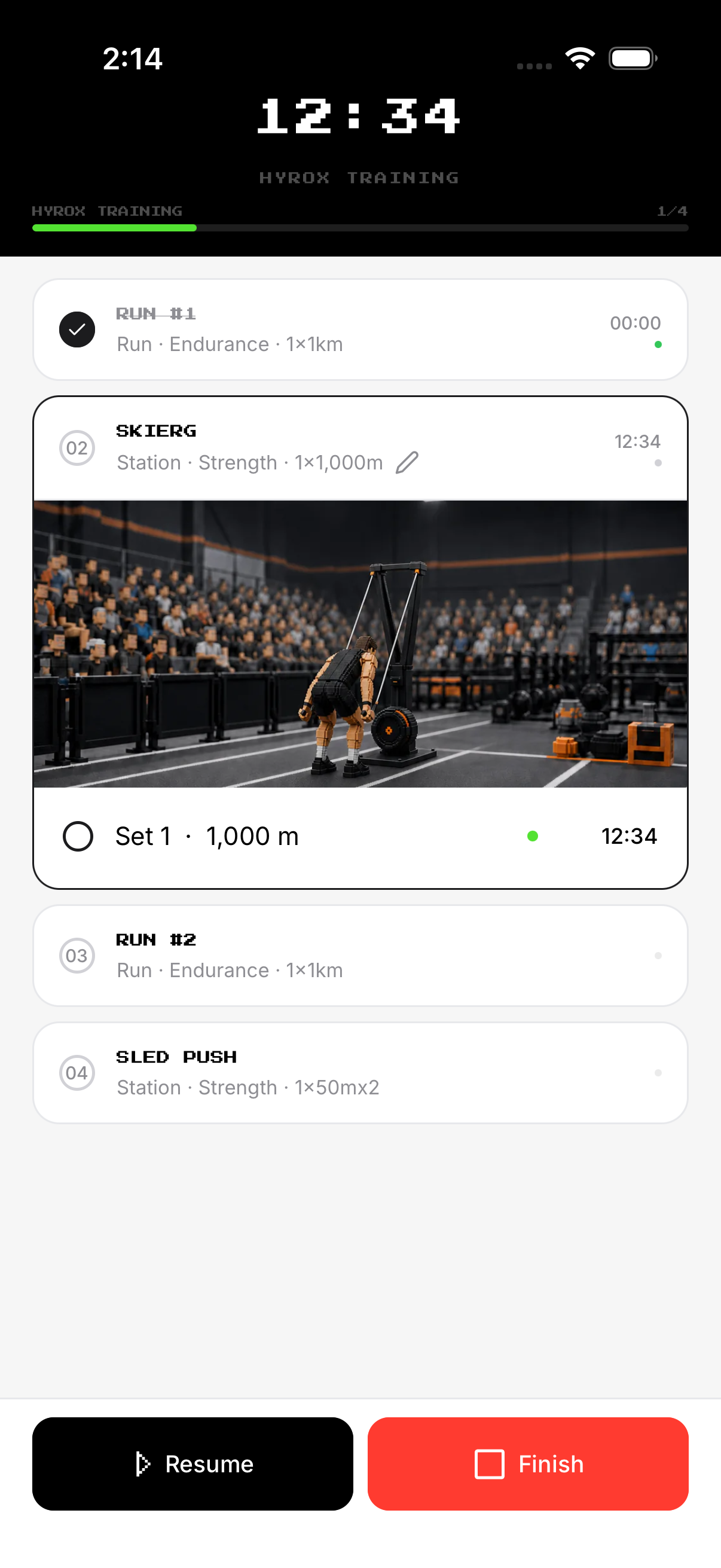
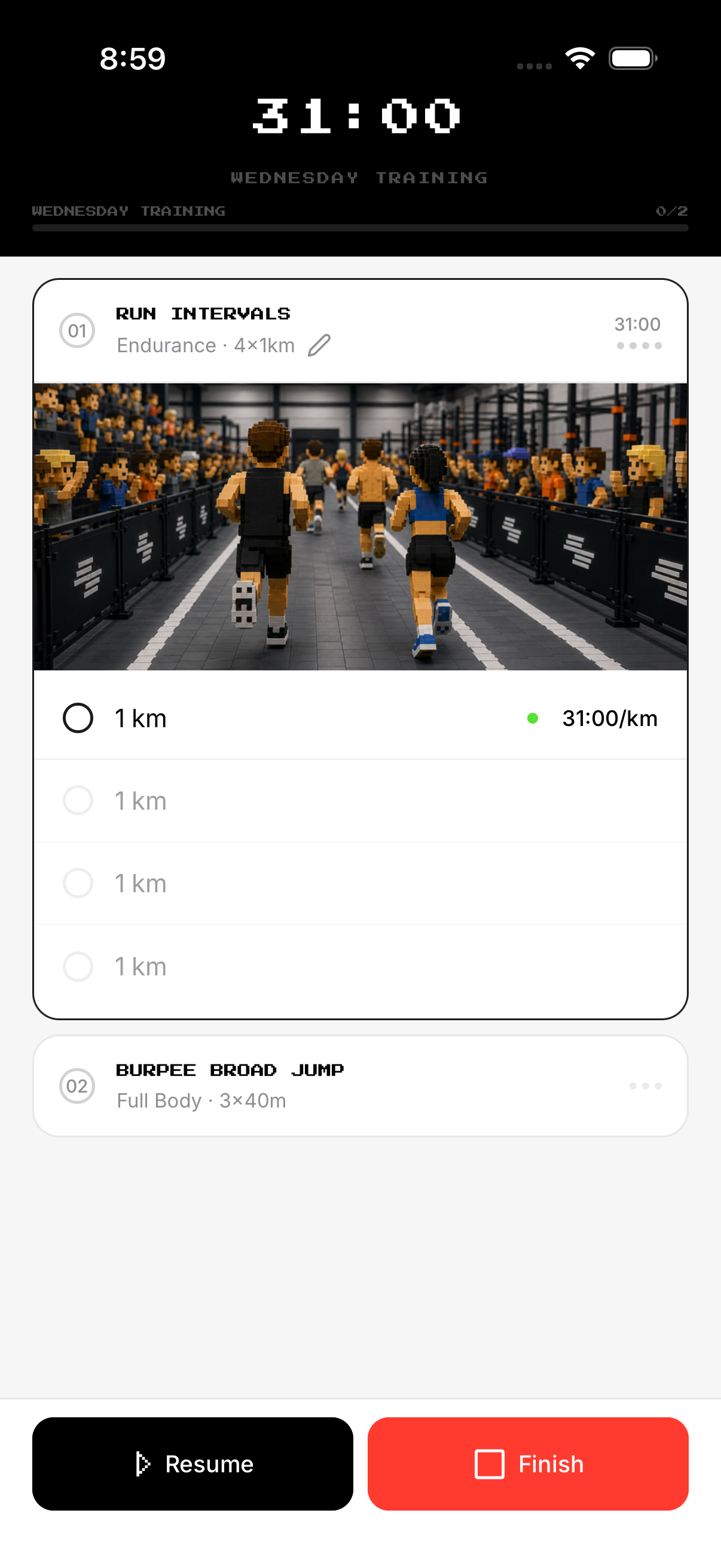
Pause, resume and finish
Pause the timer when interrupted. Review the result before saving.
- Pause. Pause the timer when interrupted.
- Resume. Continue the same session.
- Finish. Use Finish when complete.
- Confirm. Review the result before saving.
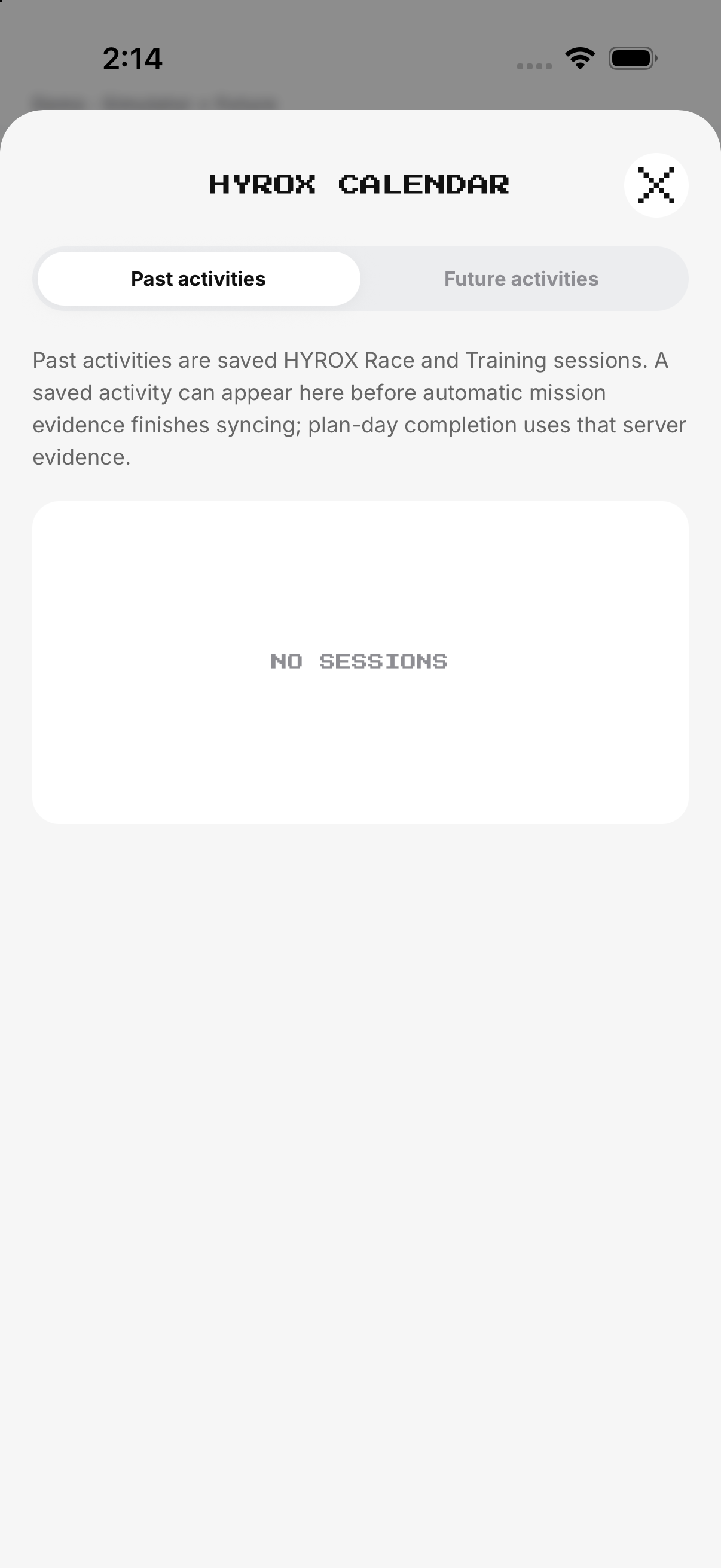
Calendar, history and delete
Select a prior HYROX day. Tap Delete mission and confirm.
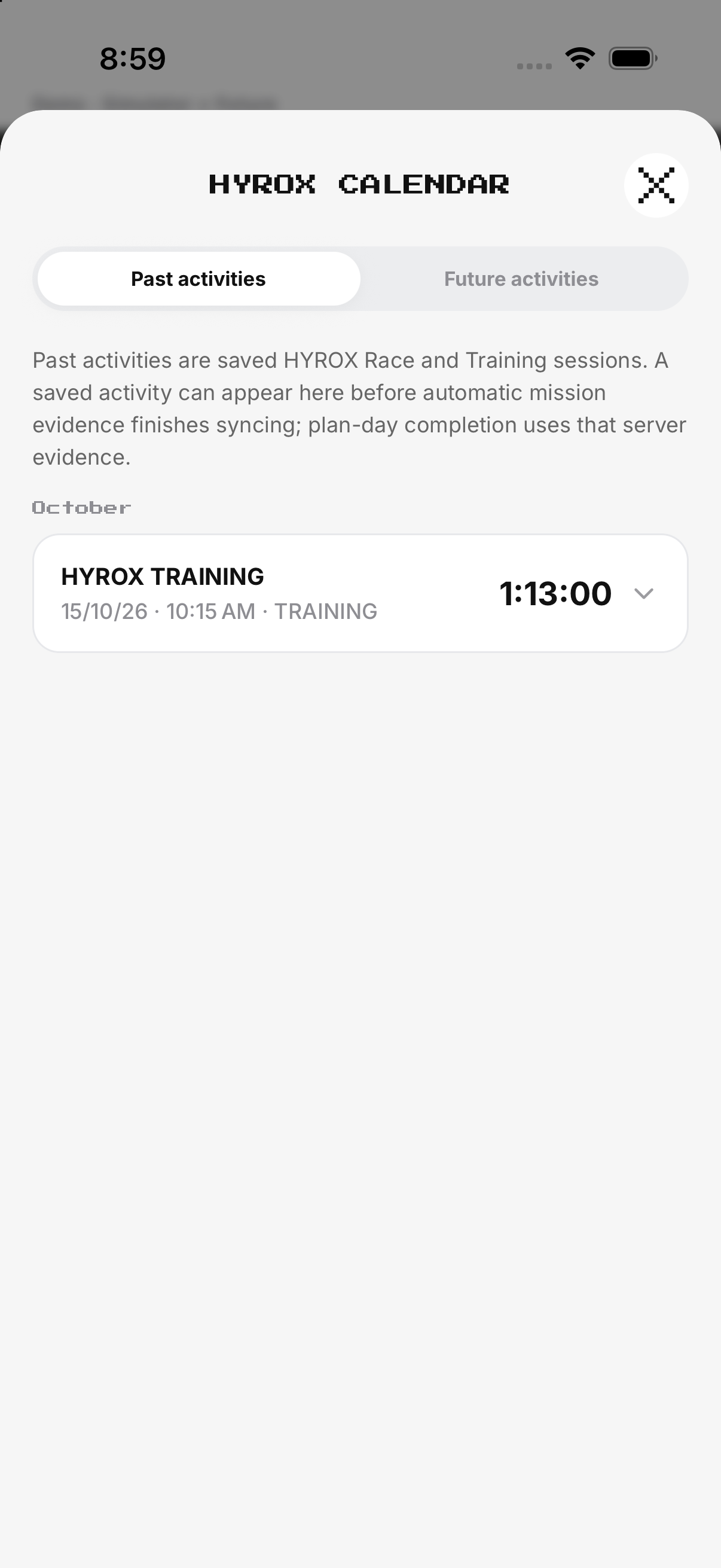
- Calendar / History. Select a prior HYROX day.
- Detail. Review the saved result.
- Edit. Use Setup for future settings.
- Delete. Tap Delete mission and confirm.
Example
Use Training for a selected workout; use Race for the full sequence.
Keep in mind
Event discovery can require network data; it is separate from a local workout.