
One More Day · Guide
Your data and insights
The dashboard brings health, training, recovery and mission data together for review.
Open the complete visual walkthrough ↗
Getting started
- Scroll below the avatar.
- Compare the available health, training and recovery cards.
- Open a mission to inspect its own evidence.
- Treat patterns as information for planning, not diagnosis.
Every feature, step by step
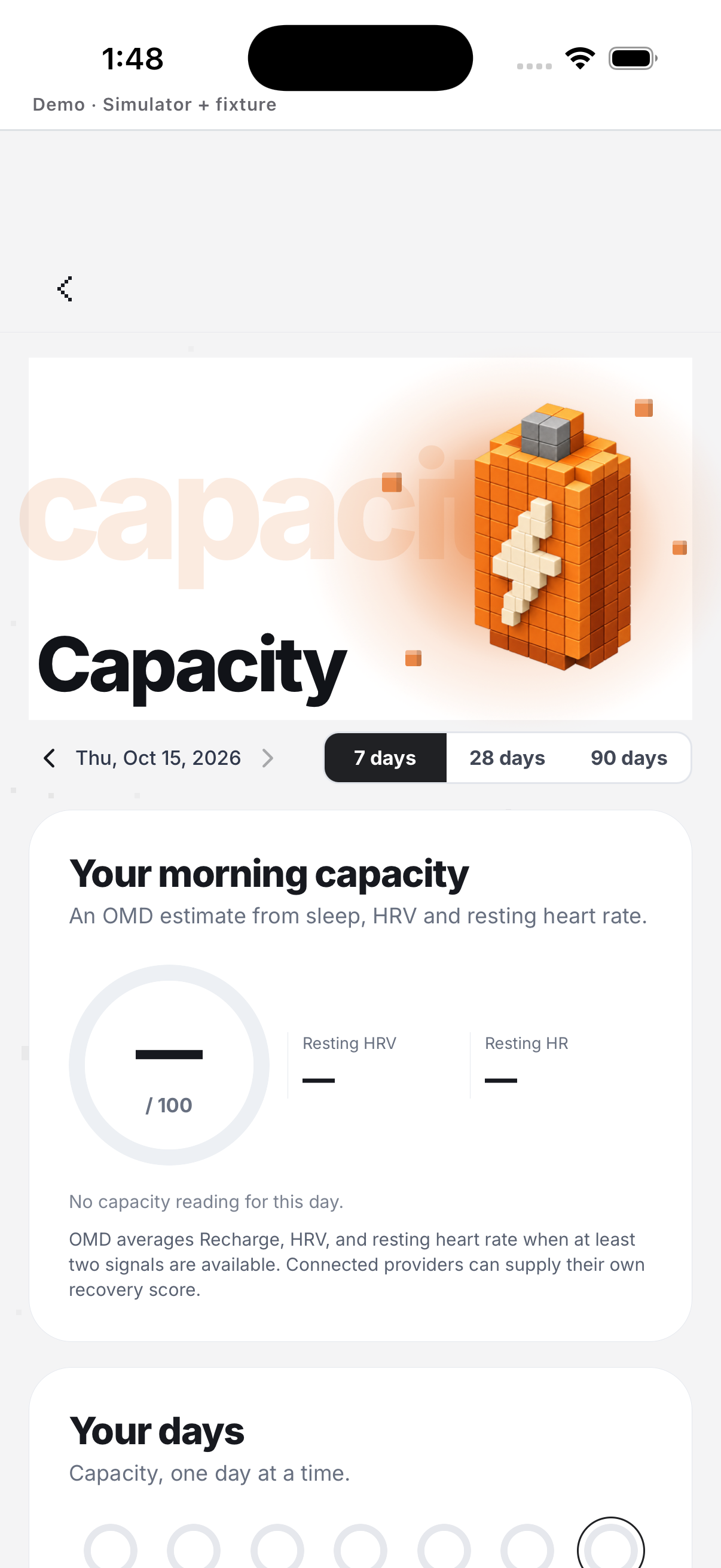
Capacity
Open Capacity from the Health dashboard; the category can show data, no history or a source error.
- Scroll Home to Health. Shows Capacity, Recharge and Load categories.
- Tap Capacity. Opens readiness from available recovery and health signals.
- Change the date when the control is available. Requests that date’s category summary.
- Read the no-history or partial-source message. An empty state does not invent a score.
- Tap Retry after an error. Requests the category sources again.
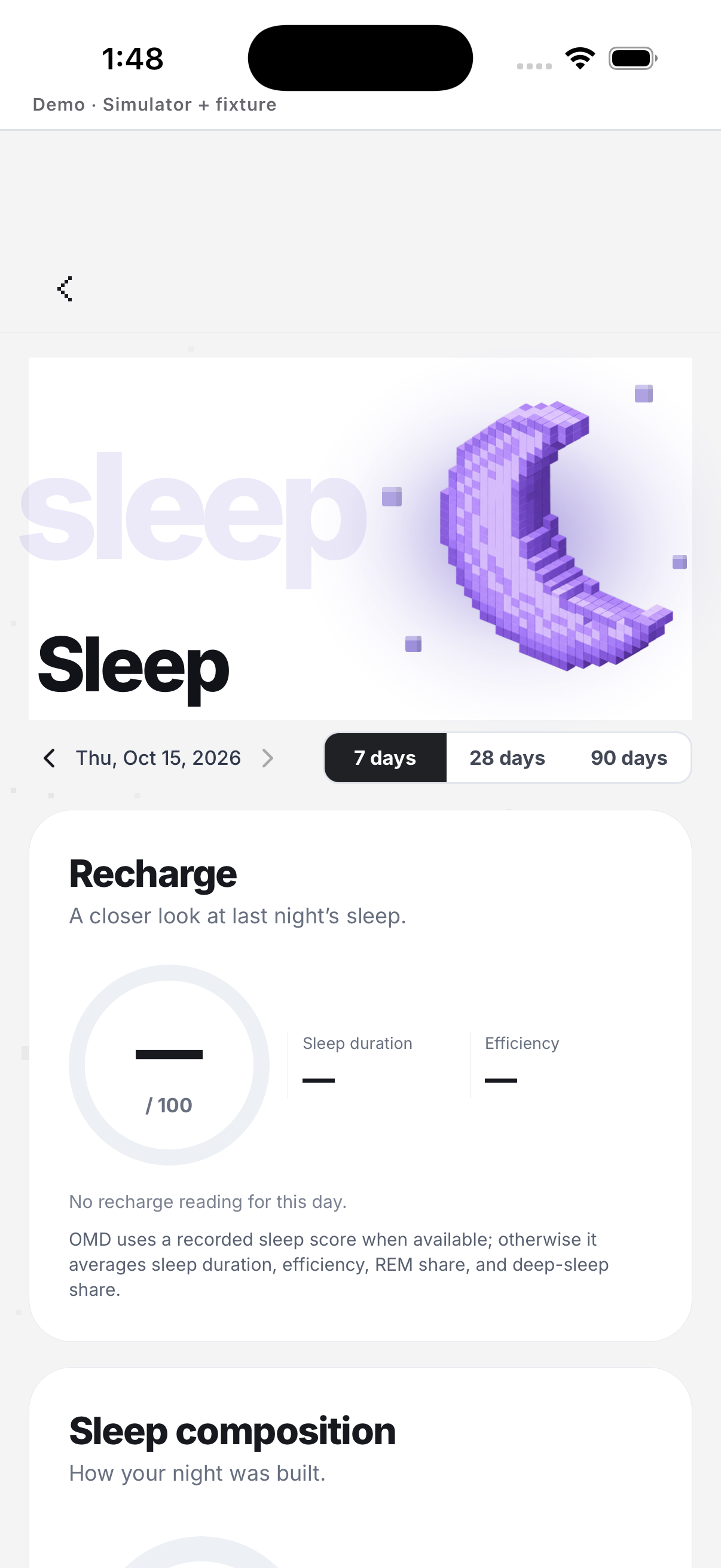
Recharge
Open Recharge from the Health dashboard; the category can show data, no history or a source error.
- Scroll Home to Health. Shows Capacity, Recharge and Load categories.
- Tap Recharge. Opens recovery from the available source history.
- Change the date when the control is available. Requests that date’s category summary.
- Read the no-history or partial-source message. An empty state does not invent a score.
- Tap Retry after an error. Requests the category sources again.
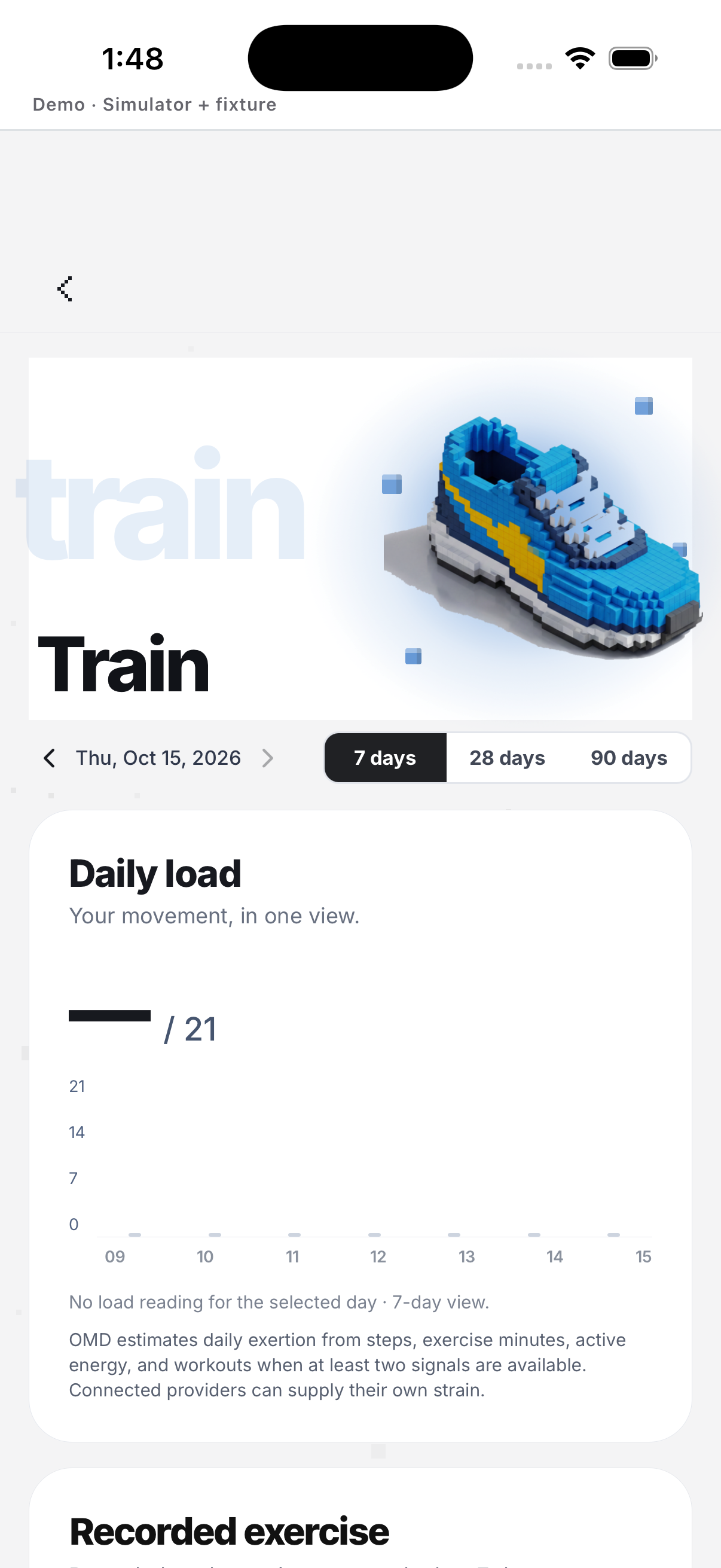
Load
Open Load from the Health dashboard; the category can show data, no history or a source error.
- Scroll Home to Health. Shows Capacity, Recharge and Load categories.
- Tap Load. Opens recent training demand from available activity signals.
- Change the date when the control is available. Requests that date’s category summary.
- Read the no-history or partial-source message. An empty state does not invent a score.
- Tap Retry after an error. Requests the category sources again.
Example
Fictional: Lina compares her sleep card with her mission history before choosing a lighter week.
Keep in mind
A card is shown only when the relevant data exists; an empty card is not a promise of a connected service.