
One More Day · Guide
Diet
Set a nutrition target, log meals, then review the day.
Open the complete visual walkthrough ↗
Getting started
- Configure goal, schedule and calorie target.
- Use Manual, Favorites or available barcode/camera/upload actions.
- Review servings and nutrition; save, edit or remove; use day History.
Every feature, step by step
Create or edit Diet
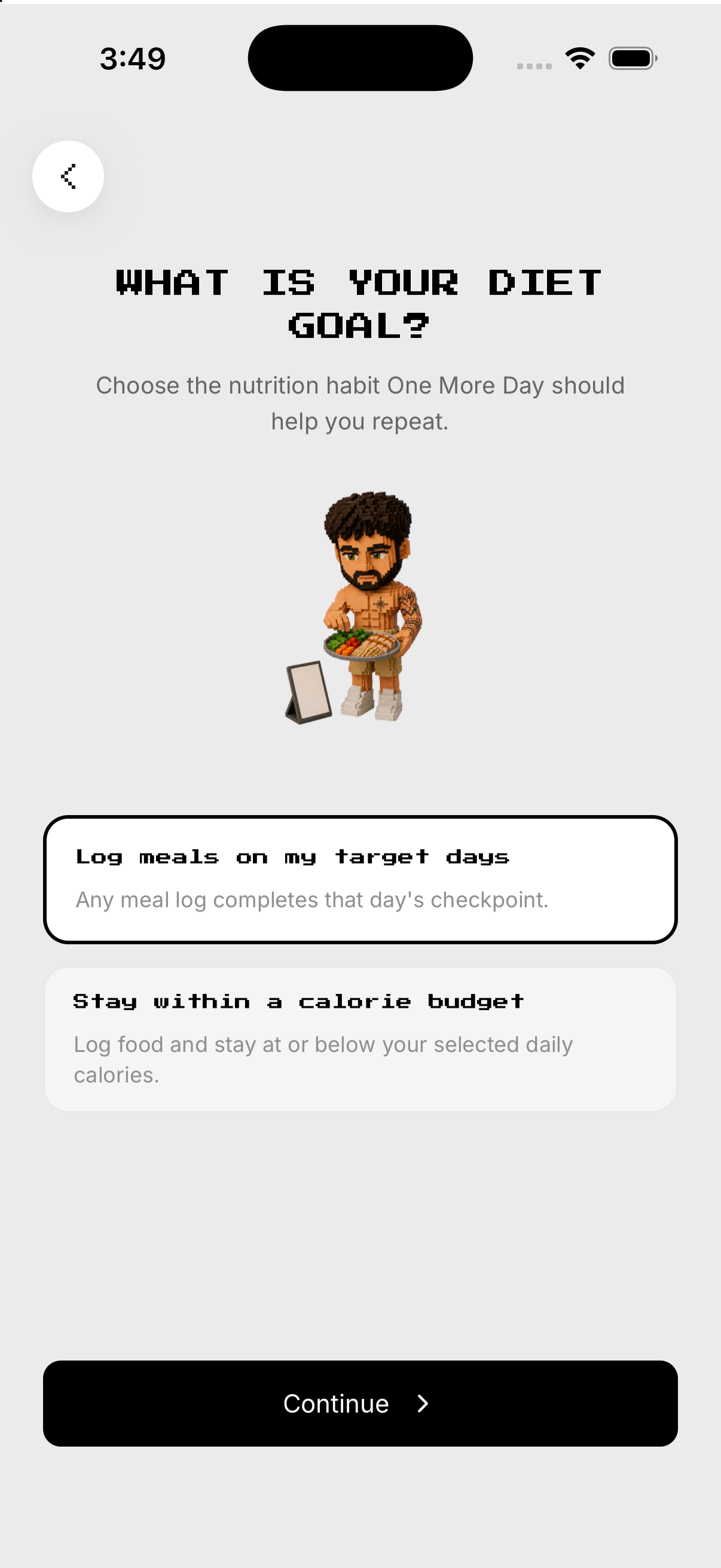
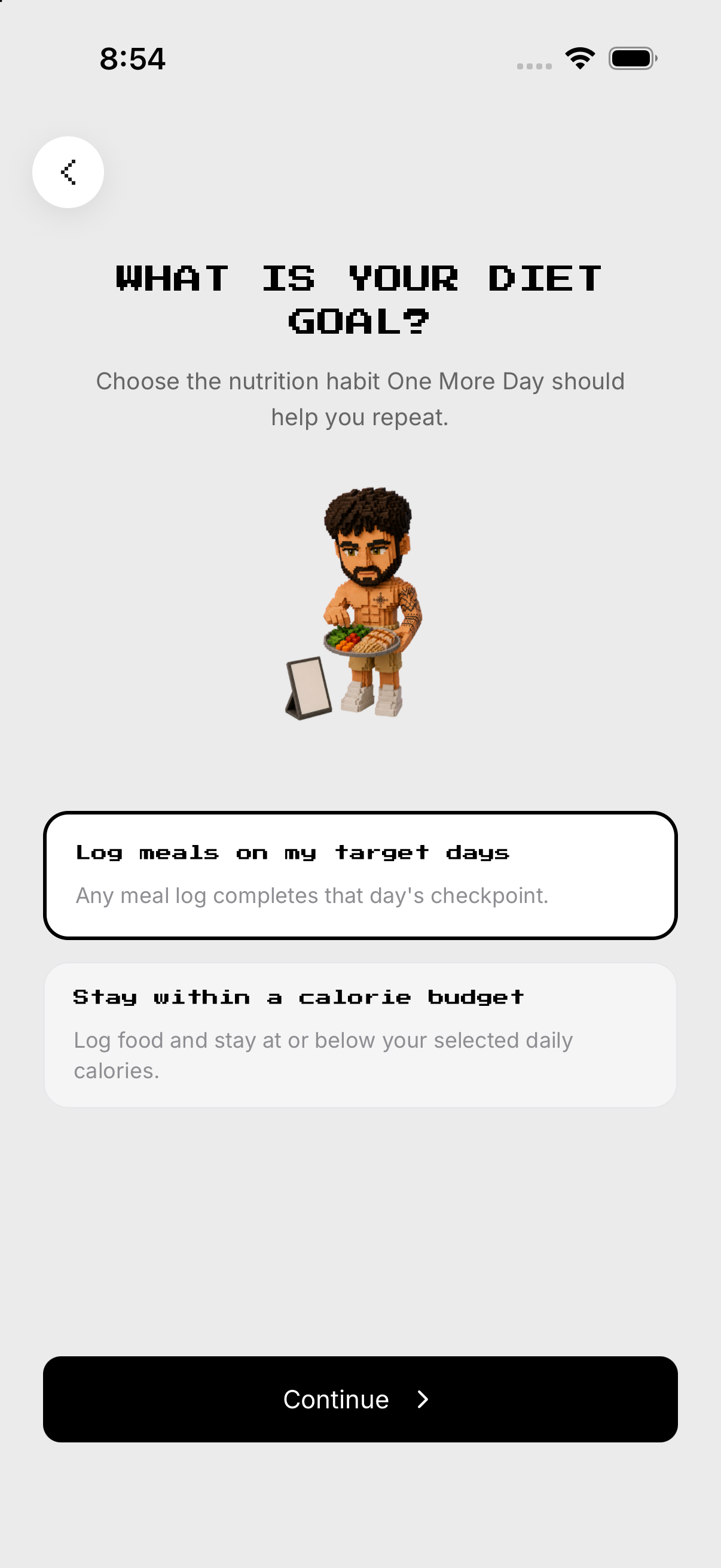
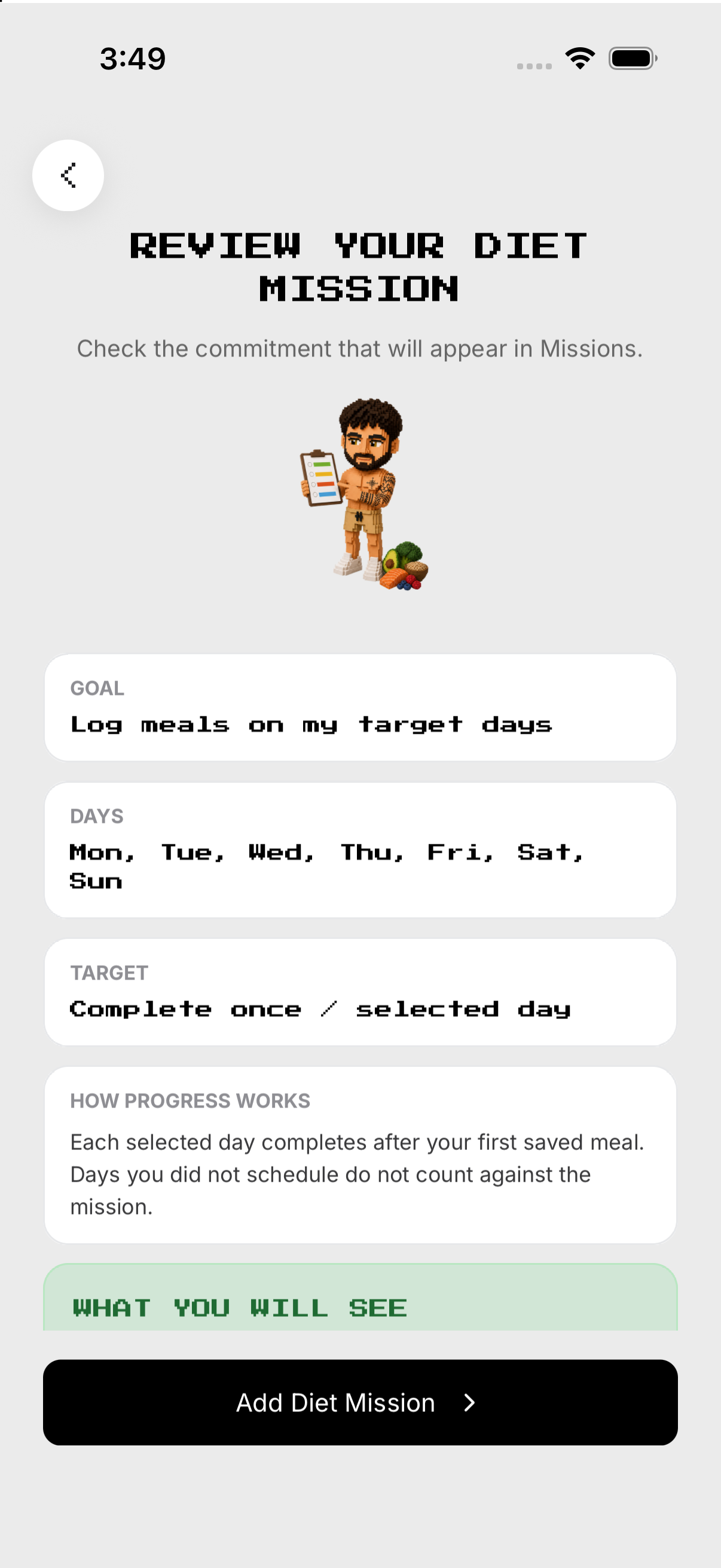
Choose the nutrition objective. Confirm before save.
- Goal. From Missions, open Diet and tap the gear at the top right to open Setup. Choose the nutrition objective.
- Calories. Set the daily target.
- Schedule. Choose target days.
- Review. Confirm before save.
Choose how to log
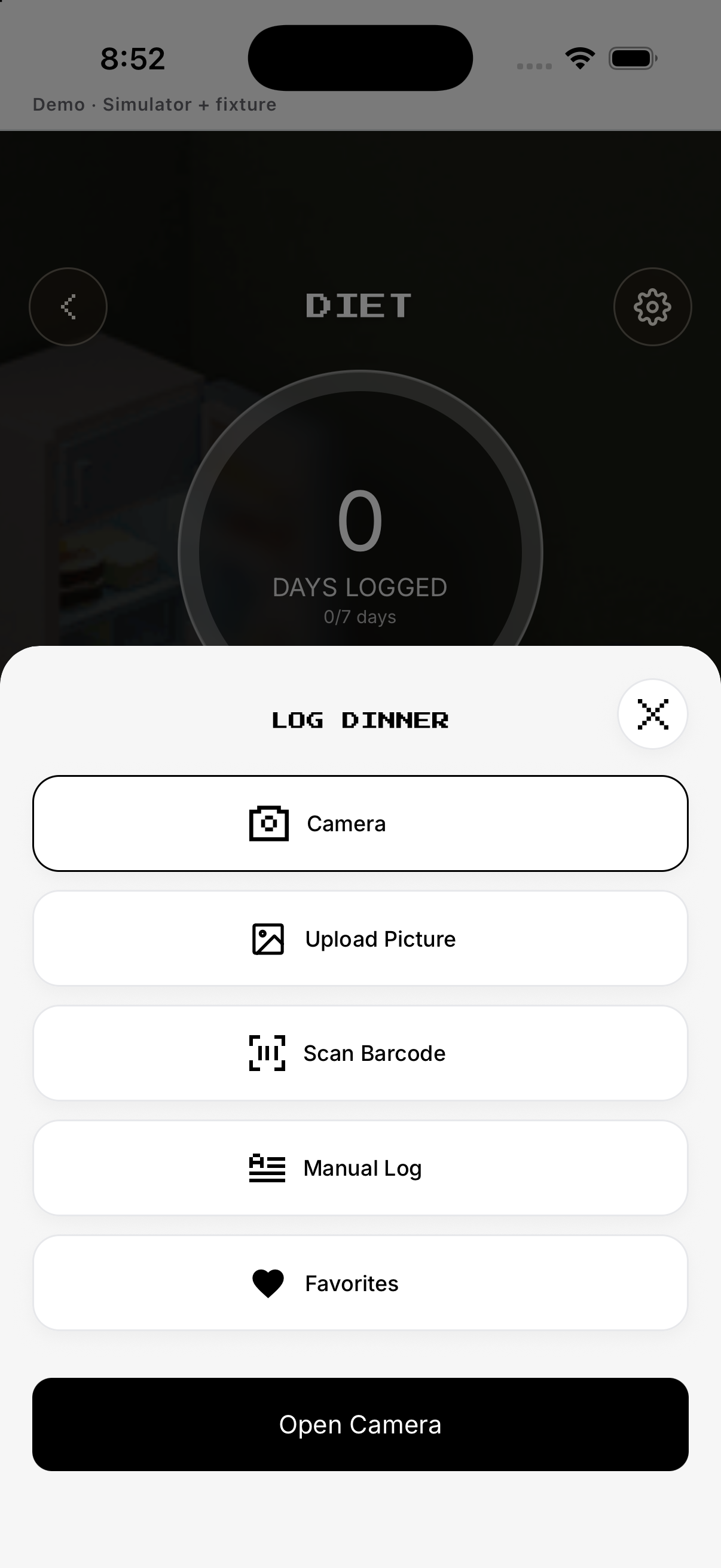
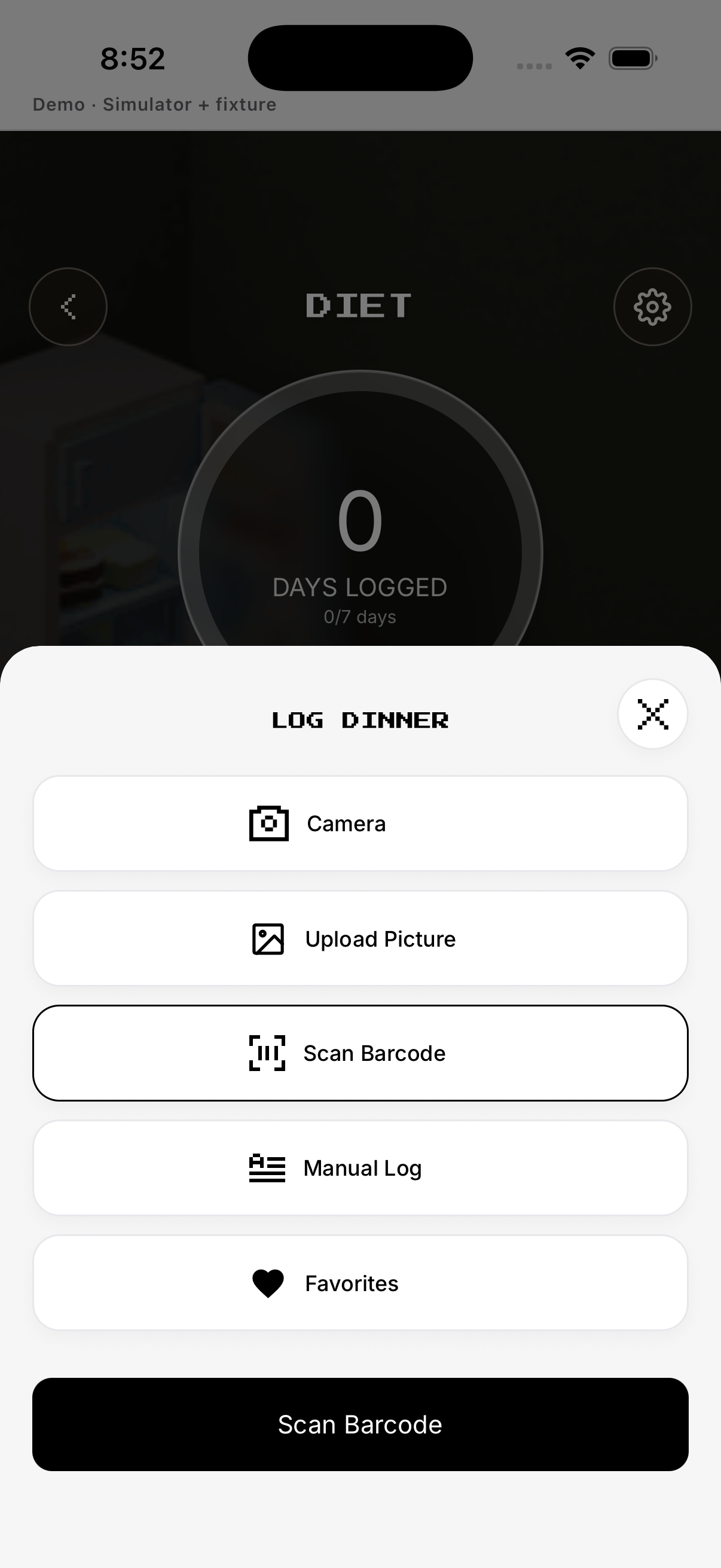
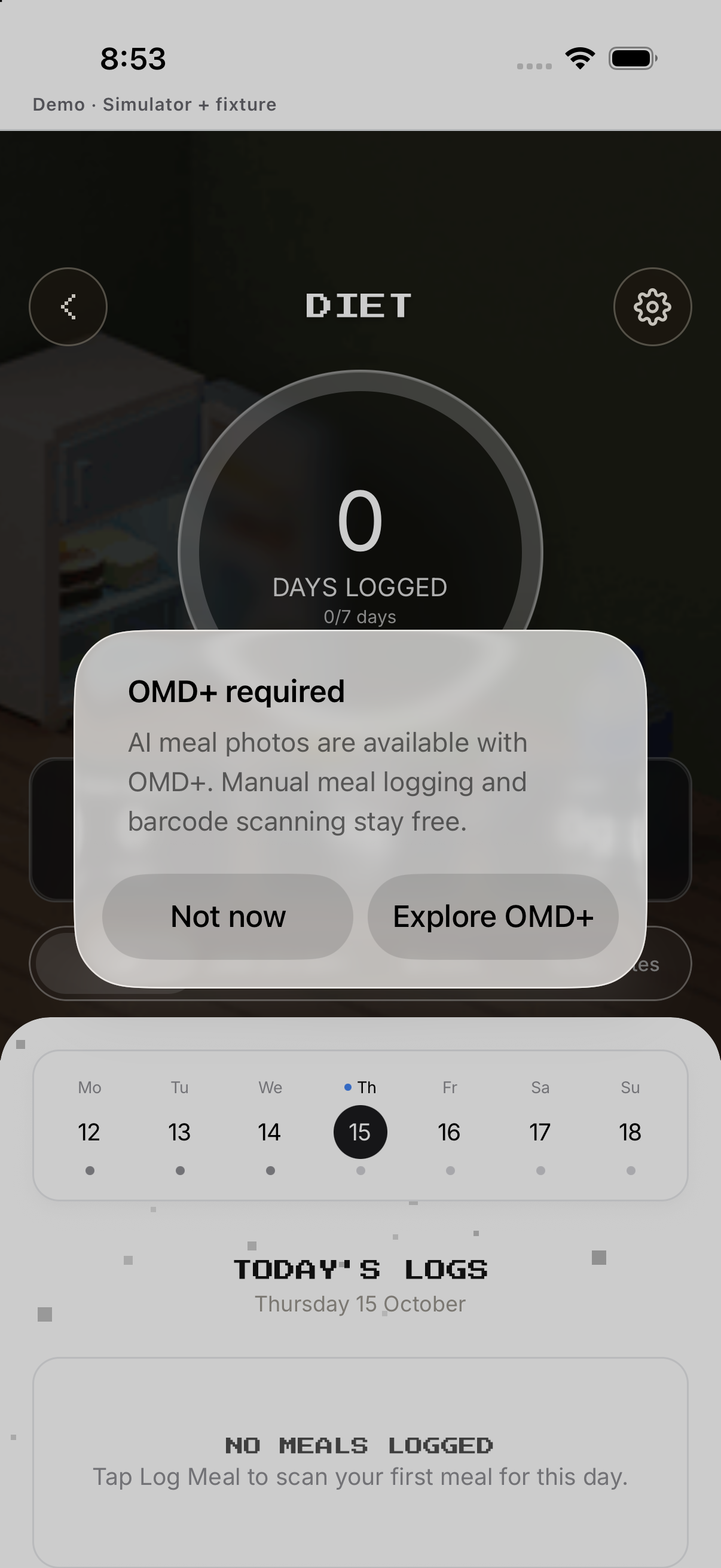
Enter food, serving and nutrition. AI-assisted actions may show the OMD+ gate before use.
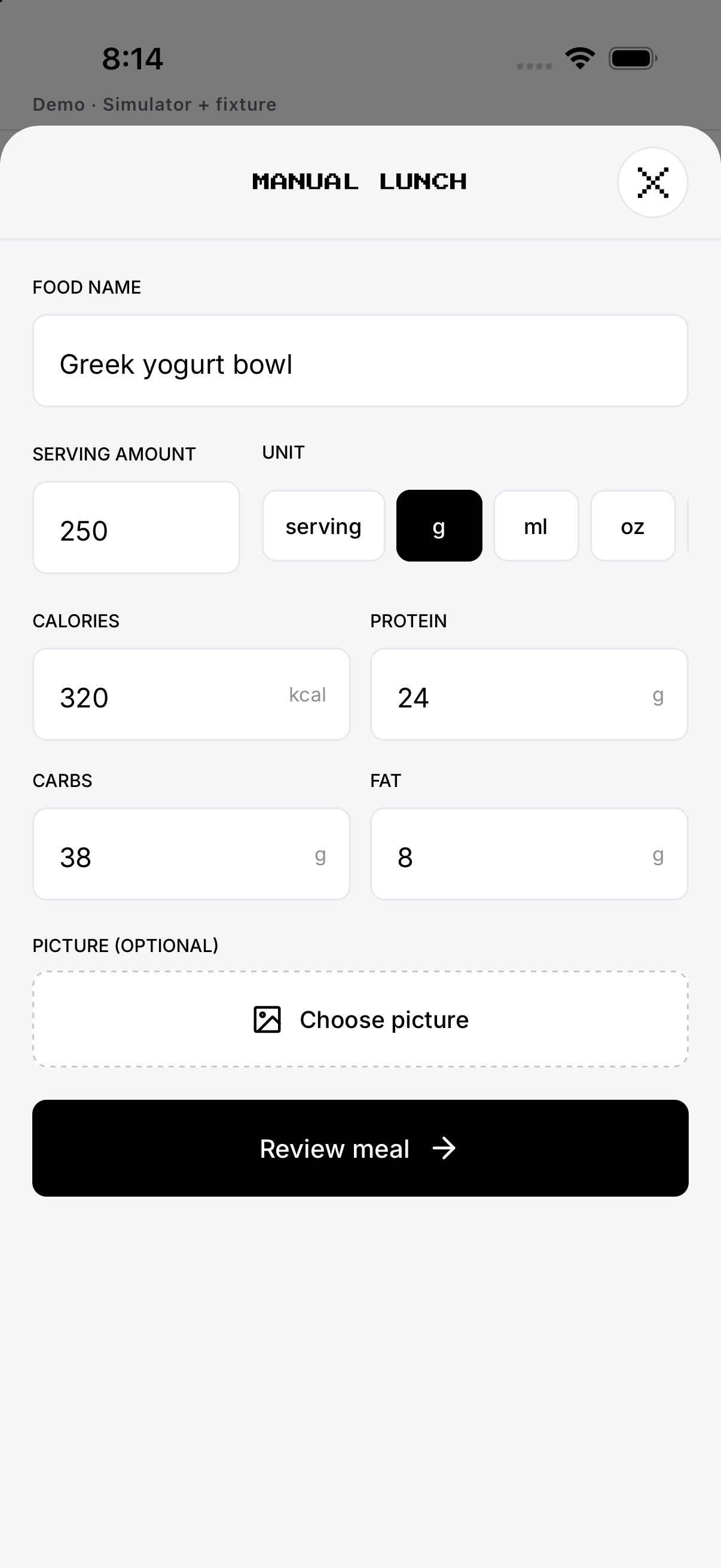
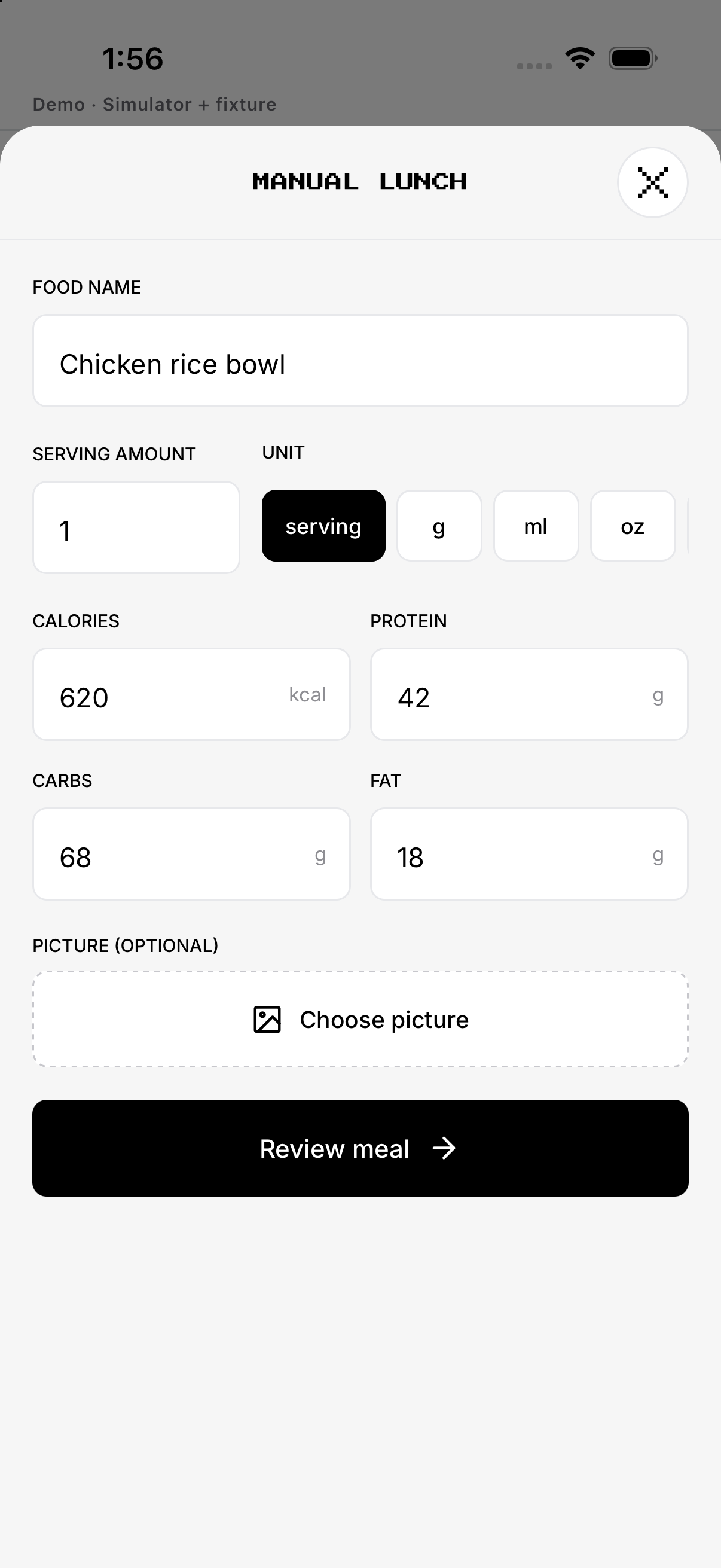
- Manual. Enter food, serving and nutrition.
- Favorites. Choose a saved item.
- Barcode. Scan or enter a product code when available.
- Camera / Upload. AI-assisted actions may show the OMD+ gate before use.
Review, edit or remove a meal
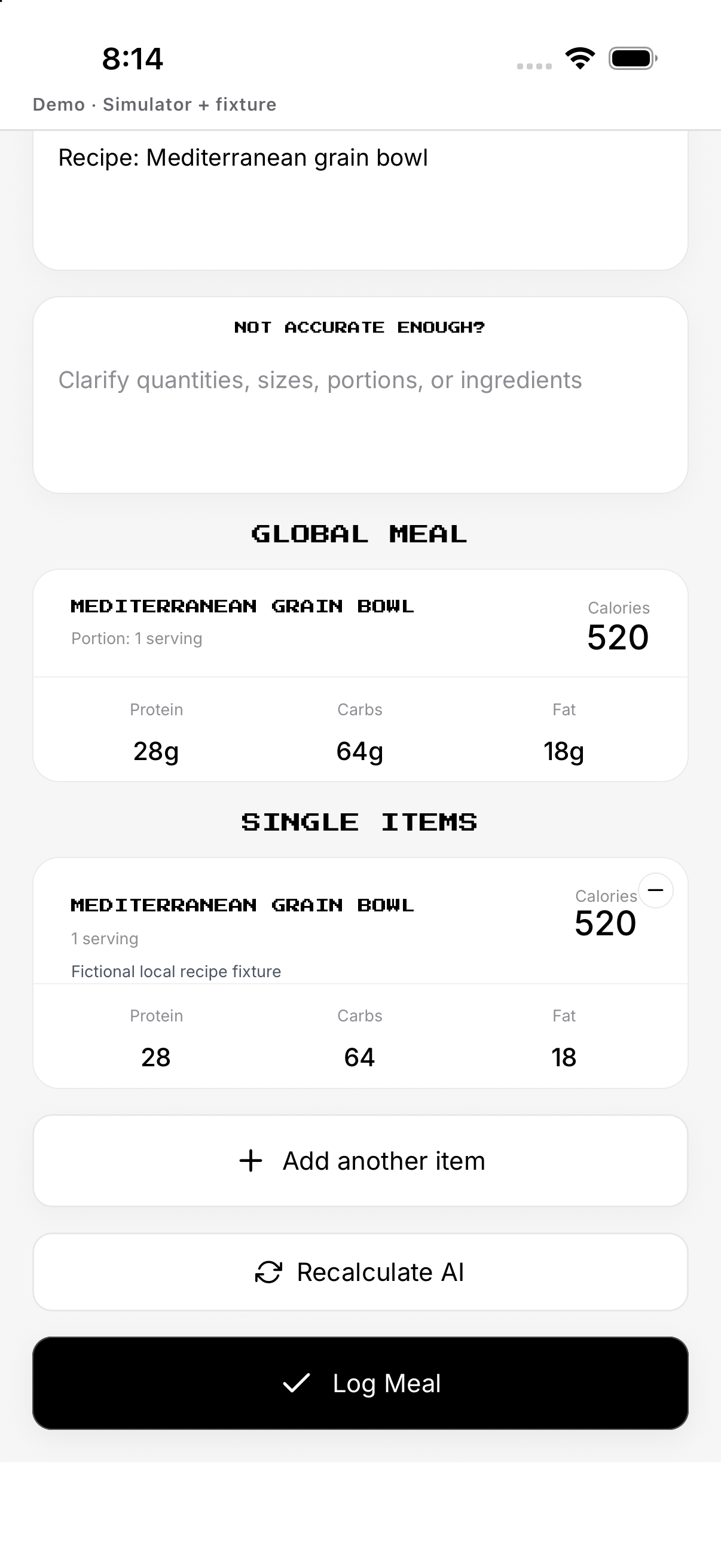
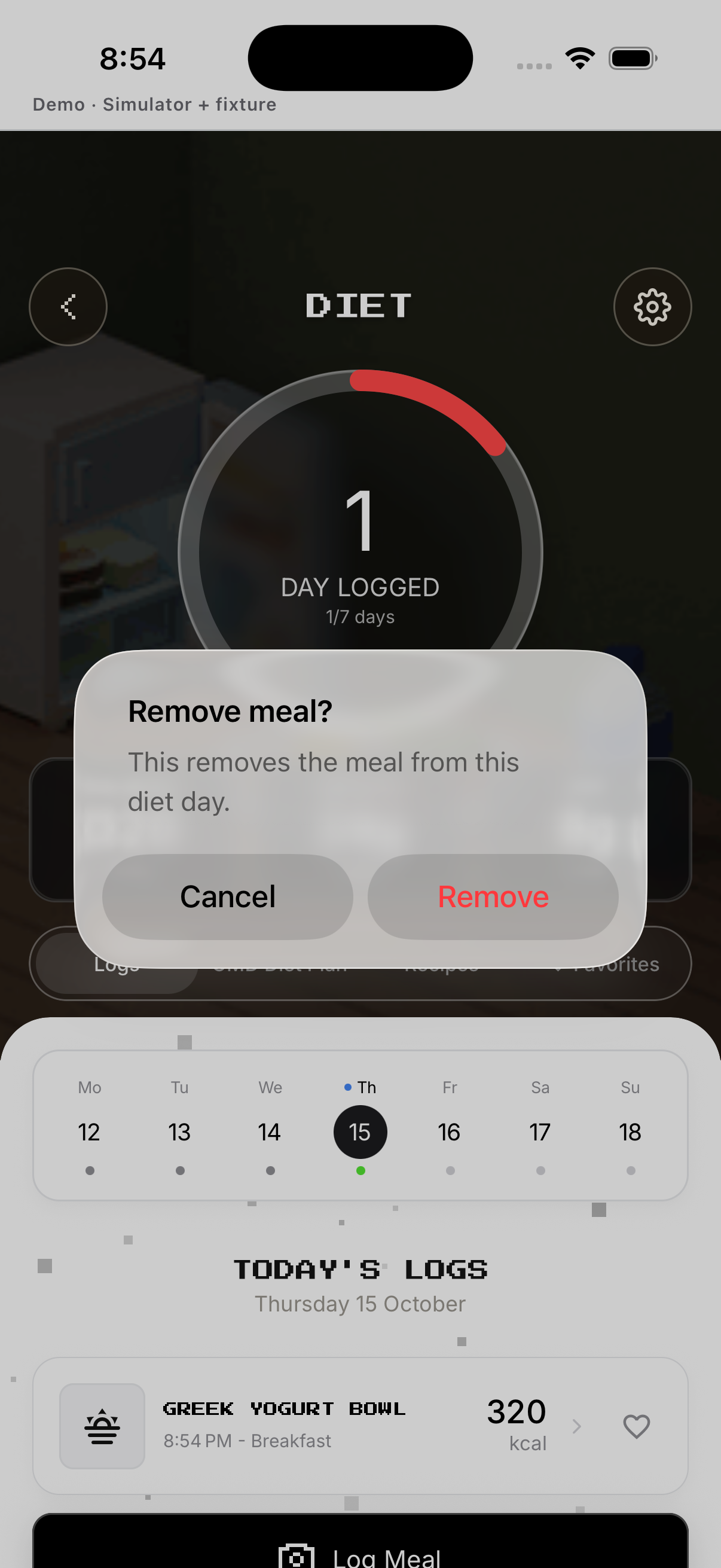
Adjust amount and unit. Open the saved entry to change it, or Remove and confirm.
- Serving. Adjust amount and unit.
- Review. Check calories/macros and add items if needed.
- Save. Save to the selected meal slot.
- Edit / Remove. Open the saved entry to change it, or Remove and confirm.
Day History and meal plan
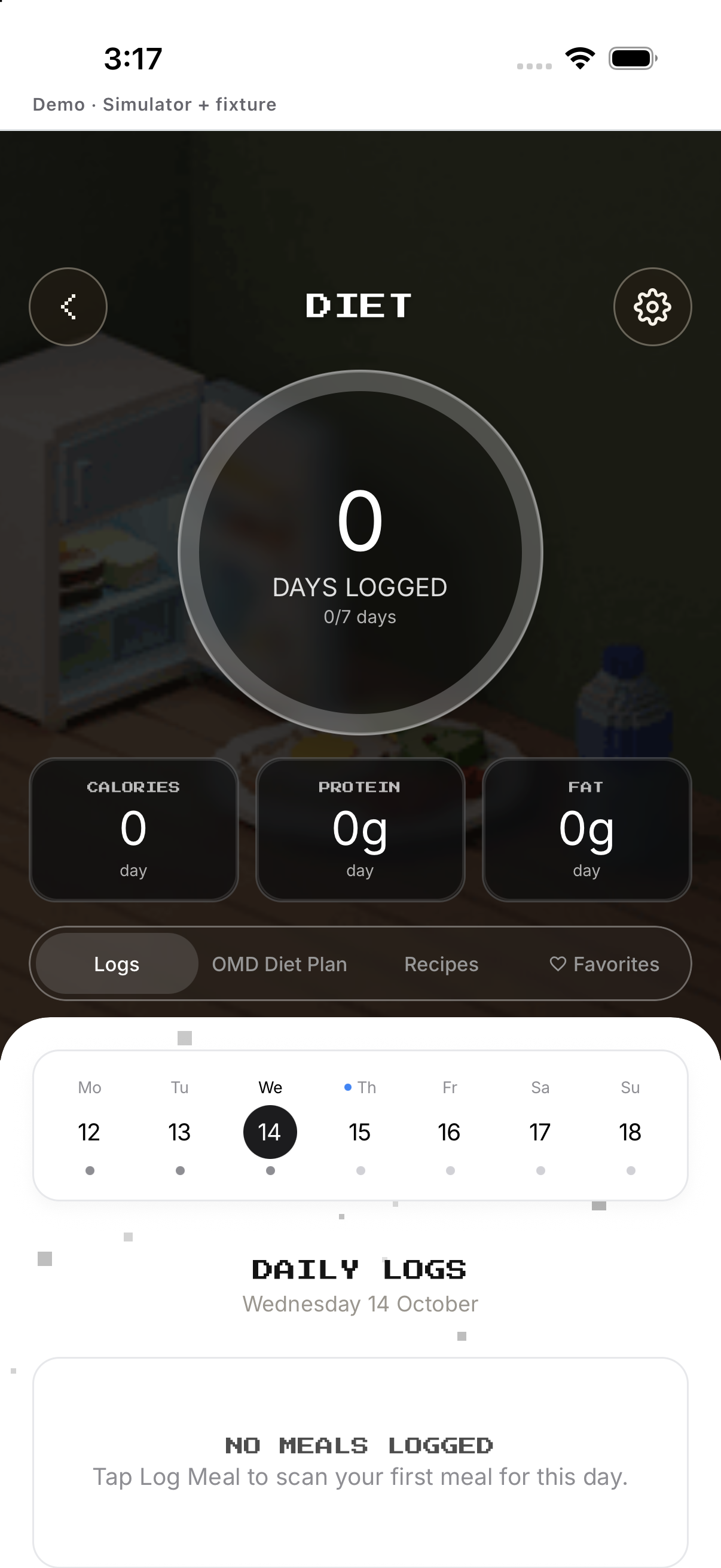
Choose a prior day to inspect meals. Use Setup, tap Delete mission and confirm.
- History. Choose a prior day to inspect meals.
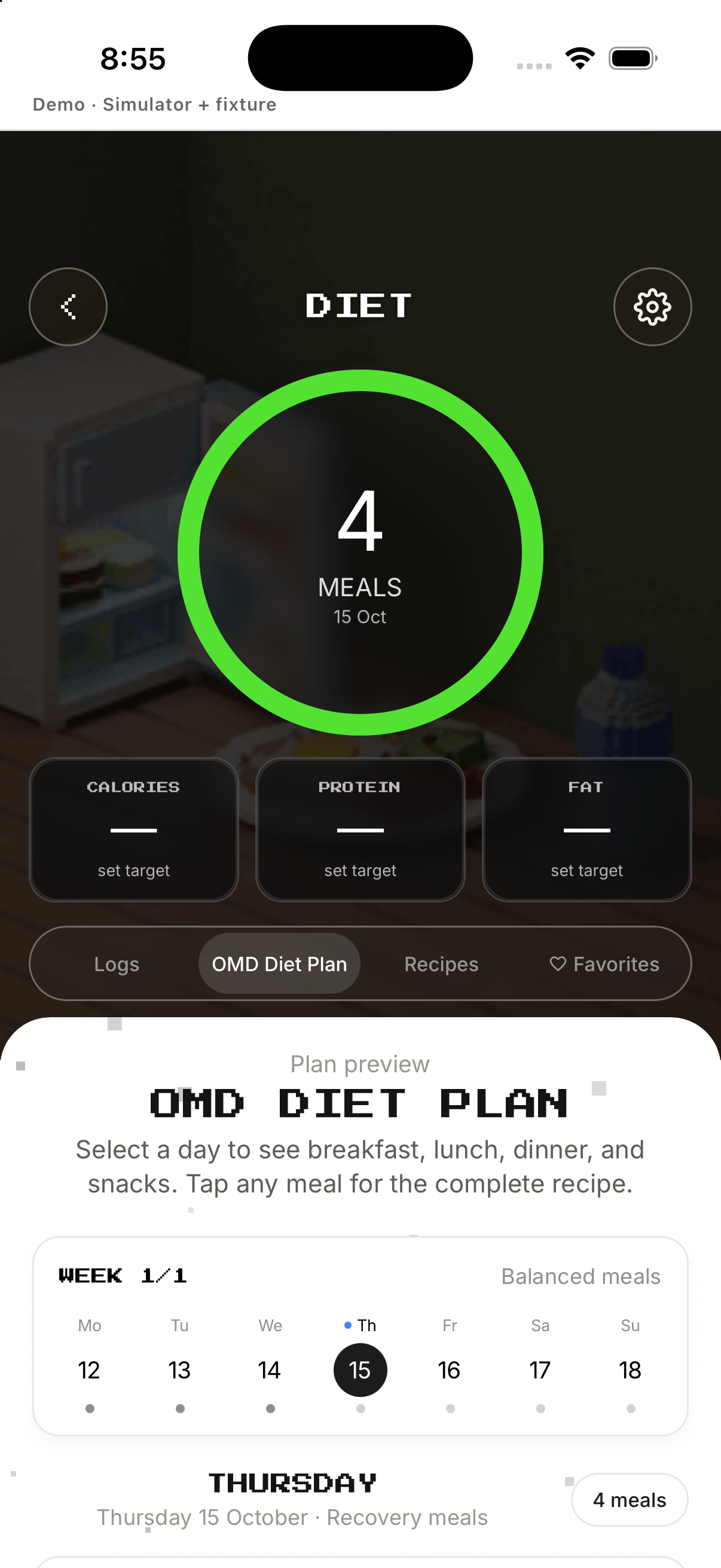
- Plan. Preview or set up a meal plan.
- Prepare plan. Sign in, tap Prepare One More Day Diet Plan, and read the result returned by the service.
- Delete mission. Use Setup, tap Delete mission and confirm.
Example
Add breakfast manually, adjust serving size, save, then edit if needed.
Keep in mind
AI meal photos require OMD+. Plan generation requires sign-in and the server returns the available result.