
One More Day · Guide
History and recovery
Mission History keeps recorded entries and detailed session results. Later successful checkpoints can improve a lifetime mean without rewriting earlier results.
Open the complete visual walkthrough ↗
Getting started
- Open the mission history view.
- Review finalized checkpoints and evidence.
- Use later target days to improve the mean.
- Open a recorded session to review its detailed result.
Every feature, step by step
Open Mission History
Mission History lives under More and is separate from a single mission card.
- Tap More. Opens the extended menu.
- Tap Mission History. Loads the unified history route.
- Use the mission filter row. Changes the category shown.
- Pull to refresh. Requests the latest available history.
- Read the visible state. Distinguishes recorded entries, empty history and load errors.

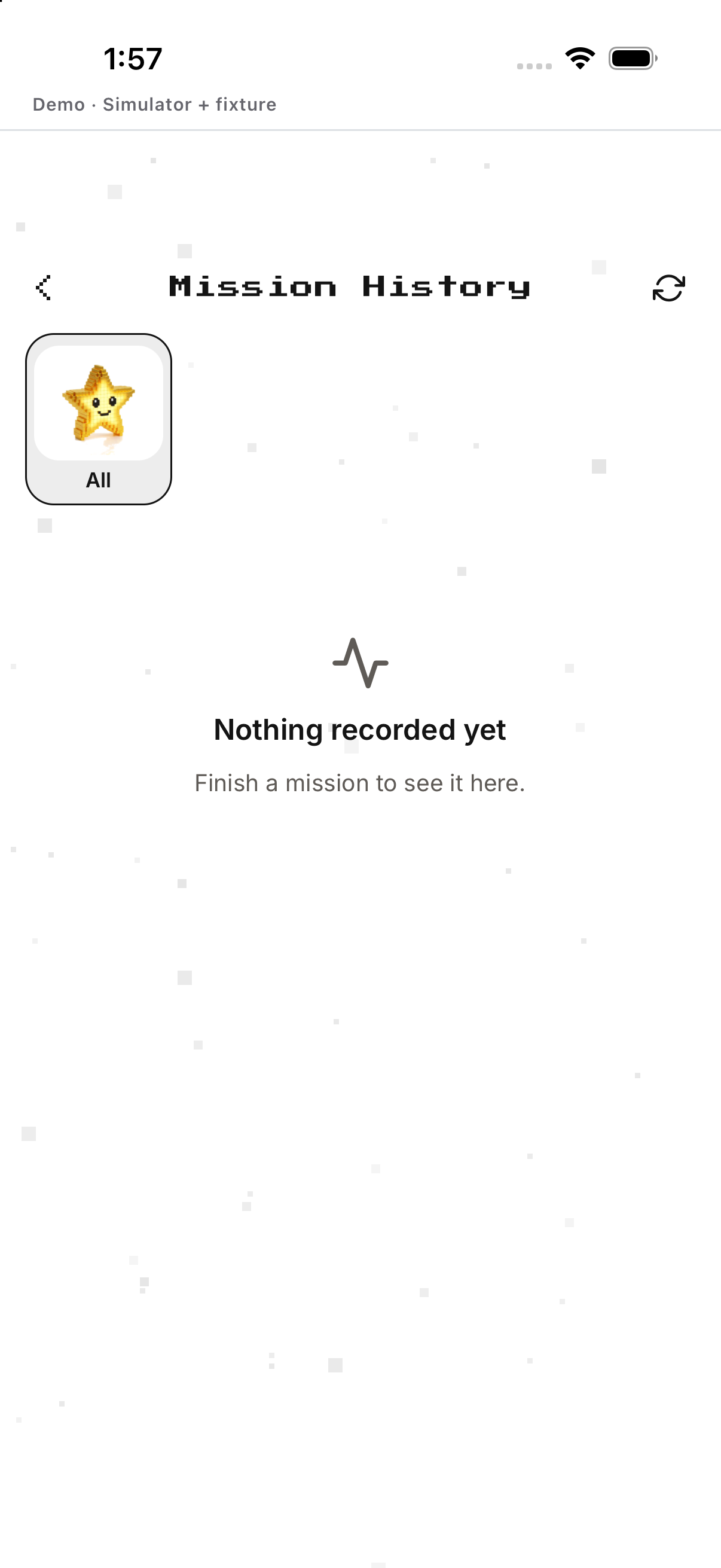
Open a recorded session
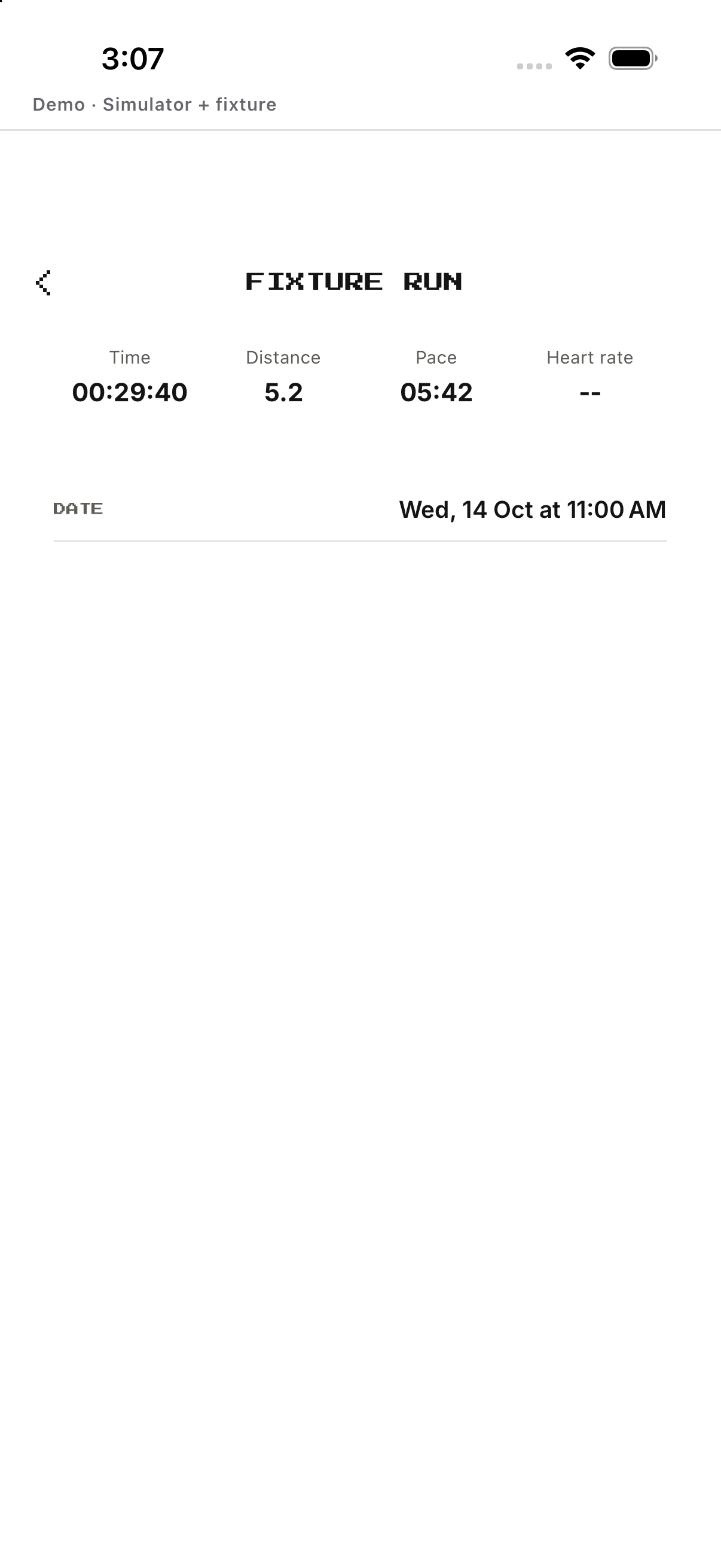
A history row can open the matching detailed result.
- Choose a mission filter. Limits the visible history.
- Tap a completed Run row. Opens its workout summary.
- Read start time, distance, duration and pace. Reviews the values passed from that history record.
- Use Back. Returns to the same history surface.
Recover from an empty or failed history load
Use the state-specific control instead of assuming data was deleted.
- Read the empty or error message. Confirms whether nothing is recorded or a source failed.
- Pull to refresh. Retries all current history sources.
- Tap Load latest recorded entry when offered. Requests the newest older entry for that category.
- Open the mission itself if the state persists. Checks its own evidence surface.
- Return later after the source is available. A load error is not proof that history was removed.
Example
Fictional: Jo's earlier miss remains visible while later successful days raise the average.
Keep in mind
Build 200 does not expose a global Pause or Archive control on this history screen.