
One More Day · Guide
D-AI inside OMD+
D-AI is the premium personal assistant inside OMD+. Missions, manual tracking and challenges remain free. Memory has create, edit, expiry and delete controls.
Open the complete visual walkthrough ↗
Getting started
- Open D-AI.
- Review the OMD+ boundary.
- Choose sources and context.
- Manage memory.
Every feature, step by step
Paid boundary
Without entitlement, read the OMD+ introduction; free missions, manual tracking and challenges remain.
- Open D-AI. Checks the current membership state.
- Read the OMD+ gate if shown. Explains that D-AI requires OMD+.
- Tap View plans. Opens the Apple plan-selection surface.
- Return without purchasing. Leaves free missions, manual tracking and Challenges available.
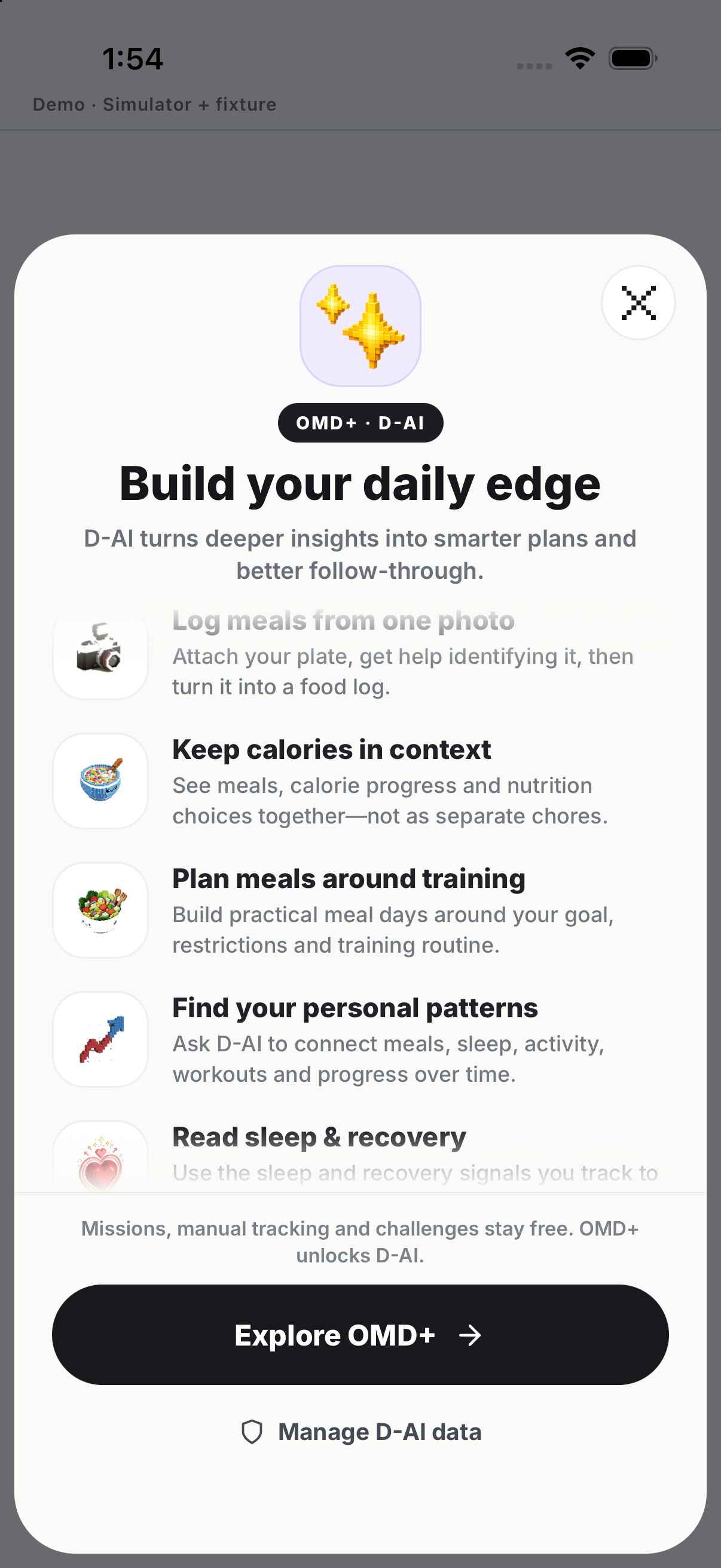
Open D-AI
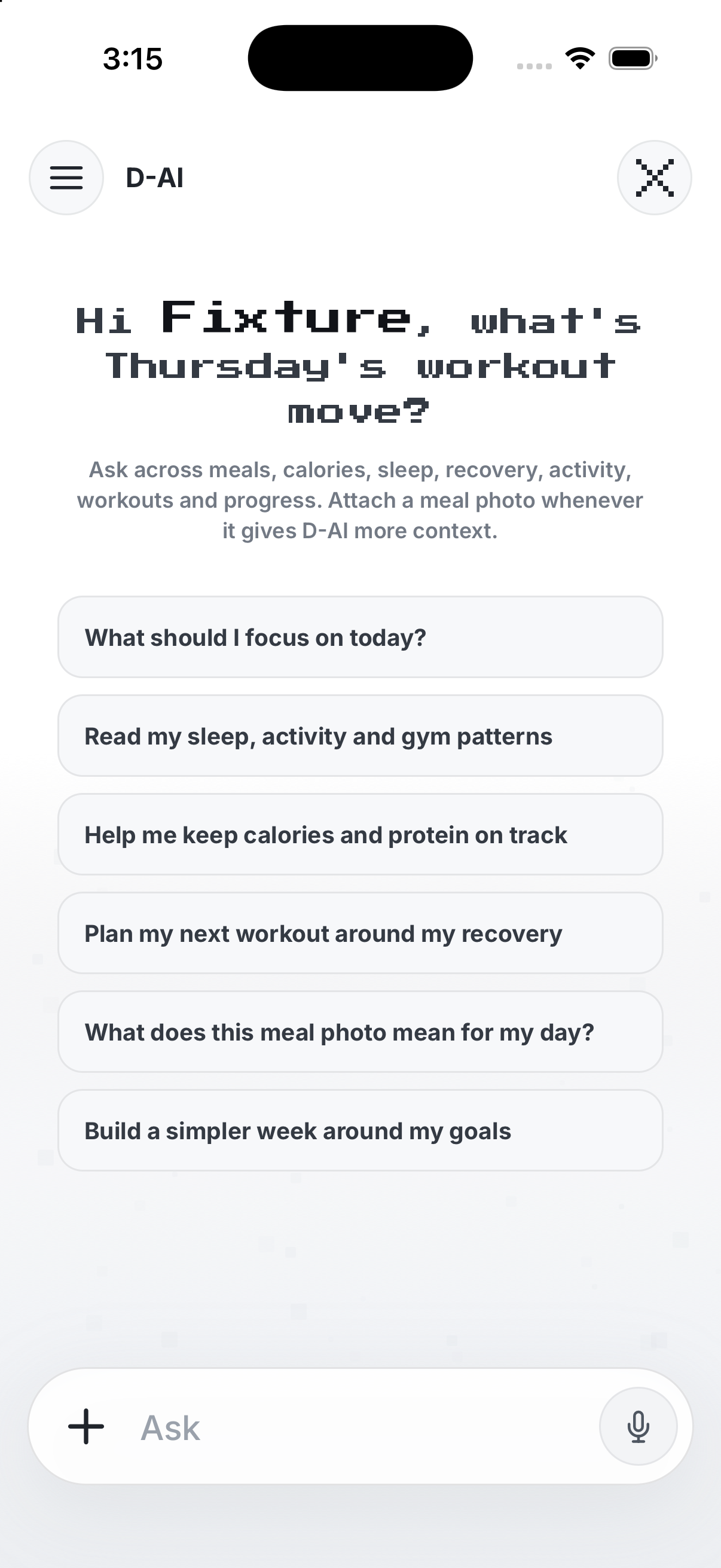
Start from the welcome surface and ask about available OMD data.
- Open D-AI with an eligible membership. Loads the assistant conversation.
- Type a request about your supported OMD context. Creates a draft message.
- Tap Send. Submits the request and shows the response when available.
- Use a suggested action only after reading it. Applies the selected in-app step through its own controls.
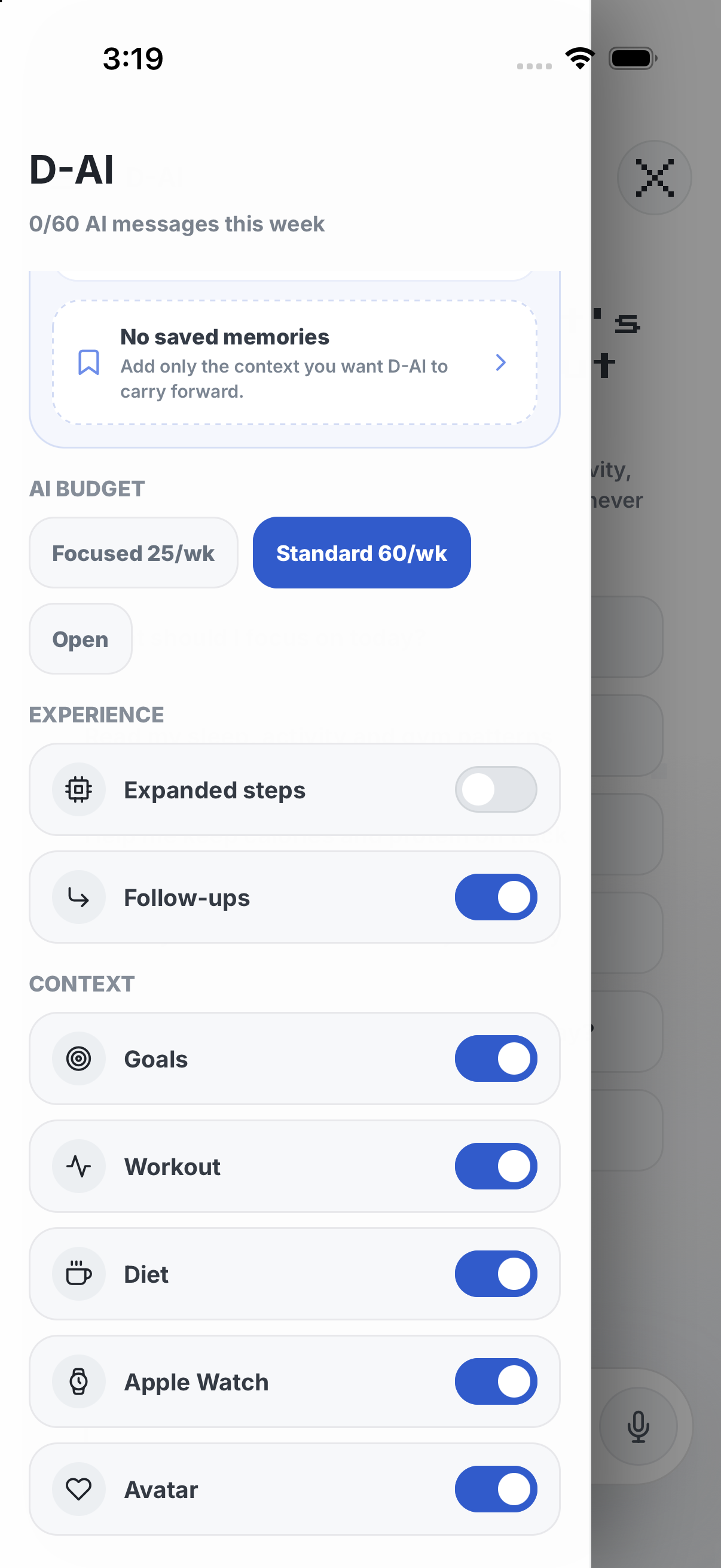
Choose D-AI context
Use D-AI Settings to control which OMD context sources can be used.
- Open D-AI Settings. Opens the D-AI settings drawer.
- Scroll to Context. Shows the available OMD context sources.
- Tap a source toggle. Turns that context source on or off.
- Close Settings. Returns to the chat with the saved context choices.
Memory controls
Create, edit, set expiry or delete; confirm deletion.
- Open D-AI settings or memory controls. Shows saved assistant context when the feature is available.
- Review a memory item before changing it. Confirms the exact stored context.
- Use its remove control. Opens or applies the item-specific removal action.
- Return to D-AI. Future answers use the remaining available context.
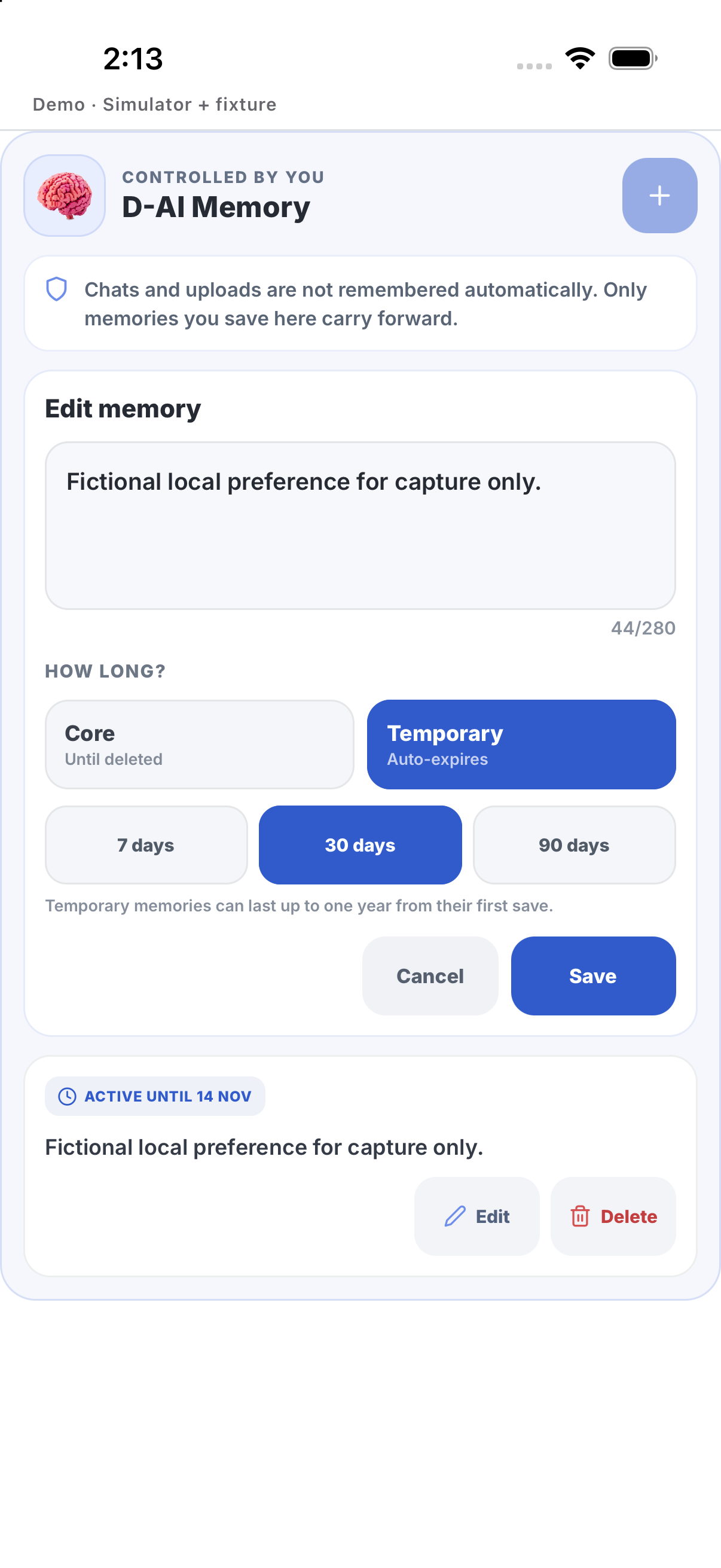
Example
Example: save a preference with expiry, then delete it.
Keep in mind
D-AI is not Coach Pro.