
One More Day · Guide
Privacy, safety and account
OMD separates social visibility, blocking/reporting, sign-out and permanent deletion.
Open the complete visual walkthrough ↗
Getting started
- Set discoverability and map audience.
- Block or report in the relevant social surface.
- Sign out to end the local session.
- Use Manage Account for permanent deletion.
Every feature, step by step
Privacy controls
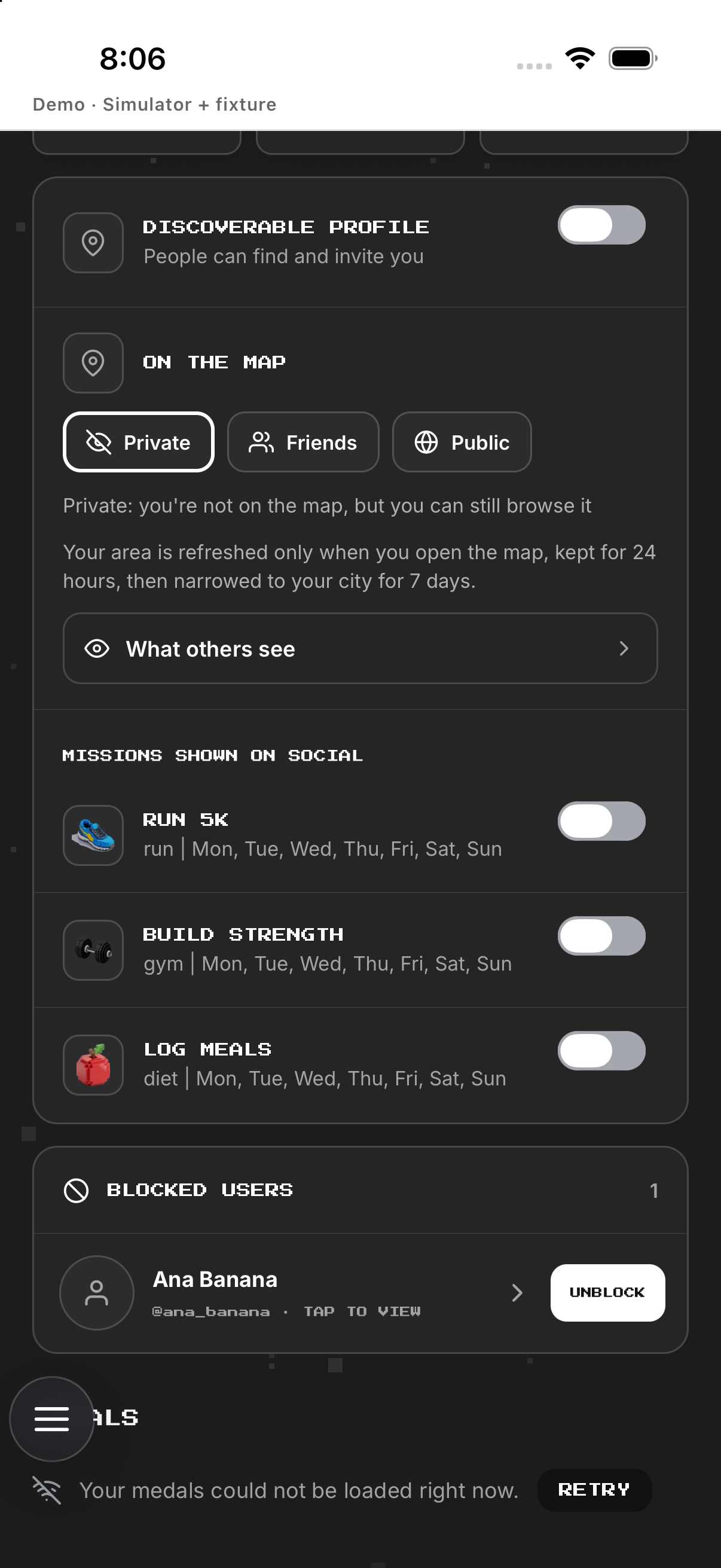
Set discoverability, map audience, location mode and mission visibility separately.
- Open Profile social settings. Shows profile and map visibility controls.
- Choose profile discoverability. Sets whether other members can find the profile.
- Choose the map audience. Sets who may see map presence.
- Toggle individual mission visibility. Changes whether that mission may appear on the map.
- Return to verify the saved controls. Confirms the visible settings after the change.
Block and report
Manage Blocked users; reports ask for reason and optional details.
- Open a permitted public profile. Shows relationship and safety actions.
- Tap Block or Report. Opens the relevant confirmation or report choices.
- Read the effect before confirming. Explains what the selected safety action changes.
- Confirm or cancel. Applies the action only after confirmation.
- Open Profile social settings to review Blocked users. Shows the current blocked list and available unblock action.
Sign out
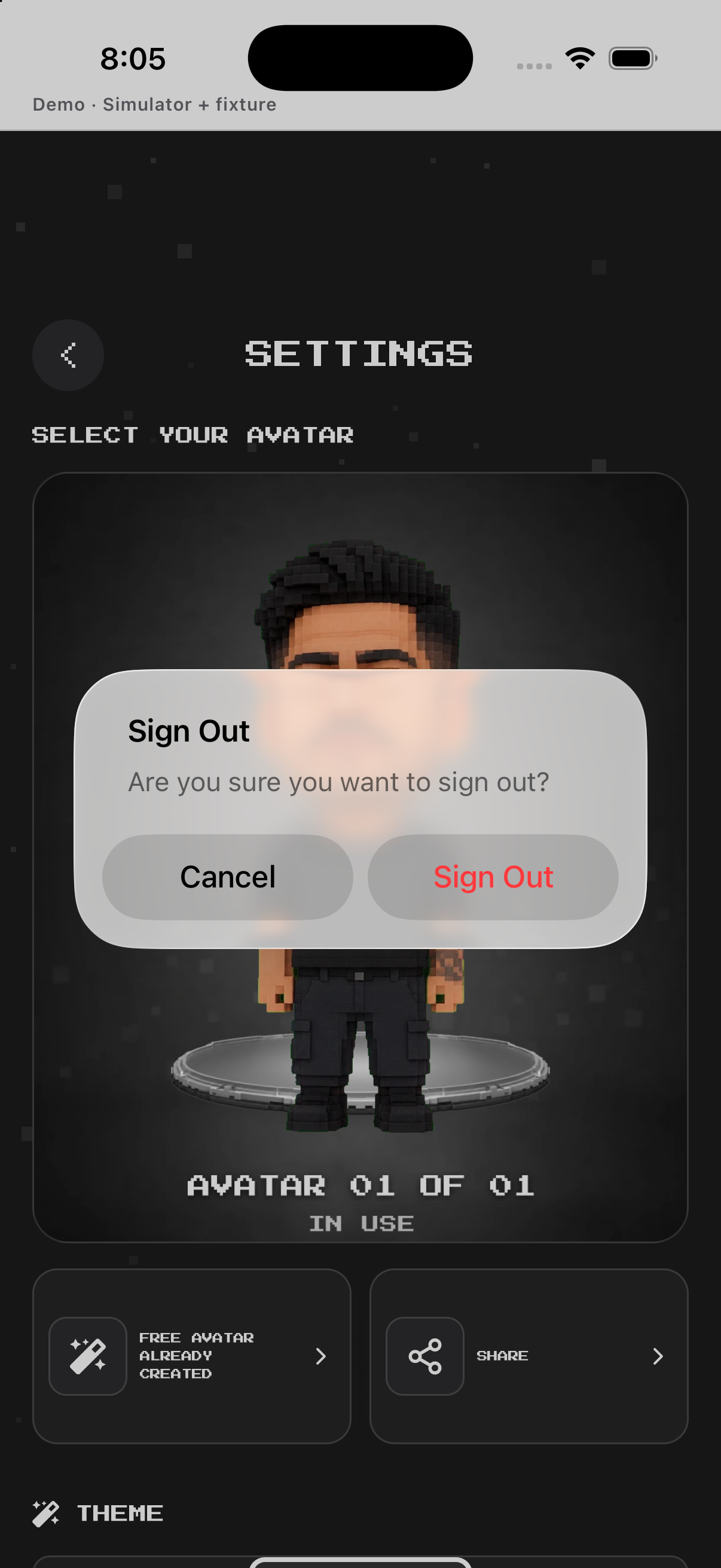
Open Settings, read confirmation and confirm; account remains.
- Open Settings and scroll to Account. Shows the Sign out control.
- Tap Sign out. Opens the native confirmation.
- Tap Cancel. Keeps the current session active.
- Or tap Sign out in the confirmation. Ends the local session and returns to authentication.
Delete account
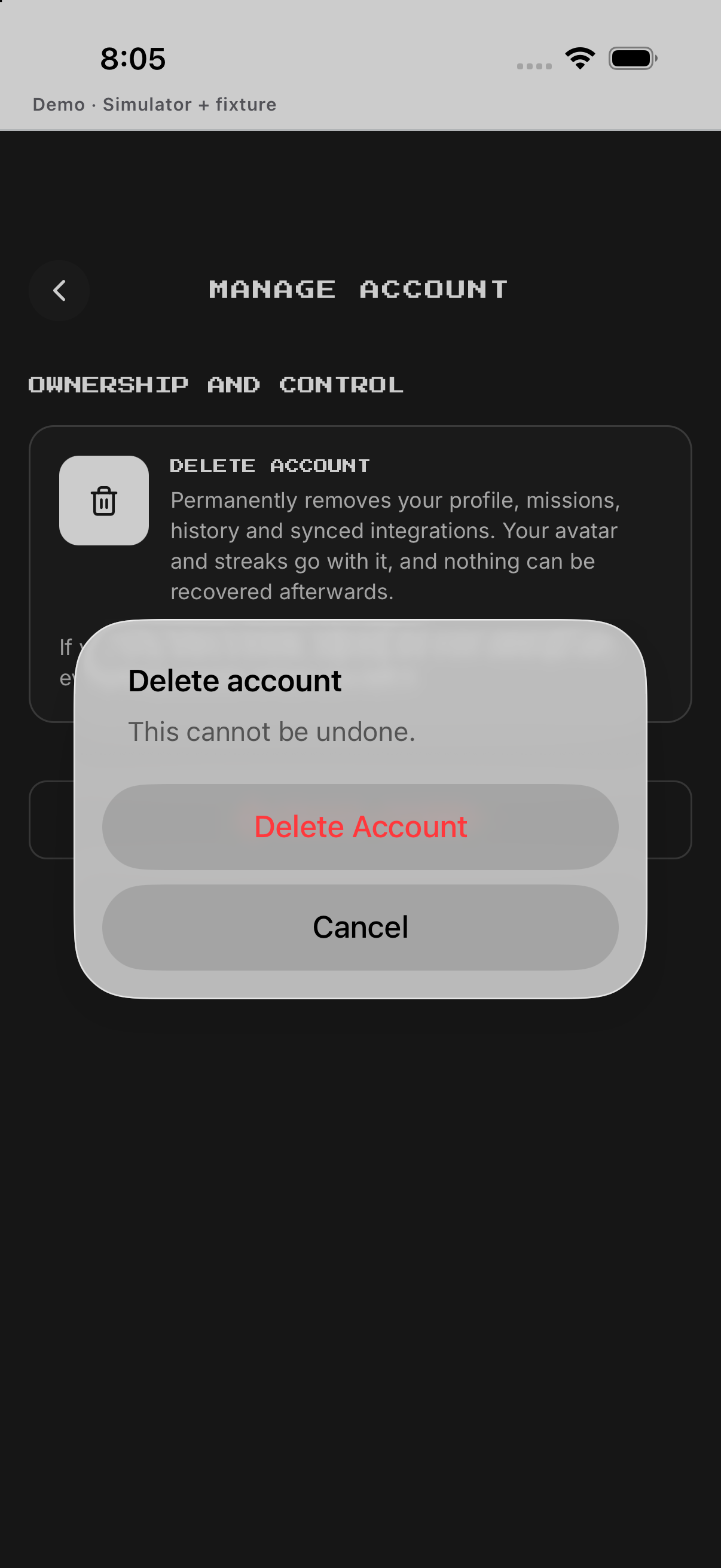
Open Manage Account, pass first and final confirmations, then wait for completion.
- Open Settings and tap Manage account. Opens account-management guidance.
- Tap Delete account. Opens the first deletion warning.
- Confirm the first warning. Opens the final irreversible confirmation.
- Read the final consequence and cancel if uncertain. Returns without starting deletion.
- Confirm the final deletion only when intended. Starts permanent account deletion; remain on the progress state until it completes.
Example
Example: stay discoverable while choosing Ghost on Map.
Keep in mind
Deletion is destructive and has two confirmations.