
One More Day · Guide
Run
Set a weekly target, then choose Free Run, Conquer, Doodle or Discover for each mapped session.
Open the complete visual walkthrough ↗
Getting started
- Set goal, evidence rule, target days and reminder.
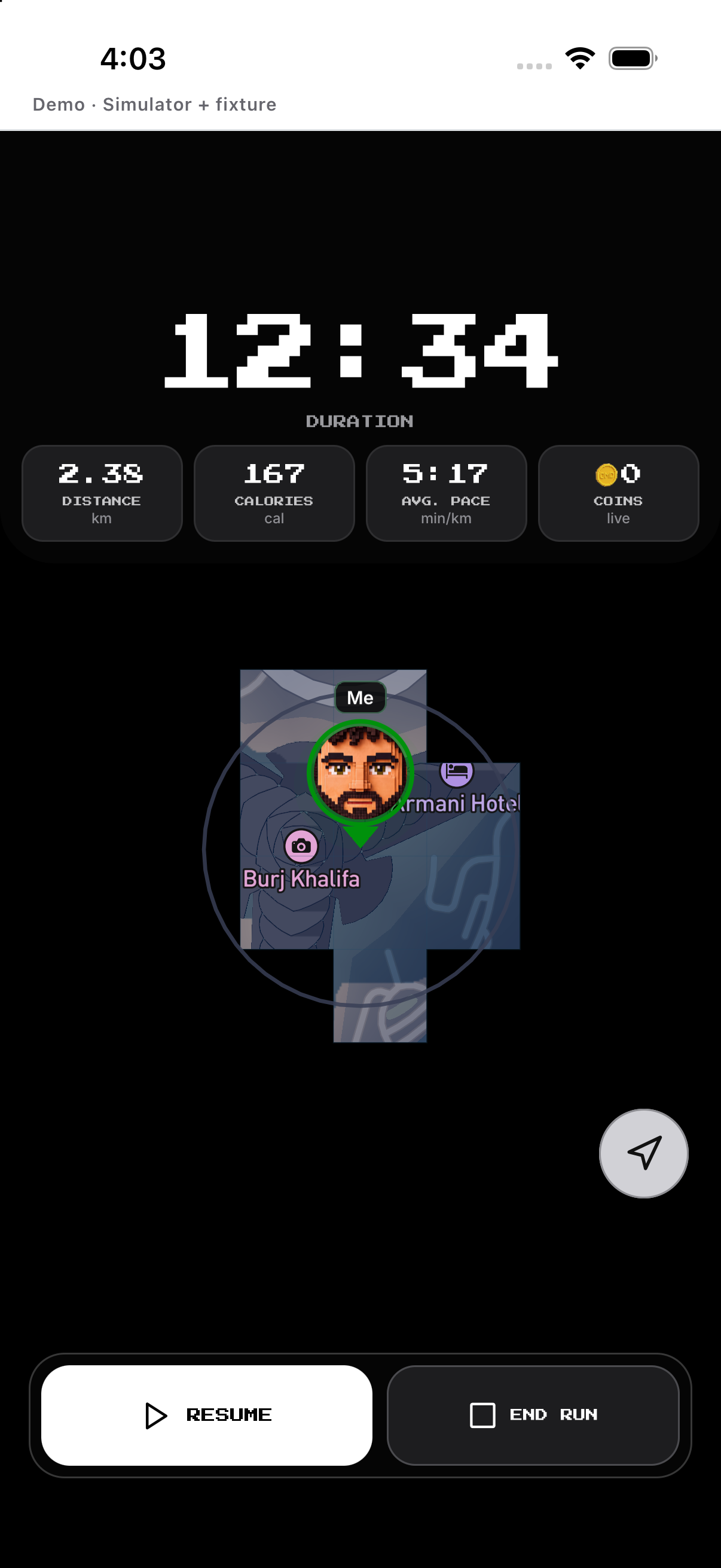
- Choose a map mode; Start, Pause/Resume, then hold Finish.
- Save or discard the result; use History for completed activities.
Every feature, step by step
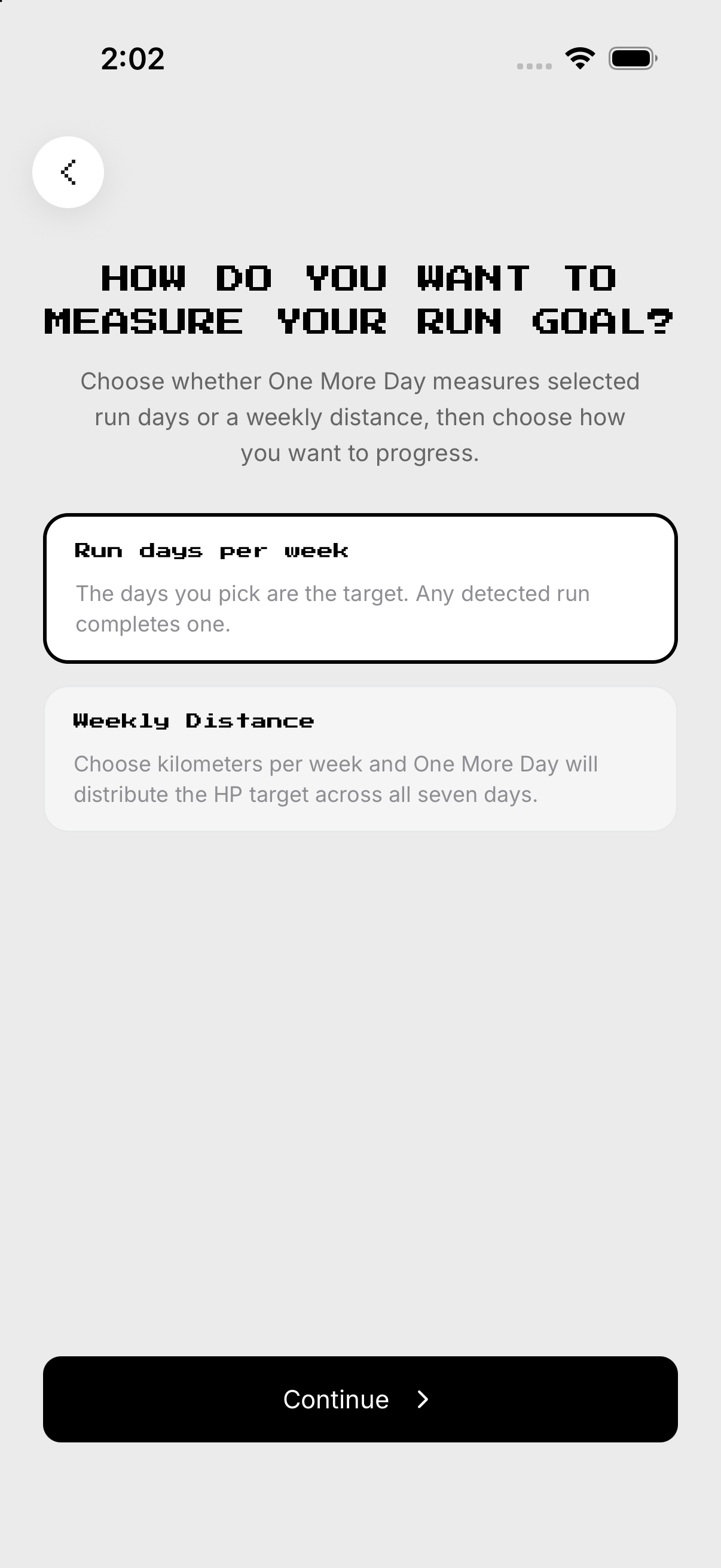
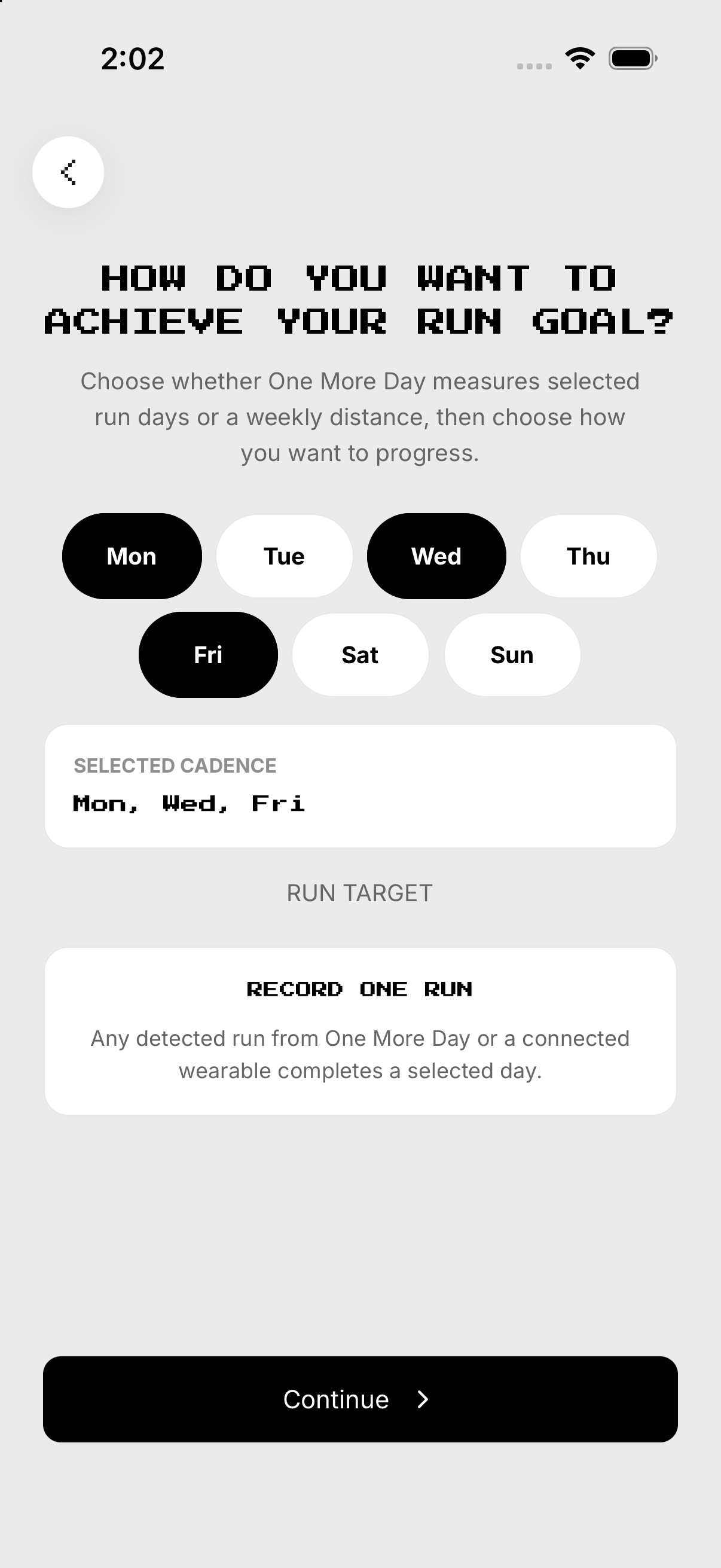
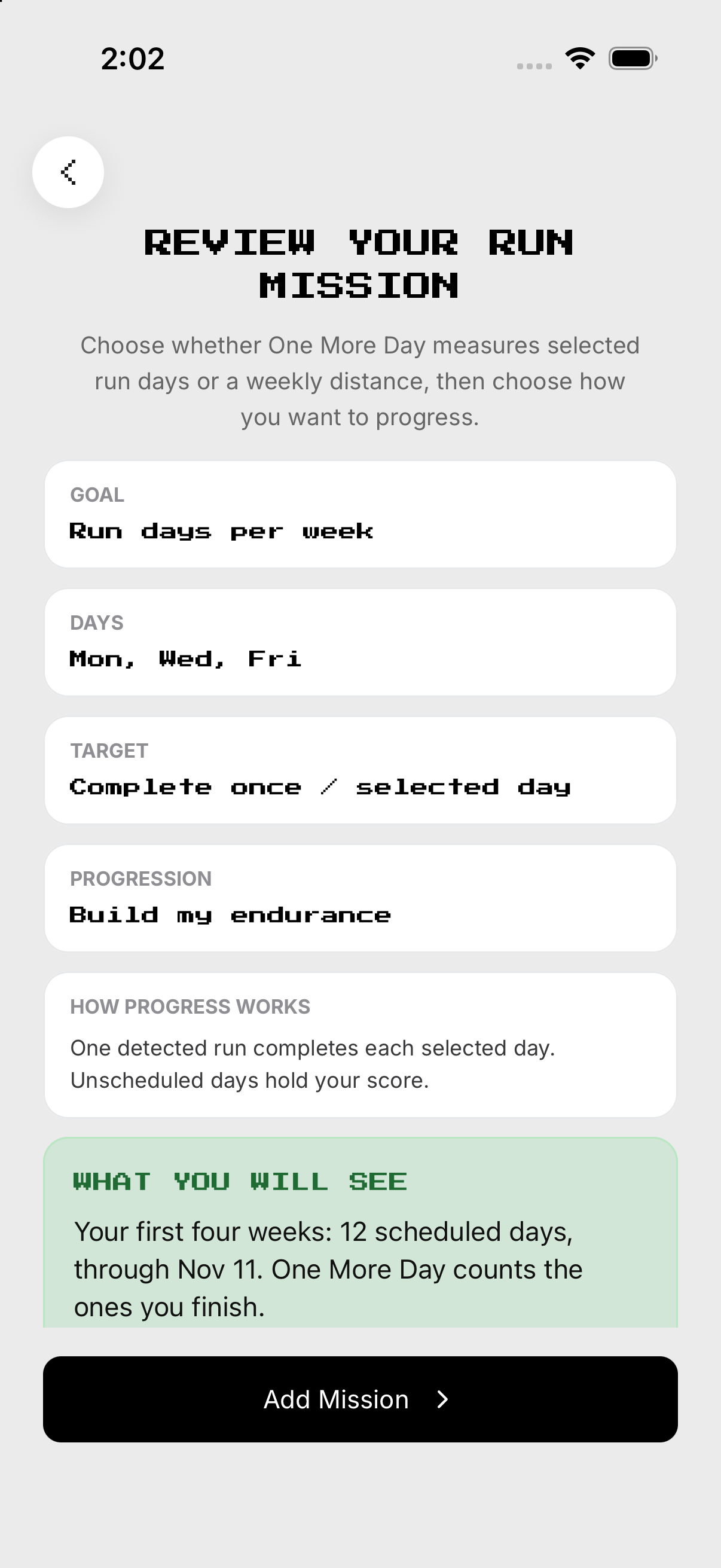
Create or edit Run
Add Run from Missions or open Setup on an existing mission. Changes apply to future unfinalized days; finalized history remains.
- Open Setup. From Missions, open Run and tap the gear at the top right to open Setup. Add Run from Missions or open Setup on an existing mission.
- Goal and truth. Choose distance/duration and confirm what evidence counts.
- Schedule and reminder. Selected days count; the optional reminder only notifies.
- Review and save. Changes apply to future unfinalized days; finalized history remains.
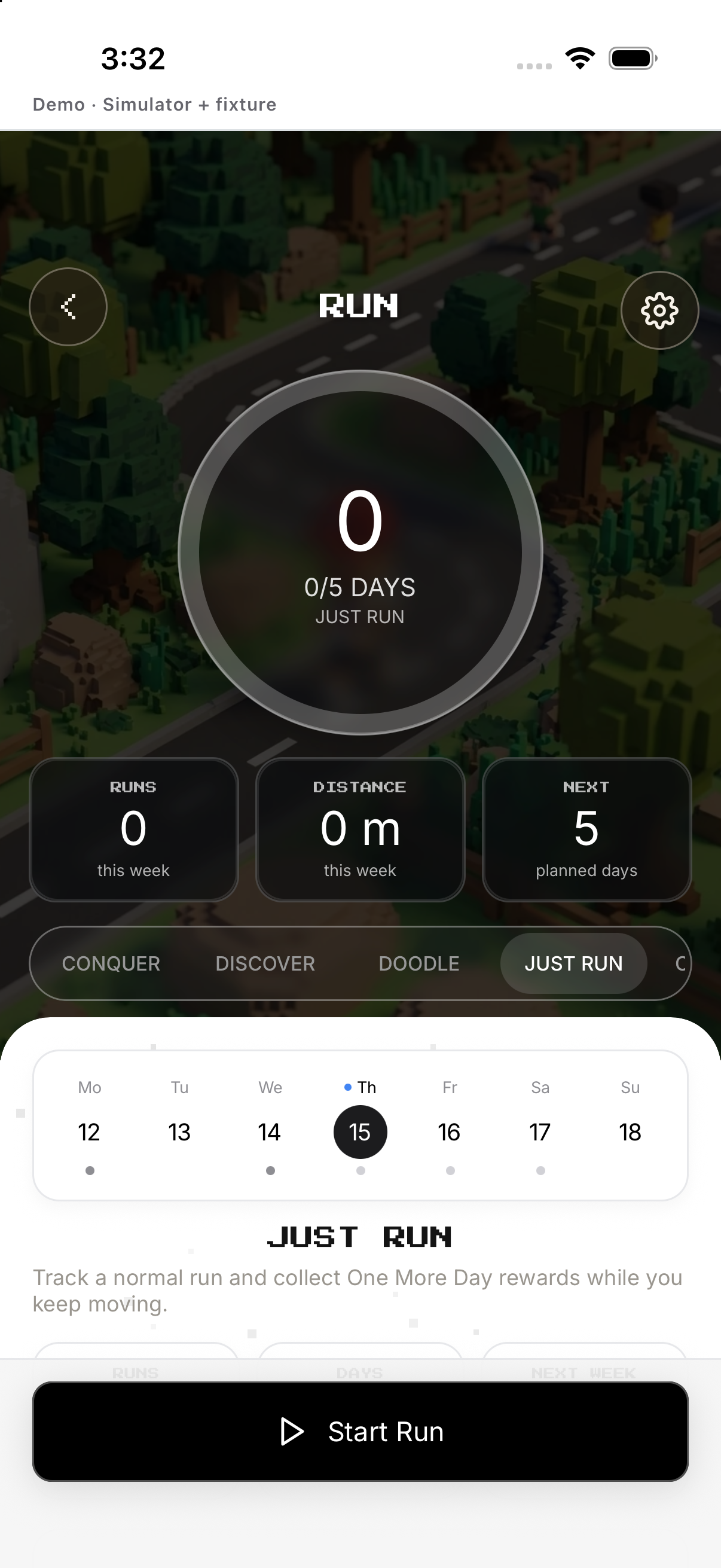
Free Run
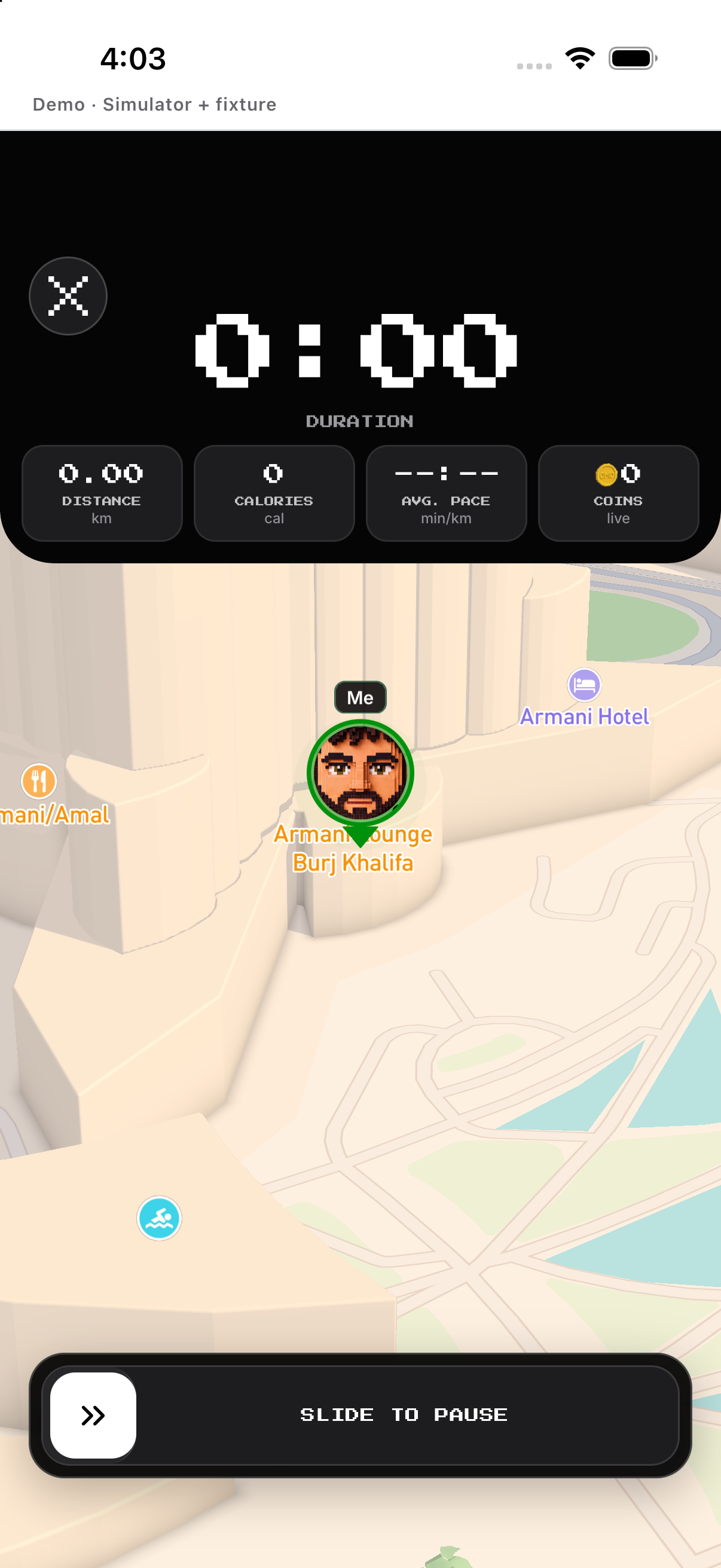
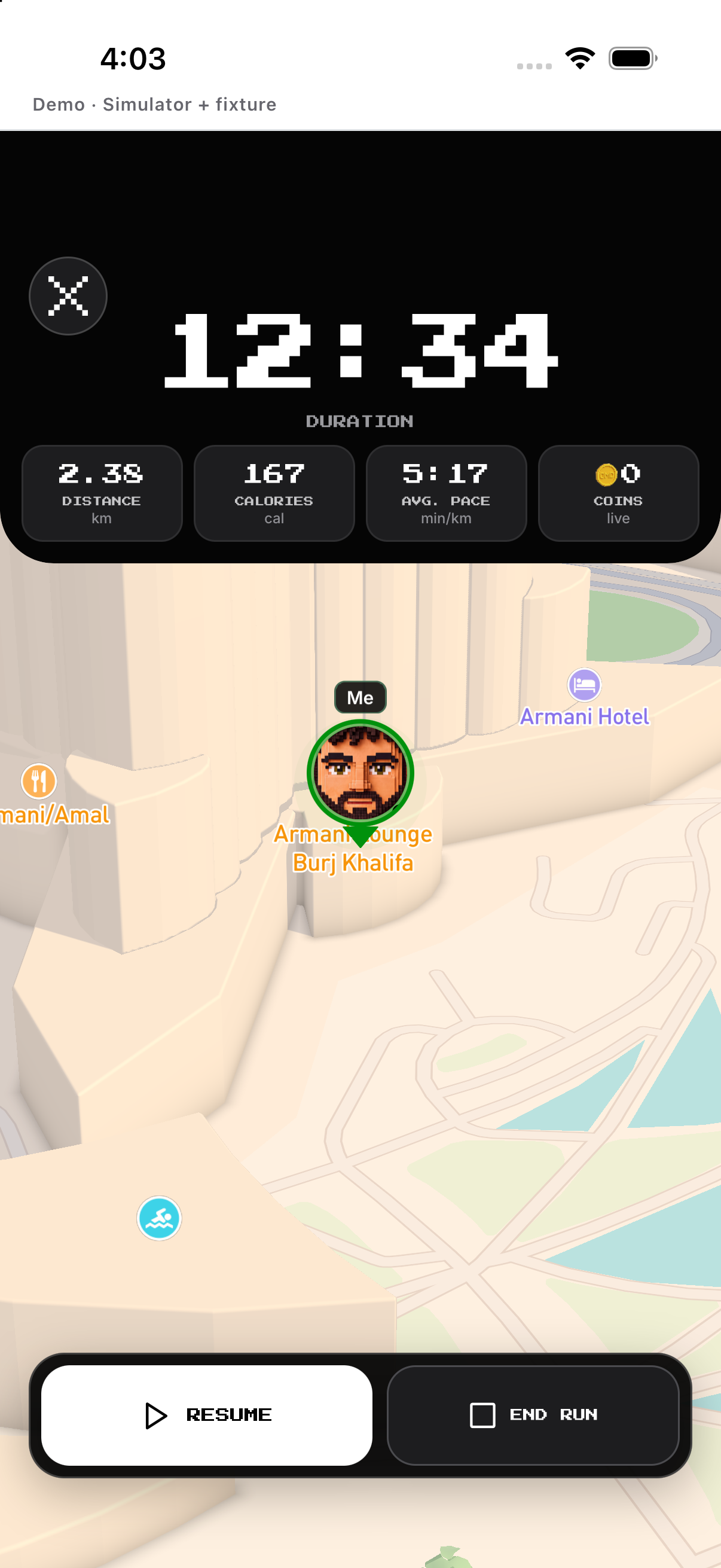
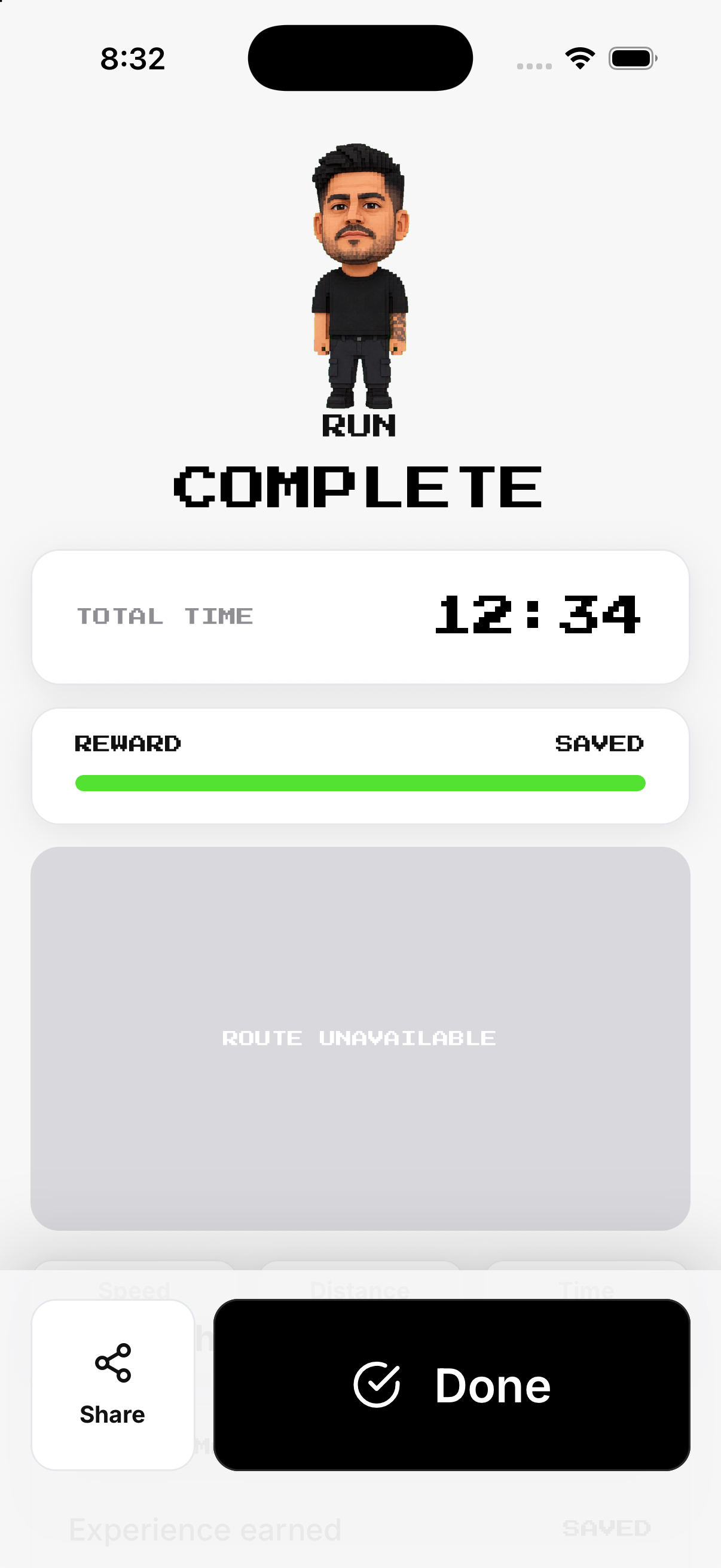
Wait for the ready state. Save the completion or choose Discard in the confirmation.
- Tap Free Run. Wait for the ready state.
- Start. Begin route, time and distance tracking.
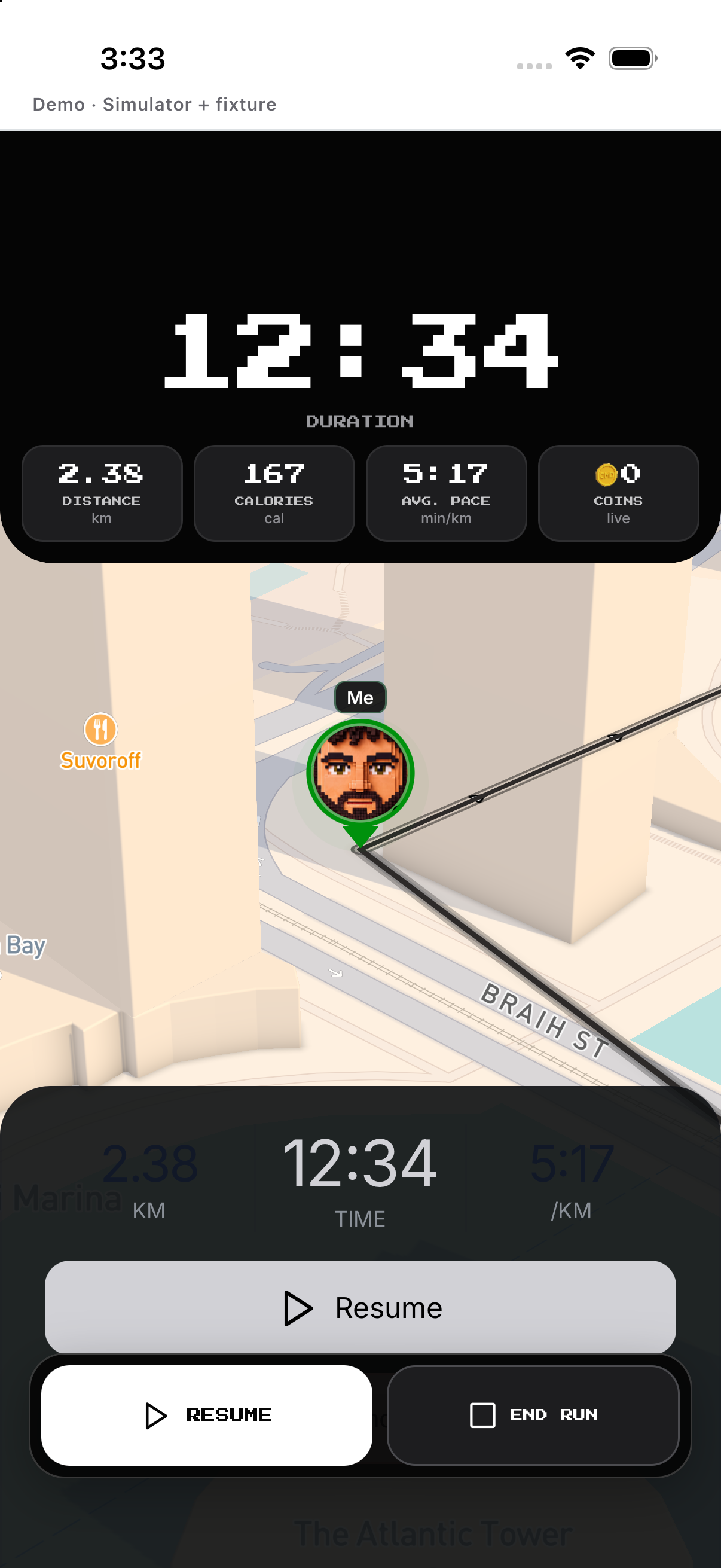
- Pause / Resume. Pause stops active tracking; Resume continues the same session.
- Hold Finish. Save the completion or choose Discard in the confirmation.
Conquer
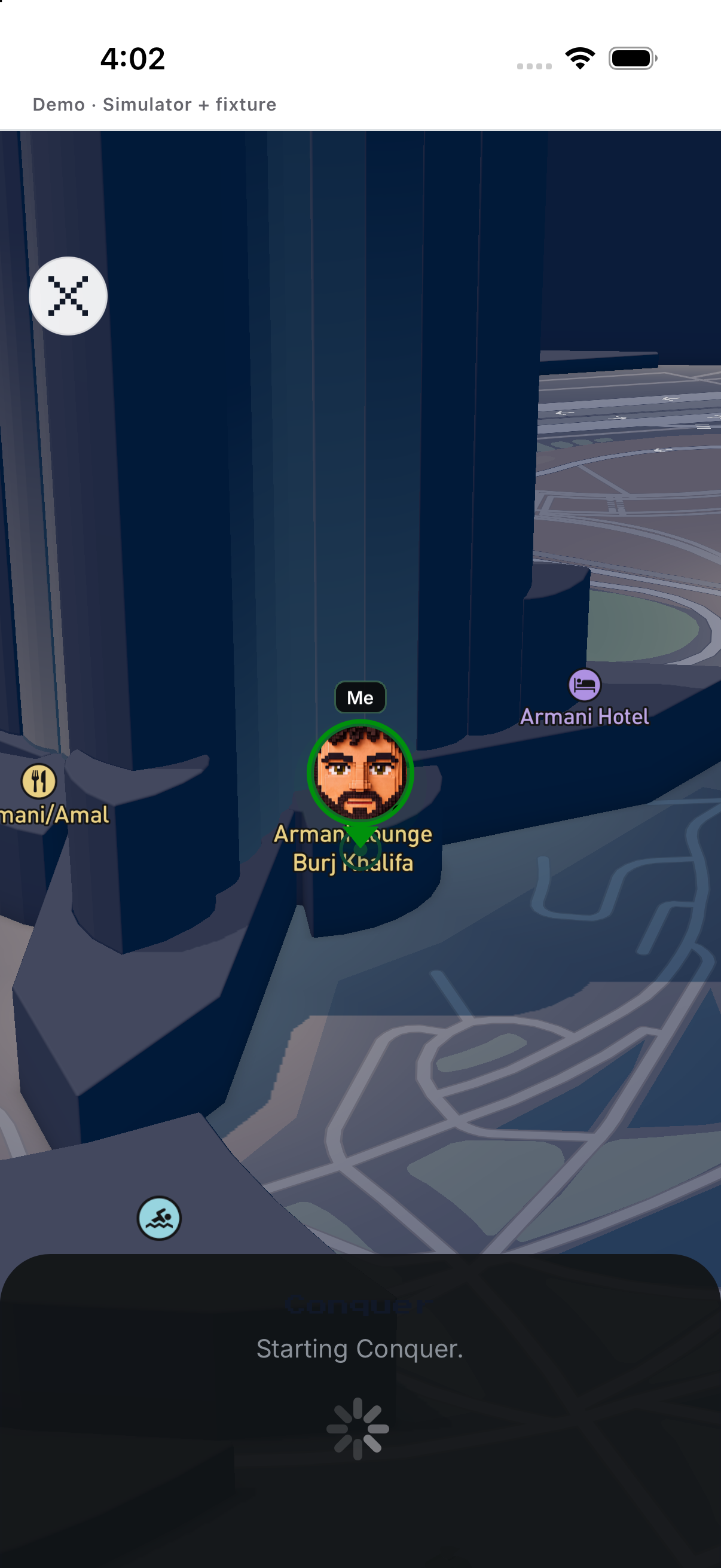
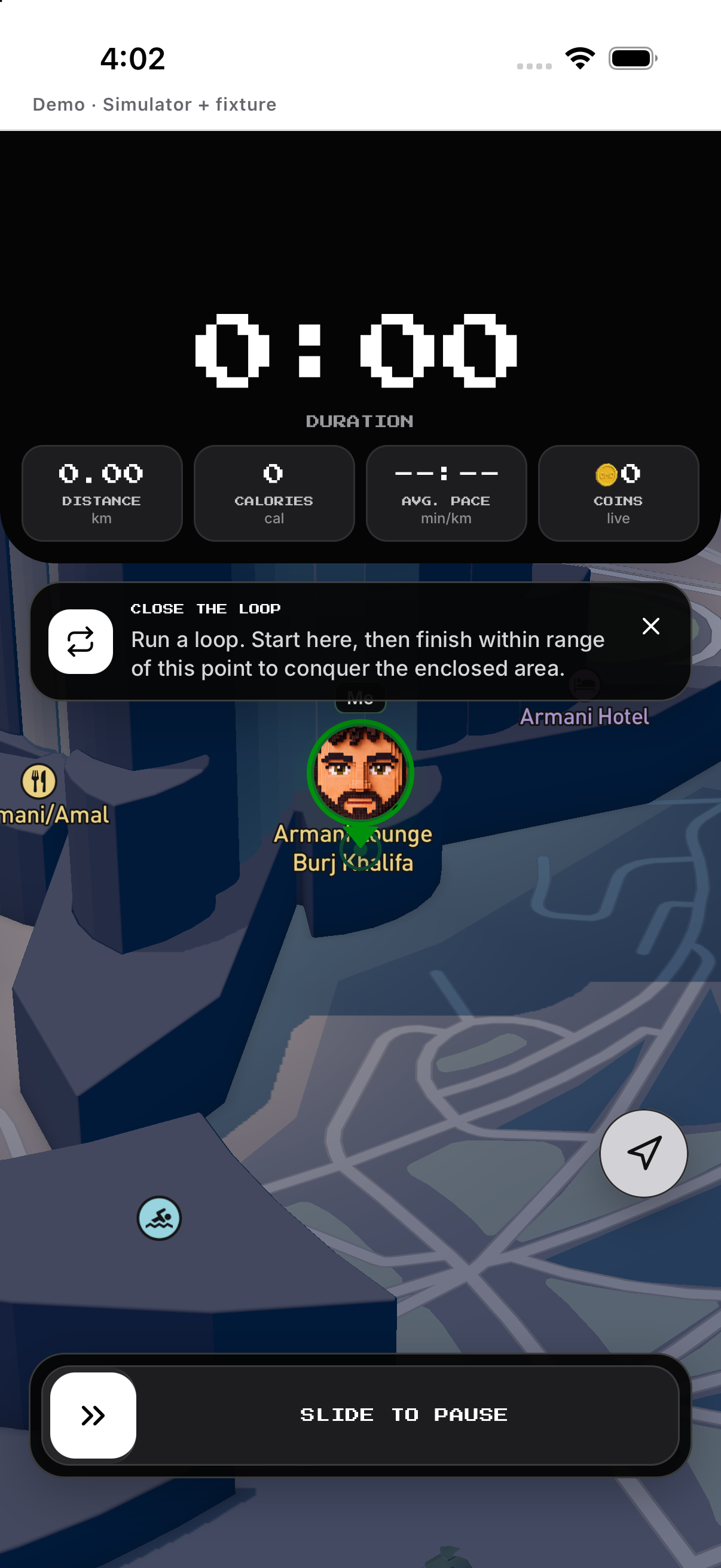
Allow location and wait for Ready. Review territory result, then save or discard.
- Enter Conquer. Allow location and wait for Ready.
- Start and close a loop. Move around an area and return toward the start.
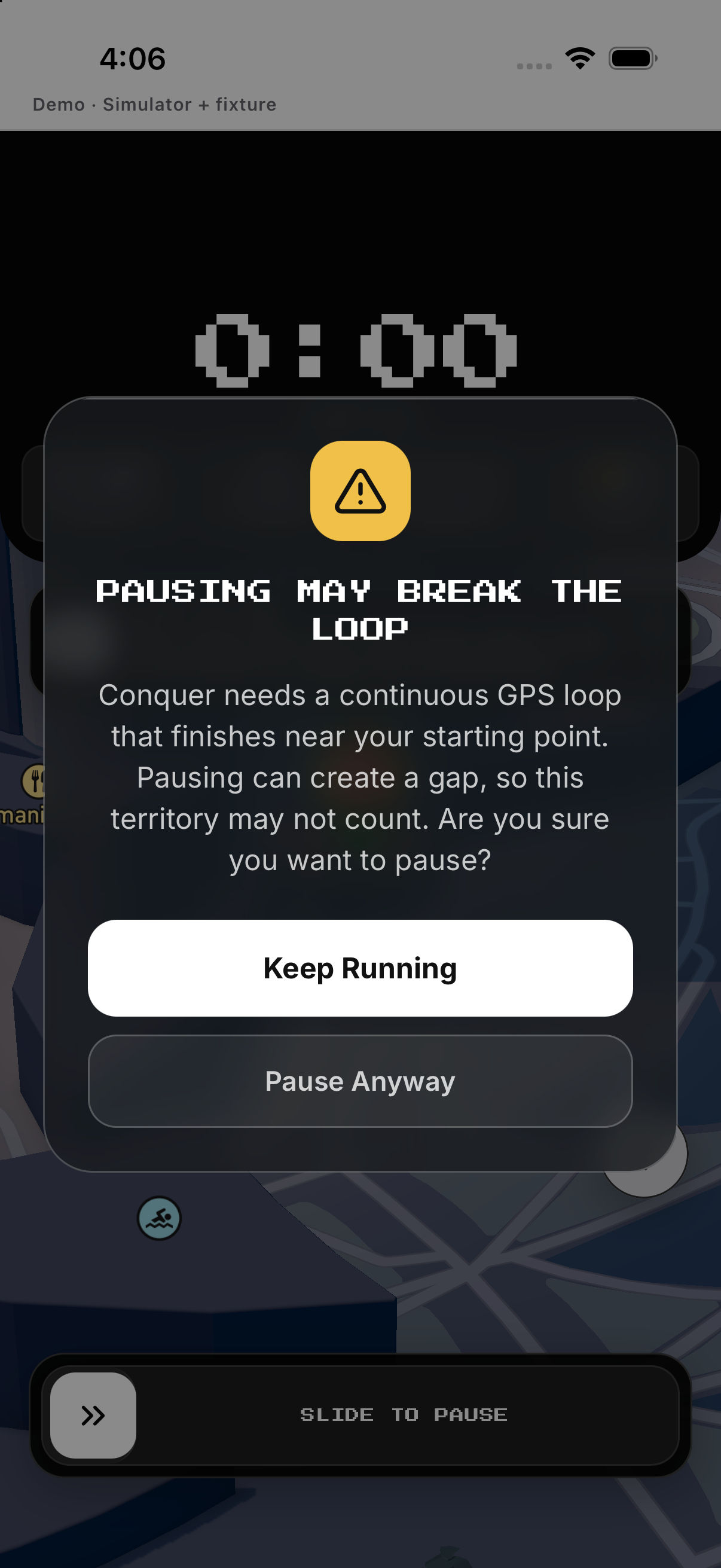
- Pause carefully. Read the capture warning; continue or pause anyway.
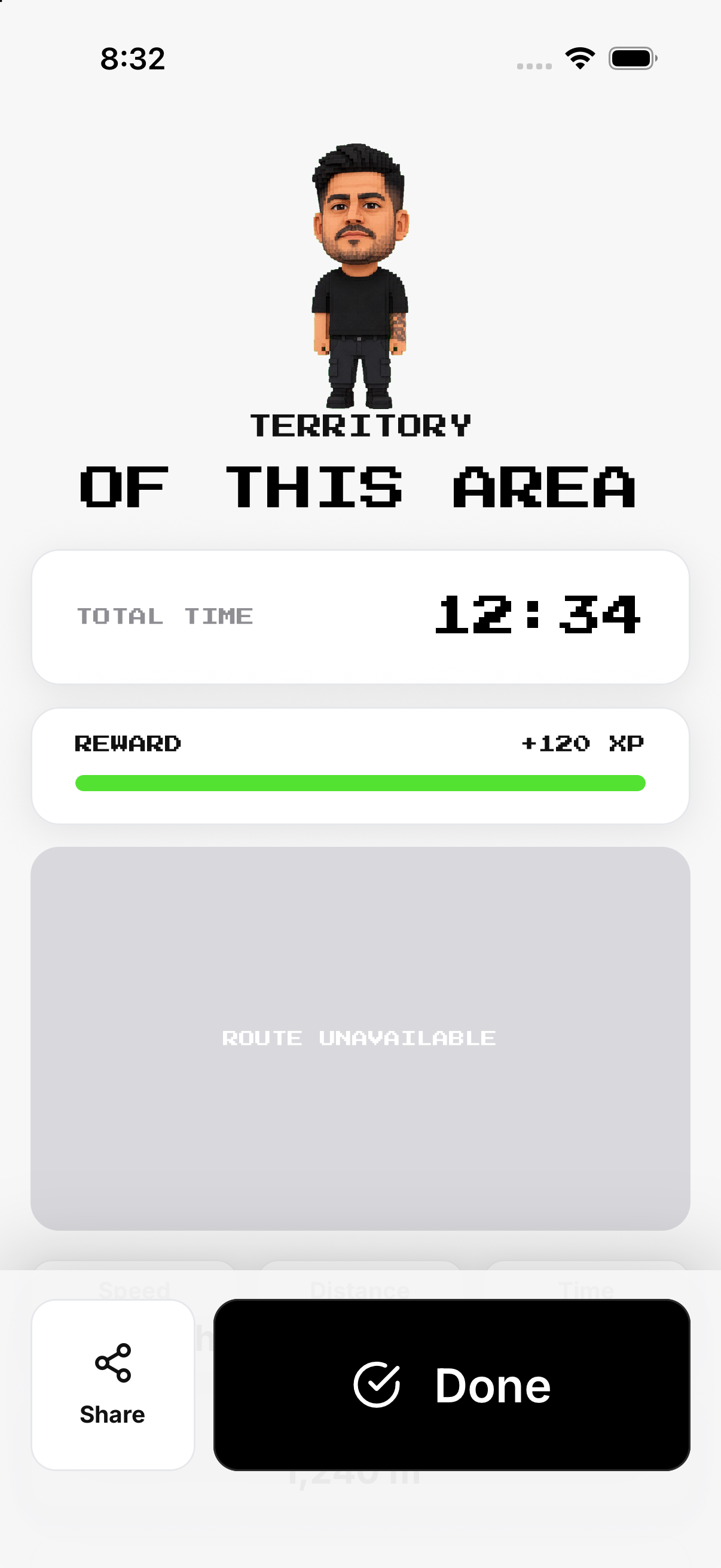
- Hold Finish. Review territory result, then save or discard.
Doodle
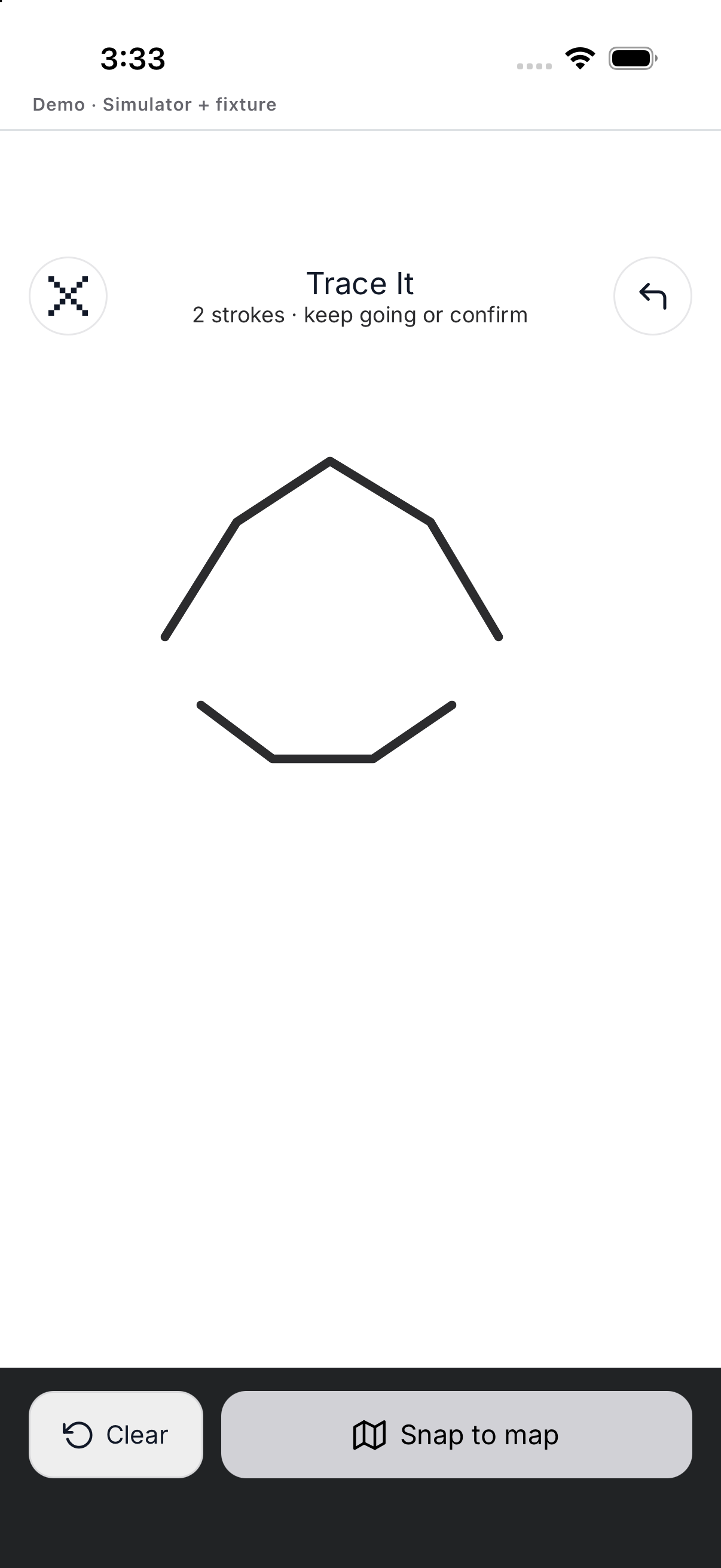
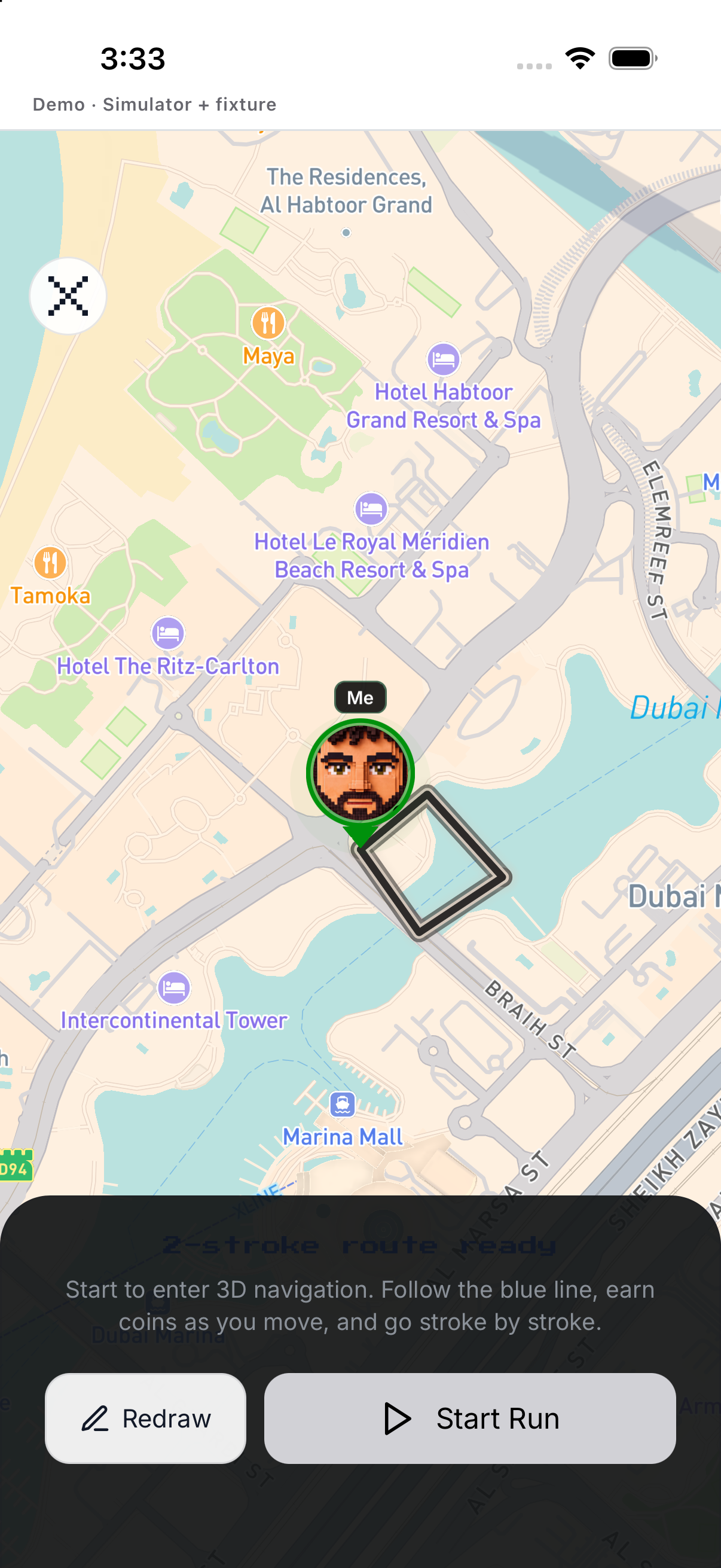
Sketch a route; clear and redraw until usable. Save, or Discard the unsaved session.
- Draw. Sketch a route; clear and redraw until usable.
- Preview. Review the drawn path.
- Start / Pause / Resume. Follow the shape while tracking.
- Hold Finish. Save, or Discard the unsaved session.
Discover
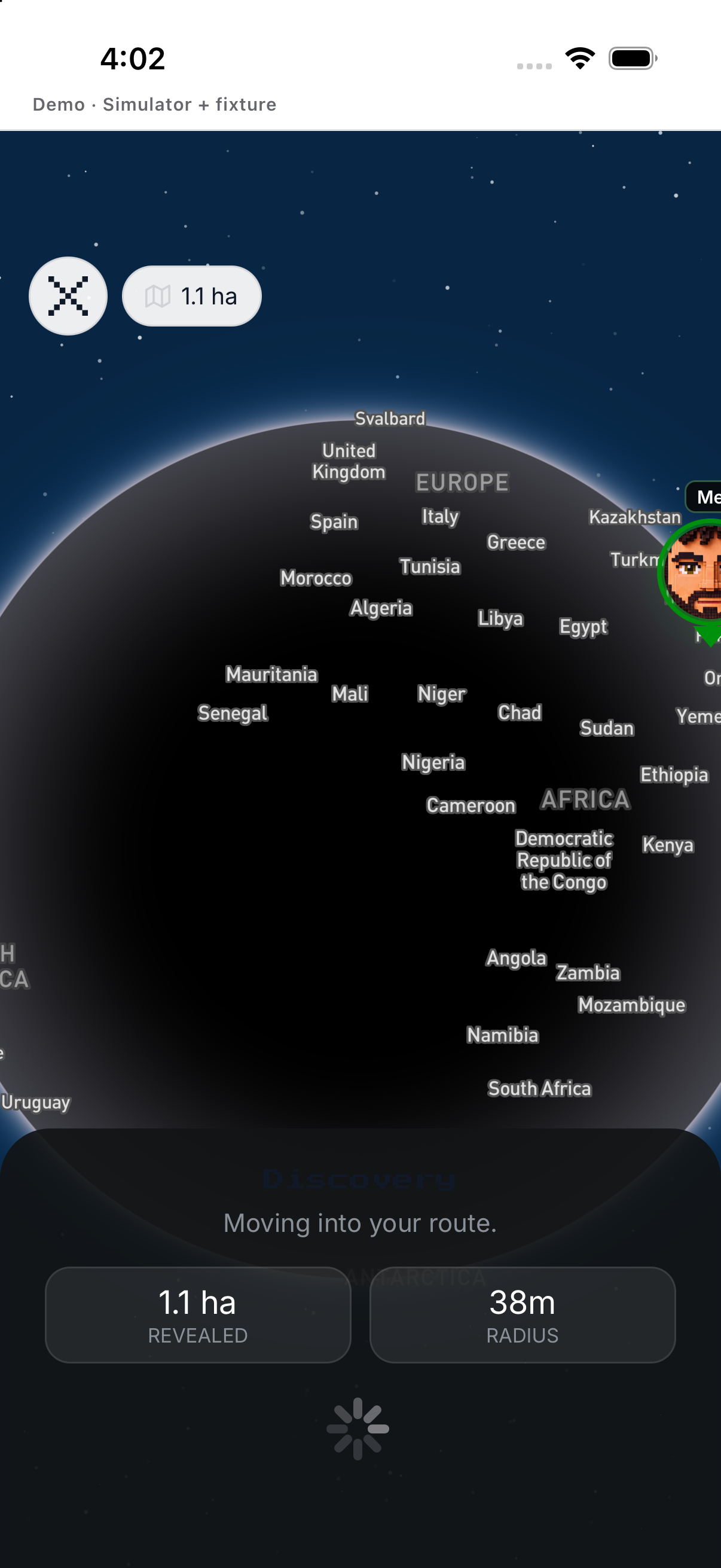
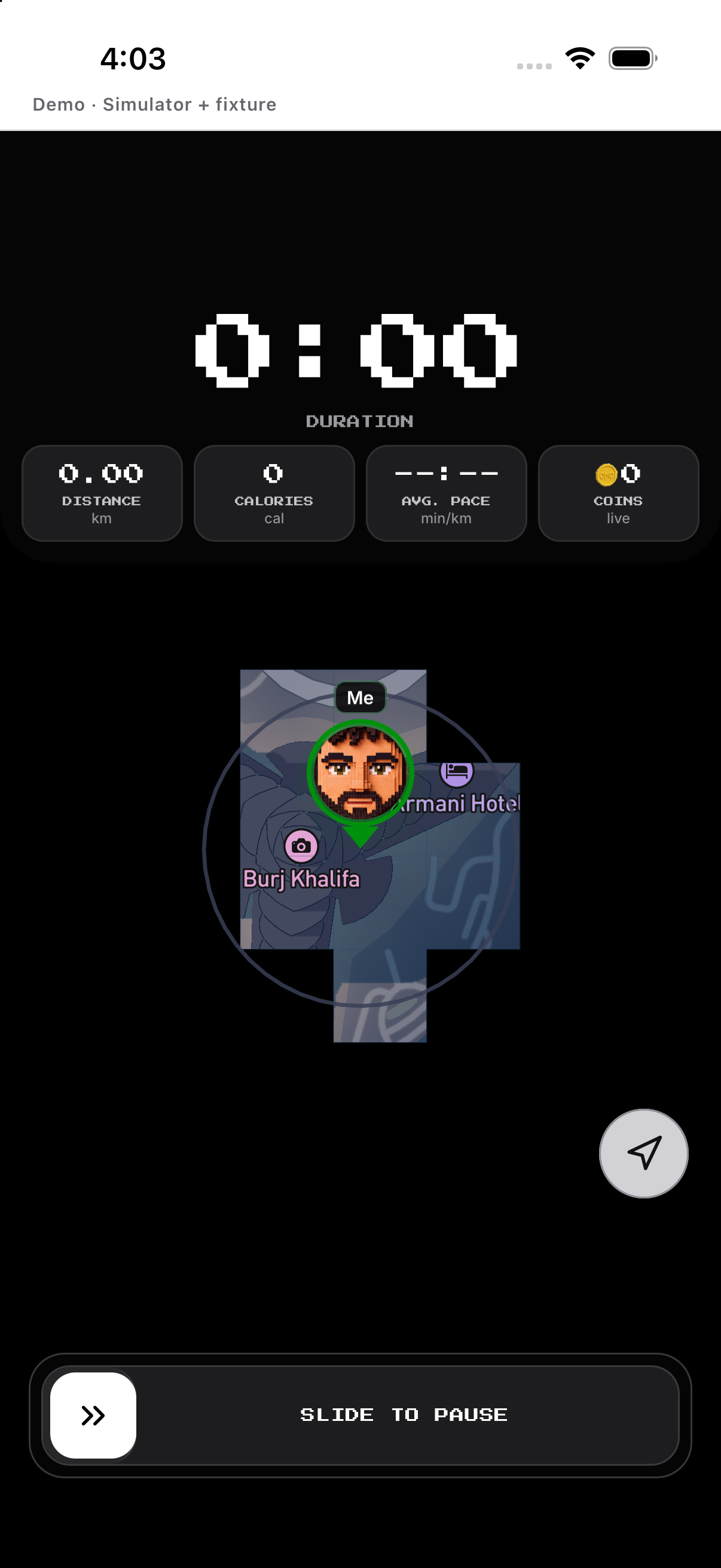
Open the ready state. Hold Finish and save or discard.
- Enter Discover. Open the ready state.
- Start. Explore while route and discovered area update.
- Pause / Resume. Use the session controls without leaving.
- Finish. Hold Finish and save or discard.
History, edit and delete
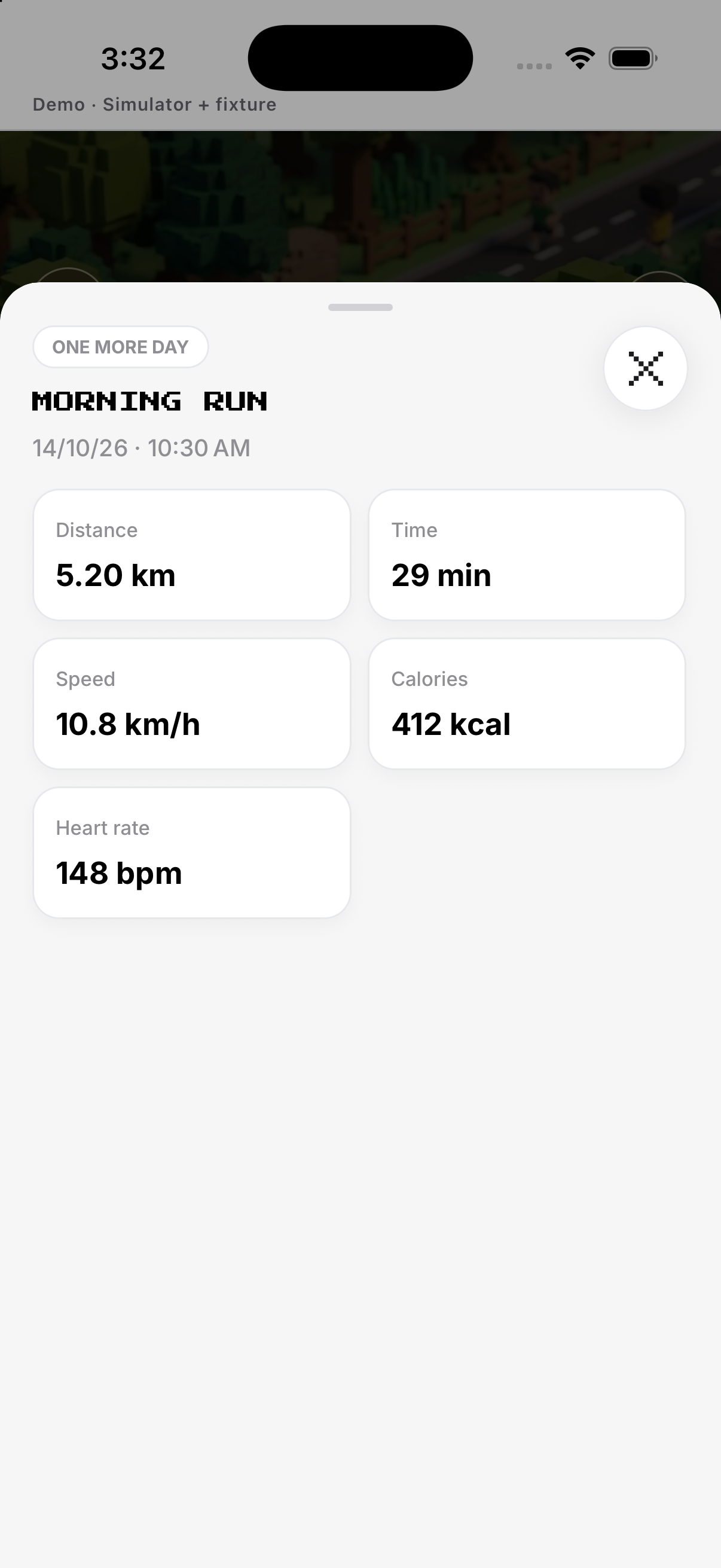
Open an activity to inspect its summary and route. Discard applies to an unfinished session; Delete removes the mission.
- History. Open an activity to inspect its summary and route.
- Edit. Use Setup for future goal, days or reminder.
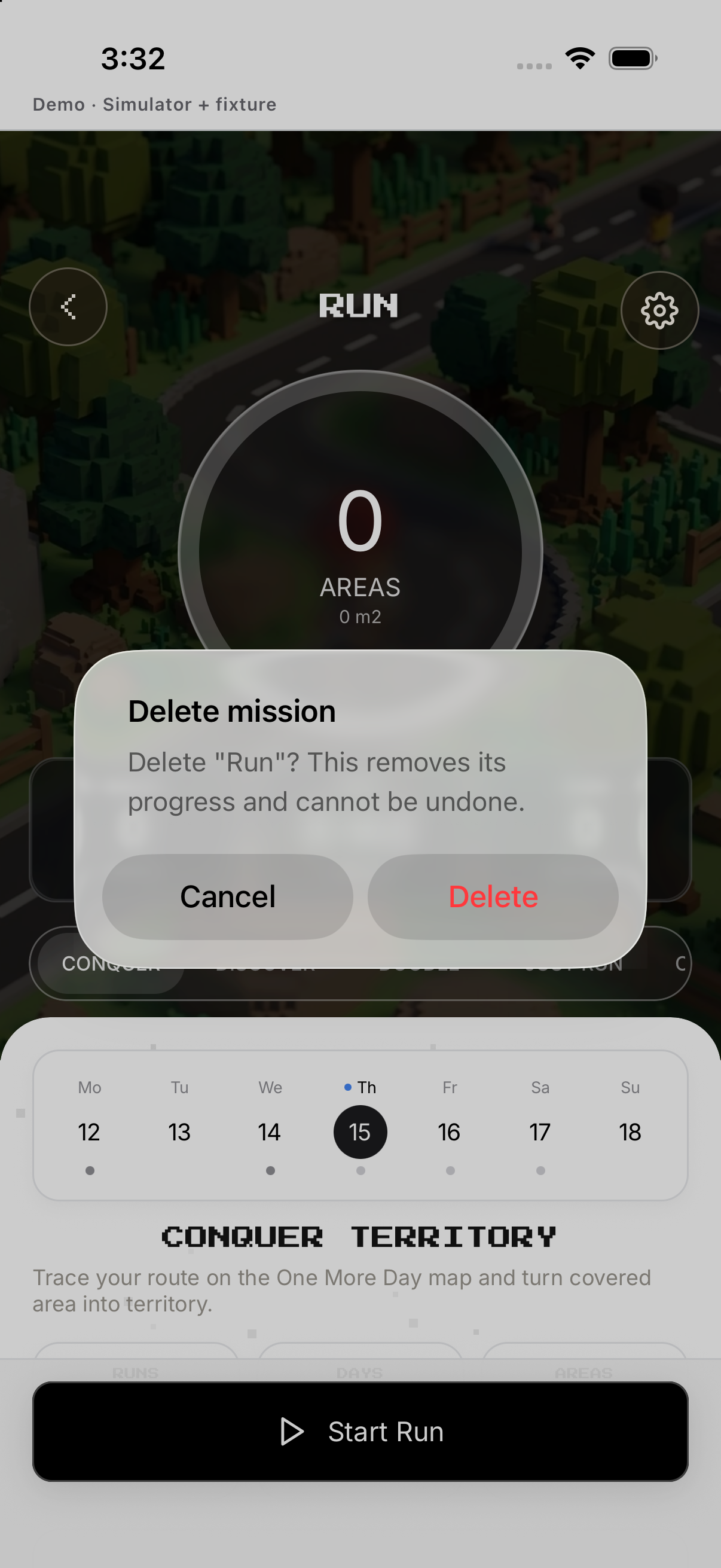
- Delete mission. Tap Delete mission and confirm; cancel if you meant to edit.
- Distinguish Discard. Discard applies to an unfinished session; Delete removes the mission.
Example
Use Free Run for an unstructured outing; use Conquer for a closed territory loop.
Keep in mind
Location is required. Conquer warns before pausing because route gaps can affect capture.