
One More Day · Guide
Map, Conquer and Discover
Map is social discovery. Conquer captures territory; Discover reveals your exploration map. They are separate outdoor modes.
Open the complete visual walkthrough ↗
Getting started
- Use Map for permitted nearby profiles.
- Choose Conquer or Discover.
- Track, pause, resume or finish.
- Review the saved result.
Every feature, step by step
Shared Map
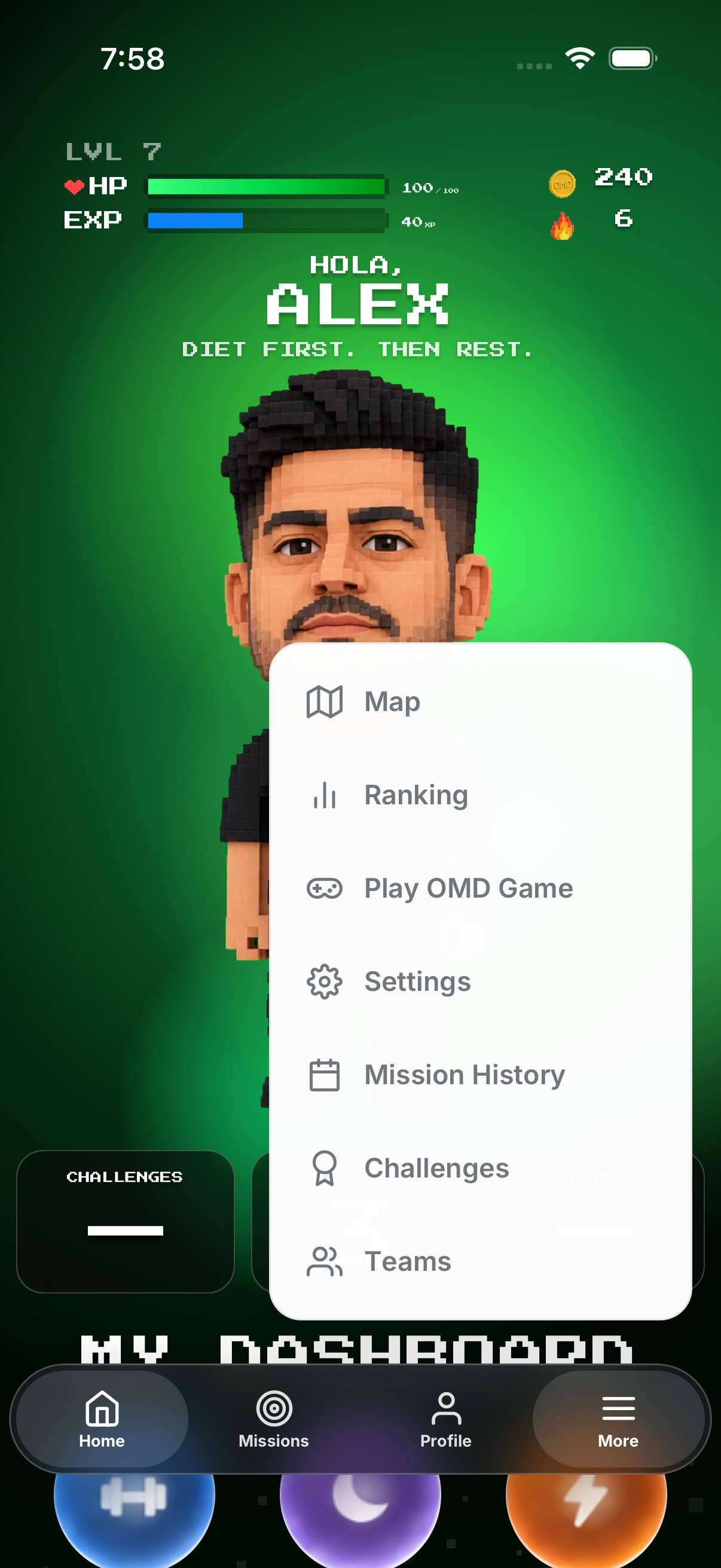
Open More > Map; only privacy-permitted profiles should appear.
- Open More, then Map. The shared Map is a social discovery surface. It only shows people allowed by their own visibility and consent settings.
- Check the visible state. An unavailable, empty or permission-limited map does not prove that nobody is nearby.
- Open Profile privacy. Choose whether your own profile is discoverable and who can see your map presence.
- Review each mission visibility. A public profile and an individual mission can have separate map visibility controls.

Track an ordinary Run
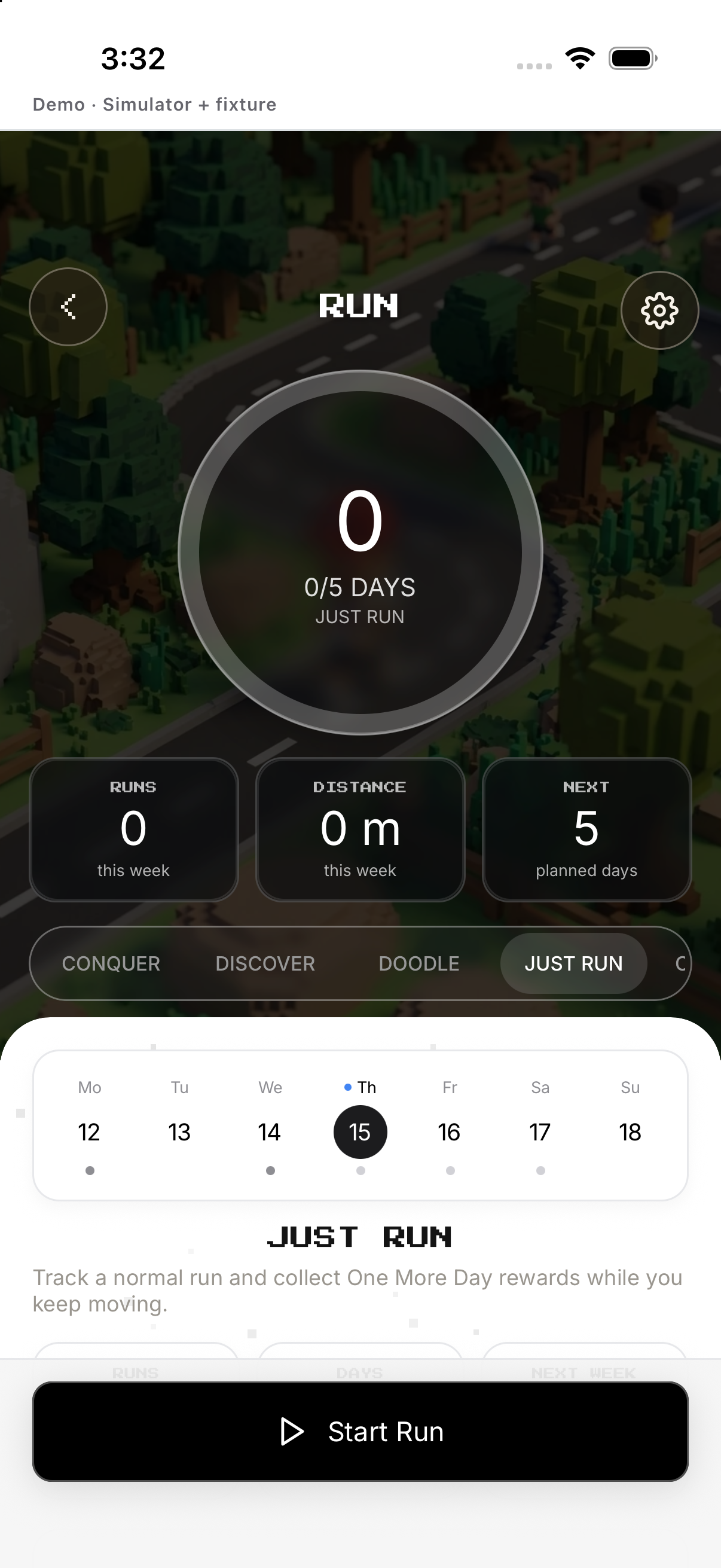
Just Run records a normal outdoor session without Conquer, Doodle or Discover rules.
- Open Run and choose Just Run. This opens the ordinary Run tracker. It does not start a territory, drawing or discovery objective.
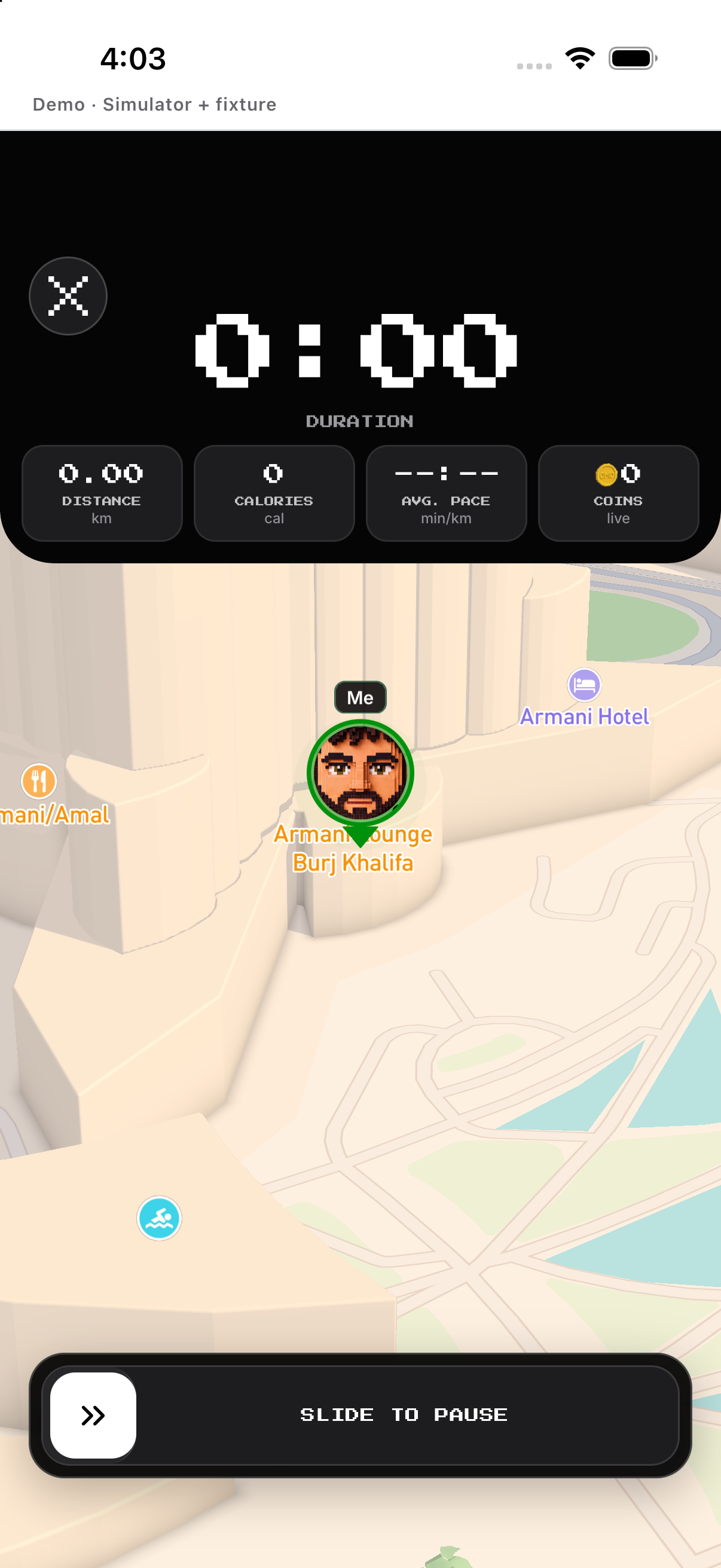
- Allow location and start. Wait for your position, then use Start or Try Again. A real session needs device location permission.
- Read the active HUD. The tracker shows live route, elapsed time, distance and the activity controls while movement is recorded.
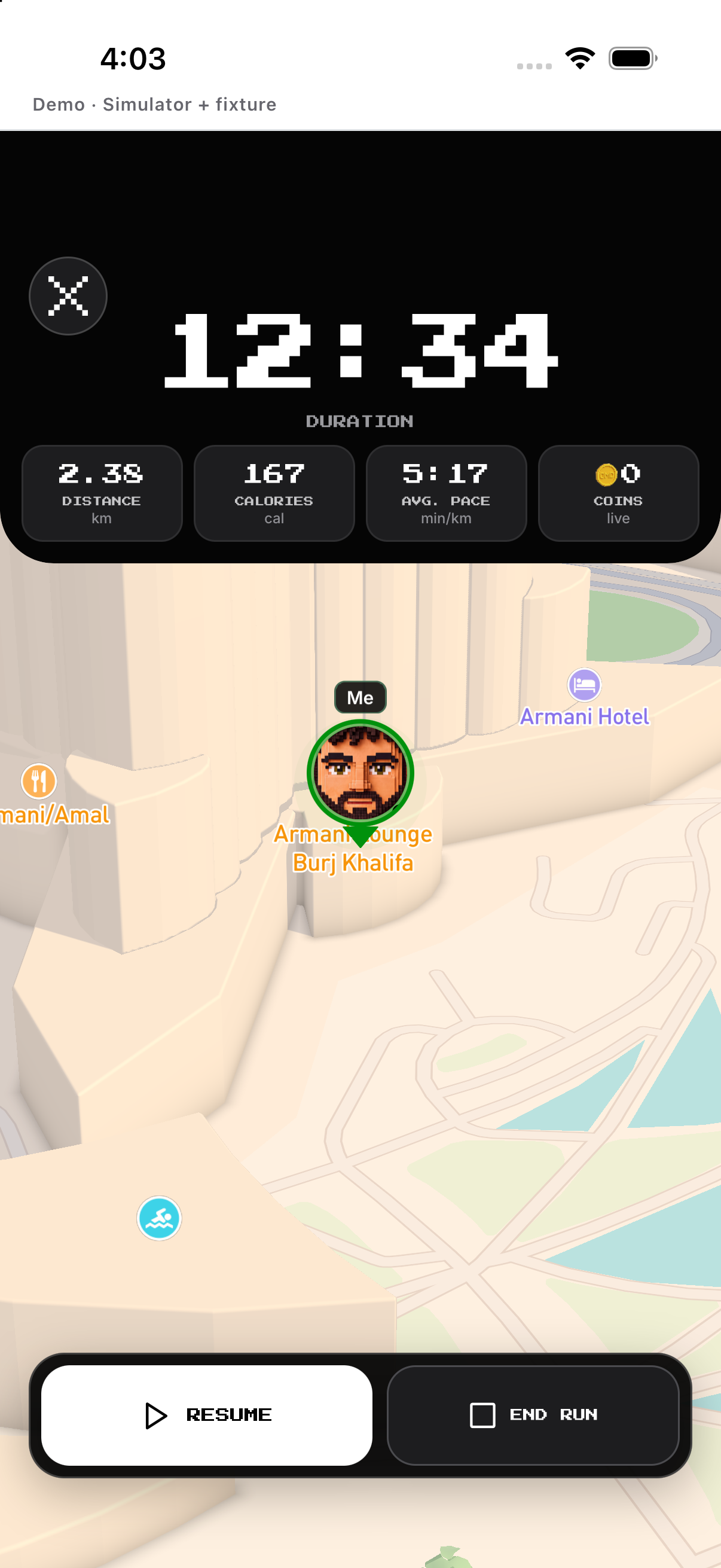
- Pause or resume. Pause stops active tracking time; Resume continues the same session.
- Hold to Finish. Keep holding the finish control to end deliberately, then wait while the session is saved.
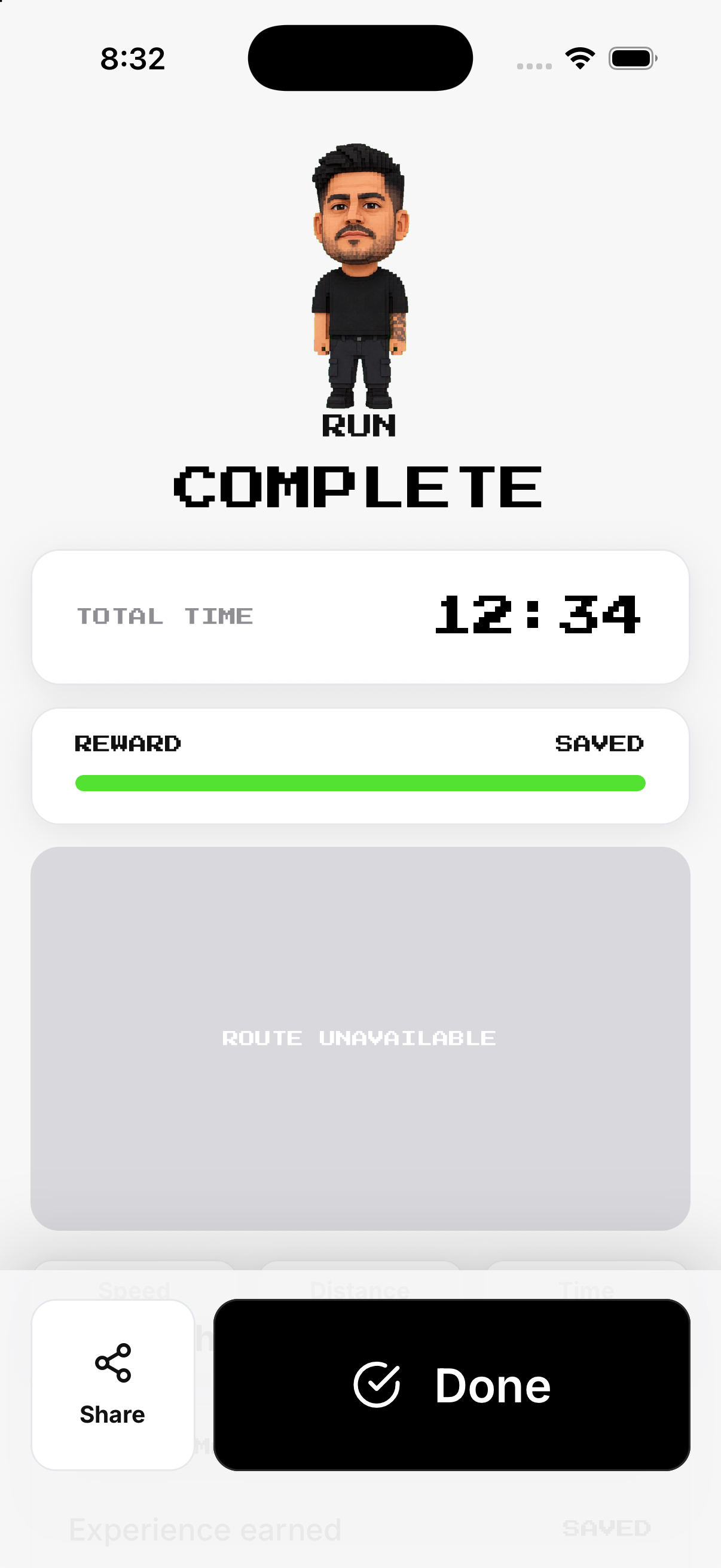
- Review the completion. Check the saved duration, distance, route and any displayed local rewards before leaving.
Conquer territory
Choose Conquer, allow location, track a route, then pause or finish.
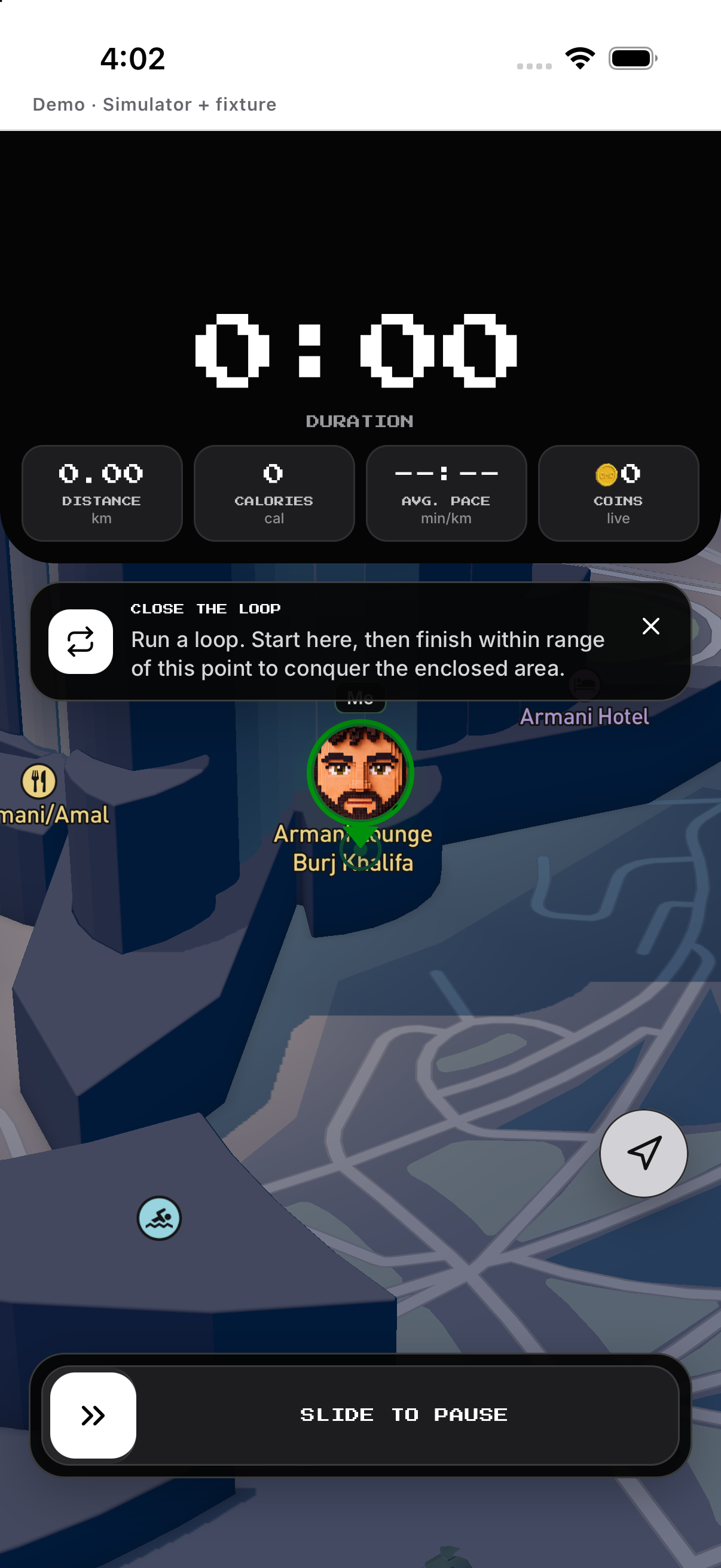
- Choose Conquer from the outdoor Run modes. Conquer opens its own tracker and begins by locating you; location access is required for a real route.
- Start tracking. Use Start or Try Again after location is ready. The active tracker shows the route, metrics and loop instructions.
- Close a valid loop. Return toward the start while tracking. Conquer evaluates the captured loop rather than ordinary straight-line distance.
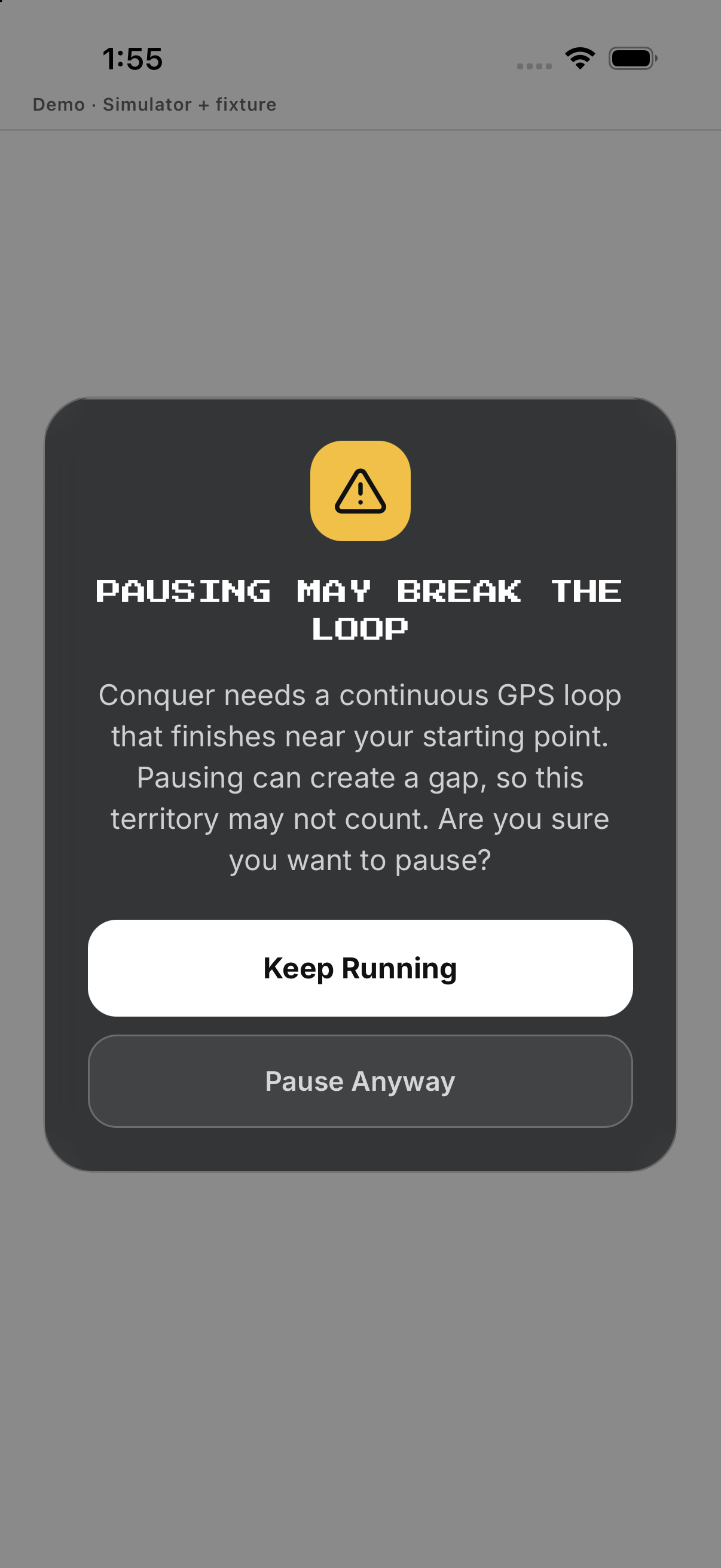
- Pause only after reading the warning. Pausing can affect the loop capture. Use Keep Running or confirm Pause in the mode-specific warning.
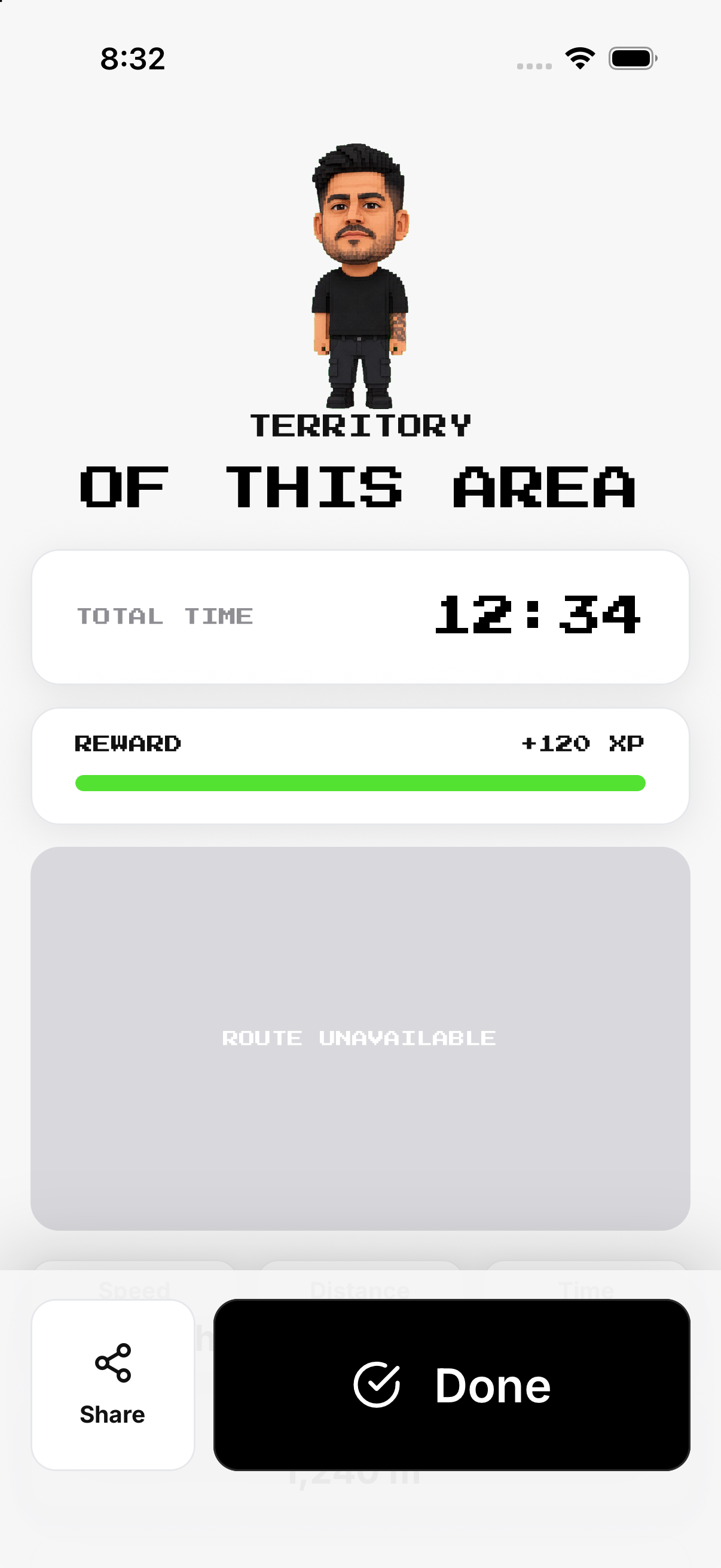
- Finish and review. Use the finish control only when the loop is ready, then inspect the saved territory result before leaving.
Discover area
Choose Discover; movement reveals cells and the result shows session and total area.
- Choose Discover from the outdoor Run modes. Discover opens a separate tracker that reveals exploration cells as verified movement is recorded.
- Start the session. Wait for location, then start tracking. Keep the app in the active session while moving through new area.
- Pause and resume when needed. Paused time is not active tracking. Resume before continuing the route.
- Finish the session. Use the finish control and wait for the local completion summary instead of leaving during submission.
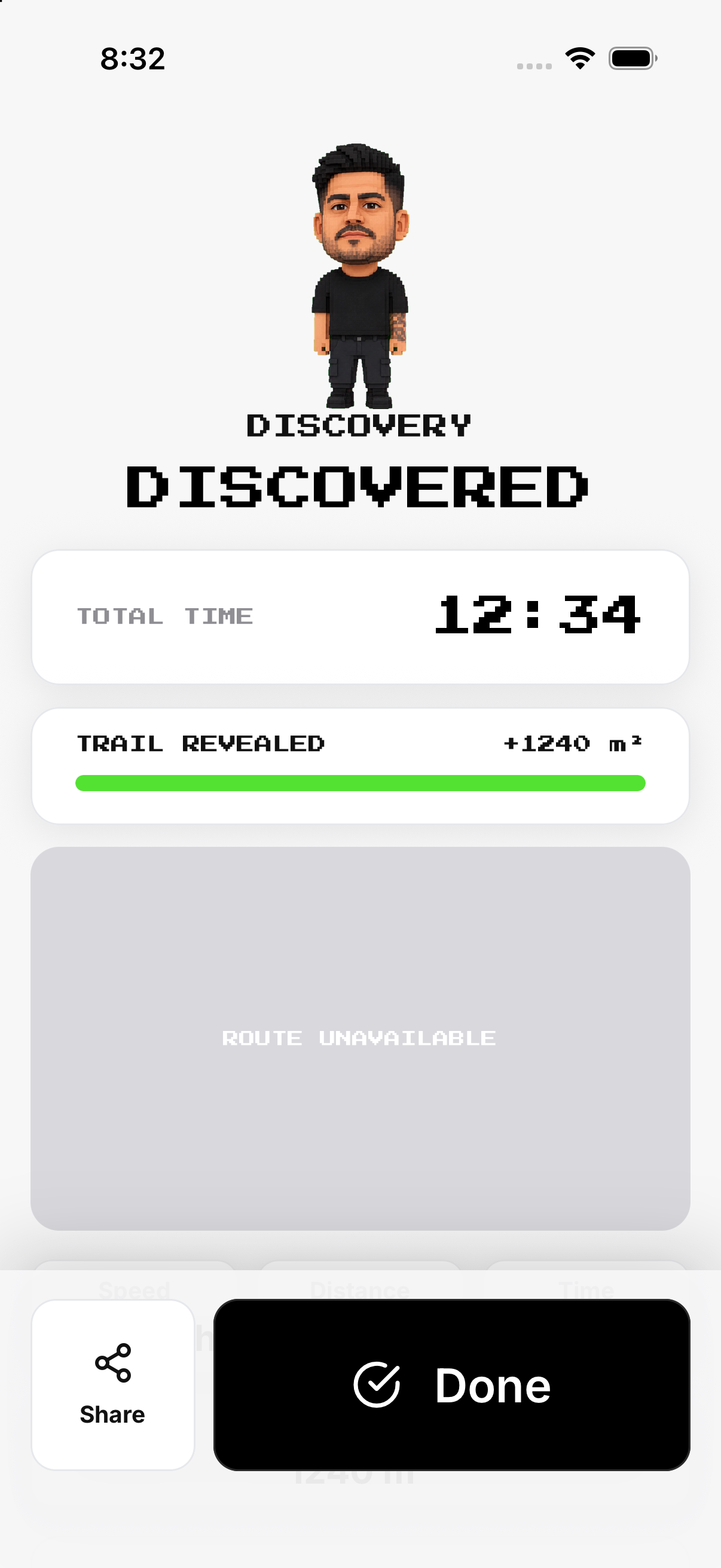
- Read session and total area. The completion screen separates area revealed in this session from the cumulative discovered area.
Trace It / Doodle route
Draw a shape, snap it to walkable paths, preview the route, then follow it stroke by stroke.
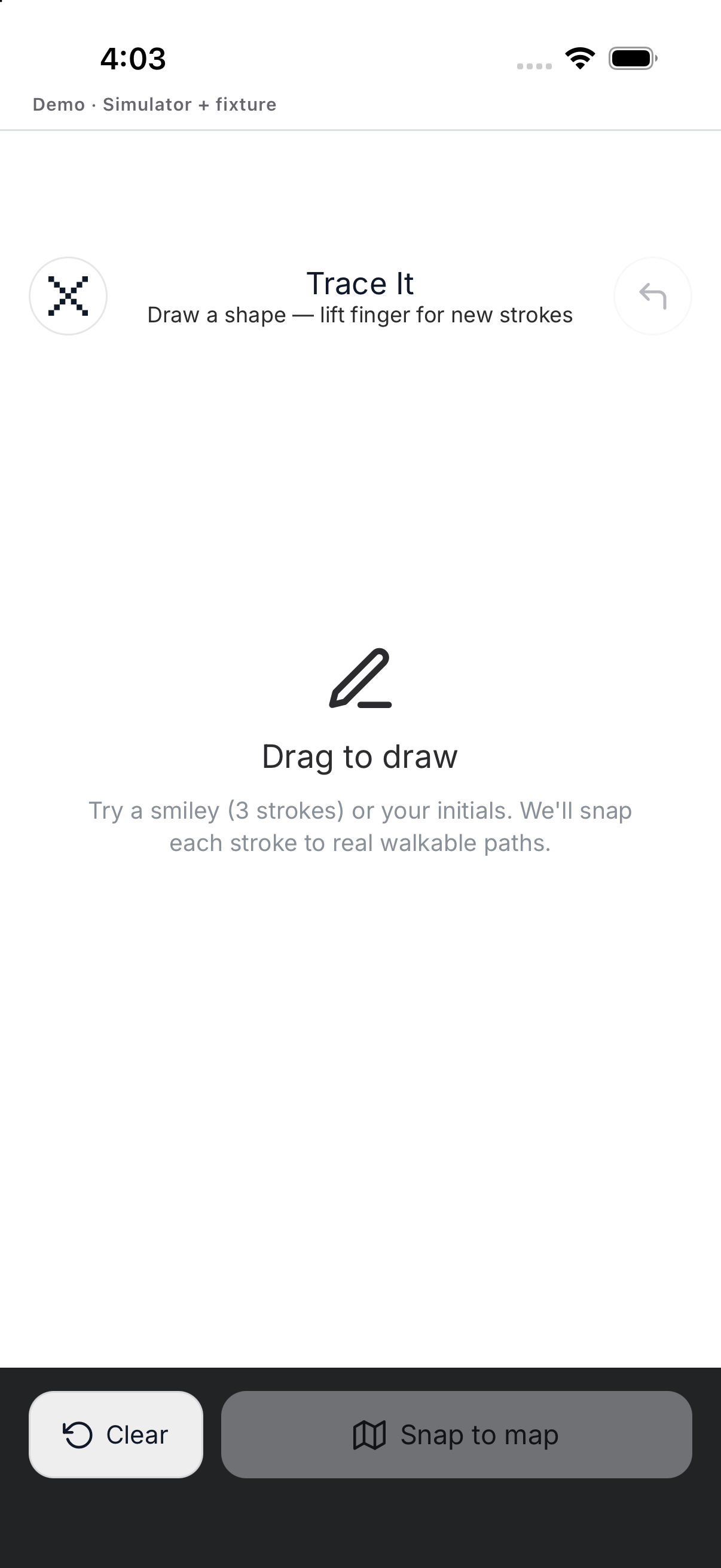
- Open Run and choose Doodle. The Trace It canvas starts in drawing mode after location is available.
- Drag to draw one or more strokes. Lift your finger to start another stroke. Use Clear if the shape is wrong.
- Confirm the drawing. The app rejects an empty or very short sketch, then snaps valid strokes to walkable paths.
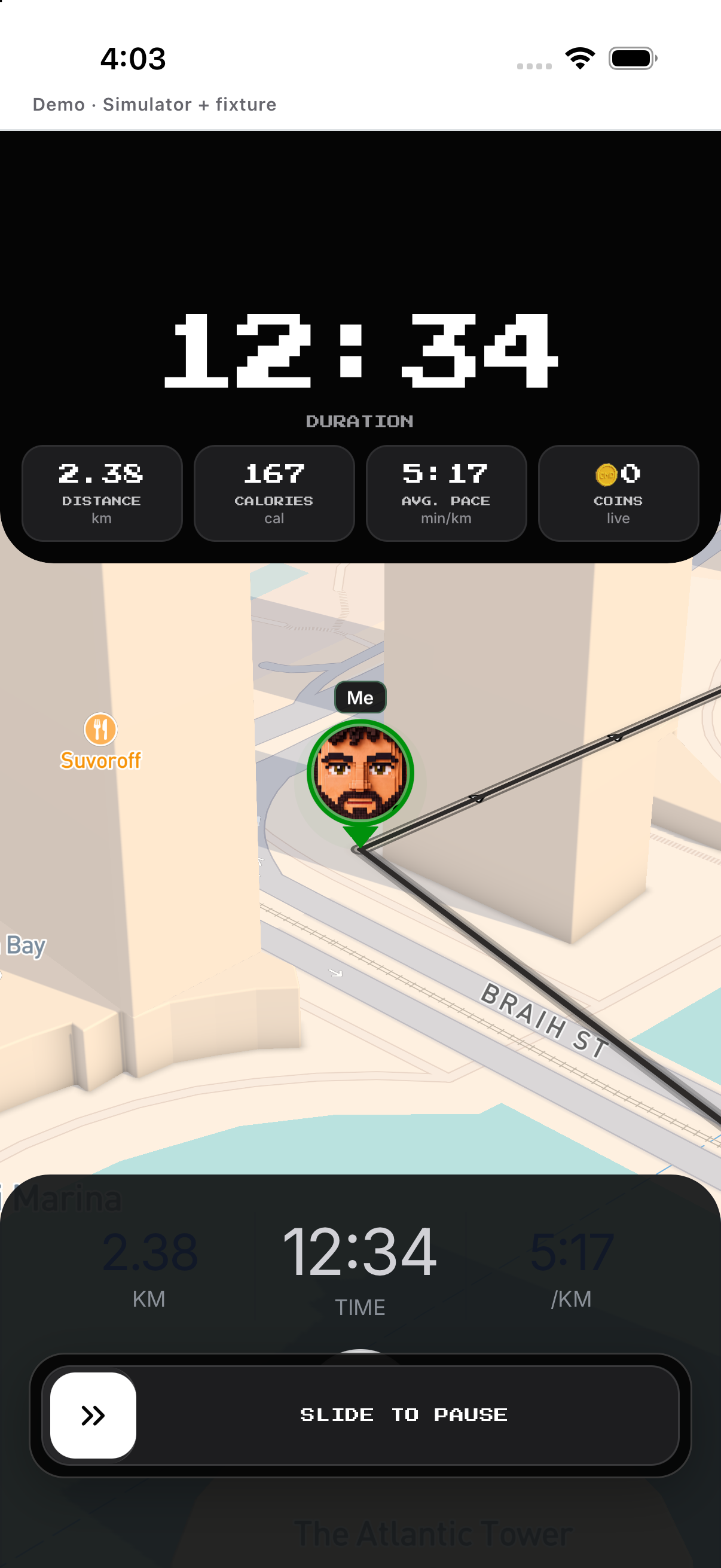
- Preview and start the route. Review the matched route. Choose Redraw to return to the canvas or Start Run to begin 3D navigation.
- Follow each stroke. Pause between strokes when prompted, move to the next start, and resume for the next segment.
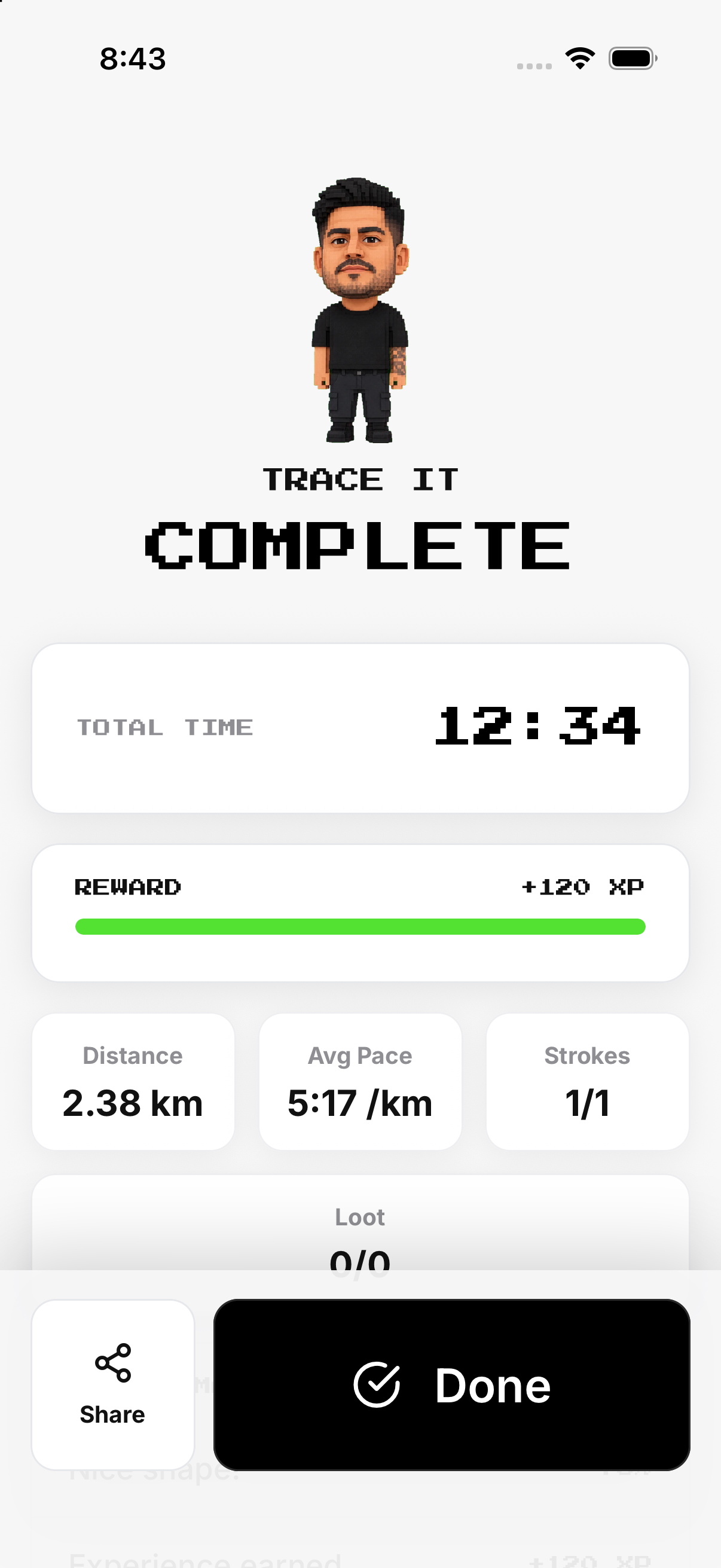
- Hold to Finish. Use the hold control to end deliberately, then review the completion summary or discard confirmation.
Pause and discard
Read mode-specific warnings; discarding Discover does not erase already revealed area.
- Press Pause in Conquer. The warning explains the capture consequence before the tracker changes state.
- Choose Keep Running to cancel. This closes the warning and leaves the active loop running.
- Choose Pause to stop active tracking. Resume from the paused controls before adding more route movement.
- Use discard only when you intend to end. Read the mode-specific confirmation. Discover can retain area already revealed even when its current session is discarded.
Example
Example: Discover reveals area while Conquer closes a loop.
Keep in mind
Map visibility is controlled in Profile privacy.