
One More Day · Guide
Challenges
A challenge turns a mission metric into a contest with rules, people, timing and optional in-app coin entry. Challenge progress decides the result; each person keeps their real Avatar HP.
Open the complete visual walkthrough ↗
Getting started
- Choose a mission and metric.
- Set rules, dates and optional coin entry.
- Choose people and review.
- Accept, track and review results.
Every feature, step by step
Create a challenge
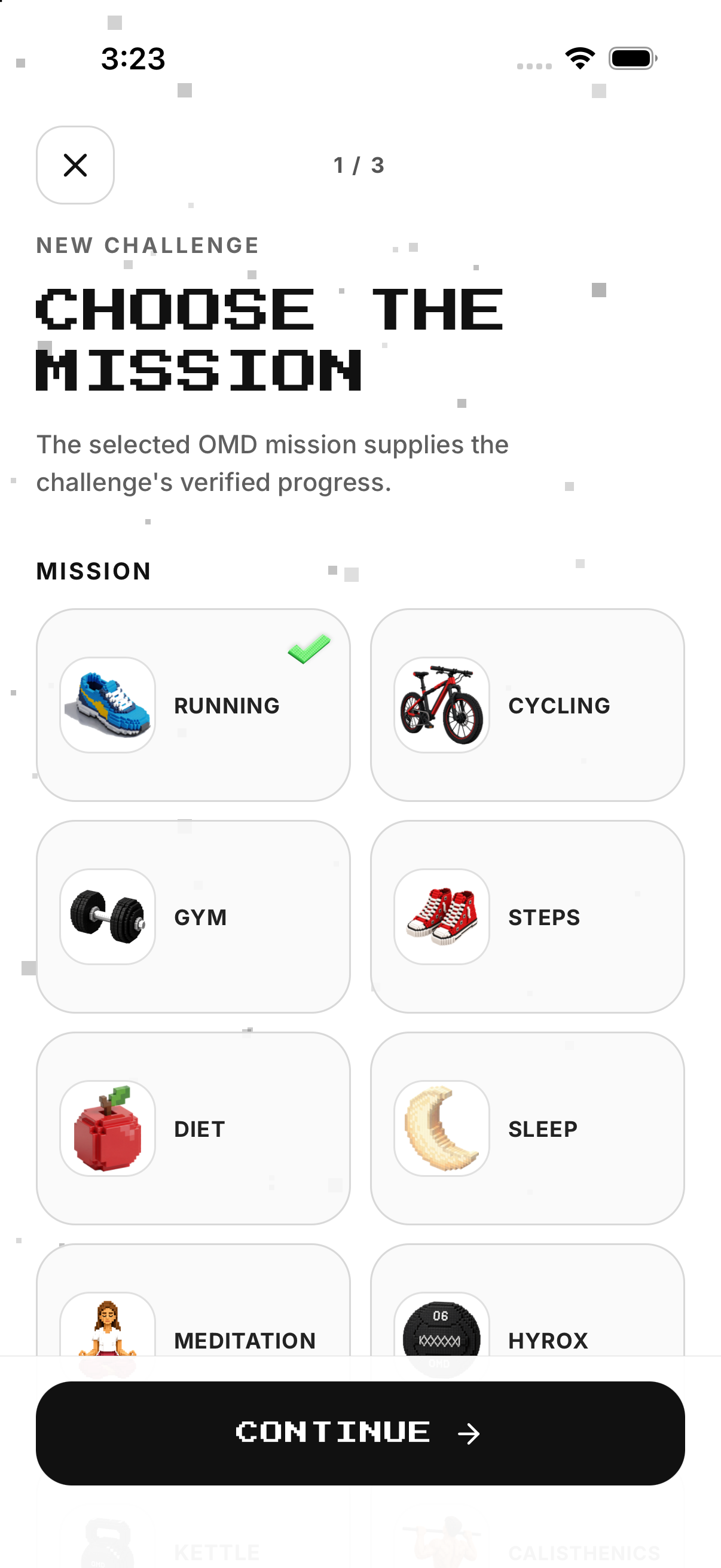
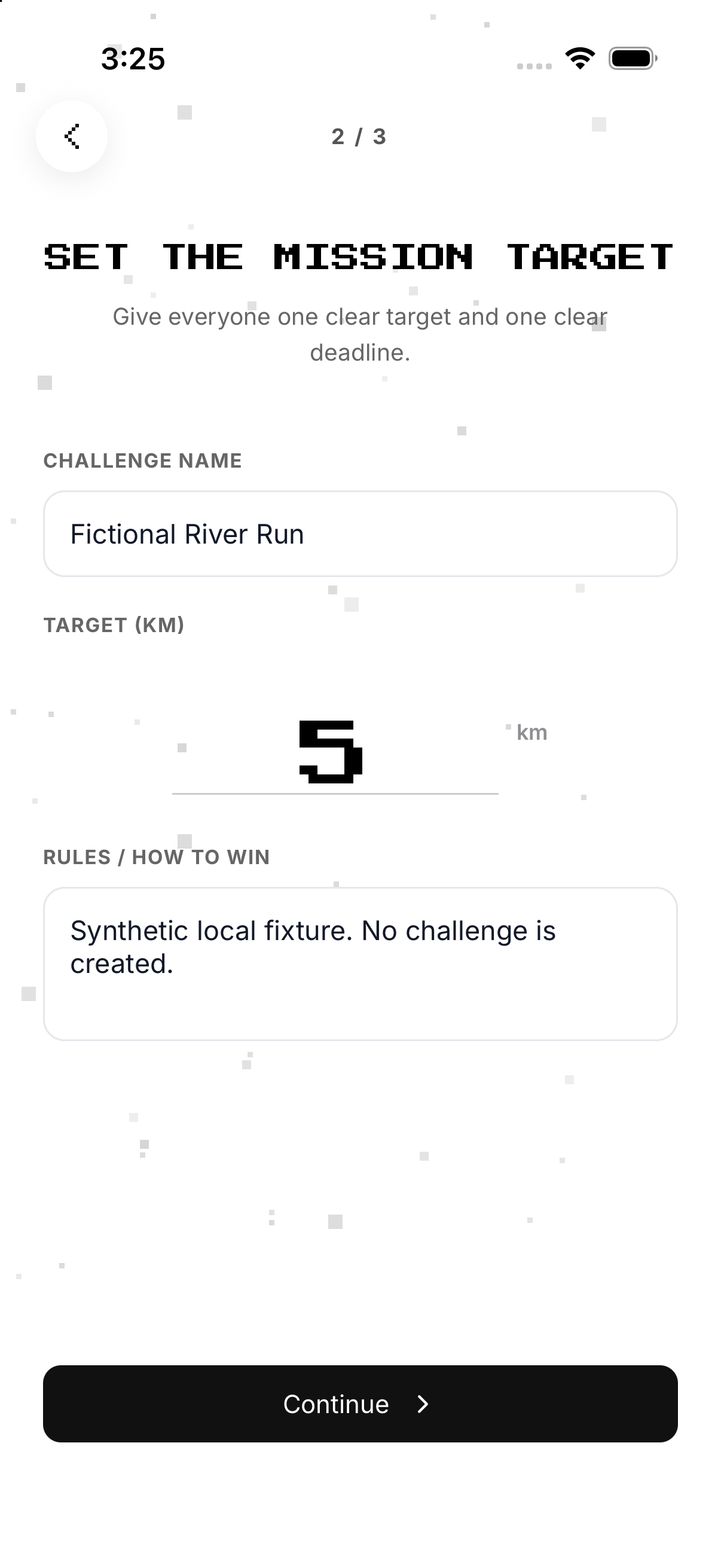
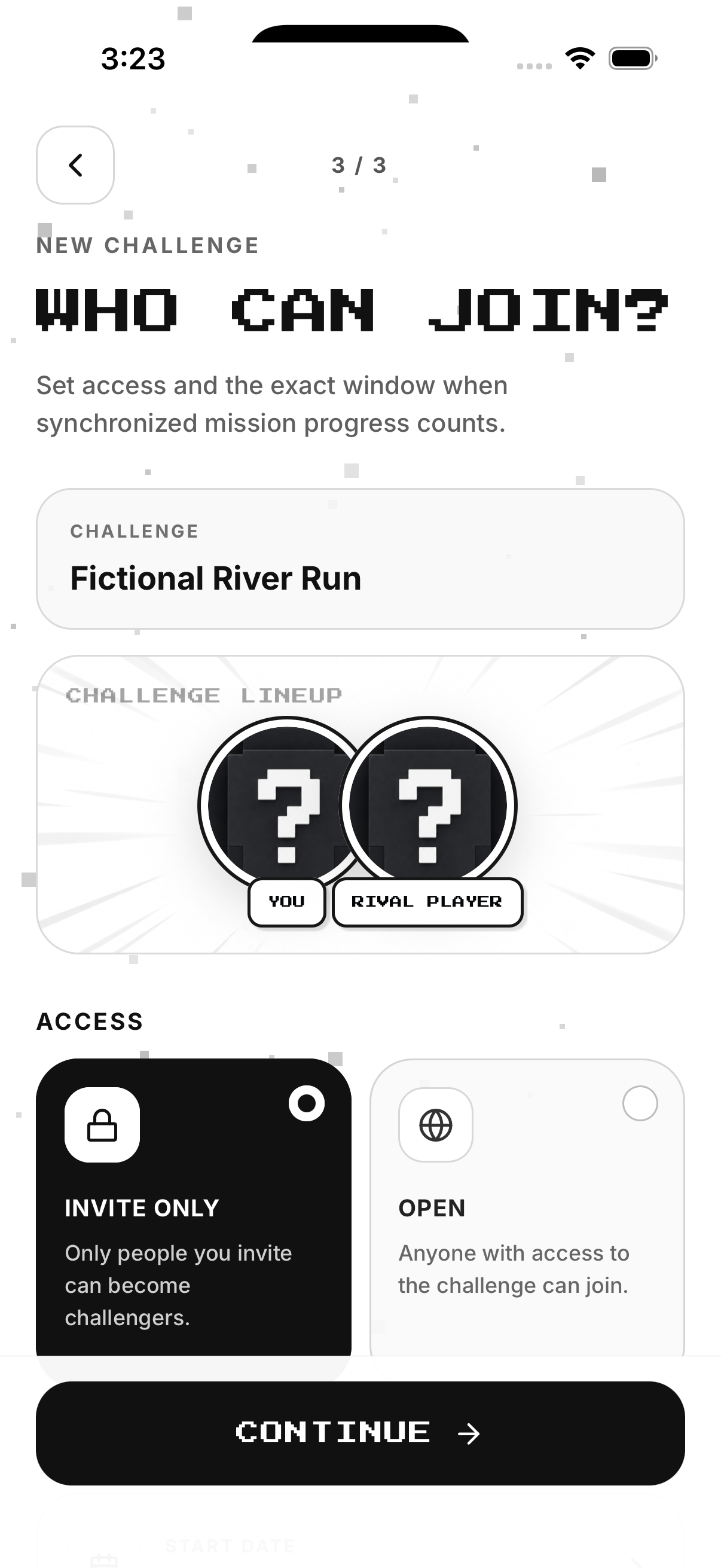
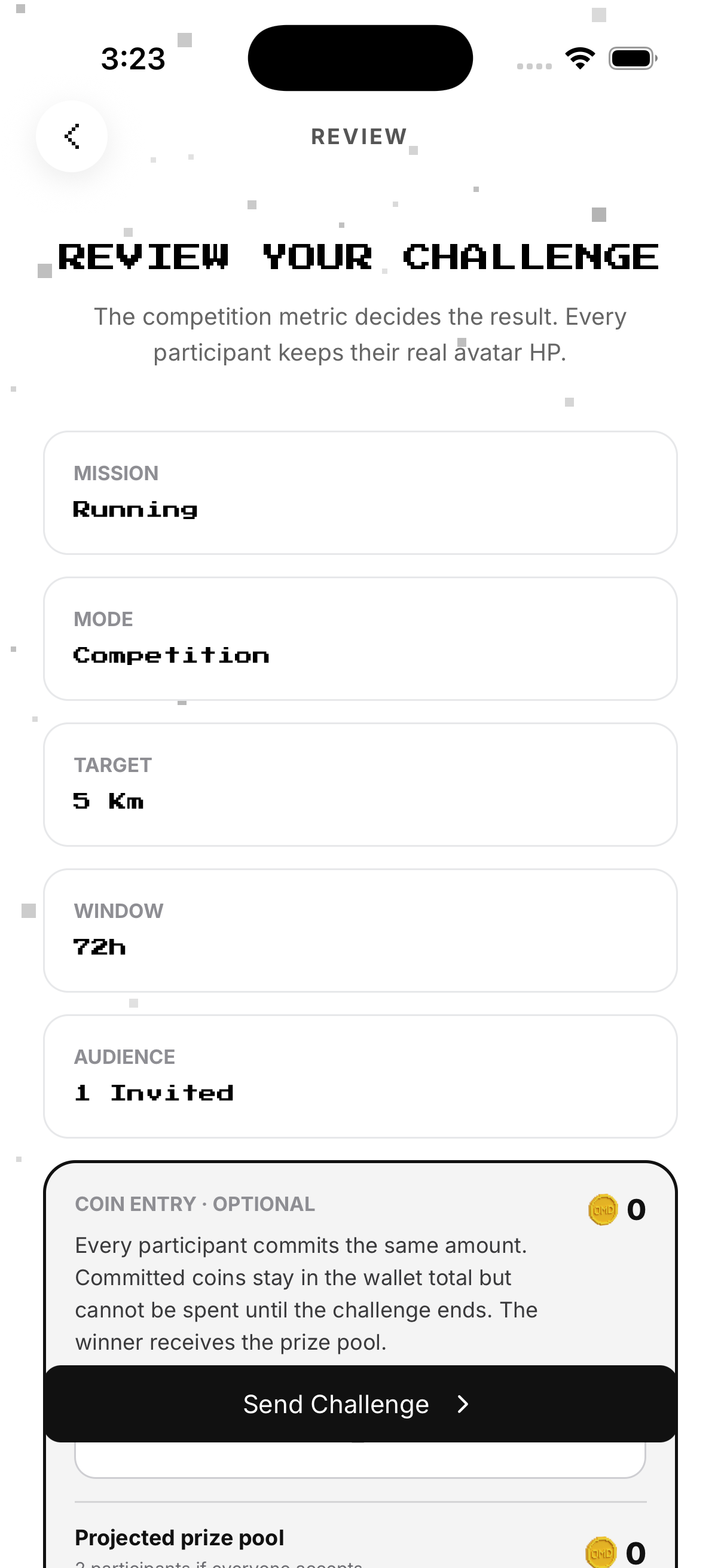
Move through Mission, Rules, People and Review, then send.
- Tap Create Challenge. Opens Mission.
- Select the mission. Defines the source activity.
- Choose metric and target. Defines what is measured and the goal.
- Set dates and cadence. Defines start, end and evaluation rhythm.
- Set Coin Entry or zero. Positive coins become the in-app entry; zero creates none.
- Choose people and access. Adds invitees and reviews the shown private/public access.
- Review and Send. Checks every rule before invitations are created.
Accept an invitation
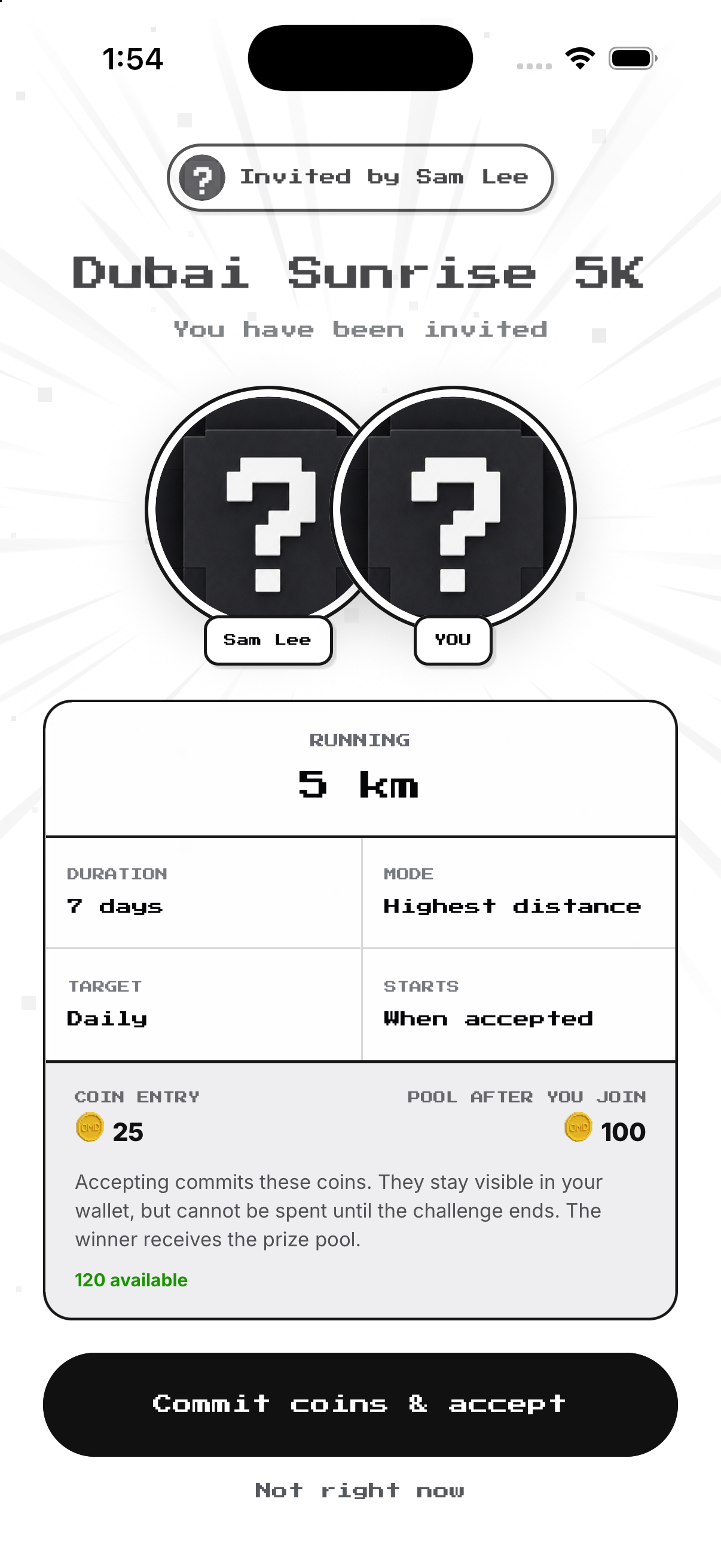
Open Incoming, read target, cadence, start and coin entry, then accept or dismiss.
- Open Incoming. Lists invitations awaiting a decision.
- Tap the inviter card. Opens full invitation.
- Read target, cadence, start and dates. Confirms what counts.
- Read Coin Entry and Available. Confirms commitment and affordability.
- Tap Accept or Dismiss. Accept joins; dismiss does not.
Track participants
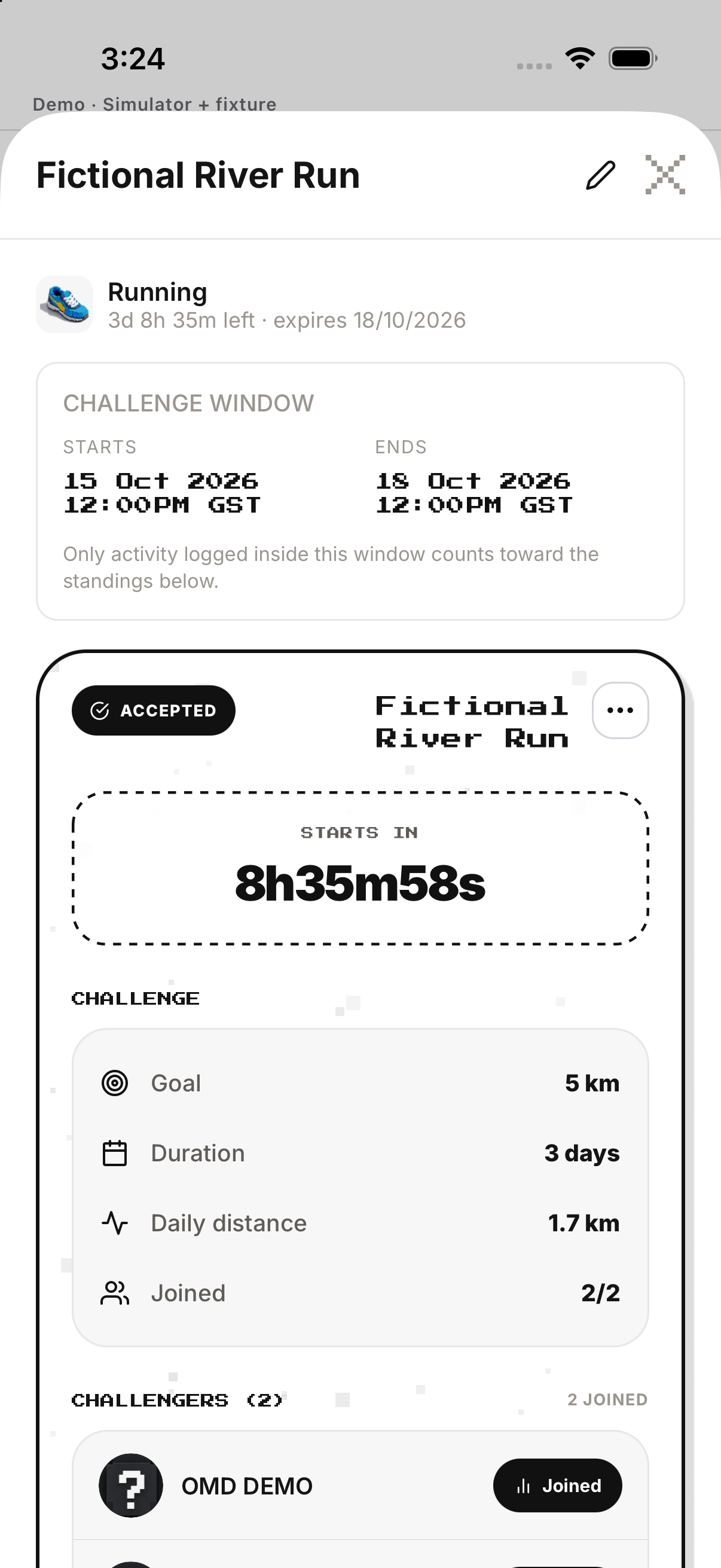
Open My Challenges, choose one and inspect participant progress and creator actions.
- Open My Challenges. Lists joined or created challenges.
- Tap a challenge. Opens progress, pool and people.
- Tap a participant. Opens individual accepted-challenge detail.
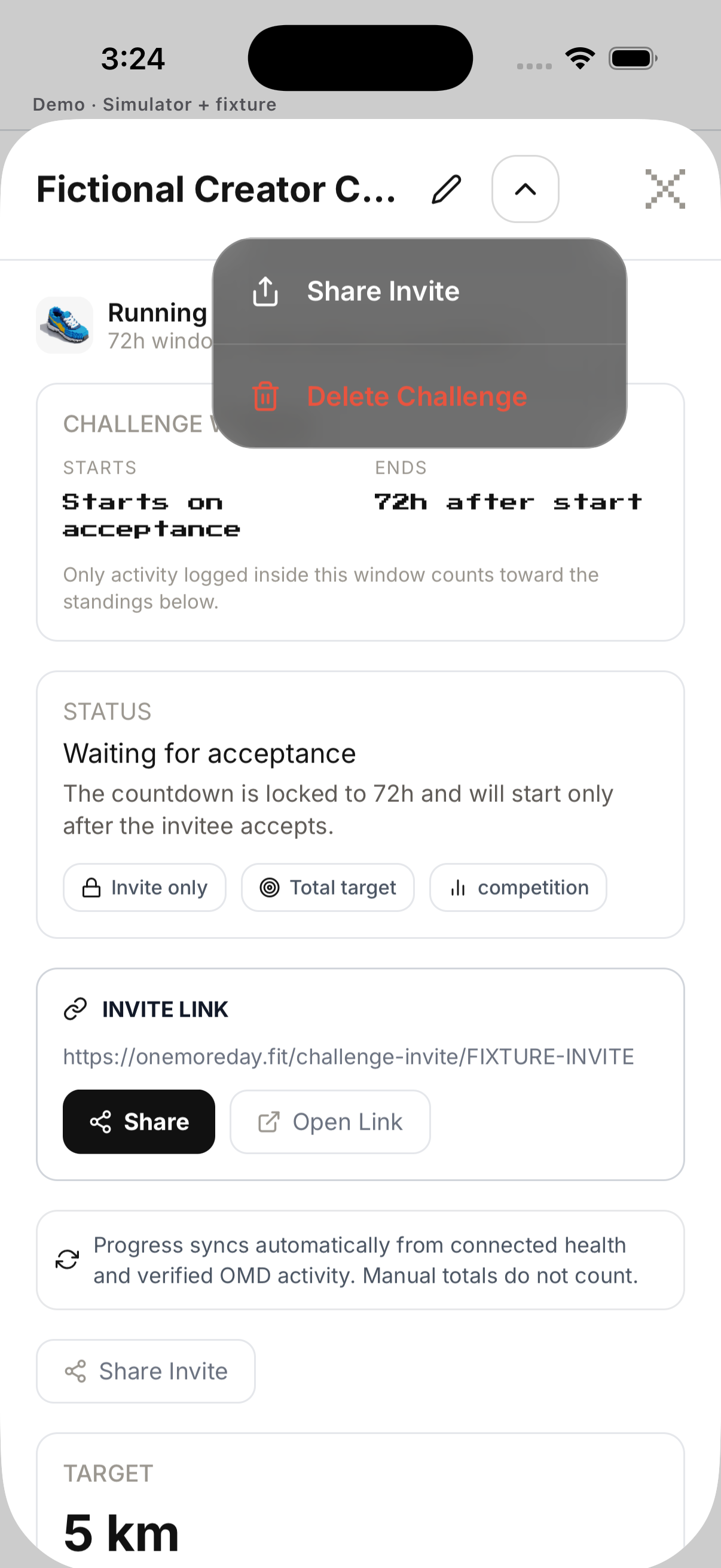
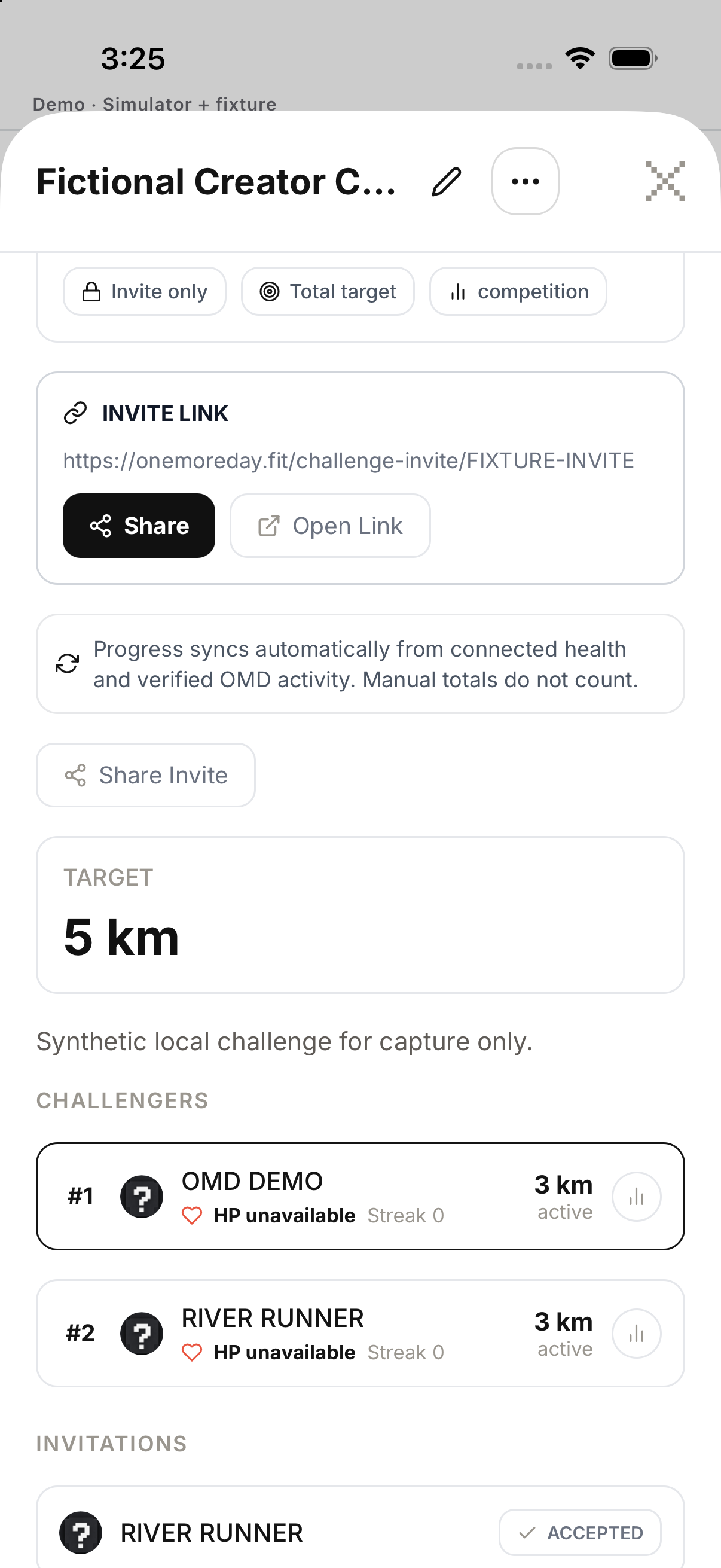
- As creator, open header actions. Shows invite, edit/access or delete when allowed.
- Return to list. Confirms updated status or count.
Review results
Open completed challenge, Challenge History or challenge Ranking.
- Open a completed challenge. Shows final metric and outcome.
- Read won, lost or tied. Explains result.
- Open wallet Challenge movements. Confirms any in-app pool award or loss.
- Open Challenge History. Keeps completed contests separate.
- Open challenge Ranking. Compares the selected active challenge.
Challenge a person from their profile
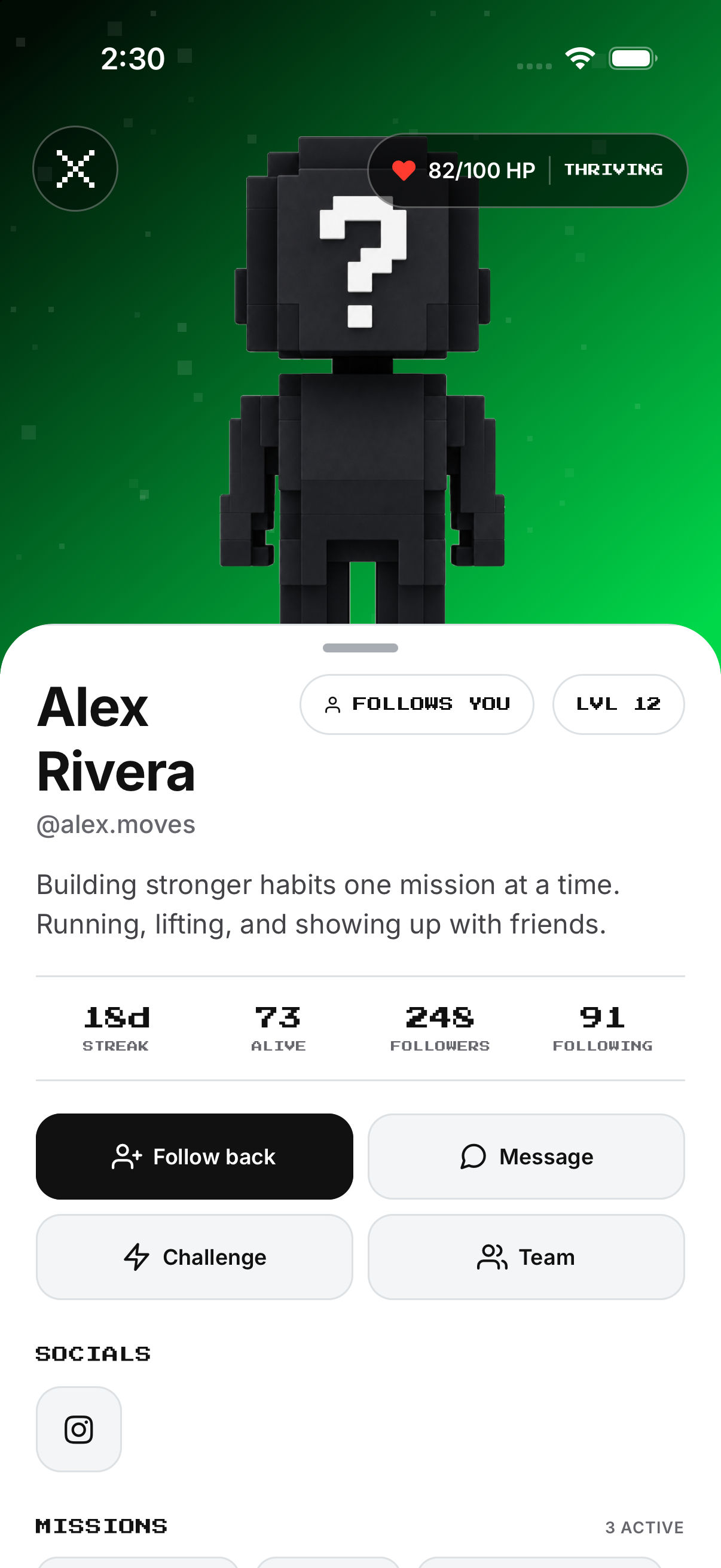
A public profile starts a direct challenge without Team membership.
- Open the public profile. Confirm name and username.
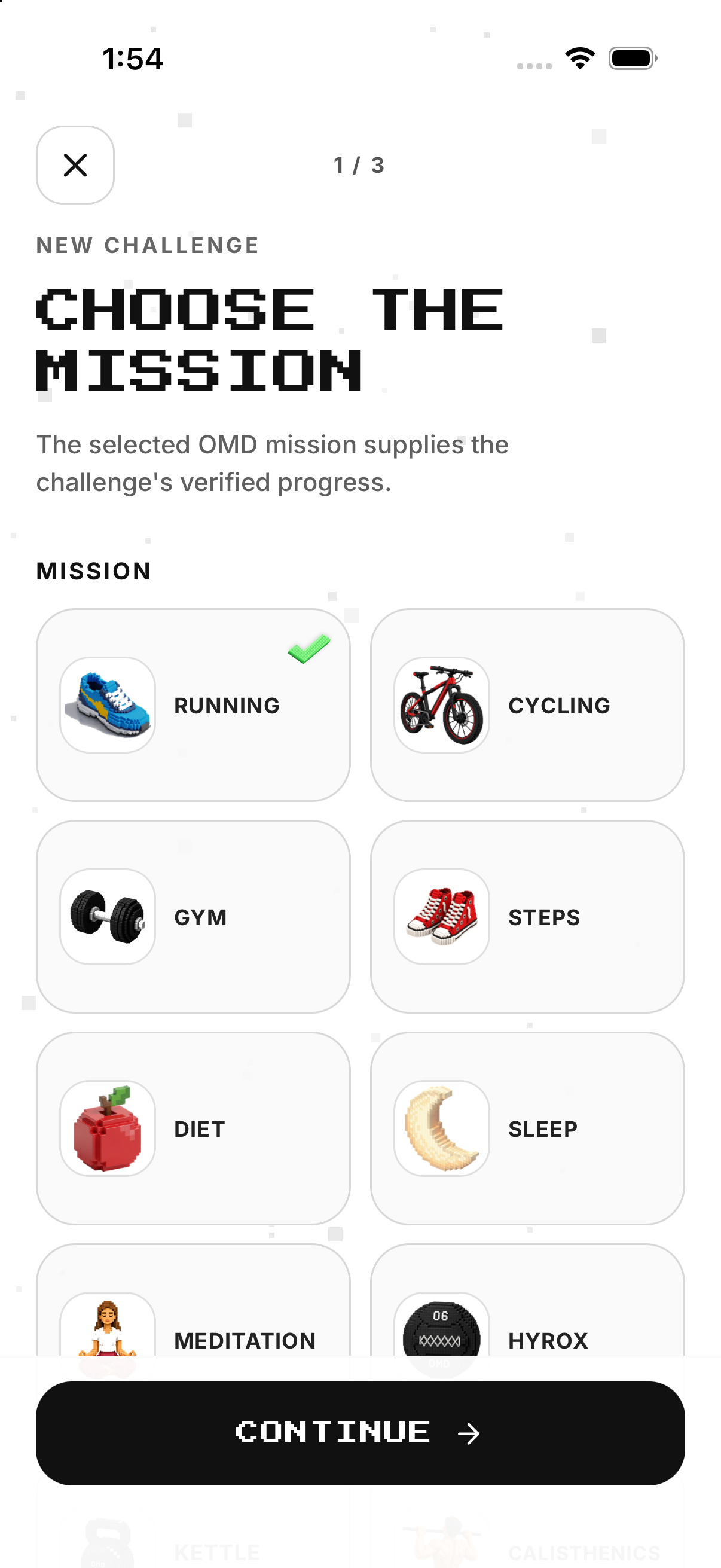
- Tap Challenge. Opens mission selection with that person.
- Choose mission and rules. Set metric, target, dates, cadence and optional coins.
- Review opponent and access. Prevents the wrong recipient or visibility.
- Send. Creates a pending invitation; it does not auto-enrol.
Invite more people
Creator controls send additional pending invitations.
- Open your created challenge. Confirms creator ownership.
- Open header actions. Shows creator-only controls.
- Tap Invite people. Opens invite controls.
- Select and send. Creates pending invitations.
- Review participant status. Only acceptance makes them participants.
Cancel or delete
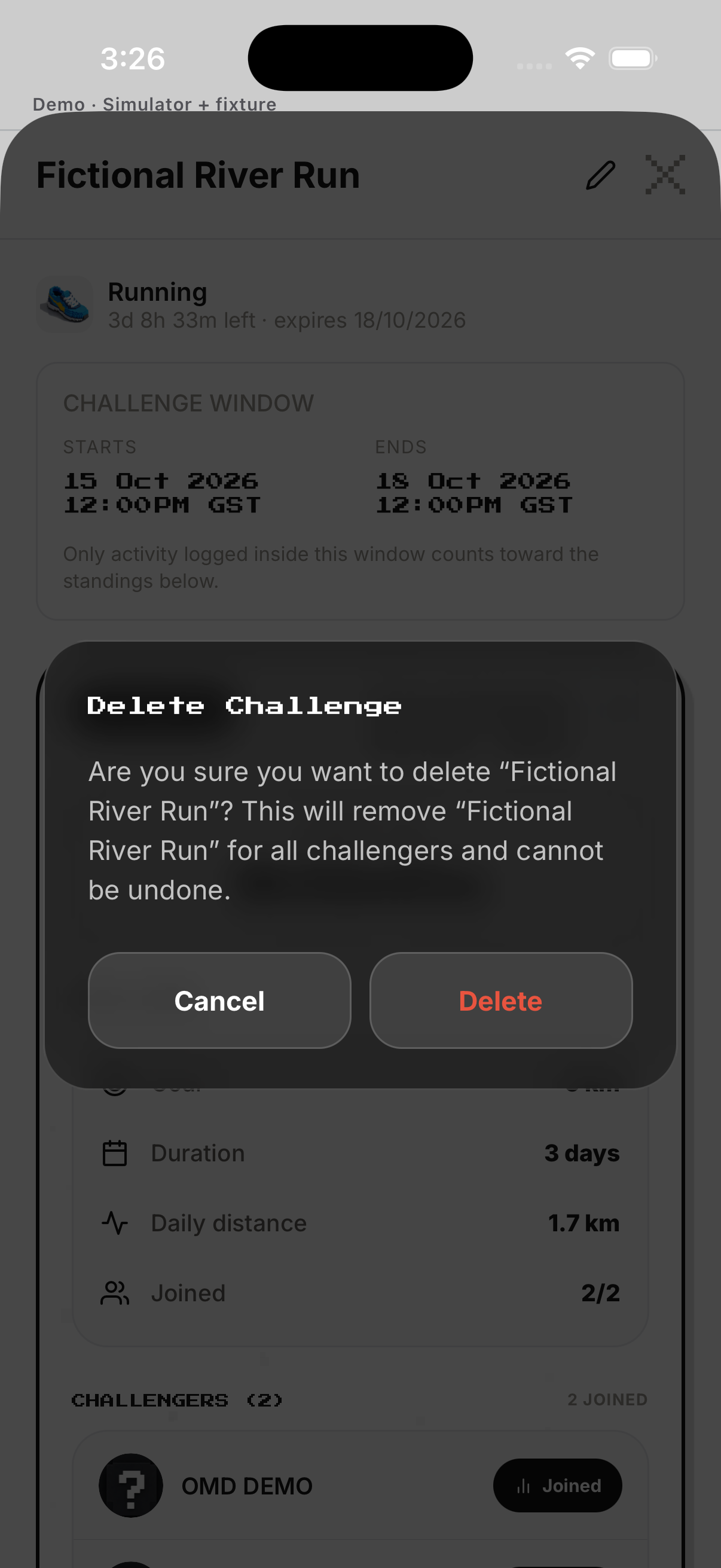
Deletion affects every challenger and may release committed coins.
- Open creator actions. Confirm Delete is available.
- Tap Delete. Opens irreversible confirmation.
- Read participant and coin impact. Explains removal and released commitments.
- Tap Cancel. Closes without changes.
- Or confirm Delete. Removes for all challengers.
Example
Example: compare verified steps for seven days.
Keep in mind
Read all entry terms before accepting.