
One More Day · Guide
Calisthenics
Configure Calisthenics, follow the plan, log the session and review history.
Open the complete visual walkthrough ↗
Getting started
- Choose goal, level/equipment, schedule and reminder.
- Open the plan and exercise instructions.
- Start, log sets/reps/load when shown, rest/pause, finish, then review History.
Every feature, step by step
Create or edit Calisthenics
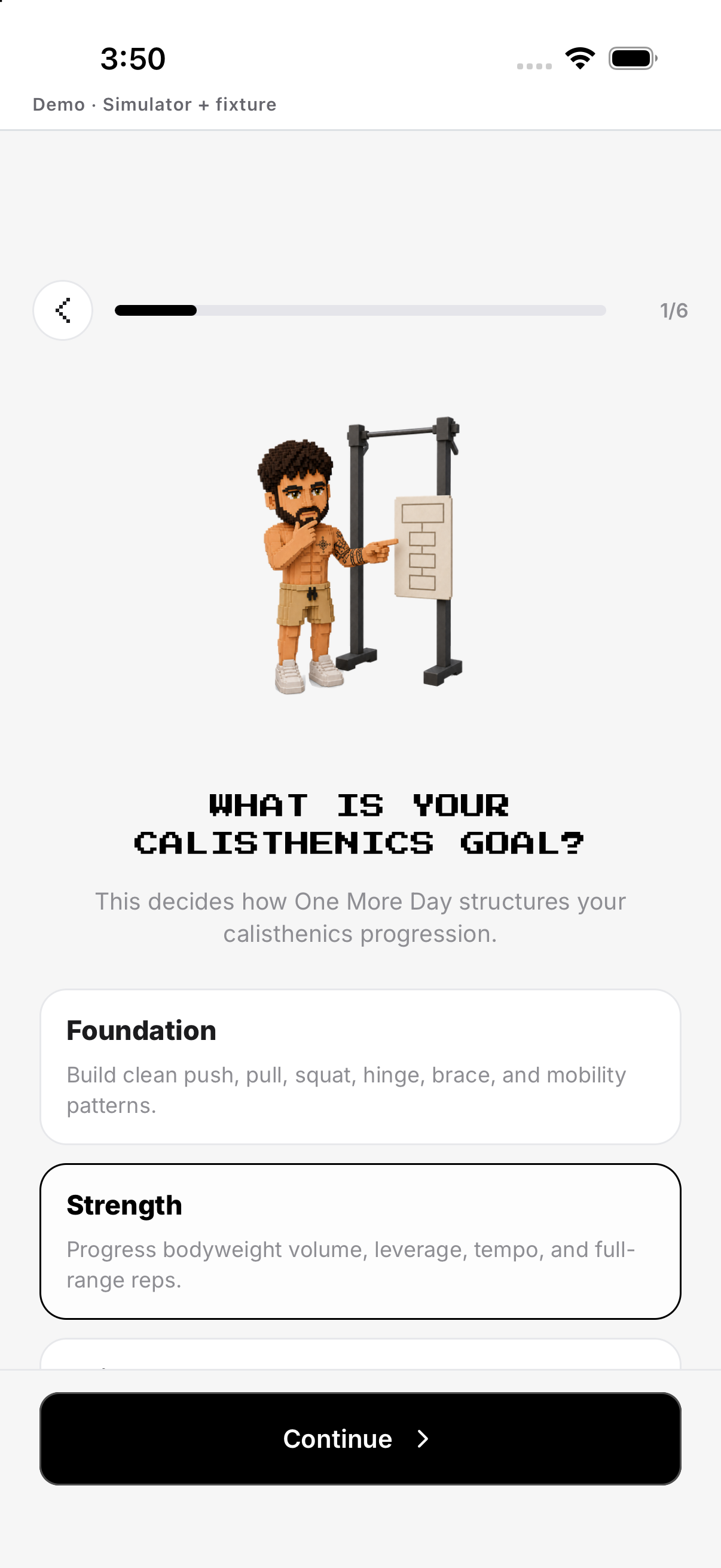
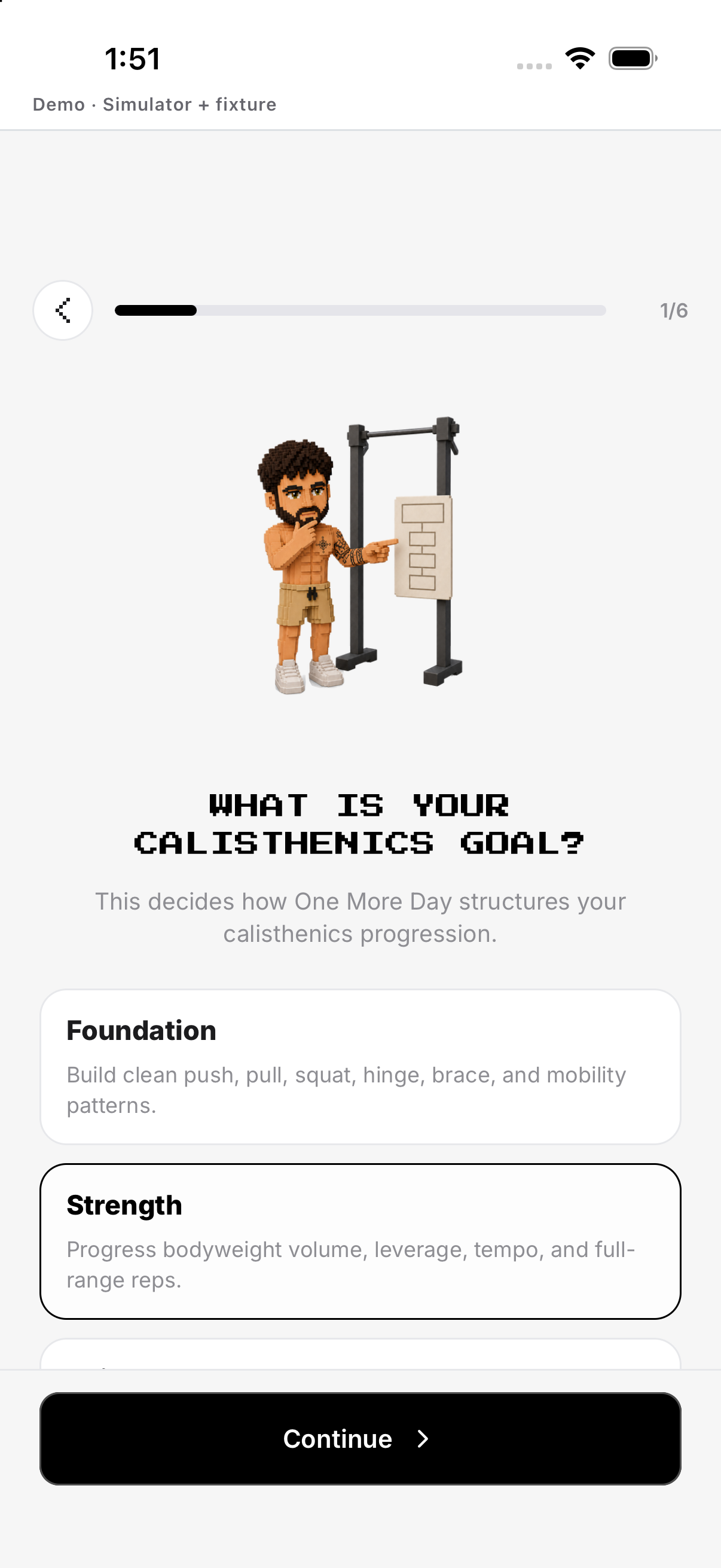
Choose outcome and current experience. Save the generated plan.
- Goal and level. From Missions, open Calisthenics and tap the gear at the top right to open Setup. Choose outcome and current experience.
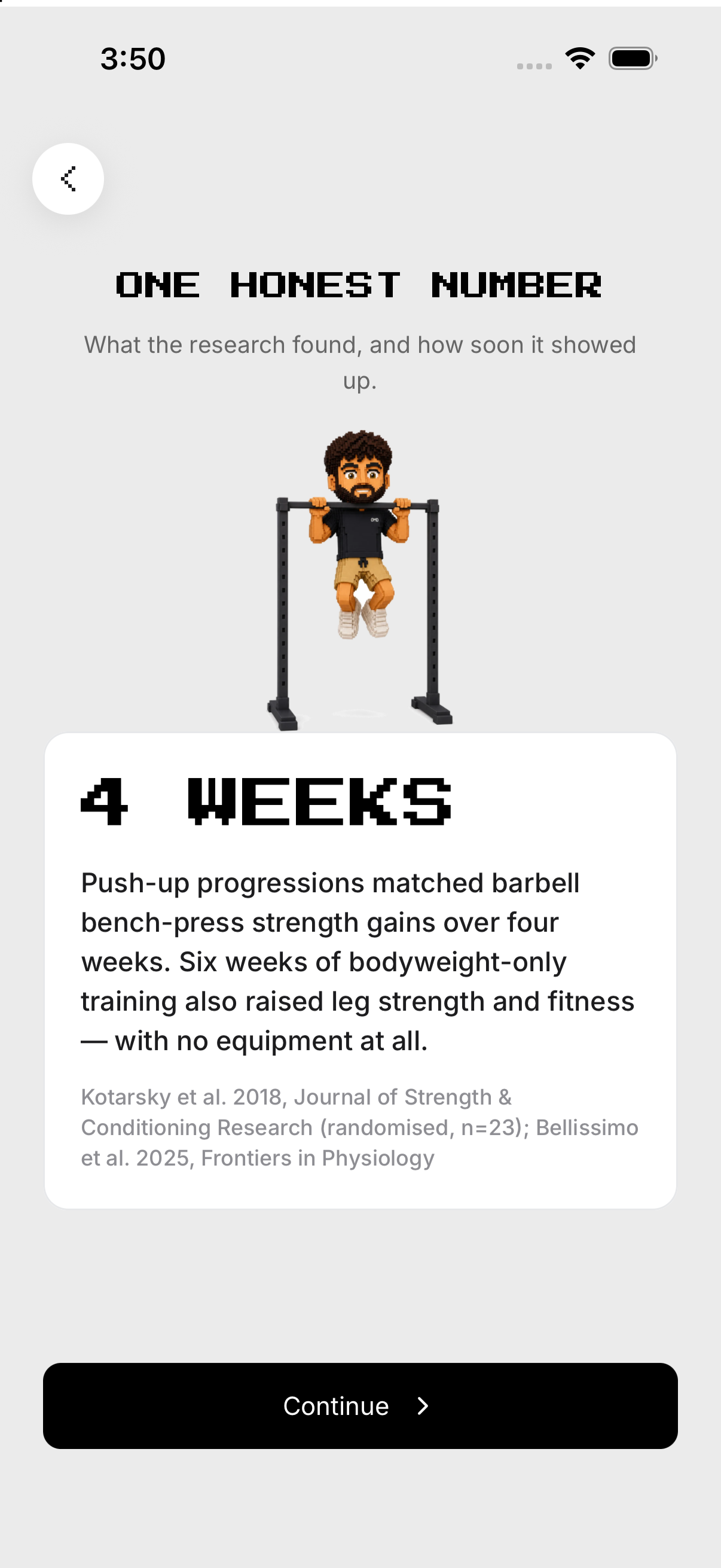
- Equipment / truth. Confirm available equipment and what counts.
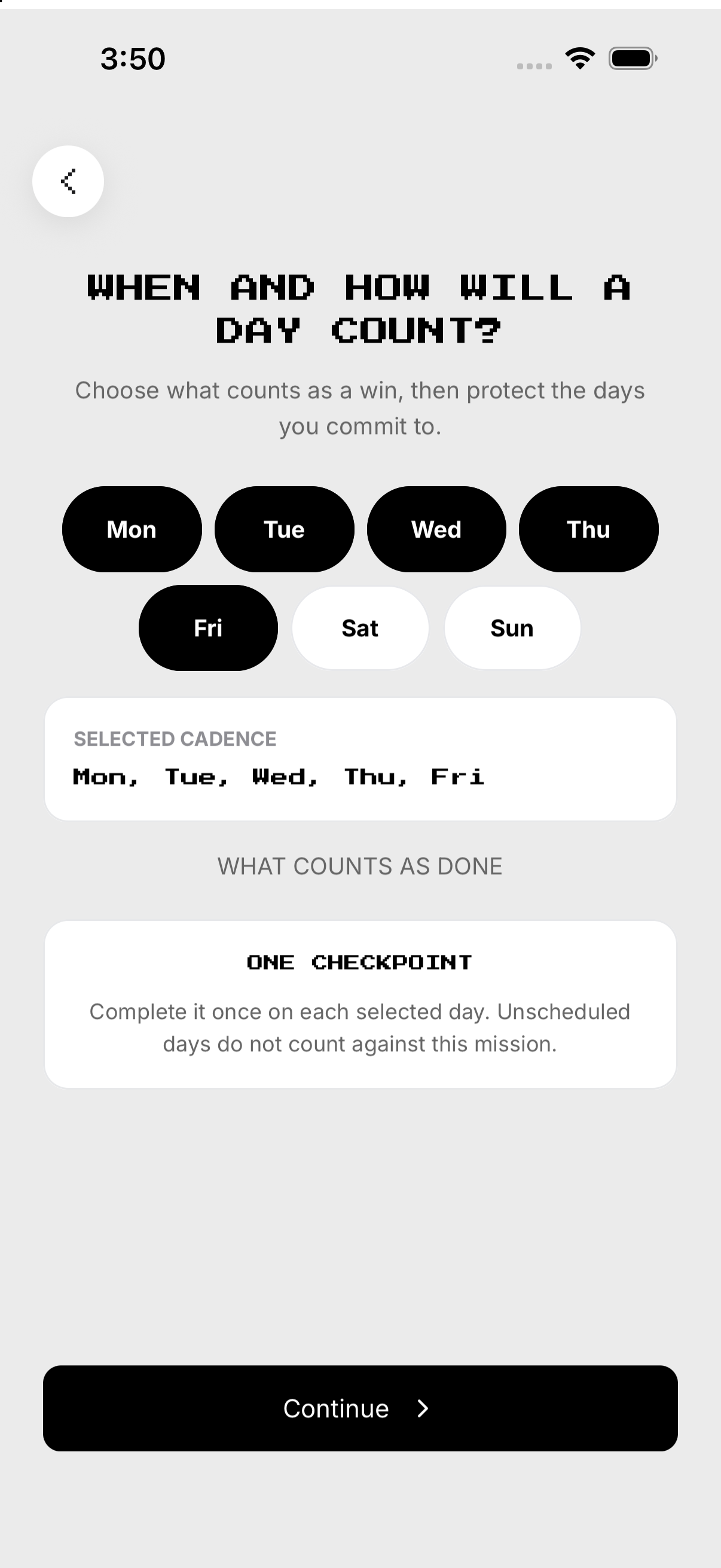
- Schedule / reminder. Choose target days and optional alert.
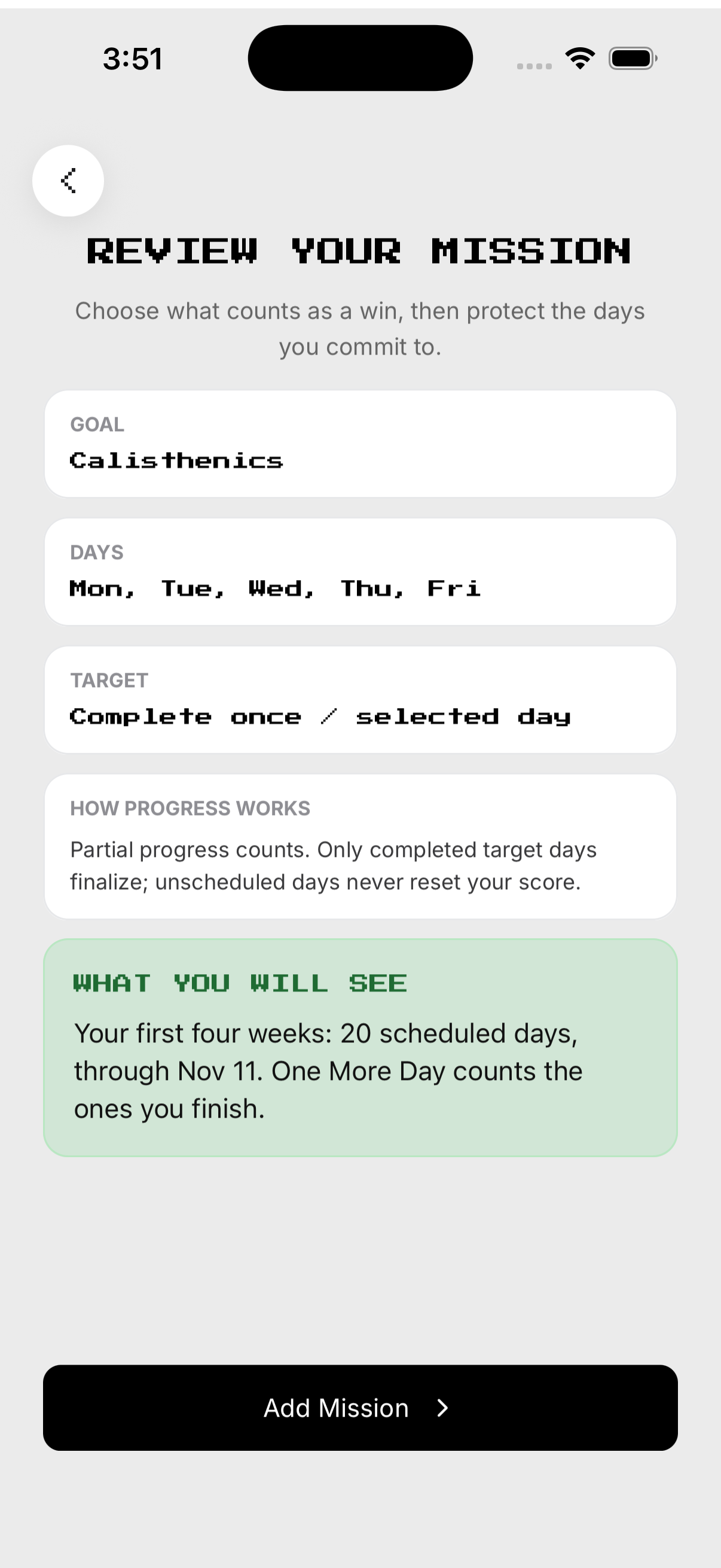
- Review. Save the generated plan.
Plan and exercises
See today's programmed work. Open the workout briefing.
- Open plan. See today's programmed work.
- Exercise detail. Tap an exercise to read instructions.
- Alternative. Use Free Flow or Custom when shown.
- Start. Open the workout briefing.
Log the session
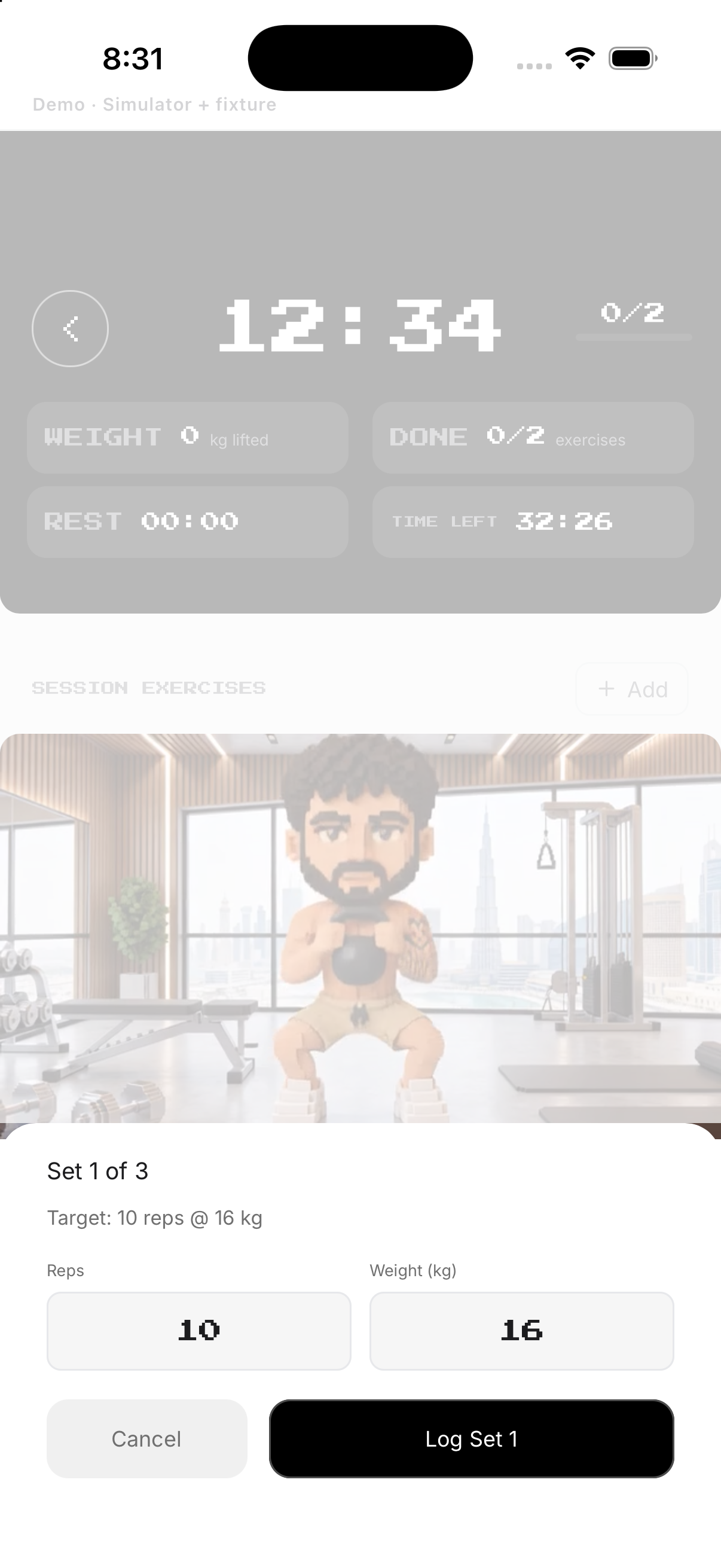
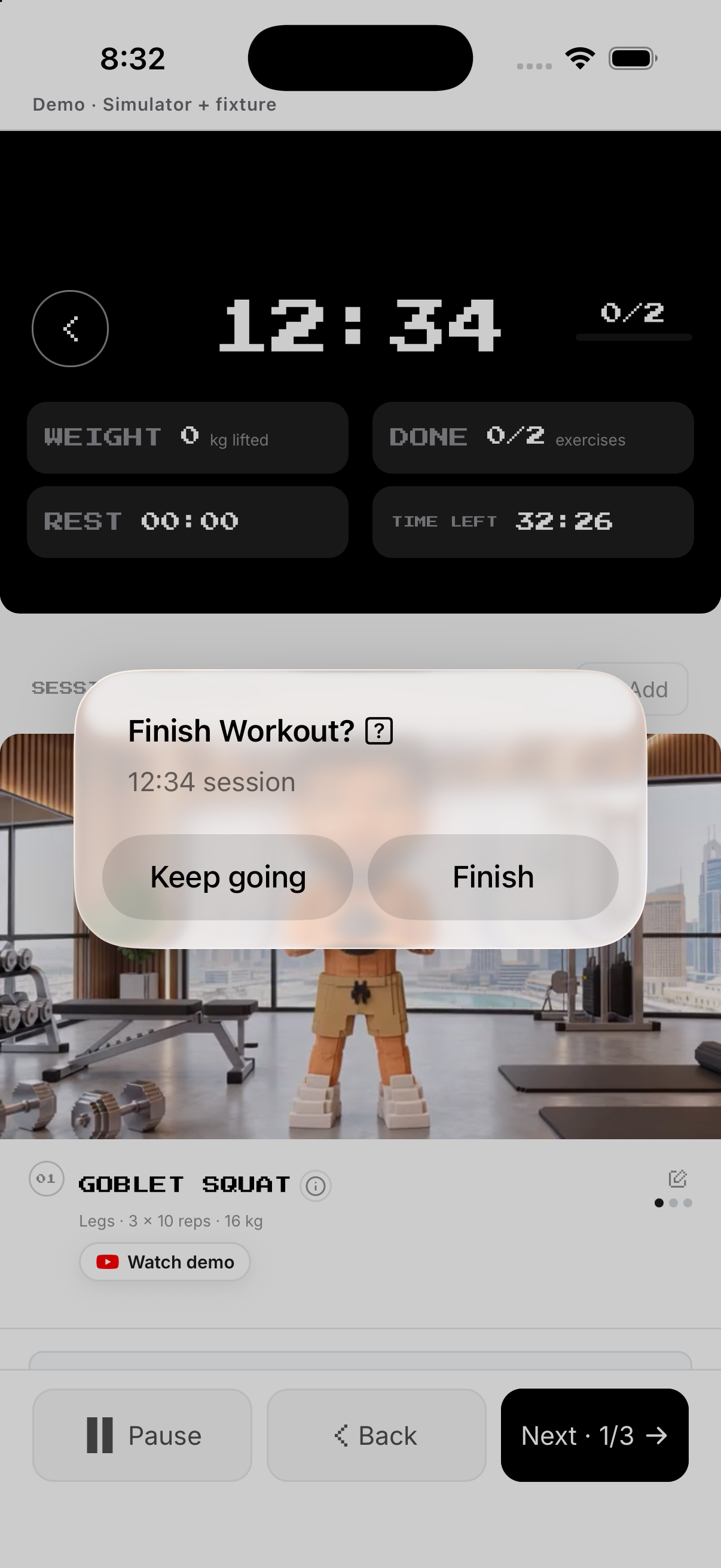
Begin from the briefing. Confirm completion; Discard abandons an unfinished session.
- Start. Begin from the briefing.
- Log. Enter sets, reps and load when shown; complete each row.
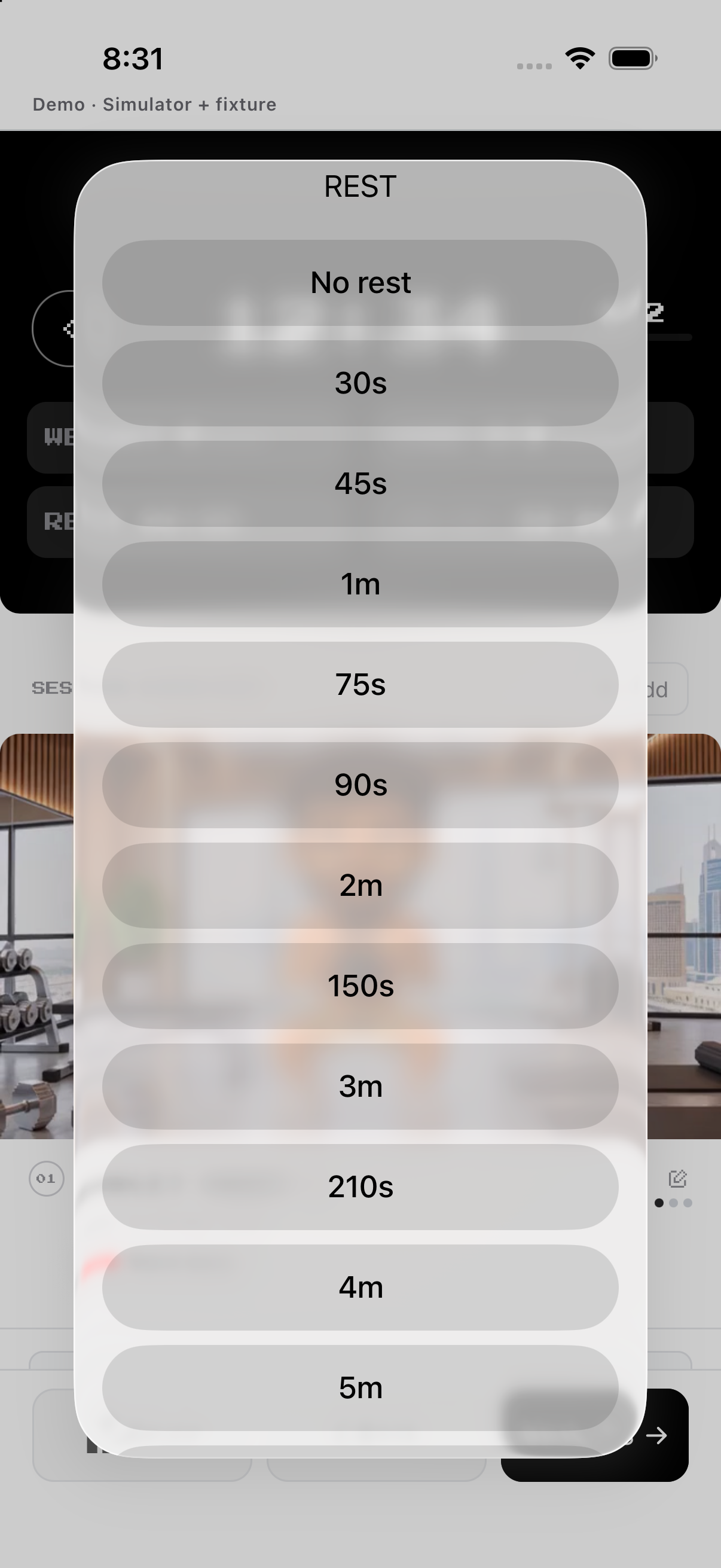
- Rest / Pause. Use rest between sets or pause the clock.
- Finish. Confirm completion; Discard abandons an unfinished session.
Rest, history, edit and delete
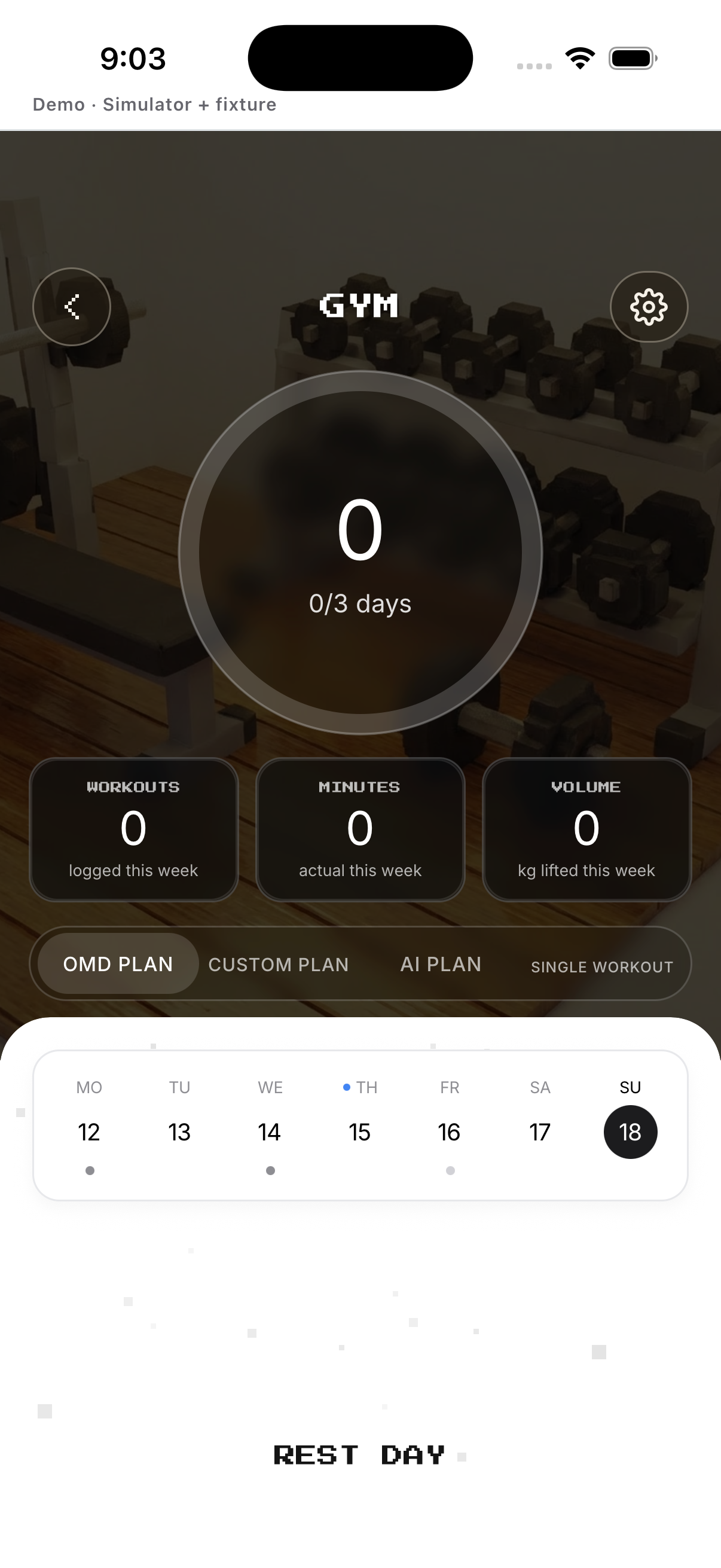
Select a day without a scheduled session to see REST DAY. Review completed sets in History, use Setup for future settings, or delete the mission and confirm.
- Select a rest day. Tap a calendar day with no scheduled workout. The shared workout plan labels it REST DAY; Build 200 has no separate Mark Off action.
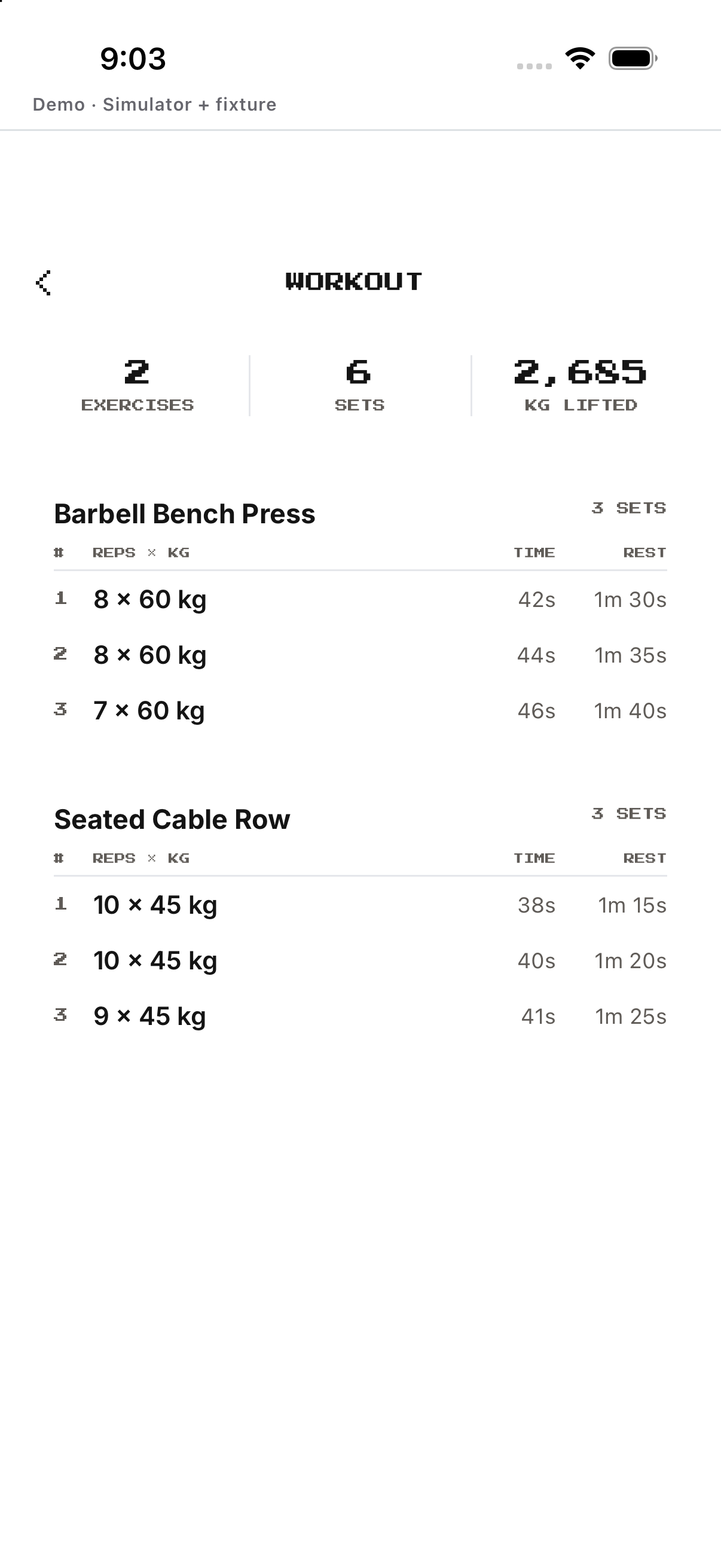
- Open History. Open a completed workout to review exercises, sets, reps, weight, active time and rest time.
- Edit future settings. Use Setup for future mission or plan settings; it does not rewrite a completed summary.
- Delete mission. In Setup, tap Delete mission and confirm the source-owned deletion dialog.
Example
Choose a sustainable level and three weekly target days.
Keep in mind
Bodyweight exercises may not show a weight field.